How to remove
The Windows Defender Security Center Icon
from Windows
Easily hide the Windows Defender Security Center icon from your Windows 10 taskbar system tray. Quick solutions, expert-tested tips for a cleaner look.


How does How to Remove the Windows Defender Security Center Icon from Windows 10 Taskbar System Tray end up on your PC?
- Icon confusion with other taskbar icons
- Frequent changes in icon status
- Pop-up alerts from the icon
- Windows Defender remains active with third-party anti-malware
- Limited options to close the icon
Repairs Windows system files, removes malware, and restores a clean OS state — without reinstalling.
The Windows Defender Security Center icon on the taskbar annoys me a lot. I often accidentally confuse it with Network settings or speaker icon. On top of that, the icon often changes its mode. Sometimes it’s green, sometimes marked with a red cross or labeled with a pop-up. Please tell me is it possible to remove that icon from the taskbar permanently?
The Windows Defender Security Center, vividly referred to as a Windows safety belt, is a new feature introduced with Windows 10 Creators Update. It’s an inbuilt antivirus application, which combines multiple security settings scattered all other the Windows 10 system. The new Windows Defender Security Center provides virus & threat protection, computer health report, Firewall & Network protection, app & browser control, and parental control.
If your PC already run Creators Update, you must have noticed the Windows Defender Security Center icon placed on the right side of the taskbar. This icon sits there to warn you about PC’s health, malware attacks, dangerous websites, and so on. If Windows Defender Security Center detects something alarming, the icon changes its label from green shield to the red cross. In addition, the icon frequently displays pop-up alerts, which may become really irritating. Another problem is that the Windows Defender Security Center remains active even if the PC user installs a third-party anti-malware. If the user attempts to close its icon on the taskbar, he/she is negatively surprised because the only available option is “Open.” Luckily, it’s possible to remove The Windows Defender Security Center icon from the taskbar quite easily (the instructions are given below). It’s noteworthy that disabling the icon does not terminate the center completely. You will be able to access it by opening “Search,” typing “Windows Defender,” and pressing “Enter.”
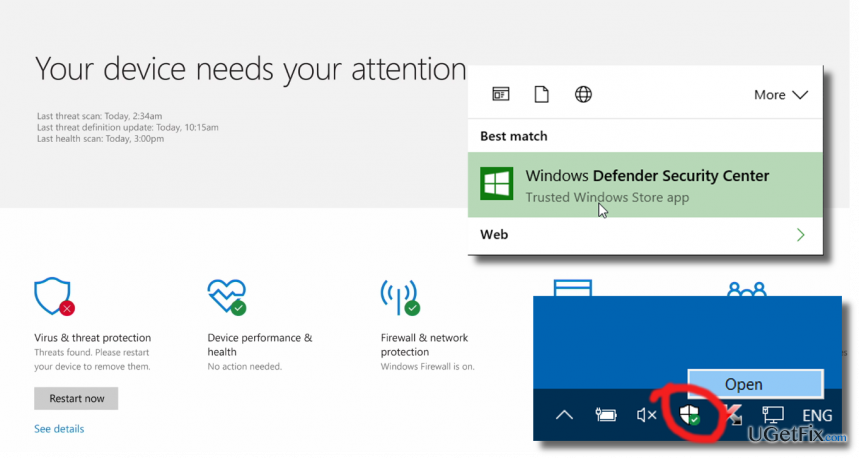
Removing The Windows Defender Security Center Icon from Windows 10 Taskbar
- Open Task Manager. This can be done either by right- clicking on an empty space on the taskbar and selecting “Task Bar” or pressing Ctrl + Shift + Esc.
- Sometimes a limited Task Manager version is opened. To see all tabs, click “More.”
- Your task is to disable the Windows Defender Security Center helper tool, which is located in C:\Program Files\Windows Defender\MSASCuiL.exe. For this purpose, click “Startup” tab at the top of the window.
- Locate "Windows Defender" or "Windows Defender notification icon" option, right-click it, and select “Disable.”
- Finally, reboot your PC or sign out and sign in to your Microsoft account.
If, for some reason, The Windows Defender Security Center icon reappears on the taskbar, after all, perform the steps mentioned above one more time.
TIP: make sure to keep your PC properly protected. Therefore, we would not recommend disabling Windows Defender services or Windows Firewall. Besides, we would highly recommend you scan the system with a tool like [d1] to keep the system optimized.
Bottom line
To remove the Windows Defender Security Center icon from the taskbar, you can use Task Manager to manage its visibility. This process does not disable the application entirely, allowing access through the search function. If these steps do not resolve the issue, consider checking for updates or seeking further assistance.
Frequently asked questions
Right-click on the taskbar, select 'Taskbar settings', scroll down to 'Notification area', and click on 'Select which icons appear on the taskbar'. From there, toggle off the Windows Defender Security Center icon.
No, Windows Defender is integrated into Windows 10 and cannot be fully uninstalled, but you can disable it from running in the background.
No, removing the icon only hides it from the taskbar; your system's security features will still function normally in Windows 10.




Report an issue
What's wrong with this guide? We review every report and update or remove content.
Report received — thank you. We'll review and fix it.
You need a free account to submit a report.
Be the first to comment