How to remove
“Updates Recommended” Pop-Up
from Windows
Easily eliminate the "Updates Recommended" pop-up in Windows 10 and 11. Follow our expert-tested steps for a cleaner experience with zero traces left.

How does How to Remove “Updates Recommended” Pop-Up end up on your PC?
- Adware-type program on the PC
- Redirects from encoded third-party websites
- Presence of potentially unwanted programs (PUPs)
- Security vulnerabilities in the system
- Installation of browser plug-ins that initiate redirects
Repairs Windows system files, removes malware, and restores a clean OS state — without reinstalling.
Hello all. I wonder if an “Updates Recommended” pop-up on Chrome is legitimate. For the last couple of days, web browser started redirecting me to a website, which urges me to install software updater to keep browser and system up-to-date. Once the message showed up, I check for available updates for my Windows 10 and installed all of them. I checked Chrome as well and ascertained that I’m using the latest version. What else can I do?
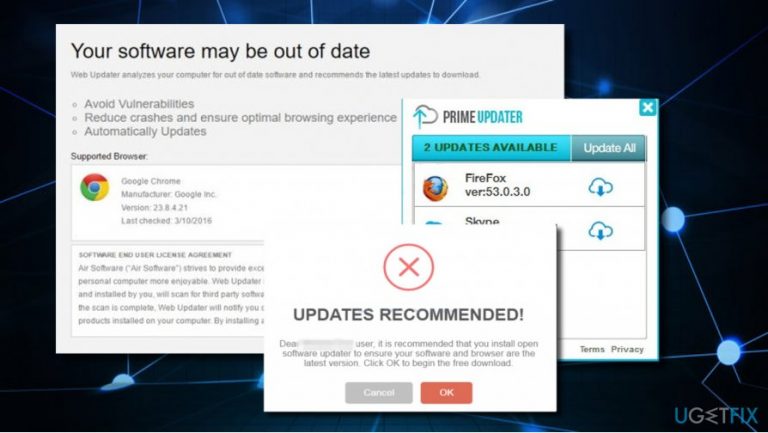
“Updates Recommended” Pop-Up is an advertising platform, which purpose is to disseminate Prime Updater utility. The pop-up may be triggered by adware-type program, which is lurking in your PC or encoded third-party websites. Anyway, the occurrence of the “Updates Recommended” pop-up indicates the fact that you PC is under attack of cyber criminals due to security vulnerabilities. To prevent your web browser from redirecting you to the “Updates Recommended” domain, you should scan the system with a professional anti-malware. We recommend using [d1]. Besides, reset Chrome or another web browser, which returns the pop-up. The instructions on how to do that are provided down below.
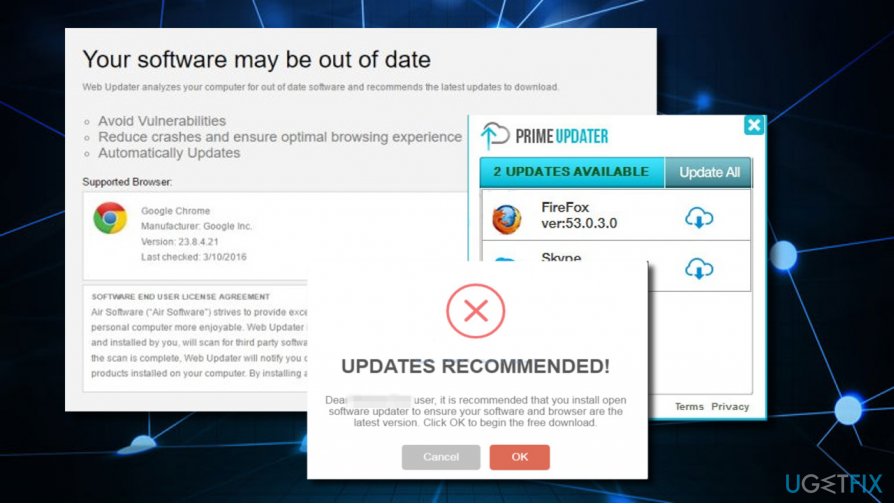
“Updates Recommended” Pop-Up Operation Scheme
“Updates Recommended” is not legitimate advertising form. This way, the developers of potentially unwanted programs (PUPs) are trying to distribute unwanted software in a tricky way. Once the “Updates Recommended” adware is installed, it installs an executable file and injects startup process. Besides, the browser plug-in is installed into the default web browser (Google Chrome, Mozilla Firefox, Microsoft Edge or any other). Right after that, web browser starts initiating redirects to doubtful websites that prompt people to install Prime Updater. The pop-up says:
Updates Recommended!
Dear ISP user, it is recommended that you install open software updater to ensure your software and browser are the latest version. Click OK to begin the free download.
“Updates Recommended” pop-up removal
Don’t get tricked by “Updates Recommended” pop-up. It’s developers don’t have any technical knowledge about the status of your operating system. By click OK, you’ll get a software installation pop-up, which contains Prime Updater setup file. What you have to do is to remove the “Updates Recommended” pop-up permanently. To do so, eliminate the adware that has been installed on your PC by bundling and then reset your web browser.
1. Sometimes “Updates Recommended” scam freezes the web browser. In this case, press Ctrl + Alt + Del and open Task Manager.
2. Open Processes tab and locate the process of your web browser.
3. Click it and select End Task.
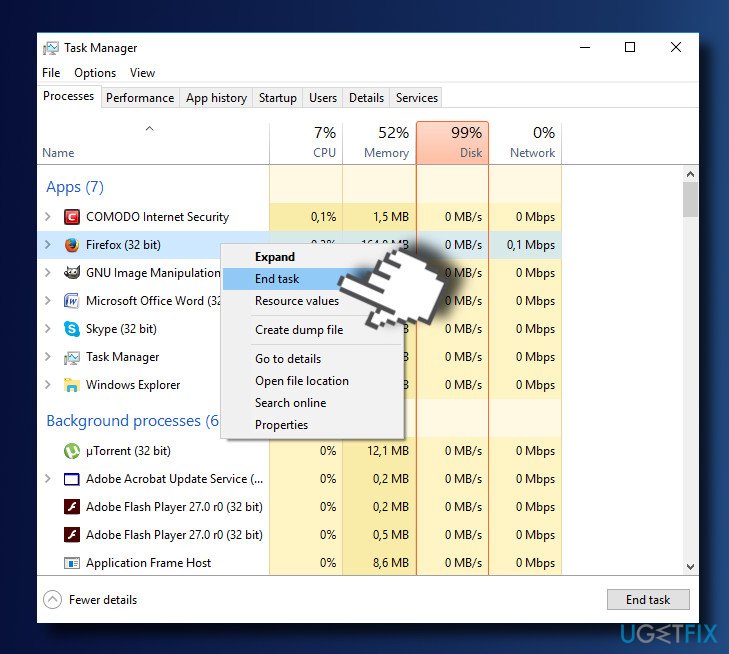
4. After that, you should either run a scan with a professional anti-malware or remove the adware manually.
5. If you opt for manual removal, press Windows key + I and select Apps.
6. Select Apps & Features on the left pane and find unknown/suspicious programs.
7. Click on them and select Uninstall.
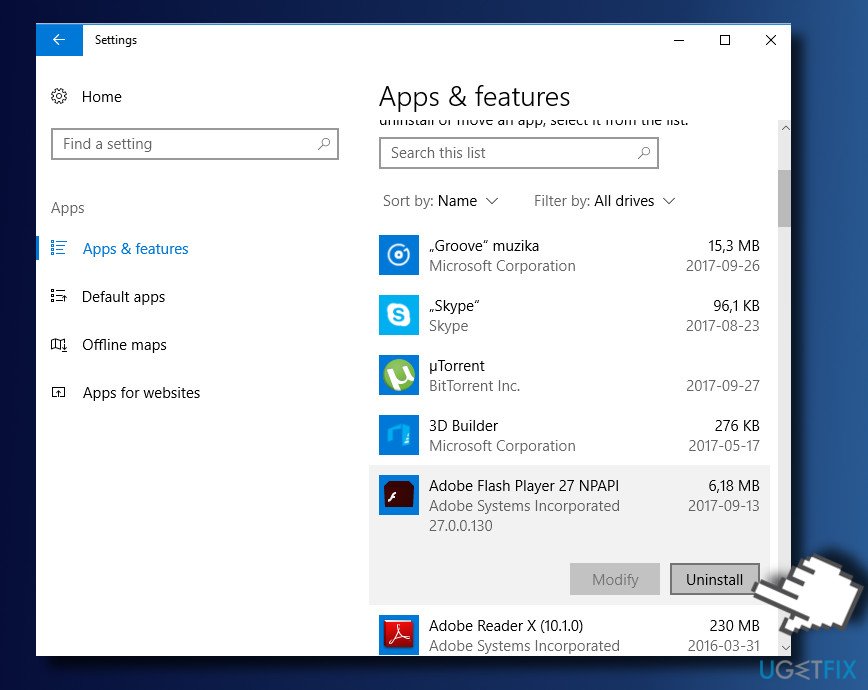
8. After that, reset Google Chrome. Open it, but don’t restore the last browsing session.
9. Click on the menu icon (three vertical dots) at the top-right corner of the screen.
10. Open Settings and select Show Advanced Settings.
11. Find Reset Settings option and click it.
12. To confirm the option, click Reset.
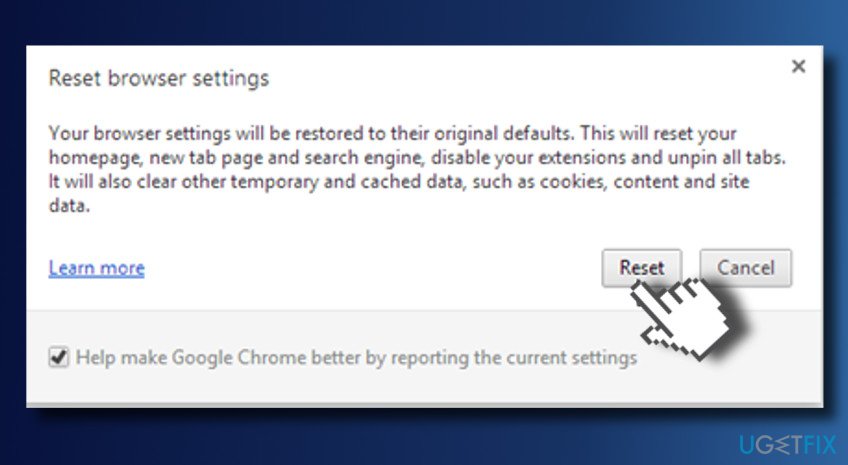
If you fixed “Updates Recommended” pop-up manually, we would highly recommend running a full system scan with a professional anti-malware to ensure that malware has successfully been removed.
Bottom line
To remove the 'Updates Recommended' pop-up, scan your system with a professional anti-malware tool and reset your web browser. If these steps do not resolve the issue, consider seeking further technical assistance.
Frequently asked questions
You can disable the pop-up by going to Settings > Update & Security > Windows Update, then selecting 'Advanced options' and turning off 'Receive updates for other Microsoft products.'
If the pop-up persists, check for any remaining components of the uninstalled program in the Control Panel under 'Programs and Features' and remove them if necessary.
Yes, you can adjust the notification settings by navigating to Settings > System > Notifications & actions and turning off notifications for updates.




Report an issue
What's wrong with this guide? We review every report and update or remove content.
Report received — thank you. We'll review and fix it.
You need a free account to submit a report.
Be the first to comment