How to remove
User account
from Windows
Easily remove unwanted user accounts from Windows 11 with our expert-tested guide. Enjoy a cleaner PC experience. Fixed in minutes!

How does How to remove user account from Windows 11 end up on your PC?
- Turning over your computer to someone else
- Consolidating your accounts
- No longer needing access to specific services
- Desire for a fresh start with the device
- Troubleshooting account issues
Repairs Windows system files, removes malware, and restores a clean OS state — without reinstalling.
Hi, I'd like to completely remove one of my user accounts on Windows 11. How do I do that?
A Microsoft account is a major feature in Windows 11, serving as a key to unlock different Microsoft services and features such as OneDrive, Office, and cross-device synchronization of personal settings. Typically, you may have many Microsoft accounts for various purposes, such as personal, professional, or educational.
However, there may come a moment when you need to remove a Microsoft account from your Windows 11 PC. The reasons for this decision can vary greatly; perhaps you are turning over your computer to someone else, consolidating your accounts, or just no longer need access to specific services on a given device.
There are various techniques for removing a user account from Windows 11, each with differing degrees of complexity and usefulness based on your experience and comfort with Windows' administrative tools. The most basic method is to utilize Windows Settings to visit the accounts section and remove the user profile directly from the interface. Alternatively, the Control Panel provides a more traditional approach to account management, including the deactivation of user accounts.
For those with a technical bent, using Command Prompt commands provides a more hands-on approach. This strategy gives users more control over the process, making it ideal for people with special needs or fixing account issues.
Regardless of the method used, it is critical to handle the removal of a Microsoft account with caution. To minimize unintended loss, carefully back up any important data related to the account.
If removing a Microsoft account is part of troubleshooting or prepping a device for a fresh start, a professional PC repair app, such as [d1], can be quite useful. This utility can automatically diagnose and address underlying Windows issues, resulting in an easy and error-free account removal process.
Method 1. Use the Windows Settings app
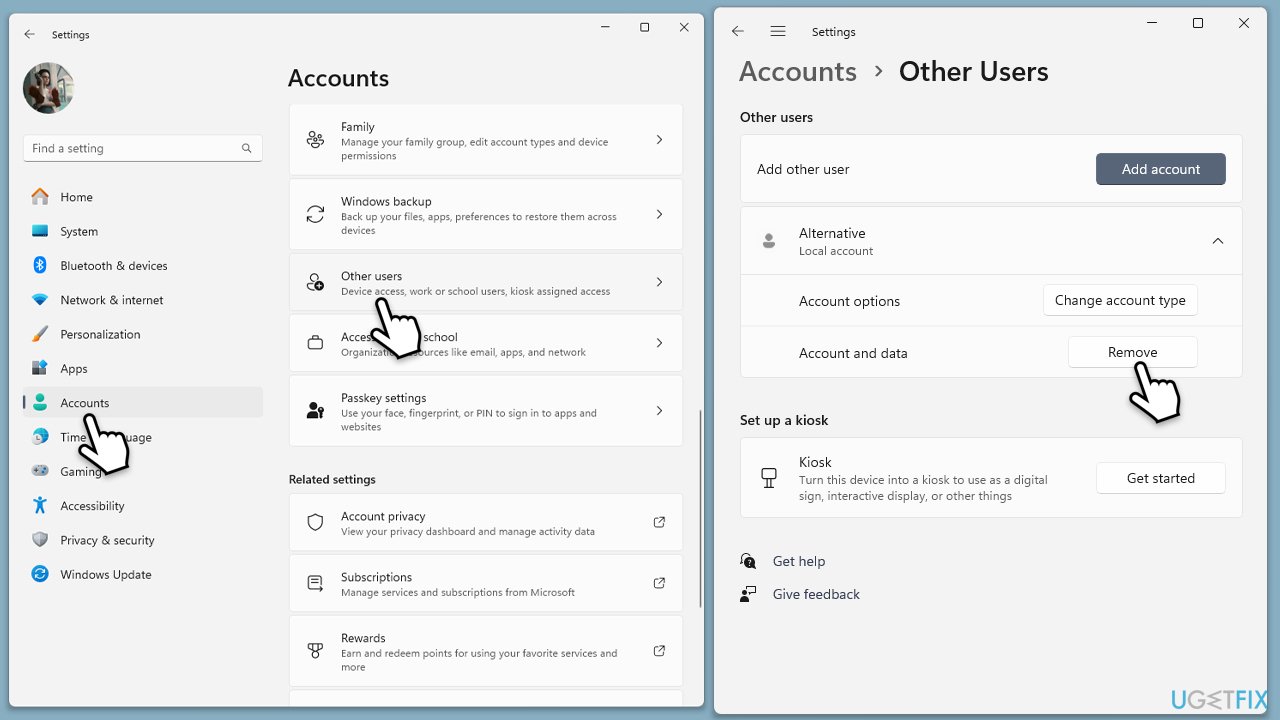
This method involves the Settings app in Windows 11, offering a user-friendly interface to manage accounts. It allows you to easily navigate through options to remove a Microsoft account without needing extensive technical knowledge.
- Open the Start menu and select Settings.
- Navigate to Accounts and under Account settings, pick Other users.
- Choose the account you wish to remove under Other users.
- Click on Remove and then confirm by selecting Yes.
Method 2. Use Control Panel
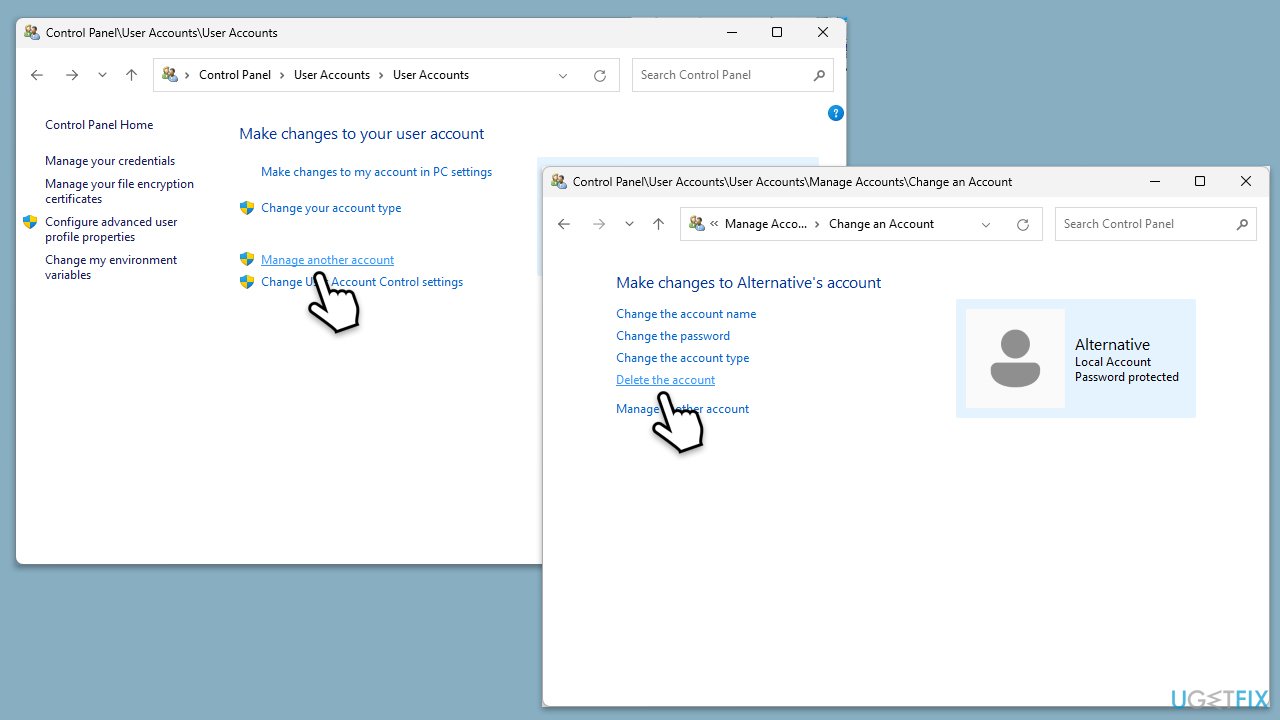
Using the Control Panel is a more traditional approach to manage user accounts. It provides a straightforward path to modify or remove accounts through a graphical interface, suitable for users of all levels.
- Type Control Panel in Windows search and press Enter.
- Select User Accounts and then again User Accounts.
- Click on Manage another account.
- Choose the account you want to remove and click Delete the account.
- When asked whether you want to save files from that account, choose Delete Files or Keep files, depending on your preference.
- Confirm with Delete account.
Method 3. Removal via User Accounts dialog
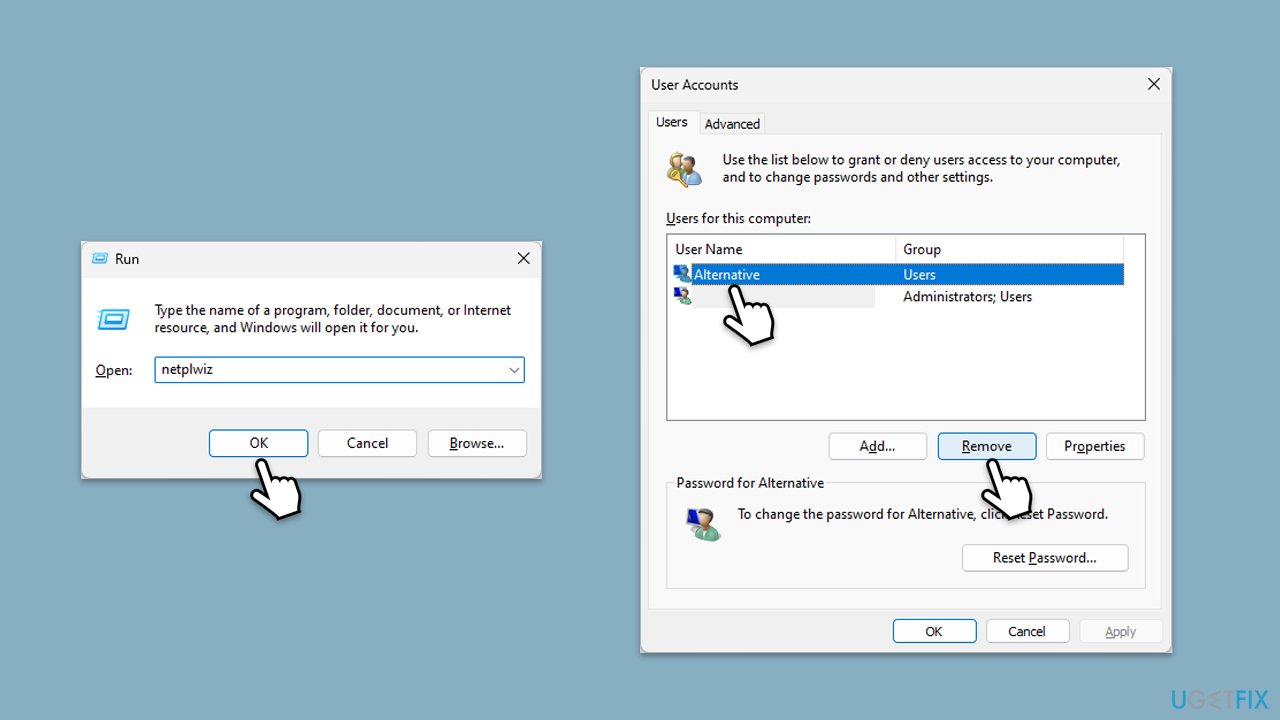
This method leverages the User Accounts dialog, accessible via the netplwiz command, to manage user accounts. It's a handy tool for quickly changing user settings without navigating through several menus.
- Press Win + R on your keyboard to open the Run dialog.
- Type netplwiz and press Enter.
- Select the account you wish to remove and click Remove.
- Click Yes when prompted to remove the account.
Method 4. Employ Computer Management
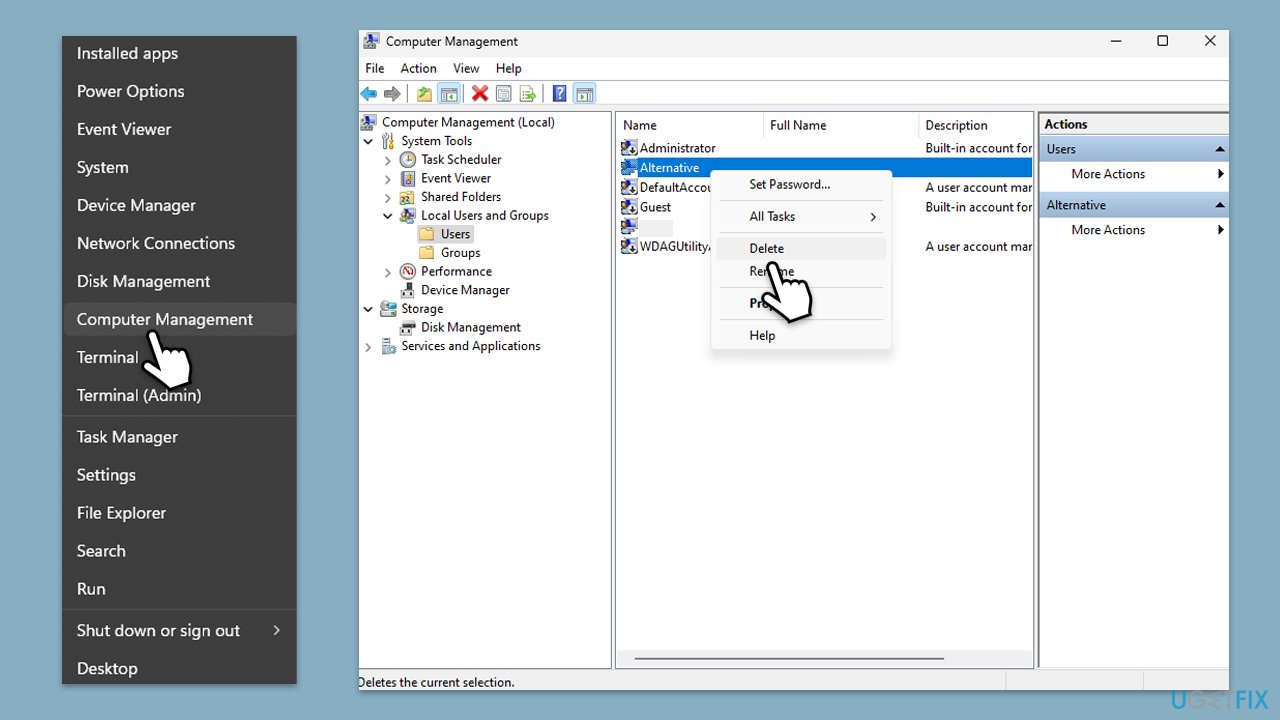
Computer Management is a powerful tool that allows advanced users to manage various system aspects, including user accounts. This method is best for those comfortable with more detailed system settings.
- Right-click the Start button and select Computer Management.
- Navigate to System Tools > Local Users and Groups > Users.
- Right-click the user account you want to delete and select Delete.
- Confirm the deletion by clicking Yes.
Method 5. Try using Command Prompt
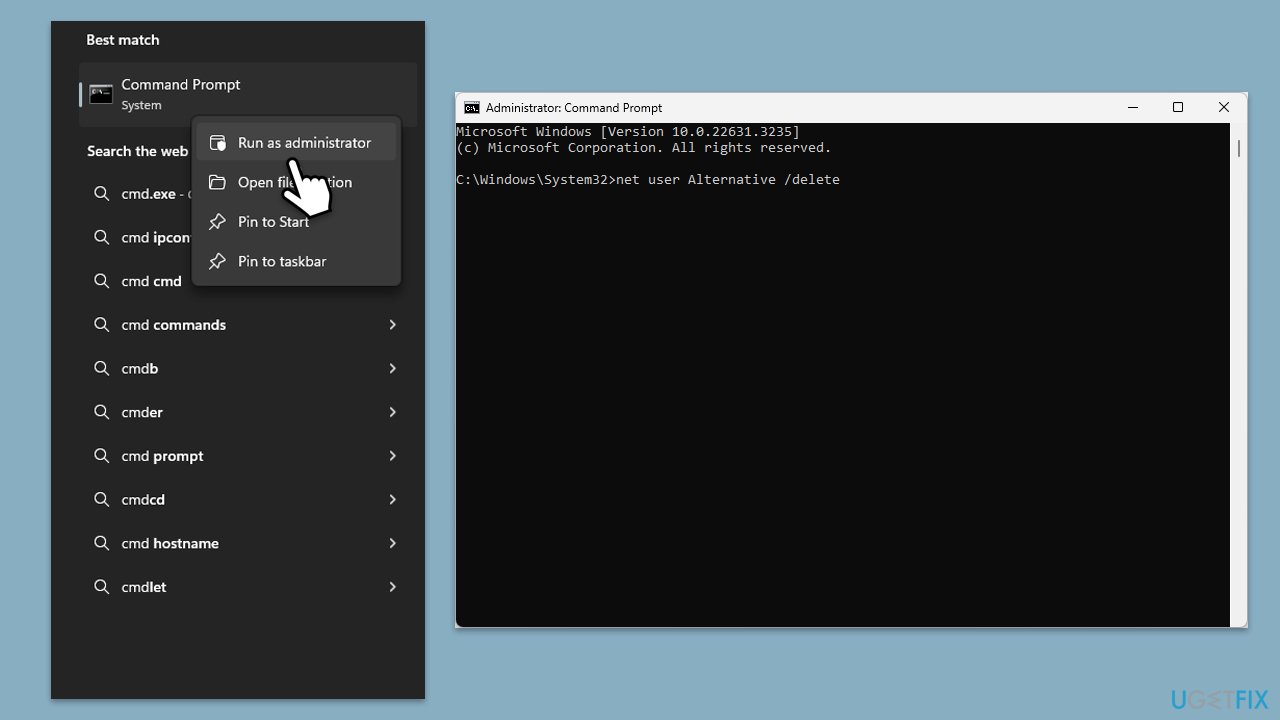
The Command Prompt allows for direct interaction with the operating system through commands. This method is suitable for advanced users who prefer command-line interfaces.
- Type cmd in Windows search.
- Right-click on Command Prompt, and select Run as administrator.
- User Account Control prompt will ask whether you want to allow changes - click Yes.
- To remove a user account, type the following command and press Enter:
net user USERNAME /delete (replace USERNAME with the name of the account you wish to remove) - Press Enter to execute the command.
- Restart your system.
Method 6. Through PowerShell
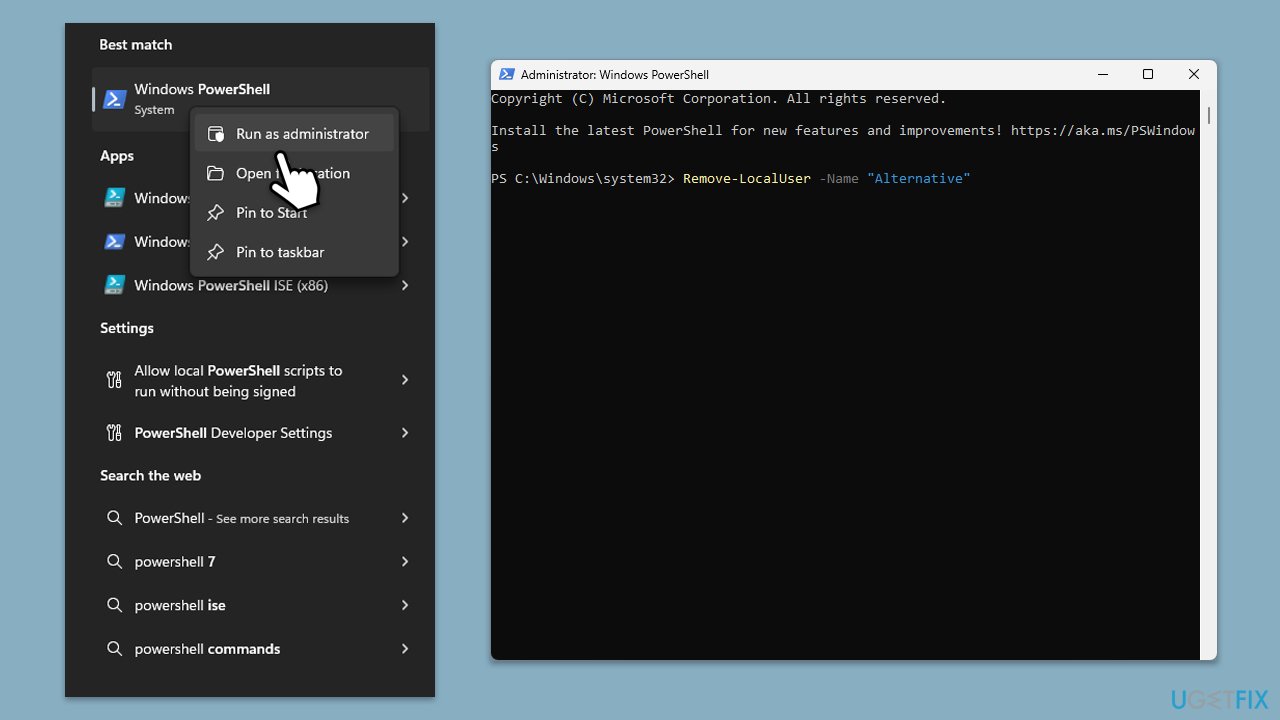
PowerShell is a powerful scripting language and shell framework used for automating tasks and managing configurations. This method is intended for users who have familiarity with scripting or command-line tools.
- Type PowerShell in the Start menu, right-click on Windows PowerShell, and select Run as administrator.
- When UAC shows up, click Yes.
- Enter the following command:
Remove-LocalUser -Name "username" (replace "username" with the name of the account you wish to remove). - Press Enter to execute the command.
- Reboot Windows.
Bottom line
To remove a user account from Windows 11, you can use the Windows Settings app for a user-friendly experience, the Control Panel for a traditional approach, or Command Prompt for more control. It's important to back up any important data before proceeding. If none of these methods work, consider using a professional PC repair app to assist with the process.
Frequently asked questions
To remove a user account in Windows 11, go to Settings > Accounts > Family & other users, select the account you want to remove, and click on 'Remove.' Follow the prompts to complete the process.
Yes, you can delete a Microsoft account from Windows 11 by navigating to Settings > Accounts > Your info and selecting 'Sign in with a local account instead' before removing it in Family & other users.
When you remove a user account in Windows 11, all files associated with that account will be deleted, so make sure to back up any important data beforehand.




Report an issue
What's wrong with this guide? We review every report and update or remove content.
Report received — thank you. We'll review and fix it.
You need a free account to submit a report.
Be the first to comment