How to remove
Share Wi-Fi
from Windows
Easily share Wi-Fi from your Mac to Windows 10 or Windows 11 devices. Get expert-tested tips for seamless connectivity, with screenshots included.

How does How to share Wi-Fi from Mac end up on your PC?
- Apple allows internet sharing on Mac
- Users may want to share internet to save costs
- Creating a hotspot on Mac is simple and quick
- Users can set and change the Wi-Fi password
- Internet sharing might disrupt the network
- USB sharing can prevent network damage
Repairs Windows system files, removes malware, and restores a clean OS state — without reinstalling.
Hi, I started wondering whether it is possible to make a Wi-Fi hotspot on mac similarly like on iPhone? It would be handy during holiday times! Thanks
Apple[ref en-1] allows its users to share internet connection not only on iPhone or iPad but also Mac. This might help people during holidays when they are traveling in between hotels. Usually, guest houses are likely to charge more for extra devices or faster Internet speed. Thus, some Apple users might want to share the Internet connection with their other devices.
While most people already know how to make a hotspot[ref en-2] on iPhone, they are not aware how to turn on Internet sharing on Mac to iPhone. However, it is a useful tip to learn since it might help you during times when you are running out of data on your smartphone.
Creating Wi-Fi hotspot on Mac is more than simple and does not require much time. Also, you will be able to set the password of your choice and change it every time you start sharing the Internet connection. It is useful when you are about to allow someone to connect to your Internet but want to protect your password.
How to share Wi-Fi connection from Mac to iPhone
Guide below is designed to show you how to share Internet connection over Wi-Fi quickly. However, please investigate possible side effects — in some cases sharing the Internet might disrupt the network[ref en-3].
Also, note that you can also share Internet from Mac to iPhone via USB. This would help you to prevent potential damage to your network. We kindly as you to follow the guidelines strictly and evaluate possible side effects.
An easy way to share Internet from Mac to iPhone:
- Navigate to the top-left corner of your desktop and click on Apple's icon;
- Select System Preferences;
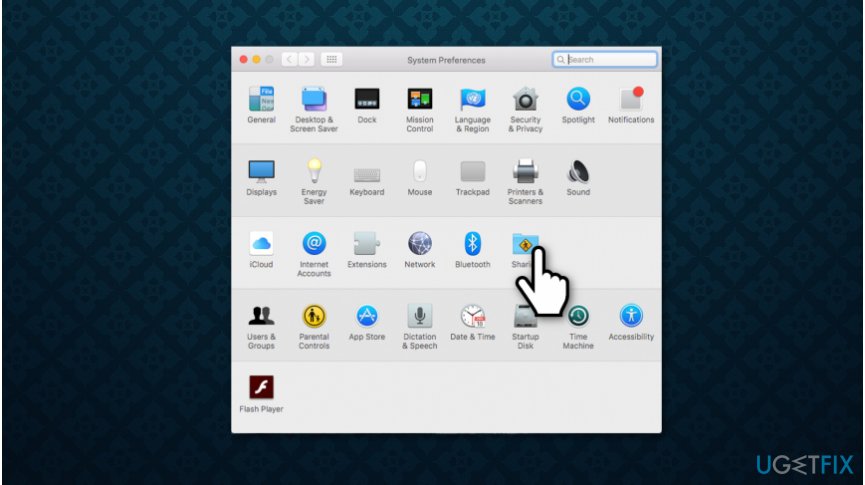
Open system preferences on mac - Click on Sharing (If you can't find it, press dotted button at the top-left corner);
- Press the Lock at the bottom to make changes.
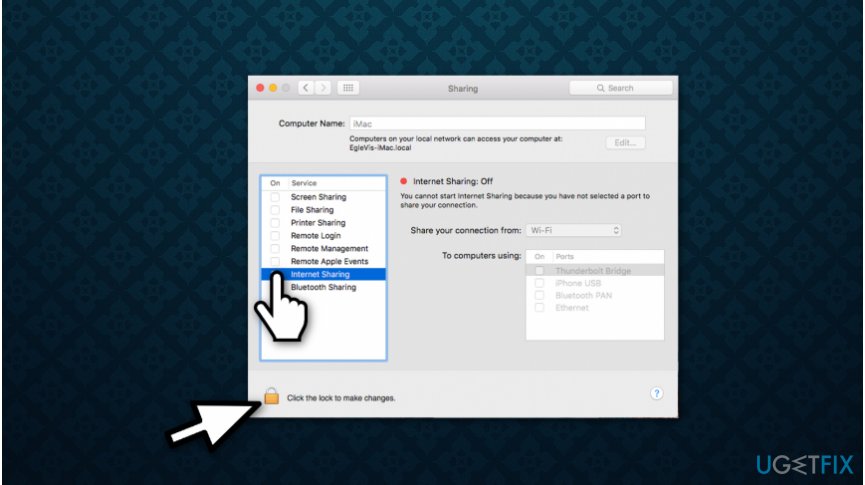
Create hotspot on mac - On the left, tick the Internet Sharing checkmark;
- On the right, select Wi-Fi.
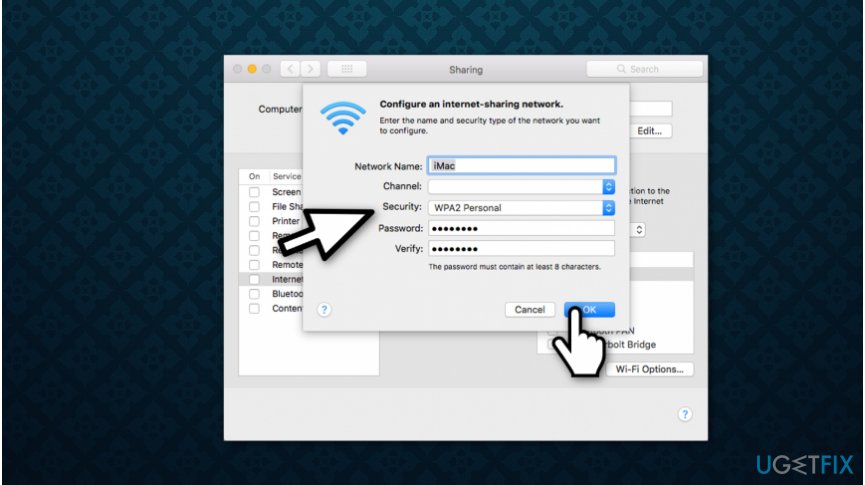
Create wifi sharing on mac - Create the name for your Wi-Fi and set the password.
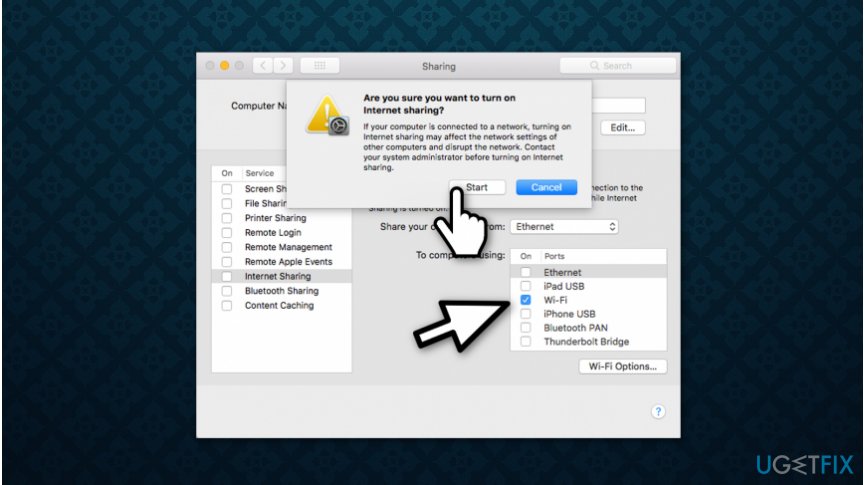
Share wifi connection on mac - Click OK and Start.
Bottom line
To share Wi-Fi from Mac, navigate to System Preferences, select Sharing, and enable Internet Sharing with Wi-Fi. You can create a custom Wi-Fi name and password for security. If these steps do not resolve the issue, consider troubleshooting your network settings or contacting support.
Frequently asked questions
Yes, you can share Wi-Fi from a Mac by creating a Wi-Fi hotspot, which can then be accessed by Windows 10 or Windows 11 devices.
You need to go to System Preferences, select Sharing, and enable Internet Sharing by choosing the Wi-Fi option and the method of sharing.
Yes, sharing your Mac's Wi-Fi connection may reduce the available bandwidth and could affect the speed on your Windows device.




Report an issue
What's wrong with this guide? We review every report and update or remove content.
Report received — thank you. We'll review and fix it.
You need a free account to submit a report.
Be the first to comment