How to remove
Uninstall 2DO
from Windows
Discover effective methods to uninstall unwanted programs on Windows 10 and Windows 11 effortlessly. Get expert-tested tips for a clean removal!

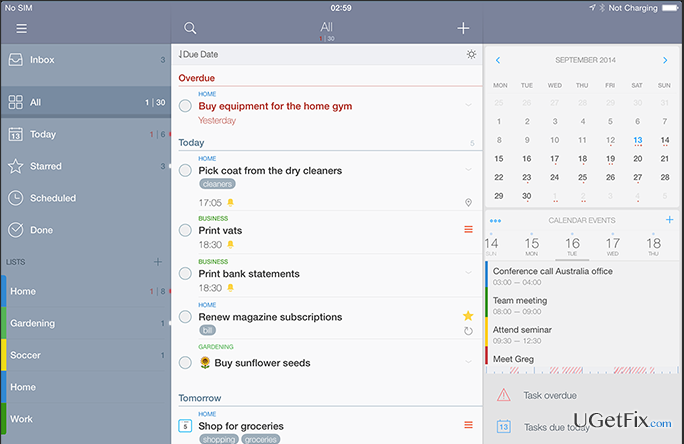
How does How to Uninstall 2DO on Mac OS X end up on your PC?
- Unawareness of proper uninstallation methods
- Accumulation of outdated files
- Incomplete removal of application components
- Neglecting to check other folders for related files
Repairs Windows system files, removes malware, and restores a clean OS state — without reinstalling.
Hi guys. Could you please advice how to root out 2DO app on Mac OS X? I kind of know how apps should be removed on this OS, but I haven‘t done that yet, so a little help would be appreciated. Thanks!
It’s interesting what is the reason you decided to uninstall 2DO app. It’s a great tool, in fact, that we recommend using for all who need to create their schedule. This tool is an easy-to-use system that works alongside your brain. Therefore, in case you forget what tasks you have for today or what are the most important upcoming events, 2DO is certainly for you. Millions of people have already reported this app as a handy tool due to its versatility, simplicity, multifunction, and professionalism. Therefore, we encourage you to think twice before removing 2DO app.
If you have already decided to uninstall 2DO on Mac OS X, we are hurry to help you. In order to keep Mac system optimized, removal of apps should be performed carefully and completely. Thus, it’s very important to stress the fact that ‘removal’ and ‘uninstalling’ are not equal processes. Usually, people remove apps by doing the following:
- Go to Applications folder;
- Look for 2DO (or another unnecessary app);
- Click on it and keep for a moment. Then drag to the Trash;
- Empty Trash.
Do you remember yourself doing this? Well, that’s a beginning of uninstalling. However, that’s not the end. If you tend to perform the above mentioned steps only, then your Mac may be full of useless, outdated files, which is why you might already noticed Mac's slowdowns or other side effects, So, how to uninstall 2DO on Mac OS X completely??
How to uninstall 2DO on Mac OS?
We believe that no one wants to burden the system with useless files purposely. The main reason why people do so is their unawareness of how apps should be uninstalled properly. All apps, including 2DO, should be uninstalled by performing those four steps listed above. However, after that it’s a must to check other folders and delete all related files. To start with, we would recommend checking the following locations:
/Library/Preferences/
/Library/Application Support/
This task is easy and don’t require special knowledge. You just have to know how to read and know to what files you are looking for. Since you are trying to delete 2DO on Mac OS, then look for the files that includes 2DO name or something similar. Be careful and go through the entire list in order to delete everything you need.
You may ask what happens if those related/additional/supporting files are left in the system. In fact, nothing serious will happen if you leave a couple of files. However, usually people who don’t know how to uninstall programs properly remove programs in the right way and leave hundreds or even thousands of unecessay files, which is why the system may:
- slow down;
- crash;
- cause errors;
- restart for no reason;
- programs may freeze;
etc.
In order to prevent that, you should uninstall 2DO on Mac OS X in a proper way, i.e. remove the app to trash first, and then find each component that belongs to it. In case you want to skip this long process, you can remove 2DO automatically with the help of professional Mac optimization tool. Our recommendation would be [rev id=”MacCleanse”] or [rev id=”MacKeeper”].
Bottom line
To uninstall 2DO on Mac OS X completely, follow the steps of dragging the app to Trash and emptying it, then check other folders for related files. If you notice slowdowns or other issues, ensure all related files are deleted. If none of these steps work, consider seeking further assistance.
Frequently asked questions
Yes, you can uninstall 2DO from Windows 10 or Windows 11 by going to the Start menu, selecting 'Settings', then 'Apps', and finding 2DO in the list to remove it.
If 2DO doesn't appear in the installed programs list, you may need to check for any associated files or folders and delete them manually from your system.
To ensure all remnants of 2DO are removed, use a dedicated uninstaller tool after the initial removal through 'Settings', which can help locate and delete leftover files and registry entries.




Report an issue
What's wrong with this guide? We review every report and update or remove content.
Report received — thank you. We'll review and fix it.
You need a free account to submit a report.
Be the first to comment