How to remove
Uninstall Adobe Shockwave Player
from Windows
Easily uninstall Adobe Shockwave Player from Windows 10 or 11 with our expert-tested guide. Enjoy a clutter-free system in minutes, with zero traces left.

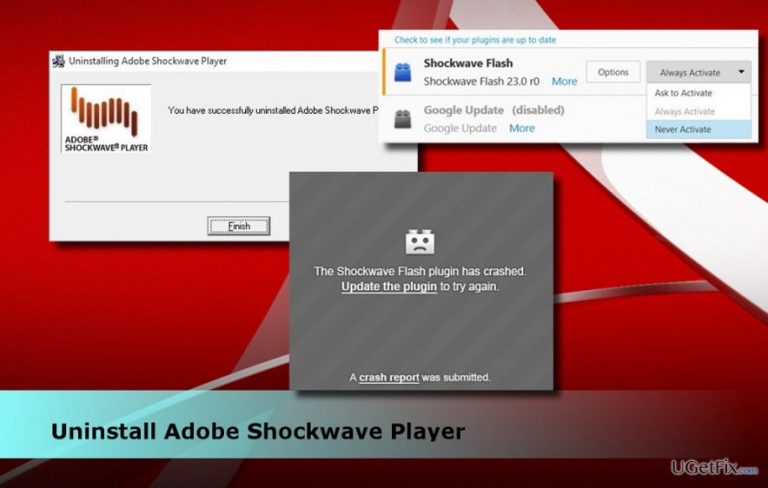
How does How to Uninstall Adobe Shockwave Player end up on your PC?
- Adobe Shockwave Player may be installed without user awareness.
- Security vulnerabilities are often detected in Adobe products.
- Adobe Shockwave is updated less frequently than other Adobe applications.
- Many websites are transitioning from Flash support to HTML, reducing the need for Shockwave.
- Keeping Shockwave may pose security risks if not regularly updated.
Repairs Windows system files, removes malware, and restores a clean OS state — without reinstalling.
I’m concerned if I really need Adobe Shockwave app? I’ve accidentally noticed it in Control Panel, but I actually don’t remember installing it. Antivirus did not detect any virus. Any information would be highly appreciated.
Adobe Shockwave (formerly known as Macromedia Shockwave) is one of the two major elements that found on the standard web browsers, including Google Chrome, Mozilla Firefox, Internet Explorer, Microsoft Edge, and so on. Shockwave from Adobe is a multimedia platform, which help adds animation and interactivity to the websites, which is why people can access 3D games, interactive product demonstrations, online learning applications, and so on. Usually, Shockwave is distributed bundled with Adobe Flash to enable more features on the web. Adobe’s statistics revealed that more that 450 millions of Internet users have already installed Adobe Shockwave Player and now can enjoy stereoscopic mode while playing games or viewing videos.
Despite the fact that Adobe Shockwave is a useful application, its security is highly questionable. If you are using Adobe on your PC, you must have noticed how often its updates are released. That’s because security experts often detect critical security vulnerabilities in Adobe’s products, especially Adobe Flash Player, which is why its updates are released on a regular basis. In comparison to Flash, Adobe Shockwave is updated far less frequently, but that doesn’t mean that it has no security flaws. Therefore, it’s vital to keep it up-to-date and keep a powerful anti-virus activated.
Having low-security indexes of Adobe Shockwave Player in mind, the web browser development companies seek to minimize the need for this tool. Therefore, many websites have already gone from Flash support to HTML. Therefore, you should consider whether to keep Shockwave on the system for the sake of security or not. If you have decided to uninstall Adobe Shockwave Player to prevent security flaws, then this post is for you. Follow the instructions give down below and you will successfully remove this multimedia platform from Windows.
Step 1. Uninstall Adobe Shockwave Player using Programs & Features service
- Press Ctrl + Shift + ESC to open Task Manager.
- Find Adobe Shockwave Player process, click it, and select End Task.
- Then right-click Windows key and select Control Panel.
- Open Programs & Features and double click on the Adobe Shockwave Player.
- When the confirmation window occurs, press Uninstall to start the removal.
- During the removal process, you may receive a pop-up asking what the reason why you decided to uninstall Shockwave Player is.
- Select the reason fits you the best and press Continue.
- Check the Remove all user data, history and settings from this computer option and click Uninstall.
Step 2. Remove Adobe Shockwave Player using a software removal tool
If manual Shockwave Player removal failed, try downloading [rev id="Perfect Uninstaller"]. Download it, then double click the setup file and follow the on-screen instructions. Set the program to detect and automatically uninstall Adobe Shockwave Player
Step 3. Delete Shockwave-related files from the Registry
- Press Windows key + R, type regedit, and press Enter.
- Click Edit and open Find.
- Type Shockwave Player and remove all detected files.
Step 4. Disable Shockwave from web browser
- Launch Google Chrome.
- Enter chrome://plugins/ in the URL bar or click on Menu -> Settings -> Extensions (on the left pane).
- Find Adobe Flash Player (Shockwave Flash Vxxx) and click on the Trash icon.
- The steps mentioned above will differ slightly depending on the web browser's type.
Finally, we would also recommend scanning the system with [rev id=”Reimage”] to check Windows for damaged system files, corrupted registries, malware or other issues.
Bottom line
To uninstall Adobe Shockwave Player, you can use the Programs & Features service in Windows. If you decide to keep it, ensure it is up-to-date and that a powerful antivirus is activated. If none of these solutions work, consider seeking additional technical support.
Frequently asked questions
To uninstall Adobe Shockwave Player on Windows 10, go to Settings > Apps, find Adobe Shockwave Player in the list, select it, and click 'Uninstall.' Follow the on-screen instructions to complete the removal.
If Adobe Shockwave Player won't uninstall on Windows 11, try using the Control Panel by navigating to Programs > Uninstall a program, selecting Adobe Shockwave Player, and clicking 'Uninstall.' If that fails, consider using a third-party uninstaller tool.
Yes, sometimes leftover files and registry entries can remain after uninstalling Adobe Shockwave Player on Windows. It's advisable to run a system cleanup tool to remove these remnants.




Report an issue
What's wrong with this guide? We review every report and update or remove content.
Report received — thank you. We'll review and fix it.
You need a free account to submit a report.
Be the first to comment