How to remove
Uninstall Alarm Clock Pro
from Windows
Discover efficient ways to uninstall unwanted programs on Windows 10 and 11. Say goodbye to clutter with expert-tested methods for a clean PC.

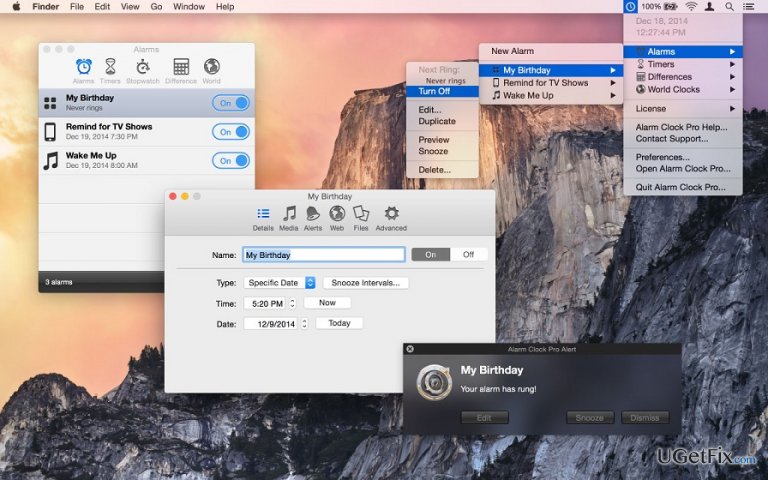
How does How to Uninstall Alarm Clock Pro on Mac OS X end up on your PC?
- User wants to uninstall the application
- User is unaware of complete uninstallation processes
- Dragging the icon to the trash does not remove all files
- User may not know about alternative uninstallation software
- User may not understand the difference between removal and uninstallation
Repairs Windows system files, removes malware, and restores a clean OS state — without reinstalling.
What is the best way to uninstall Alarm Clock Pro from Mac OS X, apart from dragging the icon to the trash can? Thanks in advance.Alarm Clock Pro is a reliable application for Mac OS X. It's a reliable alarm clock that has a variety of additional functions. As its developers state:
Waking up to headache-inducing buzzers and static-plagued radio stations can now be confined to your past. Alarm Clock Pro enables you to design your daily routine and perform various tasks automatically, such as starting your favorite iTunes playlist!
Sounds great and is, actually, great. However, if you have landed on this website, then obviously your task right now is to uninstall Alarm Clock Pro on Mac for some reason. Since in this blog we do not seek to find out the main reasons that trigger people to install or uninstall software, we will simply present you with the possible solutions for Alarm Clock Pro removal.
To start with, it's important that you understand the difference between 'removal' and 'uninstalling'. In fact, these processes are closely related. The main difference is that one of them is complete while the other is not. To be more precise, 'removal' means that you:
- Go to the Applications folder;
- Click and hold the Alarm Clock Pro icon;
- Drag this icon to Trash;
- Select Empty Trash.
However, that's not the end of uninstalling. Dragging the icon to trash only prevents you from seeing and launching the main executable file. However, you should keep in mind that programs usually consist of various files, so by removing the main executable, you decide to ignore all other parts of a program stored in various Mac's locations. Thus, if you want to initiate a complete Alarm Clock Pro uninstalling on Mac OS X, you should either fully check the system, what means that you have to check all possible locations by yourself or use a software, for example, [rev id=”MacKeeper”] or [rev id="CleanMyMac"] that can do that automatically.
How to Uninstall Alarm Clock Pro On Mac OS X?
As we have already noted, it's possible to uninstall Alarm Clock Pro on Mac OS X both manually and automatically. Anyway, the most important thing that you have to do when dealing with unwanted software on your Mac is to remove all extra files. Otherwise, useless files may be amassed on your Mac's system, which is why its performance may diminish significantly, other apps may not be accepted due to the lack of space, the system may start crashing, various errors may occur and so on. That's why it's so important to keep your system optimized and free of unnecessary files. If you are determined to uninstall Alarm Clock Pro on Mac OS X right away, start checking the system from these locations:
- /Library/Application Support/;
- /Library/ Preferences/.
Nevertheless, don't forget to check the rest of them. If you haven't performed this task before, you might not imagine how time-consuming and risky this task may be. If you want to save your precious time and protect important files from accidental removal, our recommendation would be to uninstall Alarm Clock Pro on Mac OS using [rev id=”MacKeeper”], [rev id="CleanMyMac"] or another reliable Mac optimization tool.
Bottom line
To uninstall Alarm Clock Pro on Mac OS X, you can drag the icon to the trash and empty it, but this does not remove all associated files. For a complete uninstallation, you should check all system locations manually or use software like MacKeeper or CleanMyMac. If none of these methods work, consider seeking further assistance or checking online forums for additional solutions.
Frequently asked questions
Yes, you can uninstall Alarm Clock Pro on Windows 10 or Windows 11 using the 'Apps & features' settings in the Control Panel.
To remove Alarm Clock Pro, go to Settings > Apps > Apps & features, find Alarm Clock Pro, click on it, and select 'Uninstall'.
No, uninstalling Alarm Clock Pro will not affect your other applications on Windows 10 or Windows 11.




Report an issue
What's wrong with this guide? We review every report and update or remove content.
Report received — thank you. We'll review and fix it.
You need a free account to submit a report.
Be the first to comment