How to remove
Uninstall Amazon Assistant
from Windows
Easily uninstall Amazon Assistant from Windows 10 or 11 with our expert tips. Achieve a clean removal and enjoy a clutter-free PC, updated 2025.

How does How to Uninstall Amazon Assistant end up on your PC?
- Promoted in freeware and shareware downloads
- Installed via Quick/Recommended installation settings
- Registers to launch automatically on boot
- Inserts a web browser plug-in
- Categorized as a potentially unwanted program (PUP)
Repairs Windows system files, removes malware, and restores a clean OS state — without reinstalling.
Could you please help me to uninstall Amazon Assistant?? I’ve recently noticed Amazon Assistant icon on Chrome and then found it running on Task Manager. I’ve tried to uninstall it soo many times, but with no avail as it keeps reinstalling automatically. I wouldn’t be so anxious, but it’s on my work computer. Any help would be highly appreciated.
Amazon Assistant is an application that is supposed to improve shopping on Amazon. The add-on offers price comparisons, provides discounts and various shopping deals. Despite the fact that it’s a legitimate browser extension, it might cause various unwanted activities when browsing the web or appear in the browser out of nowhere.
The sudden appearance of the Amazon Assistant can be explained quite easily. The application is promoted in freeware and shareware downloads, so it can get into the system unnoticed if users use a Quick/Recommended installation of the needed free program.[ref en-3] However, using Advanced/Custom settings allows seeing the list of suggested additional downloads, and declining their installation.
However, this questionable distribution method is just one of the reasons why Amazon Assistant is categorized as a potentially unwanted program (PUP).[ref en-2] Among other negative features of this application are:
- an increased amount of ads showing up on the browser;
- sluggish browser’s performance;
- data tracking activities.[ref en-1]
During the setup, Amazon Assistant registers itself to launch automatically on boot and inserts a web browser plug-in to Google Chrome, IE, Firefox or another web browser that the computer owner is currently using as default. Reverting these changes and getting rid of the add-on might be complicated.
Many users report that they are unable to uninstall Amazon Assistant from the browser. PC users claim that it keeps reinstalling automatically or cannot be found in Add/Remove folder. However, we can ensure that this extension is possible to get rid of. If you are having the same problem, please follow the instructions below.
Amazon Assistant removal guide
Amazon Assistant is not a malicious application, so its removal does not require the usage of anti-malware. Nevertheless, if you cannot get rid of this software in a usual way, our recommendation would be to use [d1]. Click the link and follow the on-screen instructions to install the application. Once done, set it to uninstall Amazon Assistant. If, however, you still opt for removing it manually, try to do the following steps:
Step 1. Uninstall Amazon Assistant from Windows OS
- First of all, log on as administrator.
- Then right-click on Win key and select Control Panel.
- Click Uninstall a Program under Programs.
- Find Amazon Assistant, click it, and select Uninstall.
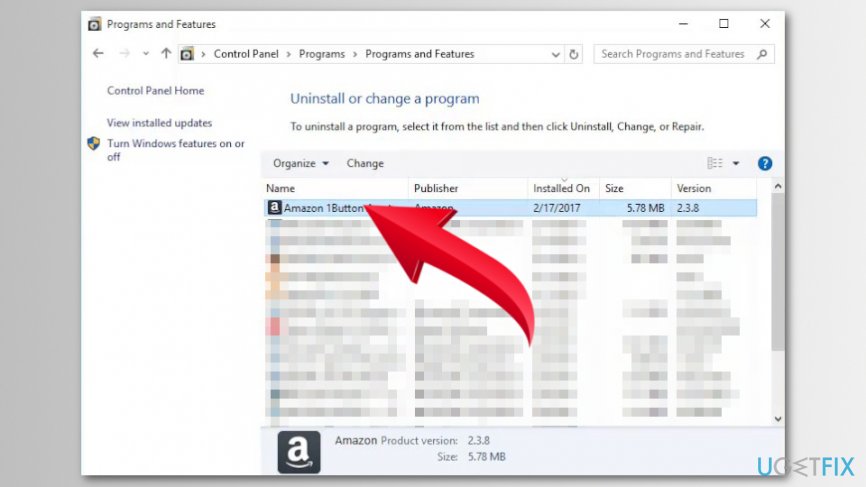
Uninstall amazon assistant from windows - After that, go to System and Security and open Administrative Tools.
- Check if Amazon Assistant service is still there. If you found it, then right-click on it to open Properties and change startup type from Automatic to Disabled.
- Finally, right-click on Win key and select Command Prompt (Admin).
- Type sc delete Amazon Assistant Service command and press Enter.
Now you need to get rid of Amazon Assistant browser extension from your web browser. It shouldn’t be hard to do it. However, if you need more information, please proceed to the step 2.
Step 2. Delete Amazon Assistant from Google Chrome and Mozilla Firefox
Eliminate the unwanted extension from Google Chrome
- Open Google Chrome and click on the three vertical dots to expand the menu.
- Click More tools and choose Extensions.
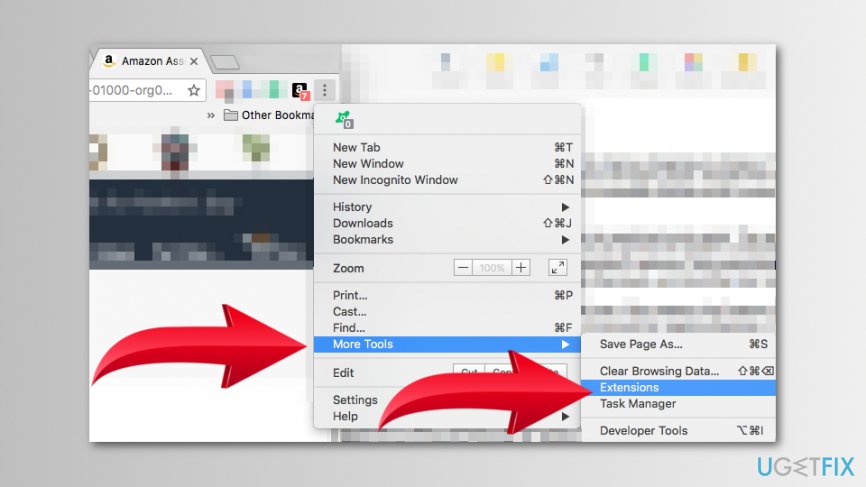
Acess chrome extensions - Find Amazon Assistant for Chrome and click Remove option.
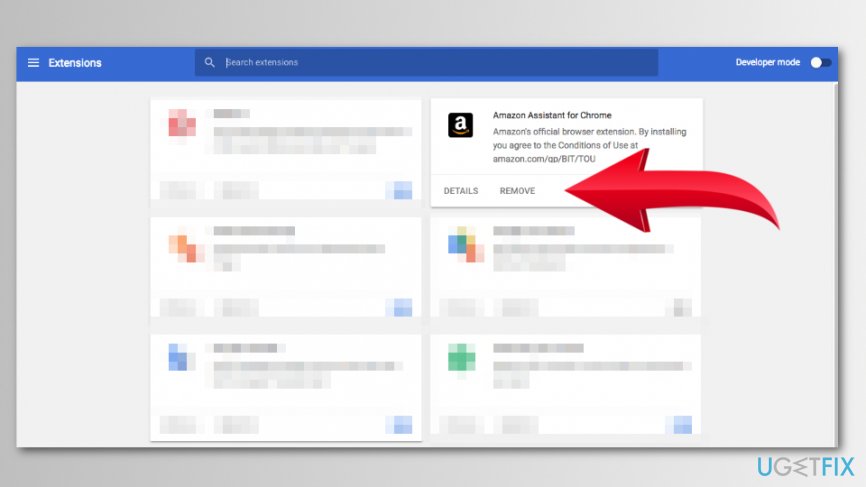
Remove amazon assistant from chrome - In the appeared pop-up window click Remove again.
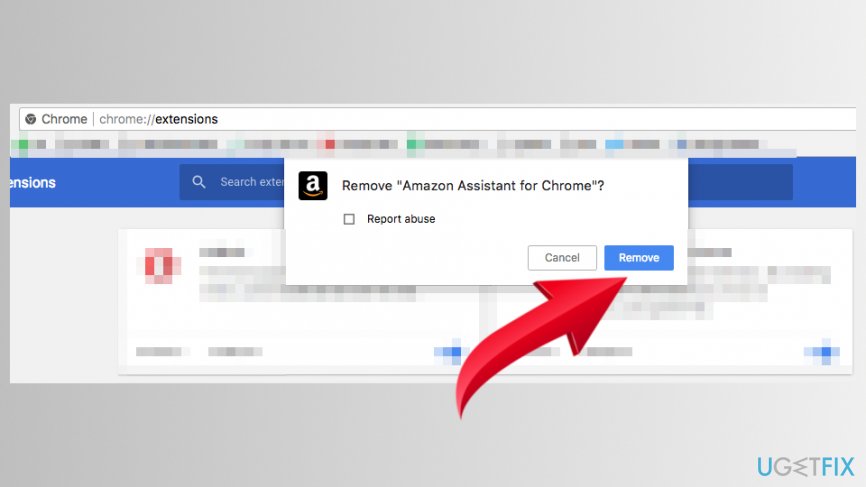
Confirm amazon assistant removal from chrome
Terminate the add-on from Mozilla Firefox
- Open Mozilla Firefox and click the menu.
- Choose Add-ons.
- Go to Extensions or Themes panel.
- Find Amazon Assistant for Firefox and click Remove button next to it.
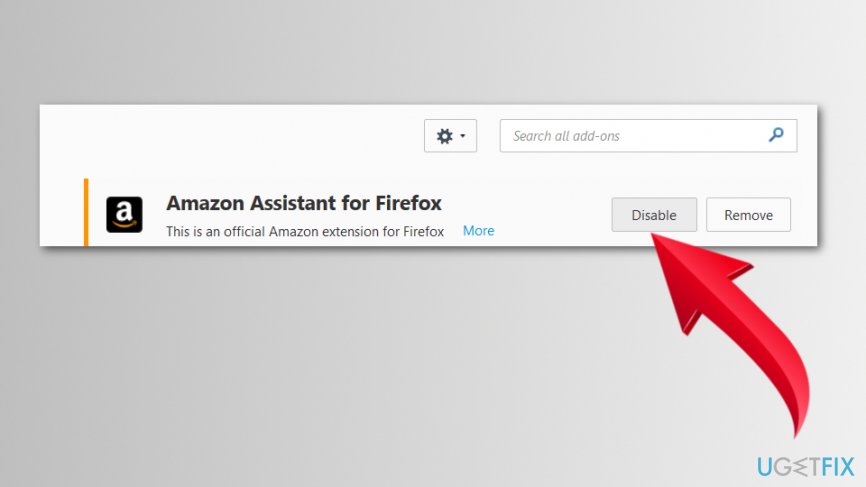
Disable amazon assistant on firefox - Click Restart now button if asked.
If you want to uninstall Amazon Assistant from another web browser, you should be able to remove it as an ordinary extension.
Step 3. Restart computer
Once you get rid of all components related to this extension, restart your computer to save the changes. Additionally, we would also recommend you to check the system with a professional optimization tool, for instance, [d1]. It will fix corrupted registry entries and replace damaged Windows system files if there are any. On top of that, it will protect the system from malware.
Bottom line
To uninstall Amazon Assistant, users should check their browser extensions and remove it from there. Additionally, they should use Advanced/Custom installation settings for future downloads to prevent unwanted installations. If these methods do not work, consider seeking further assistance.
Frequently asked questions
To uninstall Amazon Assistant from Windows 10, go to Settings > Apps > Apps & features, find Amazon Assistant in the list, click on it, and then select 'Uninstall.'
Yes, you can remove Amazon Assistant from Windows 11 by accessing Settings > Apps > Installed apps, locating Amazon Assistant, clicking on the three dots next to it, and choosing 'Uninstall.'
If Amazon Assistant is not listed, try using the Control Panel by going to Programs > Programs and Features, and check if it's listed there for uninstallation.




Report an issue
What's wrong with this guide? We review every report and update or remove content.
Report received — thank you. We'll review and fix it.
You need a free account to submit a report.
Be the first to comment