How to remove
Uninstall Avast Free Antivirus
from Windows
Easily uninstall Avast Free Antivirus from Windows 10 or 11 with our simple guide. Get it done quickly and efficiently, expert-tested for your peace of …

How does How to Uninstall Avast Free Antivirus end up on your PC?
- Avastip.dll not found
- Incompatibility with Windows 10
- Issues after Windows 10 Fall Creators Update
- Corrupted Avast installation
- Failed reinstallation of Avast
Repairs Windows system files, removes malware, and restores a clean OS state — without reinstalling.
Hello, all. After upgrading my PC to Windows 10 OS, Avast just stopped working. I tried reinstalling it, but that did not help so I gave up uninstalling it. The problem is that I can’t uninstall it via Apps & Features as it tells me that the “Avastip.dll not found.” Could you please help me to sort this out?
Avast Free Antivirus is a security utility developed by the security giant Avast. The company holds the biggest share of the world market for anti-virus apps and supplies a wide range of security-related products for both consumers and corporations (Android, Microsoft Windows, iOS and macOS).
Based on the statistics conducted in 2016, Avast had 400 million users and held 40 percent of security software market outside China. In 2017, the company acquired Piriform,[ref en-1] the company which developed and managed CCleaner tool. The latter became infamous after hackers compromised CCleaner[ref en-2] 5.33.6162 and CCleaner Cloud 1.07.3191 versions in September, 2017 and pushed millions of its users into a risk of getting Floxif malware.
Naturally, device users who tried Avast share various opinions regarding the tool. Nevertheless, based on independent testing at third-party laboratories, it features a high ability to block, detect and remove viruses. It adds a network security scanner, provides a password manager, offers to secure web browser and its toolbar (Google Chrome) and other useful features.
It is able to detect and block adware and keyloggers in particular. The analysts at AV-Comparatives[ref en-3] performed a security test and provided two Advanced+ and two Advanced ratings, meaning that the product is much higher than a Standard rating tools.
However, Avast often fells down in the performance category and can negatively influence device’s performance when scanning for malware. Some people disapprove of this security tool because it doesn’t include parental control.
In a nutshell, Avast is a great tool for protecting your PC, but not the best. Usually, it can be removed via Programs and Features or Apps & Features on Windows, but after the release of Windows 10 Fall Creators Update many people reported that Avast stopped working and can neither be re-installed nor removed.
According to users, the removal process fails with an error indicating a missing Avast files (e.g. Avastip.dll, avast.messaging.dll) as the culprit. If you opt for Avast removal due to one or another reason but the removal fails, we will explain what steps have to be taken to eliminate the tool successfully.
Avast Free Antivirus removal tutorial
Option 1. Use Avast Uninstall Utility
Avast offers a free Avast Uninstall utility, which is capable of removing all bits and pieces of the tool. To run the tool, please follow these steps:
- Download the avastclear.
- Now you should see the avastclear.exe file on your desktop.
- Before launching it, start Windows in Safe Mode.
- Once the system boots up, double-click on the avastclear.exe file.
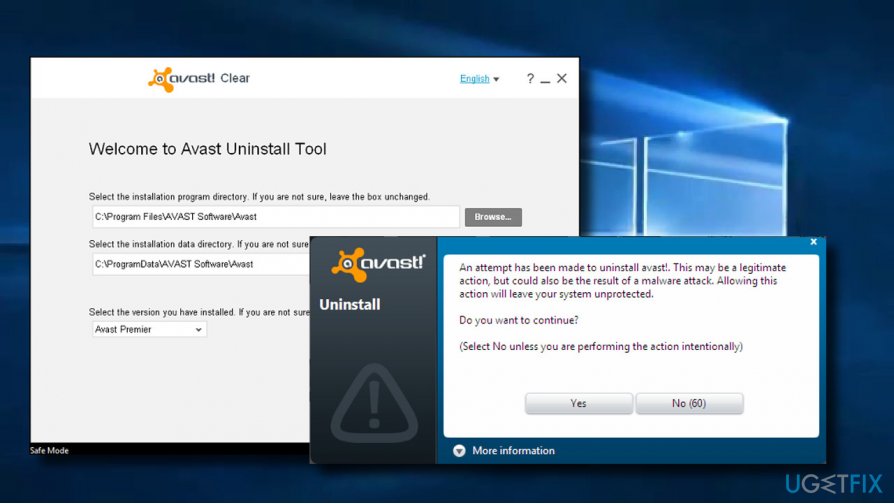
- Locate the Avast default folder and click Remove. IMPORTANT: if you installed the tool in a different folder than default, select the latter to remove but be careful to select the right one because all content of a folder will be removed.
- Finally, restart the PC.
Option 2.Uninstall Avast Manually
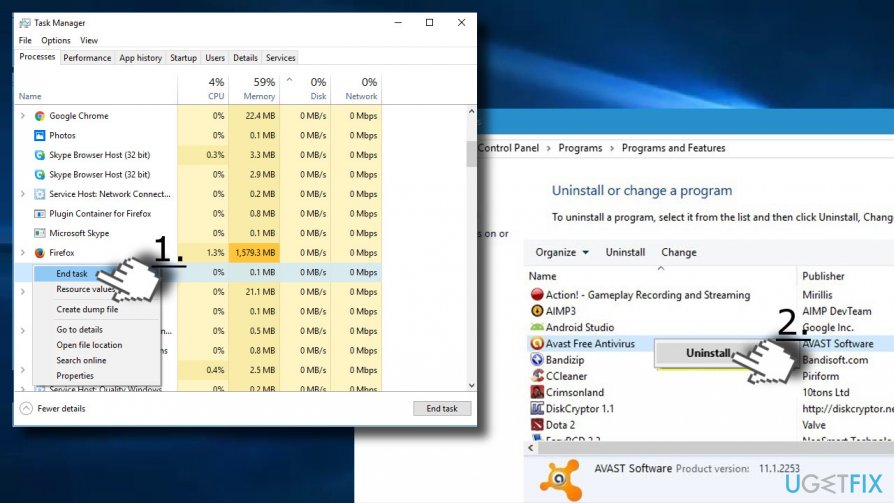
Step 1. Terminate Avast process in the Task Manager
- Press Ctrl + Shift + Esc (Windows 10) or Ctrl + Alt + Del (older versions) to launch Task Manager.
- Open Processes tab and locate Avast process on the list.
- Click it and select End Task.
Step 2. Remove the tool from Apps and Features
- Press Windows key + I to select Apps. Open Apps & Features sections.
- Users of older Windows versions should open Control Panel and select Programs and Features.
- Find the Avast Free Antivirus entry, click on it, and select Uninstall.
Step 3. Remove Avast leftovers
- Right-click on File Explorer and open View tab.
- Select Options and open View tab on the new window.
- Mark the Show hidden files, folders, and drives box.
- Press Windows key + R, type regedit, and press Enter.
- Open Edit at the top of the screen and select Find next.
- Type Avast and click Find next button.
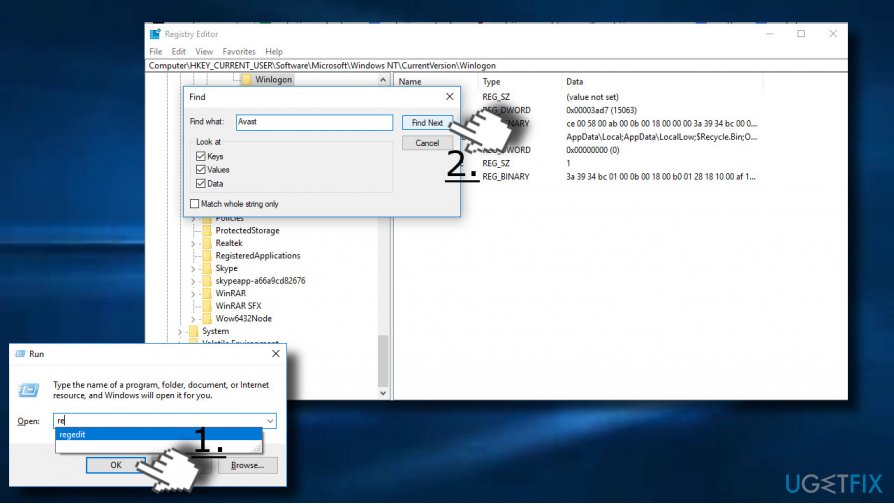
- If the search finds undeleted Avast entries, remove them.
- Finally, reboot your PC
Bottom line
To resolve the uninstallation issue, you can try using the Avast Uninstall Utility or reinstalling the software to repair the installation. If these methods do not work, consider seeking further assistance from Avast support or using a third-party uninstaller.
Frequently asked questions
To uninstall Avast Free Antivirus from Windows 10, go to Settings > Apps, locate Avast in the list, click on it, and select 'Uninstall'.
If you can't uninstall Avast Free Antivirus on Windows 11, try using the Avast Uninstall Utility in Safe Mode to remove it completely.
Yes, uninstalling Avast Free Antivirus will leave your Windows 10 device without third-party antivirus protection, so consider enabling Windows Defender or installing another antivirus.




Report an issue
What's wrong with this guide? We review every report and update or remove content.
Report received — thank you. We'll review and fix it.
You need a free account to submit a report.
Be the first to comment