How to remove
Uninstall Betternet
from Windows
Easily uninstall Betternet from Windows 10 or Windows 11 with our expert-tested guide. Get rid of unwanted programs quickly and cleanly, zero traces left.

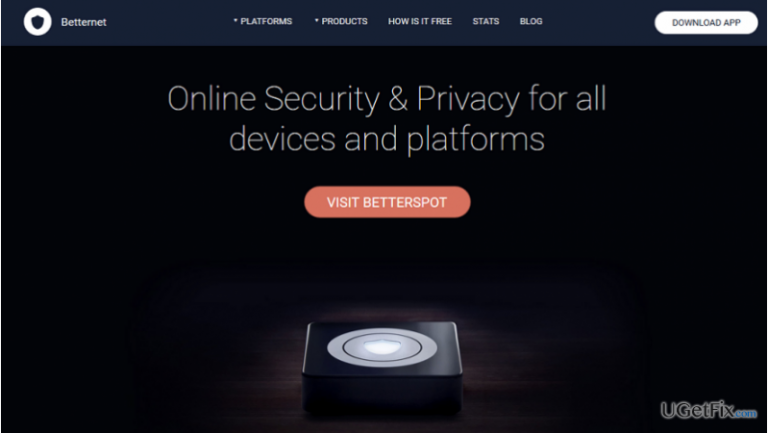
How does How to Uninstall Betternet on Windows end up on your PC?
- Removal issues
- Re-installation difficulties
- Leftover files detection problems
- Freezes and crashes
- Additional programs installed
Repairs Windows system files, removes malware, and restores a clean OS state — without reinstalling.
Please provide Betternet removal tutorial on Windows OS. Thanks!!
It’s not a secret that PC users face various privacy and security-related issues while browsing on the Internet. Therefore, apps such Betternet are getting increasingly popular. This tool secures user’s Internet connection by changing IP address, location, and other data. On top of that, it enables access to block websites, disables firewalls, and even provides access to music/movie channels. Sound good to be true, isn’t it?
Betternet has been developed by Betternet Technologies. It’s a worldwide spread tool, so naturally, users are divided into two groups, i.e. those who love it and those who don’t. If you belong to the first group, then this article is not for you. If, however, this application is not for you, then you have to read the rest of this post because we will explain all the peculiarities related to full Betternet removal.
How to Uninstall Betternet on Windows OS?
Experts point out that Betternet software can cause some problems related to removal, re-installation, difficulties in detecting leftovers, freezes, and crashes. It’s obvious that you are experiencing one of the problems – removal. The rest of the side effects may not occur, but if they would, you should uninstall Betternet on Windows without a delay.
Before you start, note the fact that Betternet software installs two other programs alongside, i.e. OpenVPN and TAP-Windows. The majority of users don’t suspect about such additional installers, so, it goes without saying, that they are not thinking about their removal. Thus, if you uninstall Betternet, but leave the other two apps, Windows system gets packed with useless apps. So, to get rid of Betternet ultimately, you have to uninstall OpenVPN and TAP-Windows along with.
You will need some time to deal with three applications, don’t you? If you want to shorten the time of Betternet removal, our recommendation would be to do that automatically. For that, download [rev id="Perfect Uninstaller"] and launch it.
If, however, you opt for manual removal, then you should find the guide that fits to your OS. Betternet is a multi-OS app, what means that it runs on Windows 7, 8, 8.1 and 10. Therefore, use the guide that has been submitted for your OS specifically. To start with, close Betternet app. For this purpose, open Task Manager (press Ctrl + Alt + Delete), right-click on the app and select End Task. After that, do the following:
Instructions for Windows 7 users:
- Turn your computer on, or, if it is already on, restart it. Before the screen with Windows 7 logo appears press F8 key repeatedly. Then you will see Advanced Boot Options menu. Choose one of the following:
- Safe Mode
- Safe Mode with Networking
- Safe Mode with Command Prompt.
- Once the computer is ready to use, open Start menu by clicking the Windows logo in the bottom-left corner of the screen. Then go to Control Panel -> Uninstall a Program.
- In the list of programs, find Betternet, click on it and select Uninstall. If a confirmation window asking whether you want to restart your computer now or later appears, click on Later/No.
- Open Start menu again, type regedit and hit Enter key.
- When Windows Registry Editor opens, locate HKEY_CURRENT_USER/Software/ folder and find a folder that belongs to Betternet. Delete them by right-clicking on it and selecting Delete.
- Reboot your computer.
Instructions for Windows 8/8.1 users:
- Move the cursor to the bottom right corner of the screen to open charms bar. Click Search and then type msconfig. Press Enter key, then click on Boot tab, select Safe boot option (in the Boot options section) and then click OK.
- Again, move your cursor to the bottom left corner of the screen to open charms bar. Click Search, type in: control panel and hit Enter key. Then select Uninstall a Program in the Programs column.
- In the list of all programs that are installed on your computer, find Betternet, select it and click Uninstall. Refuse to reboot your computer immediately by selecting Later/No option.
- As we have explained above, open charms bar again. Select Search, type regedit and press Enter Key.
- Locate where HKEY_CURRENT_USER/Software folder is, and delete Betternet folder. To do that, right-click on it and select Delete.
- Reboot your computer.
Instructions for Windows 10 users:
- Click on the Windows logo in the bottom-left corner of the screen. Then select All Apps (at the bottom)
- In the list of programs, find Betternet, right-click on it and select Uninstall.
- The you will be redirected to Control Panel. Click on the Betternet again and select Uninstall. If a confirmation window shows up asking if you really want to uninstall Betternet, click Yes.
- After that, click on the Windows logo again and type regedit in the search bar to open Windows Registry Editor.
- Locate where HKEY_CURRENT_USER/Software folder is, and delete Betternet folder. To do that, right-click on it and select Delete.
- Reboot your computer.
NOTE: you should perform the same steps for OpenVPN and TAP-Windows removal.
Finally, when you perform the steps listed above and reboot the system, open Task Manager and check if Betternet and its counterparts are running. If they are not, it means that the removal process was successful.
If you are not willing to spend so much time uninstalling Betternet on Windows, then [rev id="Perfect Uninstaller"] is here for you. It's an easy-to-use removal tool that will delete all unwanted programs and their leftovers with one click.
Bottom line
To uninstall Betternet on Windows, you may need to remove OpenVPN and TAP-Windows as well. You can choose to uninstall manually or use an automatic tool like Perfect Uninstaller. If these methods do not resolve the issue, consider seeking further assistance.
Frequently asked questions
To uninstall Betternet from Windows 10, go to Settings > Apps > Apps & features, find Betternet in the list, click on it, and select 'Uninstall.' Follow the prompts to complete the removal process.
Yes, after uninstalling Betternet via Settings, you can use the File Explorer to navigate to the Program Files and AppData folders to delete any remaining Betternet files.
If Betternet does not appear in the installed programs list, you can try using a third-party uninstaller tool or check for any Betternet processes running in Task Manager to terminate them before attempting to uninstall again.




Report an issue
What's wrong with this guide? We review every report and update or remove content.
Report received — thank you. We'll review and fix it.
You need a free account to submit a report.
Be the first to comment