How to remove
Uninstall BitLord
from Windows
Easily uninstall BitLord from Windows 10 or 11 with our expert-tested guide. Clear your system quickly and ensure zero traces left behind.

How does How to Uninstall BitLord on Windows end up on your PC?
- Incomplete file deletion during previous attempts
- Presence of related processes running in the background
- Insufficient user permissions for uninstallation
- Potential malware or adware interference
- Misleading advertisements causing confusion about system status
Repairs Windows system files, removes malware, and restores a clean OS state — without reinstalling.
I’m having issues with BitLord removal. I think I have deleted some files associated with this program, but not all of them, and now I’m confused. Can you provide a detailed BitLord uninstall tutorial, please?
BitLord is a torrent[ref en-1] client which is provided as freeware and ad-supported software for Windows and macOS. It was initially released back in 2004 under the license from BitComet and quickly gained popularity as a lightweight and easy-to-use torrent downloader. The newest version of the program is 2.4.6 at the time of the writing.
BitLord allows users to download .torrent files, get subtitles in your language and instantly play video and audio files, so it serves a media player as well. Therefore, many people who use the client might be happy with its performance.
However, the application is freeware after all, so its presence can result in certain security risks,[ref en-2] making users want to uninstall BitLord client. Free apps are sometimes dangerous as they provide advertisements that might be misleading and make users think that their PCs are infected with malware,[ref en-3] personal data compromised, and similar issues are present.
Additionally, BitLord app is used for torrent file download, which on itself brings significant risks. Torrent files can be hosted in spoofed websites or modified by hackers, and malicious code injected into the file. That is a frequent occurrence when it comes to pirated software.
Therefore, if you want to remove BitLord application, we will gladly help you do it.
First of all, we want to inform you that there are two ways of deleting this program. You can either uninstall it manually or automatically. Automatic BitLord removal option requires the installation of special software.
Step 1. Stop all related processes to uninstall BitLord client
Before you try to uninstall BitLord, make sure you log into the computer with Admin rights. Otherwise, you will be asked to provide the administrator’s password for many tasks (such as delete or uninstall programs/files from the system).
- Once you login into the PC with administrator’s rights, find BitLord icon in the System Tray. Right-click on the icon, and when a menu appears, choose Quit option
- Next, launch Windows Task Manager (hold down three keys at the same time - Ctrl+Alt+Del). Then open Processes tab, find processes associated with BitLord and kill them one by one. You need to select one process at a time and select End Task
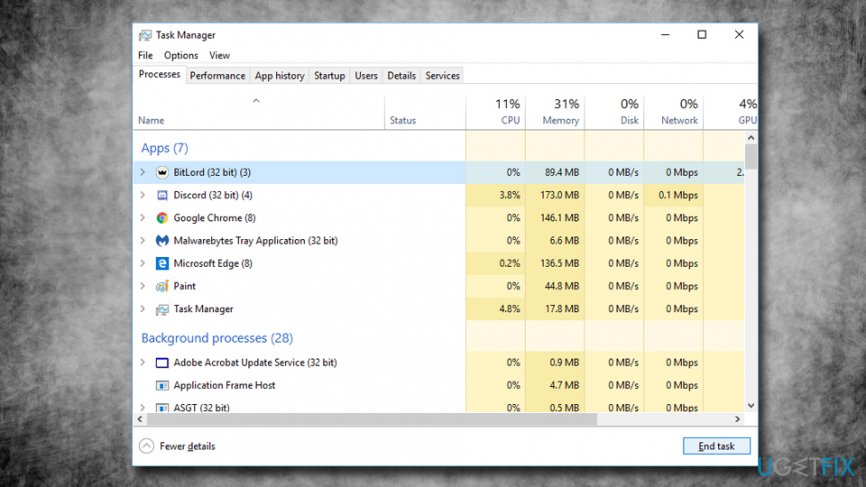
Uninstall bitlord on windows stop task in task manager - Press Start button and type in Control Panel. Here, find Programs > Uninstall a program section and go there
- You will be provided with a list of recently installed programs
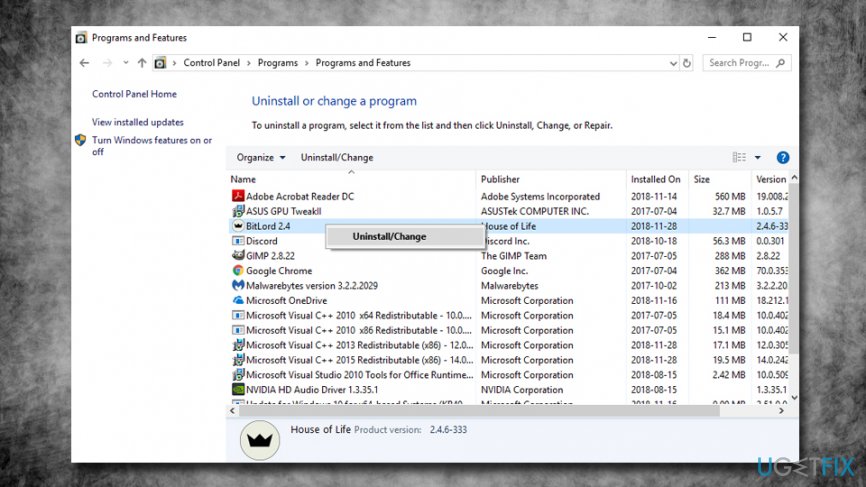
Uninstall bitlord on windows stop uninstall via control panel - Here, find and uninstall these programs: BitLord, REACHit, and Foxit PhantomPDF Business. Simply select one, and click Uninstall. Note that not all of these programs might be present on your system (some apps might have gotten in bundled)
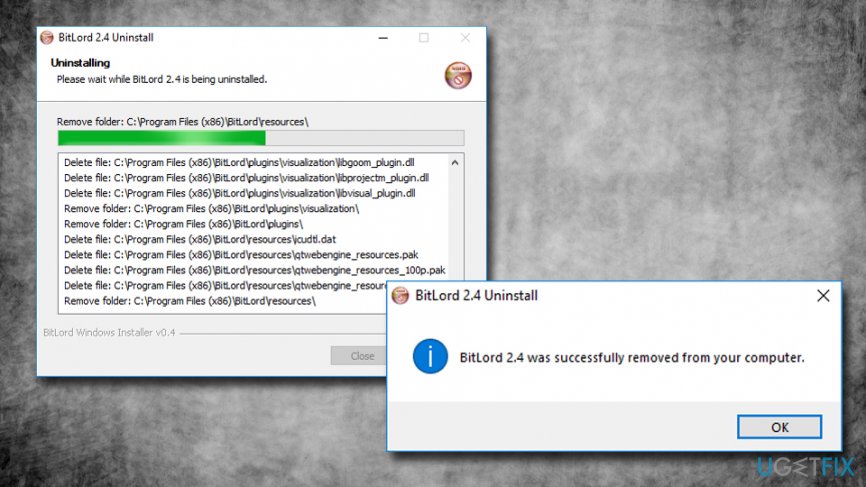
Uninstall bitlord on windows uninstall final
Step 2. Clear Windows Registry
Now you will have to delete Registry entries associated with the programs you just removed. Before you proceed, we would like to warn you that modifying Windows Registry might damage your system, so be very cautious!
- Type in regedit into the search bar
- From the search options, right click and select Run as administrator (skip this step if you are already logged in as an admin)
- In Registry Editor, you need to find and delete the following list of folders (once again. only bitlord registry might be present):
- HKEY_CURRENT_USER/Software/bitlord.com,
- HKEY_CURRENT_USER/Software/Lenovo,
- HKEY_CURRENT_USER/Software/Foxit Software
- HKEY_LOCAL_MACHINE/SOFTWARE/Foxit Software
- After completing this step, go to Edit>Find and enter BitLord to find Bitlord’s remains. Delete them if the search finds any related entries
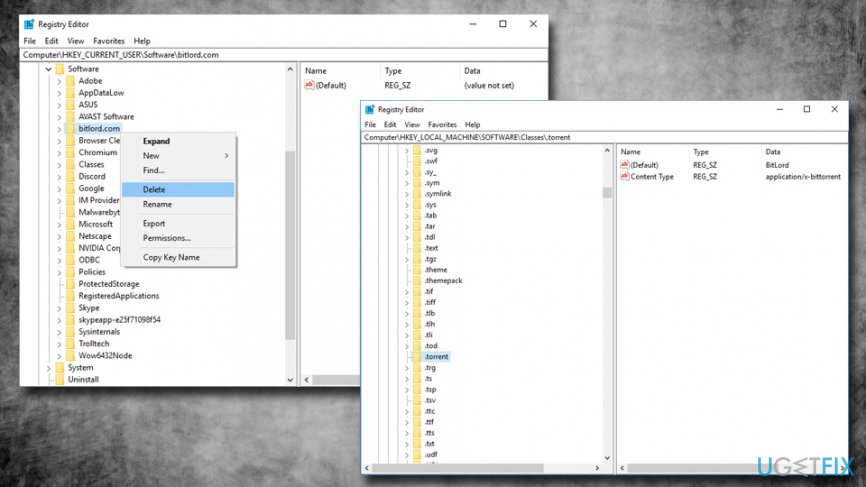
Uninstall bitlord on windows fix registry - Restart your computer
Uninstall BitLord automatically
It can be hard to remove computer programs manually. Although the BitLord removal is not that complicated, it is not recommended to make adjustments in the Windows Registry manually because wrong modifications in this system panel can lead to problems such as system's stability issues.
While system stability problems can be fixed with programs like [d1], it is highly recommended to uninstall unwanted software using automatic tools instead.
Bottom line
To uninstall BitLord, you can either manually remove it or use special software for automatic removal. Ensure you stop all related processes and have administrator rights before proceeding. If these methods do not work, consider seeking further technical assistance.
Frequently asked questions
To uninstall BitLord on Windows 10, go to Settings > Apps > Apps & features, find BitLord in the list, click on it, and select Uninstall.
Yes, you can remove BitLord by opening the Control Panel, selecting Programs and Features, finding BitLord, and clicking Uninstall.
If you face issues during the uninstallation of BitLord, consider using a third-party uninstaller or running the Windows Troubleshooter for programs.




Report an issue
What's wrong with this guide? We review every report and update or remove content.
Report received — thank you. We'll review and fix it.
You need a free account to submit a report.
Be the first to comment