How to remove
Uninstall Box Sync
from Windows
Easily uninstall unwanted programs like Box Sync on Windows 10/11 with our free expert-tested guide. Get it done in minutes with zero traces left!


How does How to uninstall Box Sync on Mac OS X (free guide) end up on your PC?
- Need to free up space on Mac
- Performance issues due to unnecessary applications
- Desire to remove unused software
- Separation of Box Sync and Box Drive applications
Repairs Windows system files, removes malware, and restores a clean OS state — without reinstalling.
Box is a cloud-based[ref en-1] data management platform for Windows and Mac operating systems and is used to mirror data stored on Box to user's desktop. Despite the popular belied, Box Sync and Box Drive are two separate applications[ref en-2] and, although they both provide the ability to access Box content on a cloud server, there are several differences between the apps.
There comes a time in the life of Mac users, when they face the need to uninstall some applications they no longer need. Doesn't sound like much of a task, does it? However, deleting the application might require some knowledge which we will provide in this article.
While you might think that there's no harm in keeping various unnecessary programs on your Mac, remember about the space it uses and how it affects the performance of your Mac. Therefore, if you avoid removing unnecessary applications, your device will get cluttered and work slow.[ref en-3]

Box is one of the applications you might want to uninstall on your Mac if you no longer need it. There are two ways that you might choose to uninstall Box Sync/Drive on Mac OS X, namely removing and uninstalling. While they might sound as somewhat synonymous, the truth is they differ a lot as well.
Removing an app from your Mac is a rather simple procedure that you can perform quickly and simply. Uninstalling requires a special tool which we will discuss further in the article.
Remove Box Sync and Box Drive from your Mac
As far as removing is concerned, all you need to remove Box Sync on macOS is fundamental Mac-related knowledge. While quick and straightforward, however, this method has certain drawbacks that you should keep in mind. The most significant one is the fact that by merely removing the main file you won't get rid of the additional data that have been installed together with the application. If that's OK with you, just follow a simple 4-step process and simply remove the app from your Mac:
- Go the the Applications folder.
- Click the Box icon and hold it.
- Drag the Box icon to your Trash.
- Click Ctrl+Trash at once and click Empty Trash.
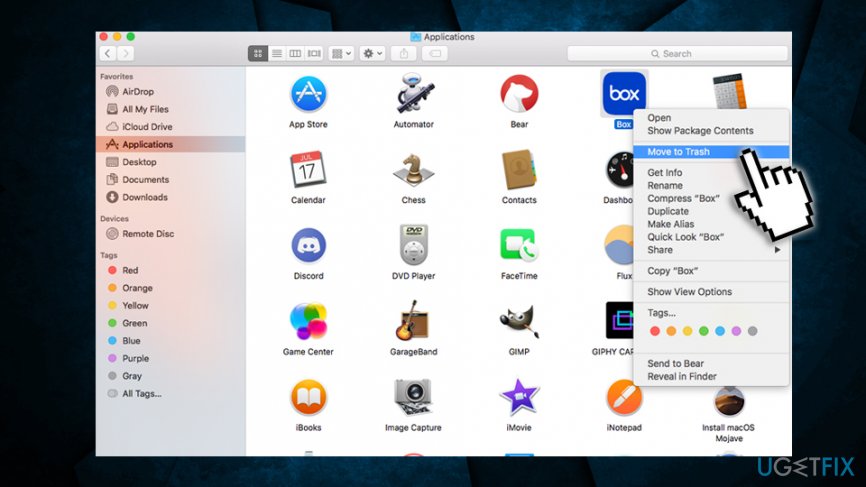
How to uninstall box from macos move to trash
Yes, it's that simple!
Shut down the Box application processes
In case you cannot remove Box Sync or Box Drive from your Mac, it is because the application is running and you should stop in via the Activity Monitor:
- Click on Finder > Applications
- Double-click on Utilities and open Activity Monitor from there
- Scroll down to find any processes that are related to Box app
- Double click on it, then select Quit and then Force Quit
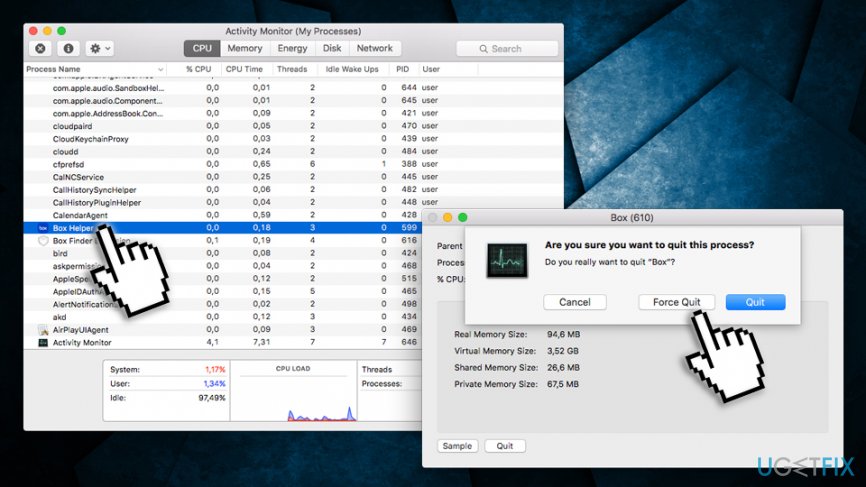
How to uninstall box from macos shut the process down via activity monitor
However, if additional files have been installed with the app, they have remained on your Mac occupying space and slowing down the performance. If this creates a problem, and your question is actually “How to uninstall Box on Mac OS X”, we'll definitely help you with that and even explain you in great detail how you can do that by uninstalling the program manually or by using the [rev id=”Reimage”] special utility that will do everything for you!
Uninstall Box Sync and Box Drive on macOS
So you've removed Box from your Mac, but it does not work any faster? The problem might be related to additional files that have not been removed and are now just occupying space and slowing your Mac down. What's more, they are usually scattered around several folders, and it might be difficult to find and remove them all. However, you can try by looking at these folders that typically contain some of these files:
- /Library/Application Support/
- /Library/ Preferences/.
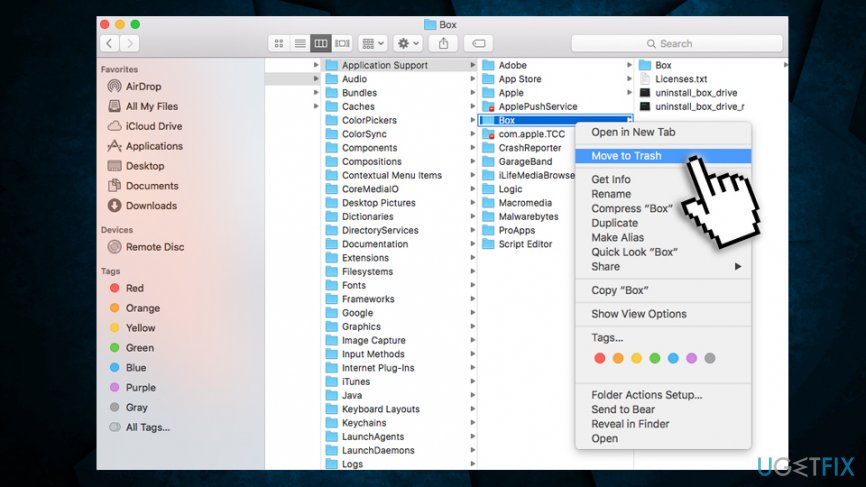
How to uninstall box from macos remove from application support
Be aware that Library folder is hidden by default. To make it visible, perform the following:
- Open Finder and click Go
- When the menu is showing, press Option key
- Library folder will appear
You need to remove any files that are related to Box application within the above-mentioned folders.
Bottom line
To uninstall Box Sync on Mac OS X, you can either remove the application by dragging it from the Applications folder or use a special tool for a complete uninstall. If these methods do not resolve your issue, consider seeking additional technical support.
Frequently asked questions
No, the uninstallation process for Box Sync on Windows 10 or Windows 11 is different and involves using the Control Panel or Settings app.
If Box Sync won't uninstall, try using the built-in troubleshooter or a third-party uninstaller to remove the program from your system.
Yes, after uninstalling Box Sync, you can manually check your Program Files and AppData folders for any leftover files and delete them.




Report an issue
What's wrong with this guide? We review every report and update or remove content.
Report received — thank you. We'll review and fix it.
You need a free account to submit a report.
Be the first to comment