How to remove
Uninstall Chameleon Task Manager
from Windows
Easily uninstall Chameleon Task Manager from Windows 10 or 11 with our expert tips. Get it fixed in minutes and enjoy a cleaner system!

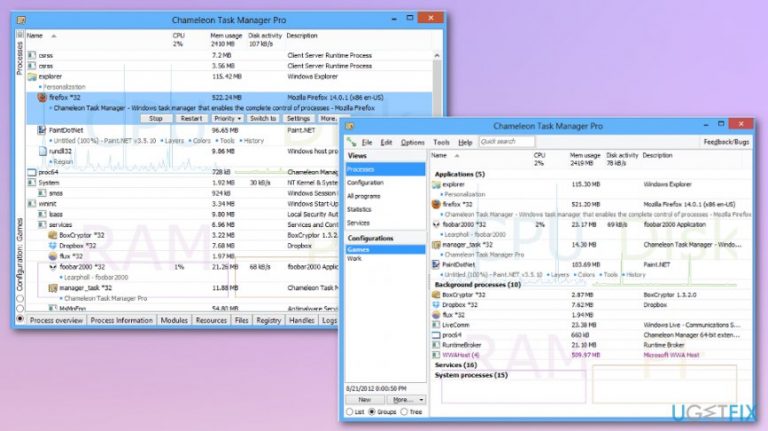
How does How to uninstall Chameleon Task Manager end up on your PC?
- Increased CPU usage by Chameleon Task Manager
- Chameleon Task Manager related to PUP or adware
- Application can install without user permission
- Essential files may be compromised during installation
- Chameleon Task Manager may spread with freeware
Repairs Windows system files, removes malware, and restores a clean OS state — without reinstalling.
Hello, I think you could help me. I have Chameleon Task Manager, and this program should optimize the performance of OS by replacing the Windows Task Manager. However, it appears that Chameleon Task Manager increases the usage of CPU and some sources indicate that this tool is related to PUP or adware. How can I uninstall this? I tried to get rid of the ChameleonTask manager manually, but it persists. Thank you for the help.
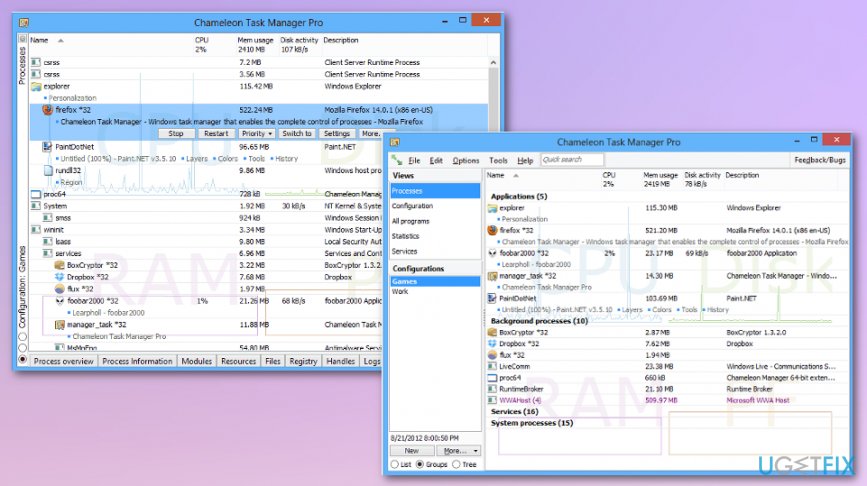
Chameleon Task Manager is a replacement for Windows task manager developed by software creators with the name Chameleon Managers. This software should increase the performance of various programs, memory space and help reduce CPU usage by disabling programs from running all the time. Also, the description of this tool claims that it enhances the security of your computer and collects the statistics about the resource usage.
Developers state that Chameleon task manager enables the complete control of processes running on the computer. Users notify that this application optimizes the performance of Windows because it informs about memory usage, optimizes RAM[ref en-1], closes and restarts any program if it is necessary. It significantly increases the performance of your device and has various useful features.
Chameleon task manager comes in multiple languages, including the following:
- English;
- Spanish;
- French;
- Russian;
- Slovak;
- Dutch;
- Portuguese;
- Ukranian;
- Hindi;
- Polish;
- Serbian;
- Chinese.
However, people report that Chameleon Task Manager may cause some issues with devices. First, it can appear on the computer without user's permission. In other terms, this application can sneak into the system hidden inside the installers of other third-party programs. Thus, you might want to uninstall Chameleon Task Manager immediately as you never asked for services it provides.
Additionally, if you have installed Chameleon Task Manager intentionally and it starts displaying errors, there is a substantial risk that some essential files have been compromised during the installation/download process. You should try to uninstall Chameleon Task Manager and reinstall it once again.
However, our security researchers advise you to rethink Chameleon Task Manager removal. As we have already mentioned, this application might spread together with freeware[ref en-2]. It is evident that such distribution technique is highly unfair from the standpoint of PC user. Thus, you might want to search for a more reliable tool or continue using inbuilt Windows Task Manager for your computer's security.
Finally, if you have noticed issues once Chameleon Task Manager was installed on your system, you should scan your device with [d1] to check for potentially unwanted programs (PUPs)[ref en-3]. In some cases, software-bundles carry more than one PUP and they might interfere with essential system processes.
Our security experts have prepared detailed instructions showing how to uninstall Chameleon Task Manager from Windows operating systems. If you follow them attentively, this application will no longer replace your Windows Task Manager and allow you to enjoy smooth PC's performance.
Chameleon Task Manager uninstallation steps
If you find that Chameleon Task Manager cause many problems with the general performance of your device, follow the uninstallation steps we provide you. Before that, you can scan your system with anti-malware tool and make sure that no additional malware could cause errors on your PC.
Step 1. Standard uninstall routine
The first thing you could try is to uninstall Chameleon Task Manager while gaining admin access and performing a standard program uninstallation.
- Go to your Start Menu, type Chameleon Task Manager.
- Find Chameleon Task Manager and right-click on the program.
- Choose Uninstall.
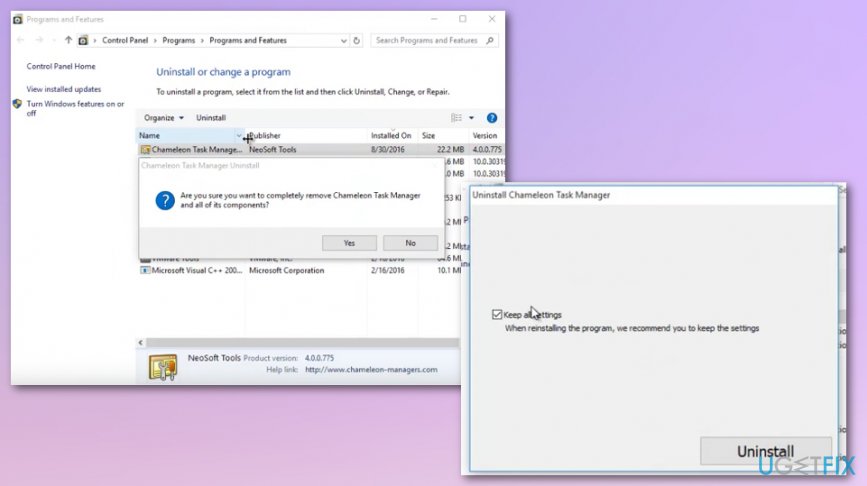
- In the Program and Features window find Chameleon Task Manager.
- Click on it and press Uninstall.
- Press the Uninstall button when a reassuring window appears. Un-check "keep all settings" mark.
- Press OK when uninstallation is complete.
- Restart your computer.
You can check if the Chameleon Task Manager is eliminated:
Go to This PC > View > Options > View
Make sure that there is a check on "Show hidden files" option under the Hidden files and folders section and press OK.
Then, go back to This PC and search for Chameleon Task Manager in the search bar.
Step 2. Deleting all related files
We are not advising to do this step if you are not an experienced computer user. Removing any registry entries may cause more significant issues with your device.
- Press Windows key + R and type regedit to run the Registry editor.
- Find and delete registry entries of the Chameleon Task Manager program in:
- HKEY_CURRENT_USER\\Software;
- HKEY_LOCAL_MACHINE\\SOFTWARE;
- HKEY_LOCAL_MACHINE\\Software\\Microsoft\\Windows\\CurrentVersion\\Run\\.
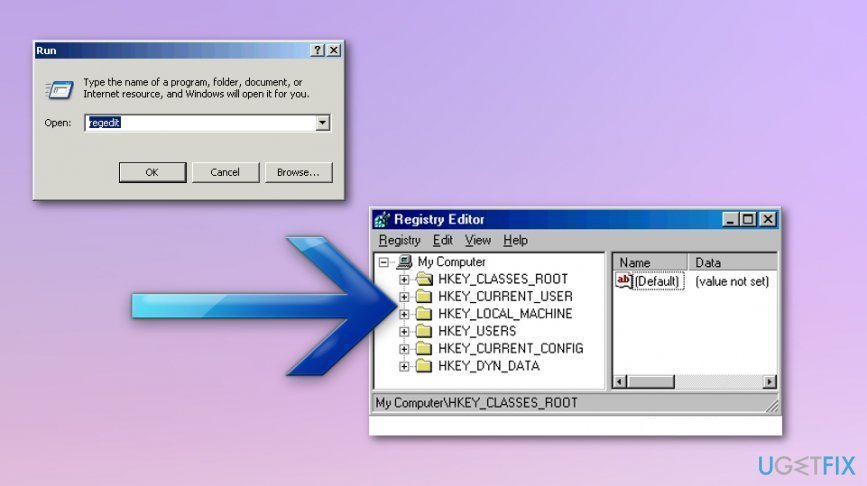
Chameleon task manager registry method
- Find and delete all files related to the program in system folders:
- C:\\Program Files\\;
- C:\\Document and Settings\\All Users\\Application Data;
- C:\\Documents and Settings\\%USER%\\Application Data.
Bottom line
To uninstall Chameleon Task Manager, you can try removing it manually or using an uninstaller tool. If issues persist, consider reinstalling the application to resolve any errors. If none of these solutions work, further investigation into system settings or seeking professional help may be necessary.
Frequently asked questions
To uninstall Chameleon Task Manager from Windows 10, go to Settings > Apps, find Chameleon Task Manager in the list, and click 'Uninstall.' Follow the prompts to complete the removal process.
Yes, to remove Chameleon Task Manager in Windows 11, open Control Panel, navigate to 'Programs and Features,' locate Chameleon Task Manager, and select 'Uninstall'.
If Chameleon Task Manager is not listed, try using a third-party uninstaller tool or check for any leftover files in the installation directory before attempting a manual removal.




Report an issue
What's wrong with this guide? We review every report and update or remove content.
Report received — thank you. We'll review and fix it.
You need a free account to submit a report.
Be the first to comment