How to remove
Uninstall Chroomium Browser
from Windows
Easily uninstall Chroomium Browser from Windows 10 or 11 with our expert-tested guide. Clear out unwanted programs in minutes, zero traces left!

How does How to Uninstall Chroomium Browser end up on your PC?
- Malicious and deceptive variant of Chrome browser
- Cybercriminals abusing open-source code
- Fake browsers pretending to be real Chrome
- Potentially unwanted programs (PUP) functioning as adware
- Infiltration of dangerous programs replacing legitimate browser
Repairs Windows system files, removes malware, and restores a clean OS state — without reinstalling.
I have tried every anti-malware program available on the Internet to remove the fake Chrome browser, but nothing works. It seems that the annoying virus merely is stuck on my computer and there’s nothing I can do about it. Could you help me and explain what is the right way to remove Chroomium virus?
Chroomium virus is a malicious and deceptive variant of the Chrome browser. If you have heard about Google Chrome browser, you probably know that its basis is Chromium open-source browser project that is available for everyone who wants to build a customized version of it.
Unfortunately, just like any other open-source project, it quickly reaches cybercriminals[ref en-1] who decide to abuse the code and create fake versions of the popular web browser, spread them in questionable ways and force unsuspecting computer users to use them without realizing the potential risk.
There are many fake browsers that pretend to be the real Chrome browsers.[ref en-2] eFast, Tortuga, and Olcinium are just a few names of the potentially unwanted programs (PUP) that function as typical adware and serve highly annoying ads for the user on a daily basis. When it comes to Chroomium browser removal, it can get complicated as each of these browsers try different techniques to remain on the compromised computer system as long as it is possible.
If you are not ready to dedicate plenty of time just to remove Chroomium virus, consider using anti-malware software to speed up the process. In addition, the use of such security software[ref en-3] also helps to clean up the system and get rid of all other spyware or malware type components.
Remove Chroomium Browser from Your Computer
Method No. 1: Check for suspicious programs via Control Panel
Suspect an infiltration of a dangerous and deceptive program that replaced Chrome browser all of a sudden? Do you encounter more ads than usual and something just seems to be wrong with your browser? Try to find the suspicious program in Control Panel using the given steps:
- Press Windows key + R to open Run prompt. Type control panel and hit Enter. You can also just use the search feature available in Windows start menu to open Control Panel.
- Now, once you are in Control Panel, find Apps and Features or Add/Remove Programs section and open it.
- In the list of currently installed programs, search for Tortuga Browser, Chroomium, eFast, Olcinium, or another web browser that you cannot remember installing. Besides, you should try to locate all questionable programs that appeared on your computer system without your knowledge and uninstall them using this technique. Uninstall one program at a time until you get rid of all of the shady ones:
- Select the unwanted program and click Uninstall. Follow the instructions provided by the software uninstaller.
Method 2. Locate and delete components of fake Chrome browsers
- First of all, you should launch Windows Task Manager. You can do with the common combination of keyboard keys (CTRL + ALT + DEL) or via Windows start menu. Just right-click on the Start menu icon and select Task Manager.
If you aren’t in Processes tab, open it. You will see a couple of Chromium processes. Choose one, right-click on it and then select menu option Go to file location.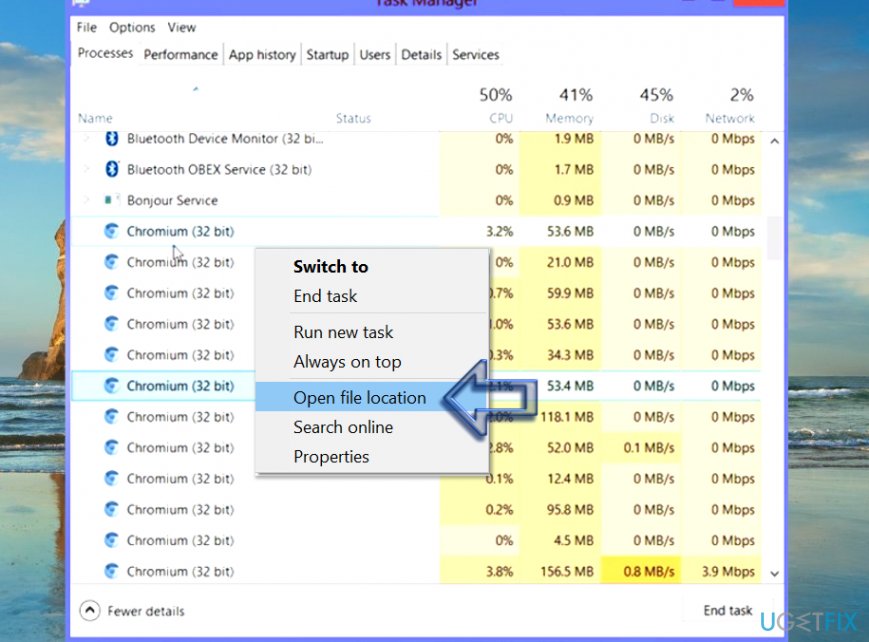
Open file location chroomium browser virus - This will open the folder containing the Chromium virus that is currently active. Find explorer.exe in the said folder. Do not delete it before you kill the active processes associated with the fake browser, so return to Task Manager, right-click each Chromium process and select End Task.
- Now, select explorer.exe file from the folder you accessed and drag it to Recycle bin on your desktop. Empty Recycle bin by clicking on it with the right mouse button and selecting the right option from the menu.
- Now, use the same technique to drag the remaining components of the malware to Recycle bin as well. You can just select all items and drag them to trash at once. Finally, step back to the Local folder.
- Delete the Chroomium malware folder (known name is GamesBot, although different versions can use a different name for their folders)
- After all, empty the Recycle bin.
Method 3. Delete Chromium folder from LocalAppData
- Press Windows key + R and enter %localappdata% into the Run prompt.
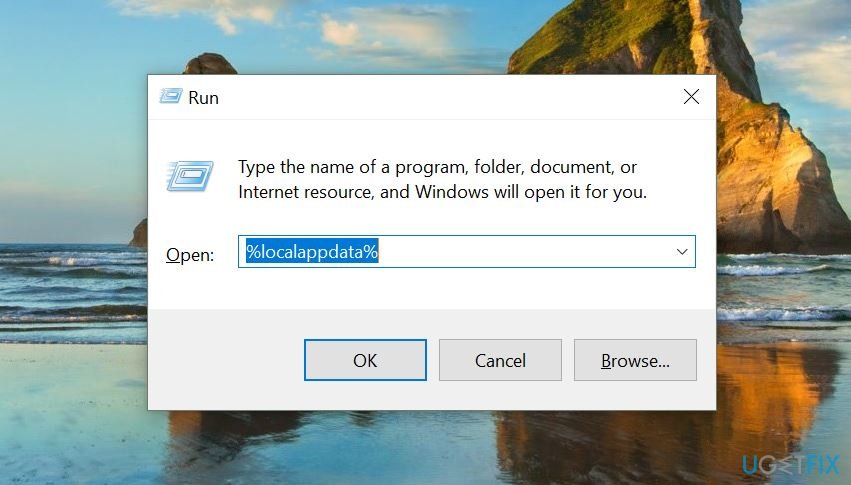
Open localappdata folder - Click OK.
- Find and delete Chromium folder.
Method 4. Delete Chromium virus automatically
If you could not delete the fraudulent browser version using methods described earlier, we kindly suggest using anti-malware software. However, we strongly recommend restarting your PC in Safe Mode with Networking first. Here is what you need to do:
- Make sure you are logged in with Administrator rights. Press R + Windows key to open Run window and type msconfig here.
- Go to Boot tab and select Boot + Network option.
- Hit Apply and OK.
- You will be asked whether you want to restart your computer. Agree and once your computer loads, download [rev id=”Reimage”] or similar anti-malware program to your computer. Run a full system scan and see what kind of spyware/malware it detects.
- To reboot your computer back to normal state, follow steps 1-3, but deselect the Safe Mode option this time.
Bottom line
To remove the Chroomium virus, check for suspicious programs via Control Panel by using the Run prompt. If the issue persists, consider using anti-malware software to expedite the removal process. If none of these methods work, further investigation may be necessary.
Frequently asked questions
To uninstall Chroomium Browser from Windows 10, go to Settings > Apps > Apps & features, locate Chroomium, and click 'Uninstall.' Follow the prompts to complete the removal process.
Yes, to completely remove Chroomium Browser from Windows 11, access Settings > Apps > Installed apps, find Chroomium, and select 'Uninstall.' Additionally, check for leftover files in your Program Files and AppData folders.
If Chroomium Browser won't uninstall on Windows, try using a third-party uninstaller tool or booting into Safe Mode and then attempt the uninstallation again.




Report an issue
What's wrong with this guide? We review every report and update or remove content.
Report received — thank you. We'll review and fix it.
You need a free account to submit a report.
Be the first to comment