How to remove
Uninstall Citrix Receiver
from Windows
Easily uninstall Citrix Receiver from Windows 10 or 11 with our expert-tested guide. Complete removal in minutes, without leaving any traces!


How does How to uninstall Citrix Receiver end up on your PC?
- Issues with the initial installation of Citrix Receiver
- Leftover files after uninstallation causing installation errors
- Insufficient disk space for installation or upgrade
- Potential damage to system files or folders
- Malware affecting the uninstallation process
Repairs Windows system files, removes malware, and restores a clean OS state — without reinstalling.
Hello, I want to uninstall the Citrix Receiver because I'm not happy with the issues that occur on the system. It should get updated to the Citrix Workspace app, but I came to the error while trying to uninstall the program. How to uninstall Citrix Receiver properly?
Uninstalling Citrix Receiver is becoming an issue because people want to install the newer version, but cannot do that when the initial program is installed already. Users[ref en-1] complained about this issue a lot on various online platforms and forums.
Another issue regarding the Citrix Receiver is the additional files left behind after the successful uninstallation.[ref en-2] That means the application is no longer there or running, but leftover files make the new installation setup to think that there is no need to install the program since all files remain on the machine.
This is the common issue in regards to difficult processes of removing unwanted or useless, sometimes even malicious[ref en-3] software. To uninstall Citrix Receiver properly, you need to get rid of all the files related to Receiver because certain files or folders cause unexpected behavior and other issues. 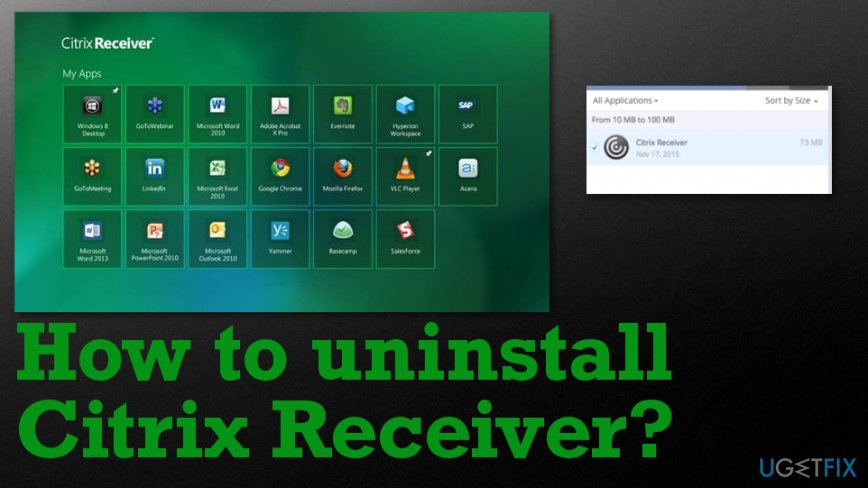
When you upgrade to a different version of the Receiver, the installation ends unsuccessfully due to disk space issues. You need to note that the upgrade takes up 206MB, and fresh installation needs 320MB (on Windows) free on the machine before Citrix Receiver installation can be launched. 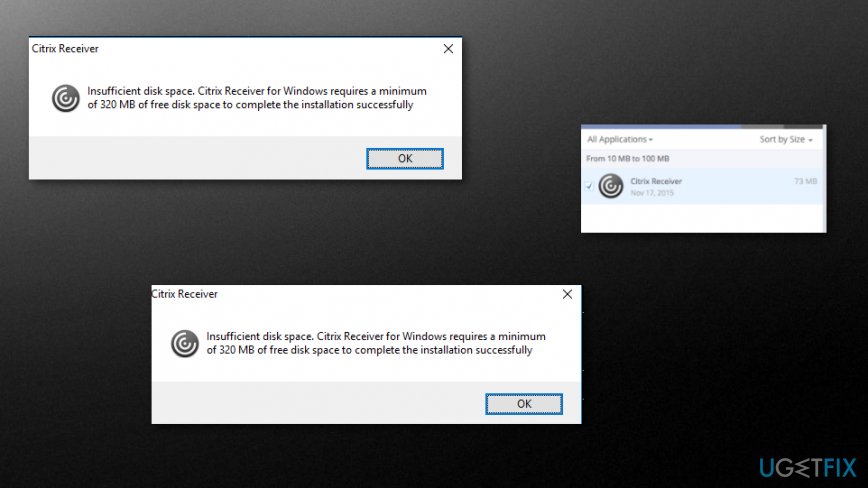
How to uninstall Citrix Receiver
It may seem impossible to fully uninstall Citrix Receiver yourself completely, so there are methods that involve automatic tools created for such file-related issues. System optimizers and cleaner utilities like [d1] can find and locate affected files or the ones that got possibly damaged during various processes or even by malware. Damaged system files and folders can cause serious issues, so check the machine for these easily-repairable issues and then rely on manual techniques listed further.
Uninstall Citrix Receiver from Windows
- Open Task Manager.
- Go to the Processes tab and right-click on End Process for concentr.exe, wfcrun32.exe, and Receiver.exe.
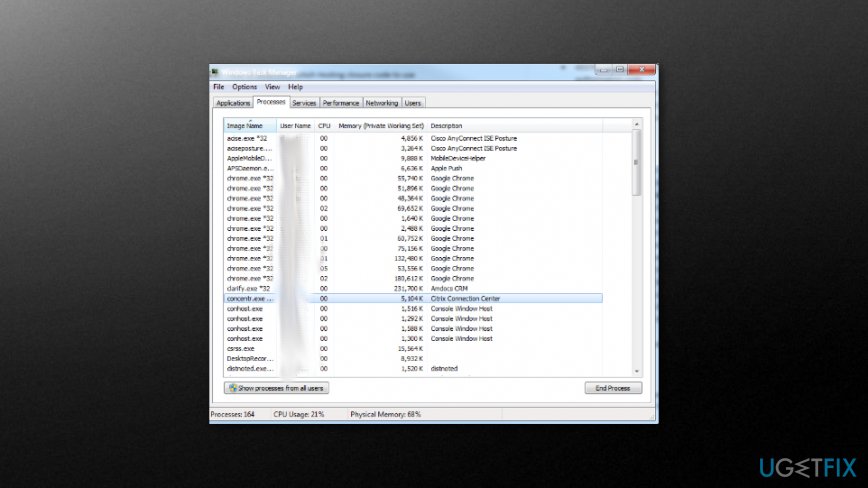
How to uninstall citrix receiver task manager - Log in to the device with Administrative rights.
- Open the Control Panel and choose Programs and Features.
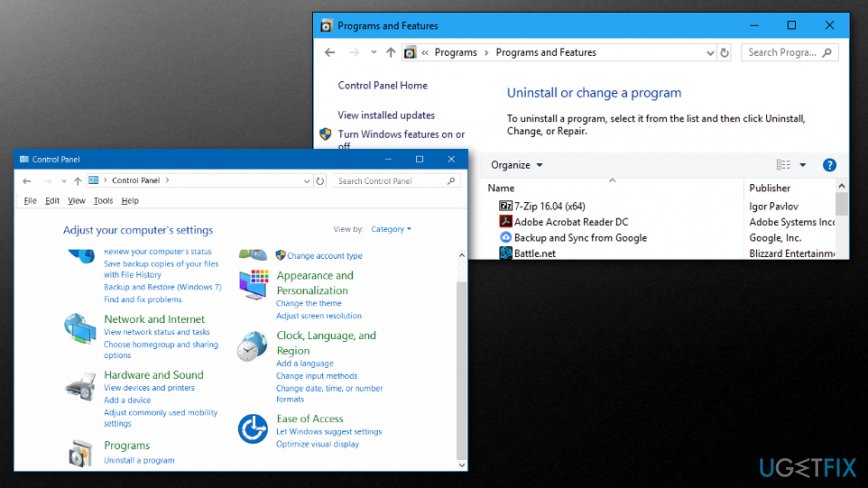
How to uninstall citrix receiver programs features - Right-click the application and select Uninstall.
Run command-line interface to uninstall Citrix Receiver
- Open the Command prompt and type the following and press Enter: CitrixReceiver.exe /uninstall and CitrixReceiver.exe \\silent \\uninstall
NOTE: The app creates registry keys that you should remove to avoid unexpected behavior. Entries remain in Software\\Policies\\Citrix\\ICA Client directory under HKEY_LOCAL_MACHINE and HKEY_LOCAL_USER.
Uninstall Citrix Receiver from Mac
- Make sure to Quit Citrix Receiver process from the toolbar.
- Then go to Applications and delete the application from there. Make sure to login with the admin password if needed.
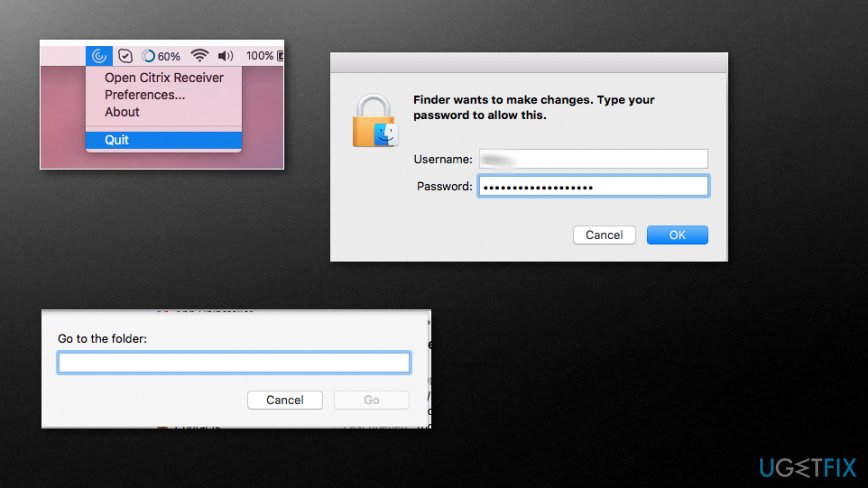
How to uninstall citrix receiver mac - You need to find and delete service files, logs, caches, and other data.
- Press ⌘+⇧+G and type the following locations to find those files.
- You need to make sure that files and folders get removed manually if they still exist after an uninstallation.
- /Applications-
Citrix Receiver.app - /Library
- /Internet plug-ins/CitrixICAClientPlugIn.plugin
- /LaunchAgents/com.citrix.AuthManager_Mac.plist
- /LaunchAgents/com.citrix.ServiceRecords.plist - /Users/Shared
- /Citrix/Receiver Integration - ~/Library
- /Internet plug-ins/CitrixICAClientPlugIn.plugin
- /Application Support/Citrix Receiver
- CitrixID
- Config
- Module
- /Preferences/com.citrix.receiver.nomas.plist
- /Preferences/com.citrix.receiver.nomas.plist.lockfile
- /Preferences/com.citrix.ReceiverFTU.AccountRecords.plist (added in 11.6)
- /Preferences/com.citrix.ReceiverFTU.AccountRecords.plist.lockfile (added in 11.6) - /private/var/db/receipts
- com.citrix.ICAClient.bom
- com.citrix.ICAClient.plist - Empty the Trash to be sure that Citric Receiver got removed from your Mac completely.
NOTE: The ~ in front of the folder refers to the folder located within the user profile. Some items mentioned may not exist on your system depending on the Receivers' version.
Bottom line
To uninstall Citrix Receiver properly, ensure you remove all related files and folders. Consider using system optimizers or cleaner utilities to assist in locating and deleting these files. If none of these methods work, further troubleshooting may be necessary.
Frequently asked questions
To uninstall Citrix Receiver from Windows 10, go to Settings > Apps > Apps & features, find Citrix Receiver in the list, click on it, and select 'Uninstall.' Follow the prompts to complete the removal process.
If Citrix Receiver won't uninstall on Windows 11, try using the Control Panel by going to Control Panel > Programs > Programs and Features, right-clicking Citrix Receiver, and selecting 'Uninstall.' If that fails, consider using the Citrix Clean-Up Utility to remove any remnants.
Yes, Citrix provides a Clean-Up Utility that can be used to completely remove Citrix Receiver from Windows 10 and Windows 11 if the standard uninstallation methods fail.




Report an issue
What's wrong with this guide? We review every report and update or remove content.
Report received — thank you. We'll review and fix it.
You need a free account to submit a report.
Be the first to comment