How to remove
Uninstall Comodo Geekbuddy
from Windows
Easily uninstall Comodo Geekbuddy from Windows 10 or 11 with our expert-tested guide. Enjoy a clutter-free system in minutes, zero traces left!

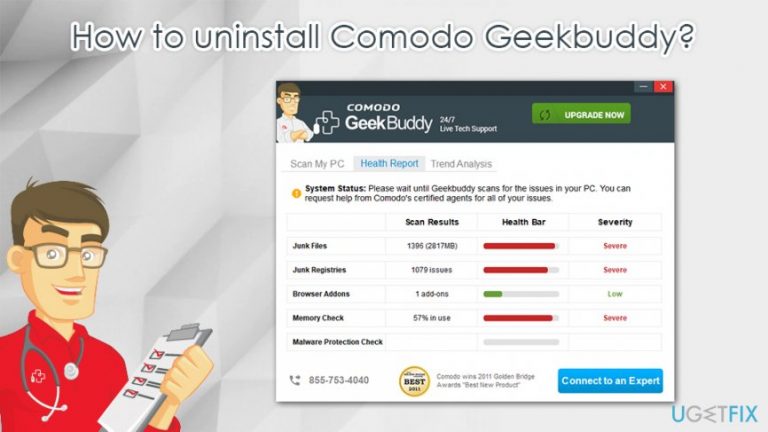
How does How to uninstall Comodo Geekbuddy end up on your PC?
- Installed unintentionally via software bundle packages
- Installed during the setup of Comodo Internet Security
- Users unaware of the application's origin
- Frequent pop-ups and intrusive activity
- Many users find it unnecessary
Repairs Windows system files, removes malware, and restores a clean OS state — without reinstalling.
Hello, I have installed Comodo antivirus, and as far as I understand, GeekBuddy was installed with it. Since then, I see pop-ups and other annoying stuff everywhere. Don’t get me wrong, I like Comodo, but this GeekBuddy thing is really unnecessary for me. Maybe there’s a way I can use the antivirus without this additional service constantly running on the PC?
GeekBuddy is an online computer support and repair service that is developed and distributed by a well-known antivirus maker COMODO. According to the developer, the app is a great solution to many who are willing to tune up, optimize, and speed up their PCs, as it provides access to 24/7 tech support service provided by GeekBuddy technicians.
Comodo Group is a respected software developer, trusted by millions of users around the world. It offers numerous products, including email security solutions, malware detection, and prevention tools for PC and mobile, device management software, and much more. Nevertheless, even the best-rated software has its downfalls, and Comodo GeekBuddy is one of them.
GeekBuddy provides support services which include:
- PC Tuneup
- Computer troubleshooting
- PC setup
- Security settings activation
- Printer setup
- Malware removal
- Email setup, etc.
With prices ranging up to $200 yearly, some might find the application useful. However, many users want to uninstall GeekBuddy as soon as they see it on their computers. So what is GeekBuddy and why some users would like it to go away from their Windows machines?
In most cases, users install the Geek Buddy app unintentionally, however, either via software bundle packages[ref en-2] from third-parties or when establishing Comodo Internet Security or other software from the company. As a result, they are not fully aware of where the application comes from, although it starts nagging users with pop-ups and other intrusive activity. There is no doubt that many would ask, "Is GeekBddy safe?."
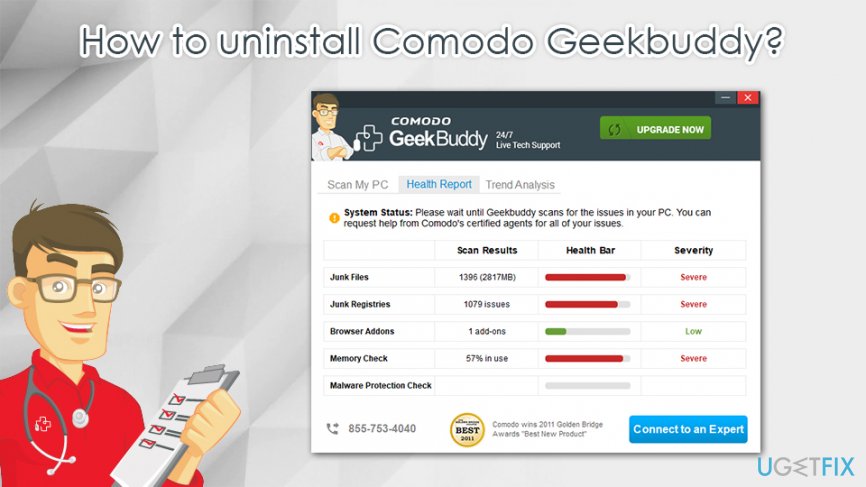
GeekBuddy is developed by a reputable anti-malware software maker Comodo, so, technically, the app should be worthwhile. However, many users complained about its mysterious appearance on the system and the annoying pop-up messages that nag them about their system health. Others also mentioned that the support service was less than effective, and some users said that their computers returned BSODs[ref en-3] after GeekBuddy technician accessed the machine remotely:[ref en-1]
I did the restart, a compaq red screen came up as my starting logo, then the screen went black, then dimmed, then after that it came up with a BSOD! After that, my windows software had recovered from a critical error, thankfully. So if my advice, is if you want to use Geekbuddy for help out with your pc issues.
In fact, many of the tech support services offered by GeekBuddy can be performed within a few searches of Google. On the other hand, it might serve useful for those who are less IT savvy. Despite that the software is developed by COMODO, it is far from perfect, so there is no wonder why many are looking for ways how to uninstall GeekBuddy from their Windows machines.
One of the prominent features of this software is that it installs Windows Service, which allows it to automatically launch at PC boot-up and continue running in the background of the system. Typically, you will see the “COMODO livePCsupport Service” service running in your Windows Task Manager as CLPS.exe.
Terminating these processes manually may temporarily put the service on hold, but it will not remove GeekBuddy from your computer. The pop-ups offering live support will continue to show up after the PC is rebooted. To remove unwanted service properly, you will have to uninstall the program, as shown in the guidelines below.
Note: if you need a comprehensive Windows repair solution, we highly advise using [d1] - it offers automatic repairs and malware damage removal without running a background service and nagging users with pop-ups.
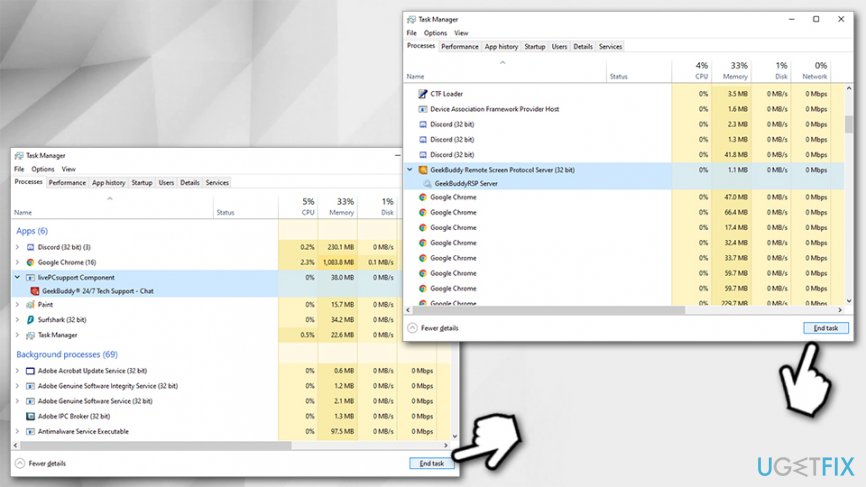
Step 1. Shut down GeekBuddy-related processes
To ensure a smooth Geek Buddy removal, you should terminate all its related processes:
- Press Ctrl + Shift + Esc on your keyboard to open Task Manager
- Click on More details at the bottom to expand the full window
- Locate the following components and press End Task at the bottom-right corner:
livePCsupport Component (all instances)
GeekBuddy Remote Screen Protocol Server
Step 2. Uninstall GeekBuddy via Control Panel
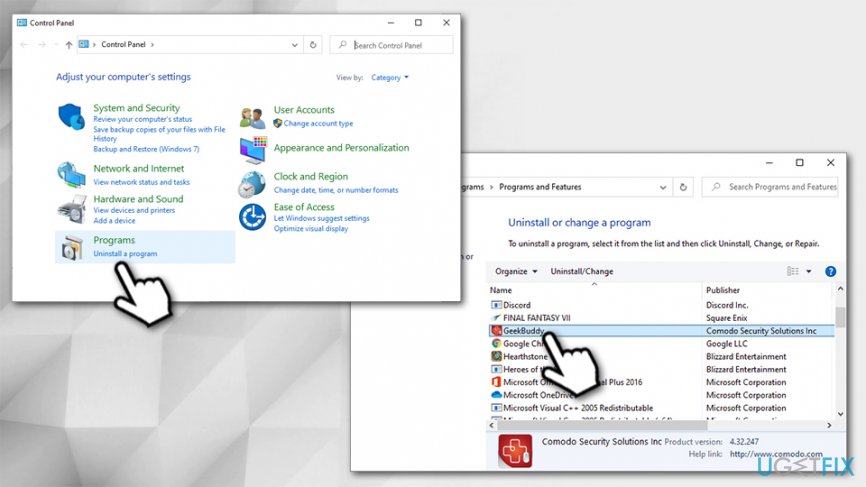
- Type in Control Panel into Windows search and press Enter
- Go to Programs > Uninstall a Program
- Locate GeekBuddy on the list and double-click the entry
How to uninstall comodo geekbuddy remove via control panel - When the Install Wizard opens, select Next
- In the next window, pick Remove and then hit Next
- Pick the reason you want to uninstall the app and click Remove
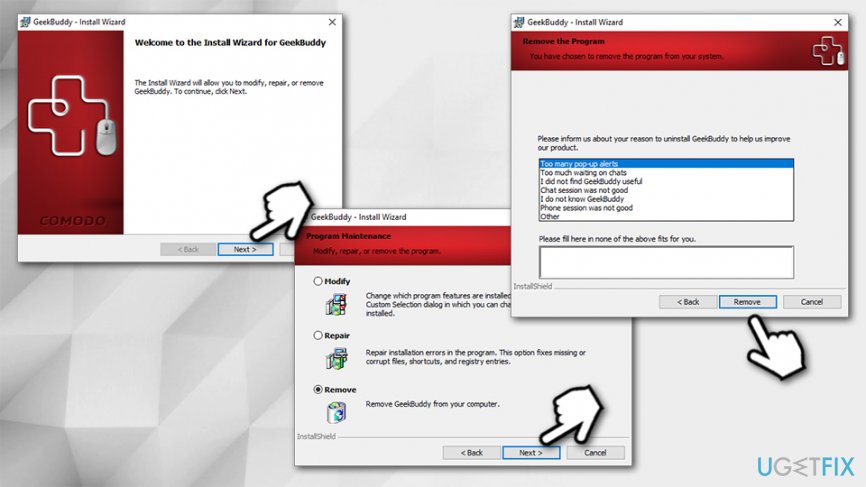
How to uninstall comodo geekbuddy follow on screen instructions
An alternative way to uninstall GeekBuddy is described below:
- Right-click on Start and select Apps & Features
- Scroll down to locate GeekBuddy
- Click Uninstall
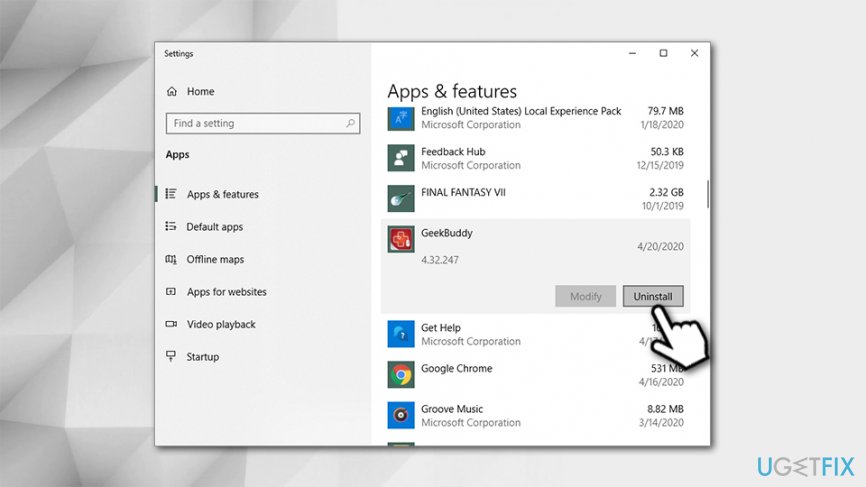
How to uninstall comodo geekbuddy remove via apps and features - Proceed with on-screen instructions as explained above
Step 3. Remove Geek Buddy-related registries (optional)
This option is not mandatory, as regular users should not meddle with the Registry editor carelessly. Nevertheless, if you are savvy enough and want to completely remove GeekBuddy, follow these steps:
- Open Windows search and type Regedit
- Hit Enter
- When in the Windows Registry Editor, select Edit > Find Next
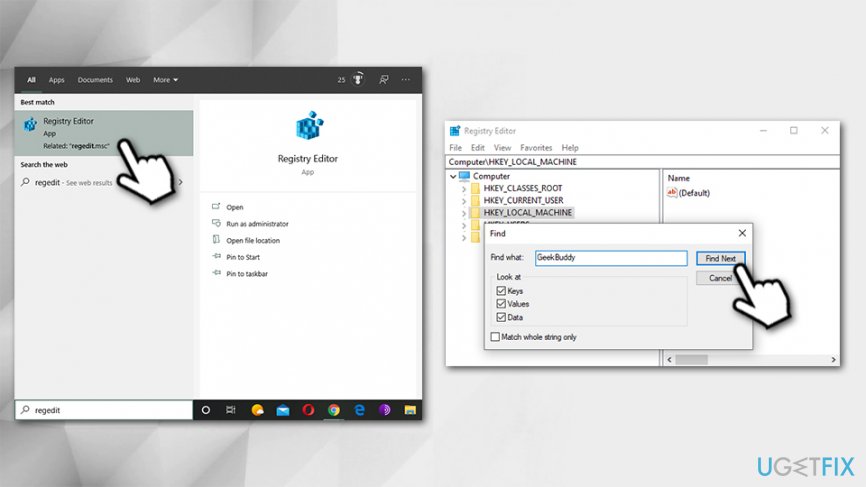
How to uninstall comodo geekbuddy tweak windows registry - Type in GeekBuddy into the search bar and run the scan
- Delete all entries related to GeekBuddy and reboot your PC
Bottom line
To uninstall Comodo GeekBuddy, users can access the Control Panel and remove it from the list of installed programs. If that does not work, consider using a dedicated uninstaller tool or checking for any related services running in the background. If none of these methods resolve the issue, seeking assistance from Comodo support may be necessary.
Frequently asked questions
To uninstall Comodo Geekbuddy on Windows 10, go to Settings > Apps, find Comodo Geekbuddy in the list, and click 'Uninstall'.
Yes, it is safe to remove Comodo Geekbuddy from Windows 11 if you no longer need its services or if you are experiencing issues.
If Comodo Geekbuddy won't uninstall on Windows, try using the Control Panel's 'Programs and Features' to remove it, or consider using a dedicated uninstaller tool.




Report an issue
What's wrong with this guide? We review every report and update or remove content.
Report received — thank you. We'll review and fix it.
You need a free account to submit a report.
Be the first to comment