How to remove
Uninstall COMODO Internet Security 2017
from Windows
Easily uninstall COMODO Internet Security 2017 from your Windows 10 or Windows 11 device. Follow our expert-tested guide for a smooth removal experience.


How does How to Uninstall COMODO Internet Security 2017 end up on your PC?
- COMODO Internet Security 2017 reinstalls itself automatically
- Undeleted Registry keys
- Presence of Comodo-related programs
- Improper uninstallation process
- Lack of alternative security software during uninstallation
Repairs Windows system files, removes malware, and restores a clean OS state — without reinstalling.
I used COMODO Internet Security 2017 from the time it was released, but I’ve noticed that my computer behaves strangely (displays pop-ups, redirects me to dodgy websites, etc.) even tough the web protection is on.
I tried to remove it, but it keeps reinstalling somehow. I see it in Program Files and User Data. I tried to delete it in Safe Mode, but it still won’t go away. What am I doing wrong?
COMODO Internet Security 2017 is an anti-virus tool developed and distributed by Comodo Group, Inc. It is depicted as a multi-layered security application, which combines antivirus protection, filtering firewall, advanced host intrusion prevention,[ref en-1] and automatic sandboxing[ref en-2] of unknown files.
The full anti-virus version with both removal and protection features can be downloaded from the official website for free. Nevertheless, people can purchase a Pro version for $27.99 per year and receive live expert virus removal service and exclusive Virus-Free Guarantee. Additionally, users can also opt for a Complete version for $ 89.99/year, which includes 50GB Online Storage & Backup and 10GB TrustConnect WiFi Security.
Judging from people’s reports related to COMODO Internet Security, the tool usually meet people’s expectations. However, those who opt for COMODO removal may face some difficulties.
The supply of anti-virus tools on the Internet is vast, so naturally, people move from one security tool to another to check out new features and find the most suitable one for them. Unfortunately, but people often cannot uninstall COMODO Internet Security 2017 successfully as it reinstalls itself automatically.
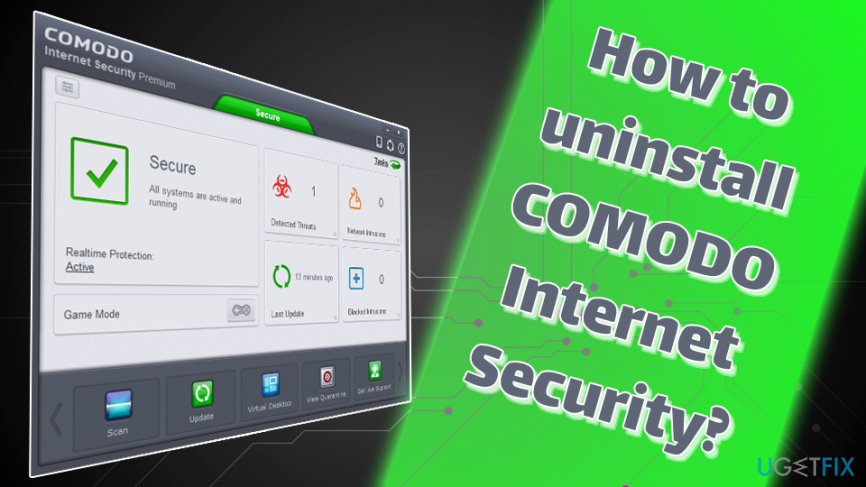
Be aware that internet security software is essential in order to stay safe online. Therefore, do not leave your computer unprotected at any time during when you are switching to a different application, i.e., once you uninstall the program make sure you replace it with something else immediately.
COMODO Internet Security 2017 removal
The removal of this security tool does not differ from the removal of other applications, but the culprit of unsuccessful COMODO Internet Security 2017 removal may be the undeleted Registry keys[ref en-3] and Comodo-related programs. Therefore, we’ll explain how to perform the removal completely.
Step 1. Disable COMODO in Task Manager
Before you uninstall COMODO Internet Security 2017, enter Task manager and shut down the application:
- Press Ctrl + Shift + Del to open Task Manager.
- Locate COMODO Internet Security Complete 2017 and click it.
- Select End Task.
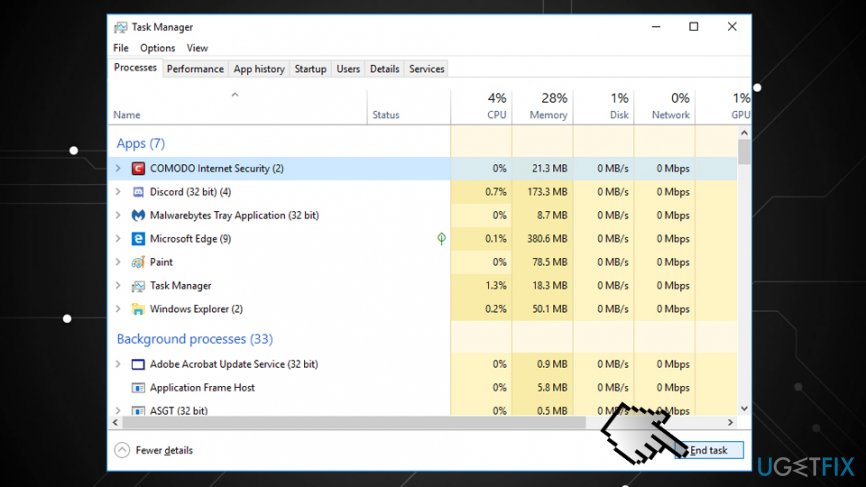
Uninstall comodo internet security 2017 task manager
Step 2. Remove the tool from Programs & Features
- In the search window, type in Control Panel and hit Enter
- Go to Programs > Uninstall a program and locate COMODO Internet Security.
- Click it and select Uninstall.
- You should also check for Acronis Backup Agent, COMODO Secure Shopping, GeekBuddy and Internet Security Essentials. These programs usually spread bundled with COMODO Internet Security 2017 by default.
- Click on each of them and select Uninstall.
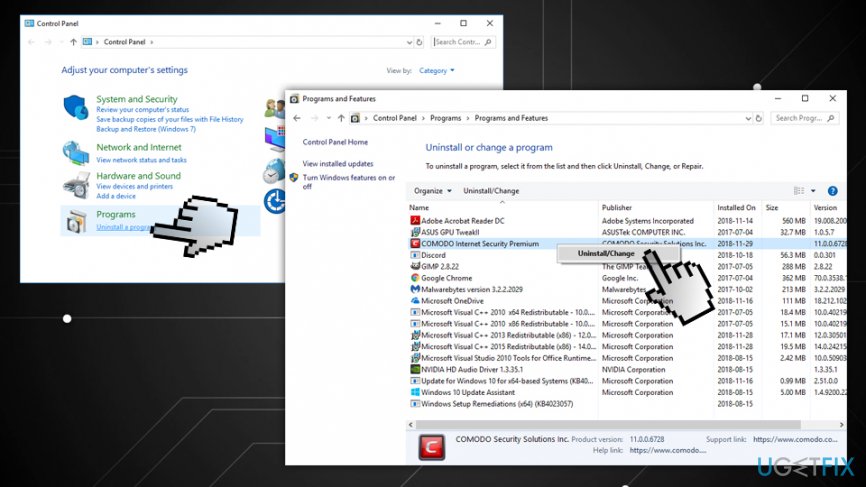
Uninstall comodo internet security 2017 remove via control panel
Step 3. Remove the remnants
- Press Windows key + R, type regedit, and press Enter.
- Navigate to the HKEY_CURRENT_USER\\Software\\ComodoGroup\\ and delete the folder.
- Then do the same with the HKEY_LOCAL_MACHINE\\SOFTWARE\\COMODO\\ folder.
- Press Edit at the top of the window and select Find.
- Enter COMODO and remove all findings.
- Finally, reboot your PC.

Uninstall comodo internet security 2017 clean windows registry
If you have already uninstalled this security application manually, we would strongly recommend checking the system with [d1], which is an advanced PC optimization tool. It will ensure that the system is fully optimized, updated, and virus-free.
Bottom line
To successfully uninstall COMODO Internet Security 2017, ensure that you remove any related programs and clean up the Registry keys. If you continue to experience issues, consider using a dedicated uninstaller tool or seek professional assistance.
Frequently asked questions
To uninstall COMODO Internet Security 2017 on Windows 10, go to Settings > Apps, find COMODO Internet Security in the list, select it, and click 'Uninstall.' Follow the on-screen prompts to complete the removal process.
Yes, you can uninstall COMODO Internet Security 2017 in Windows 11 by opening Control Panel, selecting 'Programs and Features,' locating COMODO Internet Security, and clicking 'Uninstall.'
If COMODO Internet Security 2017 fails to uninstall on Windows, try using the COMODO Removal Tool or booting your system in Safe Mode and then attempt the uninstallation again.




Report an issue
What's wrong with this guide? We review every report and update or remove content.
Report received — thank you. We'll review and fix it.
You need a free account to submit a report.
Be the first to comment