How to remove
Uninstall Copilot
from Windows
Easily uninstall Copilot from Windows 10 or Windows 11 with our expert-tested guide. Get your system back in minutes, zero traces left!


How does How to uninstall Copilot from Windows end up on your PC?
- General dislike of pointless AI programs
- Unwelcome system additions
- Desire for a simpler, more efficient computer experience
- Concerns about system resource management
- Need for greater control over installed programs
Repairs Windows system files, removes malware, and restores a clean OS state — without reinstalling.
Hello. I don't like the new Windows Copilot. Is there a way to uninstall it? I could not find the option. Any tips would be appreciated.
Windows Copilot is an AI-powered assistant designed to enhance user experience on Windows. With the goal of increasing productivity and streamlining user interactions with the operating system, it offers support with a variety of activities. While it offers some valuable features, including contextual suggestions and keyboard shortcuts, not all users find it essential or prefer to have AI applications integrated into their system.
There are a number of reasons why users would desire to remove Copilot, but a typical one is a general dislike of pointless AI programs or unwelcome system additions. Without AI-driven features, some people might prefer a simpler, more efficient computer experience.
It is important to note that although users may wish to remove Copilot entirely from the system, there isn't a simple way to do so. Users who appreciate personalization and want a more simplistic software environment may find this constraint annoying. Users may feel that their ability to modify system parameters is restricted by the lack of a straight uninstall option.
The inability to completely remove Copilot can worry users who value system resource management, privacy, or just want greater control over the program they choose. Furthermore, the existence of undesired programs may have an adverse effect on system efficiency and user contentment, prompting certain users to look for ways to eliminate them.
Although it might not be possible to completely uninstall Copilot, there are a few ways to disable or uninstall it. These include configuring Microsoft Intune, altering registry entries, and editing Group Policy Editor settings. This guide will walk you through 4 steps that should help you uninstall Copilot from Windows.
If you experience any other OS issues, you can run a maintenance tool like [d1] that can fix most system errors, BSODs,[ref en-1] corrupted files, and registry[ref en-2] issues. Otherwise, follow the step-by-step instructions below.

Method 1. Use the Settings App
- Open the Settings app by pressing the Windows key + I.
- Navigate to Personalization and select Taskbar.
- In the Taskbar settings, find Copilot (preview) under Taskbar items.
- Toggle off the switch next to Copilot (preview) to instantly remove the Taskbar icon.
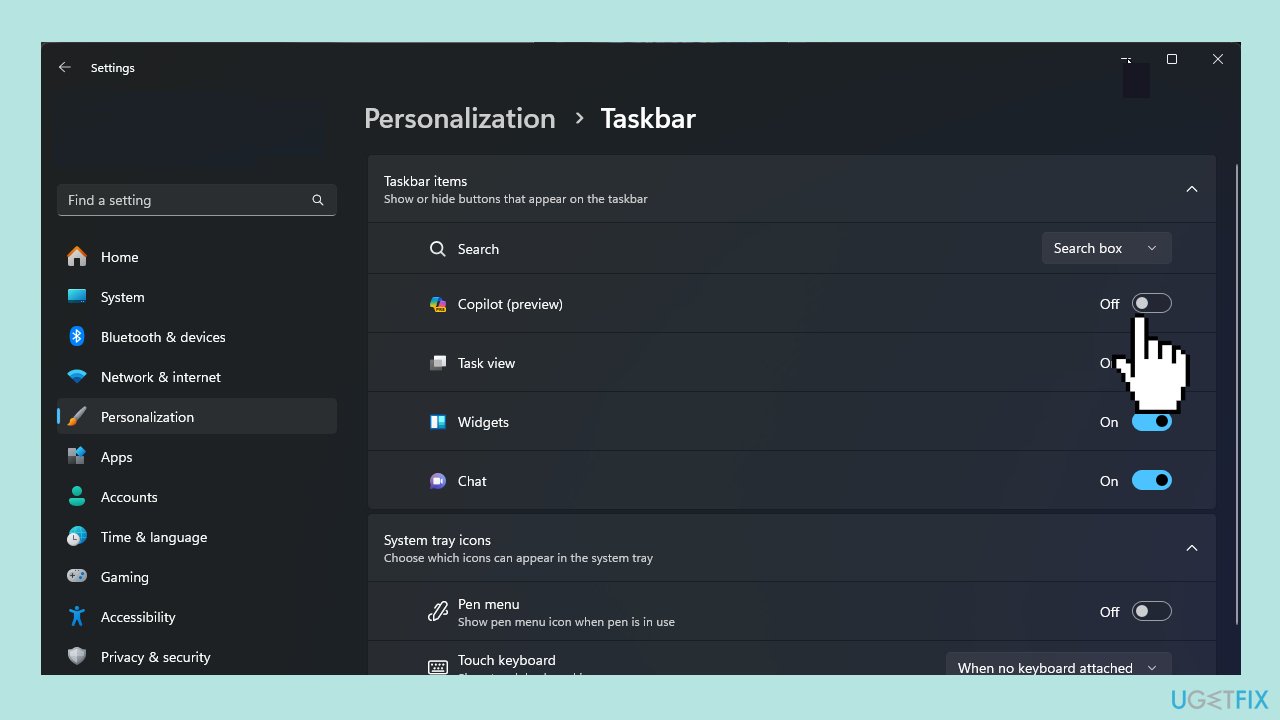
Note: You can still invoke Windows Copilot using the Windows + C keyboard shortcut.
Method 2. Use the Registry Editor
- Open the Run dialog box by pressing the Windows key + R.
- Type regedit and click OK to launch the Registry Editor.
- Confirm the UAC prompt by clicking Yes.
- Create a backup of registry files by going to File, then Export. Save the .reg file to a convenient location.
- To remove the Windows Copilot button from the taskbar, navigate to the path:
Computer\HKEY_CURRENT_USER\Software\Microsoft\Windows\CurrentVersion\Explorer\Advanced
- Find ShowCopilotButton in the right pane, double-click it, and change the Value data to 0. Click OK to confirm.
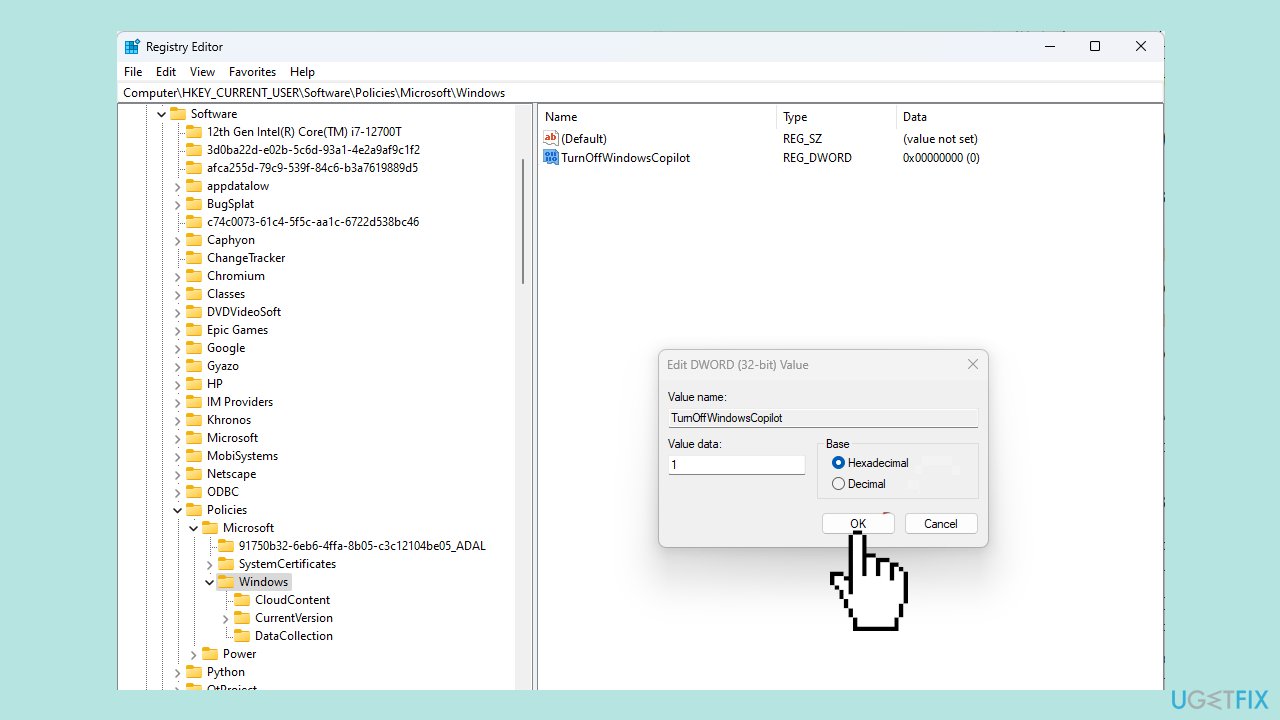
- To disable the feature, go to: Computer\HKEY_CURRENT_USER\Software\Policies\Microsoft\Windows.
- Right-click Windows, select New, then DWORD (32-bit) Value. Rename it to TurnOffWindowsCopilot.
- Double-click TurnOffWindowsCopilot, change the Value data to 1, and click OK to save the changes.
- Close the Registry Editor and restart your computer.
Method 3. Use the Group Policy
This method will work only on the Enterprise and Professional versions of Windows.
- Open the Run dialog box by pressing the Windows key + R.
- Type gpedit.msc and click OK to access the Group Policy Editor.
- Confirm the UAC prompt by clicking Yes.
- Navigate to Computer Configuration > Administrative Templates > Start Menu > Taskbar to hide the Copilot button.
- Double-click on the Hide the Copilot button option to edit the group policy.
- Select Enabled and click OK.
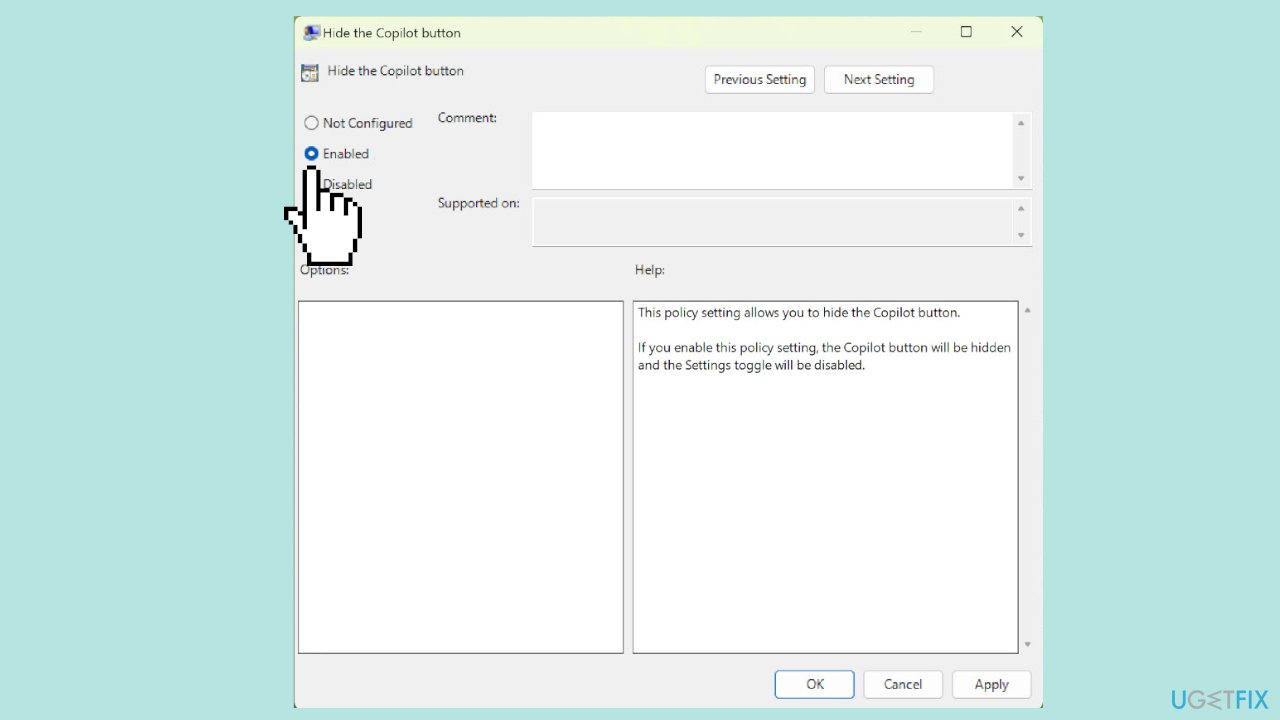
- To disable the AI-powered assistant, go to User Configuration\ Administrative Templates\ Windows Components\Windows Copilot.
- Select Windows Copilot, locate Turn off Windows Copilot in the right pane, and double-click to open Properties.
- In the Turn Off Windows Copilot window, select Enabled and click OK.
Method 4. Use Microsoft Intune
- Log in to Microsoft Intune.
- Navigate to Devices, then select Windows, and click Configuration profiles.
- Choose Windows 10 and later for Platform, Templates for Profile type, and Custom for Template, then click Create.
- On the Custom page, enter the following details and click Next:
Name: TurnOffWindowsCopilot
Description: Add a reference description
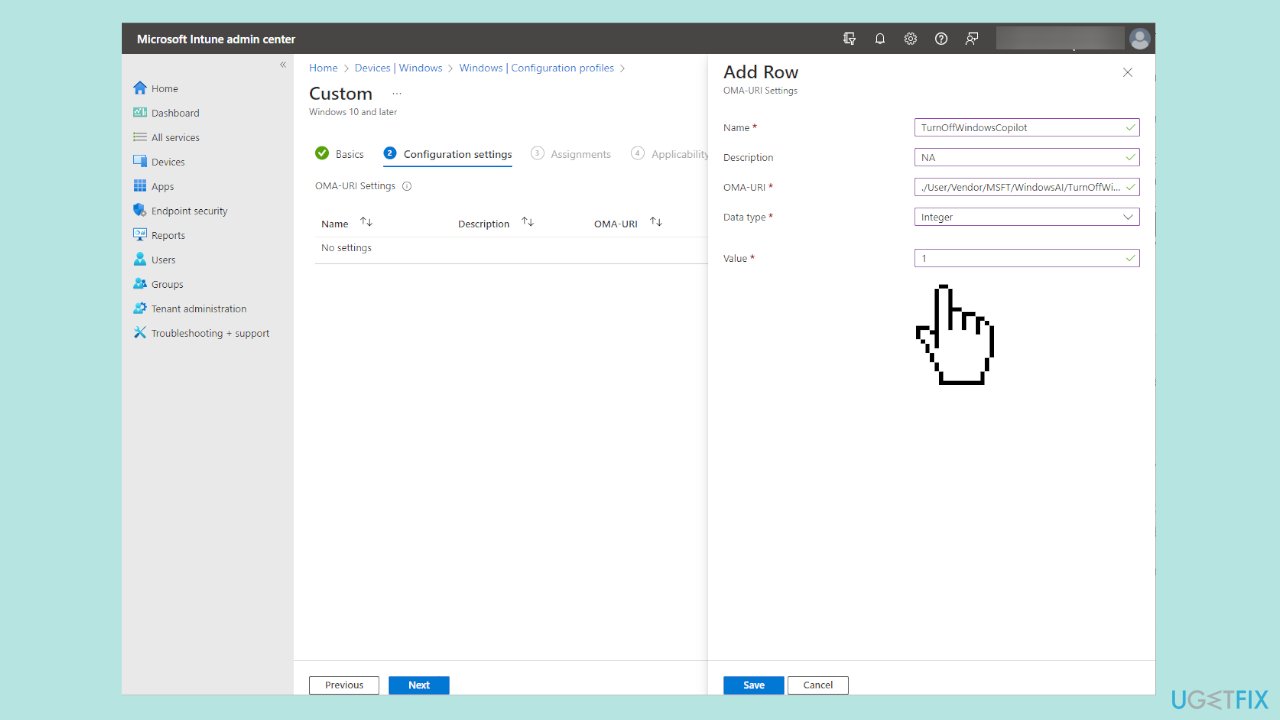
- Under OMA-URI Settings, click Add, and enter the following details before clicking Save:
Name: TurnOff WindowsCopilot
Description: Add a reference description
OMA-URI: ./User/Vendor/MSFT/WindowsAI/TurnOffWindowsCopilot
Data Type: Integer
Value: 1
- Click Next.
- Optionally, add devices and create a rule if needed, then click Create.
Bottom line
Although it might not be possible to completely uninstall Copilot, users can disable it by configuring Microsoft Intune, altering registry entries, or editing Group Policy Editor settings. If these methods do not resolve the issue, consider running a maintenance tool to fix other system errors.
Frequently asked questions
To uninstall Copilot from Windows 10, go to Settings > Apps > Apps & features, find Copilot in the list, and click on 'Uninstall'.
Yes, on Windows 11, you can remove Copilot by navigating to Settings > Apps > Installed apps, locating Copilot, and selecting 'Uninstall'.
If Copilot doesn't appear in the Apps list on Windows, try using the search function in Settings or check if it's a feature that requires different removal steps.




Report an issue
What's wrong with this guide? We review every report and update or remove content.
Report received — thank you. We'll review and fix it.
You need a free account to submit a report.
Be the first to comment