How to remove
Uninstall CyberLink PowerDVD16
from Windows
Easily uninstall CyberLink PowerDVD16 from Windows 10 or 11 with our expert-tested guide. Enjoy a clean system in minutes, zero traces left!

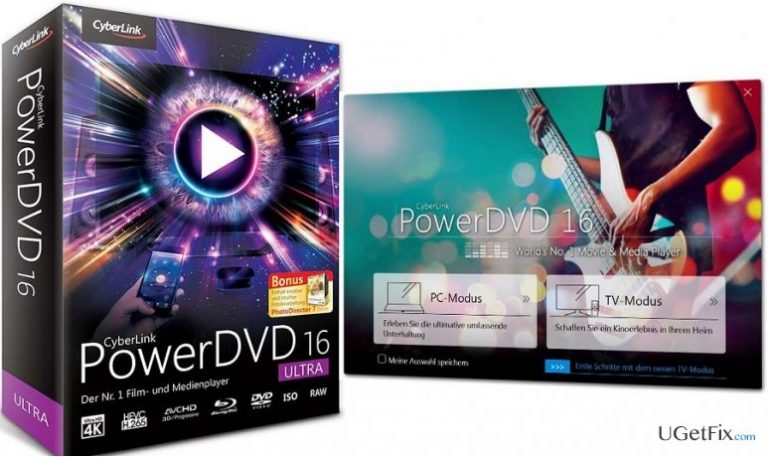
How does How to Uninstall CyberLink PowerDVD16 on Windows end up on your PC?
- Application crashes upon launch
- Errors during operation
- Installation via software package
- Removal resistance
- Multiple versions causing conflicts
Repairs Windows system files, removes malware, and restores a clean OS state — without reinstalling.
I have recently installed CyberLink PowerDVD, but it does not work properly. Once I try to launch it, an error message pop-ups saying “CyberLink PowerDVD has crashed”. I removed the application, but, nevertheless, when I try to launch a media file, CyberLink PowerDVD starts lauding and crashes. Please advise how to uninstall CyberLink PowerDVD ASAP!
PowerDVD 16 is a movie and media player developed by CyberLink Corp. This tool is presented as a valuable tool for streaming high quality movies thus creating an atmosphere of a cinema at home. There are previous additions of this player, including Ultra, Standard, and pro. Each of them has a range of supporting files, but PowerDVD 16 is obviously the most advanced one. It’s multifunctional: supports 360 degree videos, allows media sending to a big screen via wi-fi, enhances the quality of a video, offers a cinema-quality video playback, slow motion actions, and so on. Therefore, it’s a tool that requires attention.
BUT. If you would “google” for PowerDVD + removal, you would see how many troubles people had with all the versions of this application. We are not going to list all separate issues, but it seems that it crashes commonly, delivers errors, gets installed via software packaged, becomes removal resistant, and so on. Thus, if you have installed this tool and now can’t remove it, we will try to help you with PowerDVD 16 removal on Windows.
The easiest way to uninstall PowerDVD on Windows, to say in advance, is to download [rev id="Perfect Uninstaller"], which will do everything automatically. If this method does not satisfy your needs, read the next paragraph.
How to Remove CyberLink PowerDVD16 on Windows?
If you want to delete PowerDVD 2016 once and for all, make sure that you take your time and perform the removal correctly. Down below, we are going to list all the possible methods, so pick out the one that you prefer.
Method 1
- on the Right-Click Start (bottom left corner) and select File Explorer
- Right-Click on the PowerDVD16 to find out its location. Then open Program Files (x86) > CyberLink > PowerDVD16
- Open this folder and find uninstall.exe in it. Double click on that file and let the process begin.
- You should get a confirmation window asking “Would you like to keep your personal settings for PowerDVD?” If you are going to reinstall the application in the future, select Yes. Otherwise, select No.
- After that, you should remove file leftovers via Windows Registry. For that, click on the Start button and enter regedit in the search bar.
- Once Registry Editor opens, go to HKEY_CURRENT_USER\Software\ and look for a folder named CyberLink or something similar. Remove it if you want to uninstall CyberLink PowerDVD completely.
- Finally, reboot the PC.
Method 2.
- Click on Start (bottom left corner) and select Programs and Features under Programs. You should now see a long list of programs that are running on your PC.
- Find PowerDVD16 on the list, click it, and select Uninstall.
- After that, repeat steps 4,5,6, and 7 listed above to remove CyberLink PowerDVD on Windows once and for all.
Method 3.
Install a software that would function as a powerful removal and system optimization tool. To uninstall PowerDVD16 our recommendation would be to use [rev id=”Reimage”] or [rev id="Perfect Uninstaller"].
Bottom line
To uninstall CyberLink PowerDVD16, you can use the Perfect Uninstaller for an automatic removal. Alternatively, you can manually locate the application in Program Files and proceed with the uninstallation. If these methods do not work, consider seeking additional support or tools for removal.
Frequently asked questions
To uninstall CyberLink PowerDVD16 on Windows 10, go to Settings > Apps, find PowerDVD16 in the list, click on it, and select Uninstall.
Yes, you can completely remove CyberLink PowerDVD16 from Windows 11 by navigating to Settings > Apps > Apps & features, selecting PowerDVD16, and clicking Uninstall.
If CyberLink PowerDVD16 won't uninstall on Windows, try using the built-in troubleshooter by going to Settings > Update & Security > Troubleshoot, or consider using a third-party uninstaller.




Report an issue
What's wrong with this guide? We review every report and update or remove content.
Report received — thank you. We'll review and fix it.
You need a free account to submit a report.
Be the first to comment