How to remove
Uninstall Data Guardian
from Windows
Discover the easiest methods to uninstall unwanted programs on Windows 10 and 11, ensuring a smooth and clean experience. Expert-tested for your peace o…

How does How to Uninstall Data Guardian on Mac OS end up on your PC?
- Unnecessary applications taking up space
- Desire to streamline software usage
- Security concerns regarding unused applications
- Preference for organization of personal data
- Need to remove outdated software
Repairs Windows system files, removes malware, and restores a clean OS state — without reinstalling.
Hey! I want to uninstall this application that is supposed to protect my passwords and logins - it is called Data Guardian. It is a great application, but I want to clean my Mac from programs that I do not regularly use. Can you give me some tips how to do it?
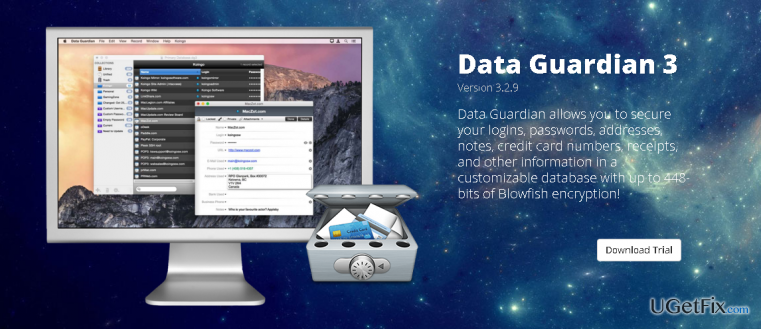
Data Guardian is a program that is created by KOINGO Software. It is a great application to secure your personal information, for example, passwords, logins, banking information, notes and so on. Moreover, Data Guardian allows you to create various databases and save individual notes - for example, shopping lists, to-do lists, address books and so on. Data Guardian software also includes Password Generator and Quick Browser options. This program can be very useful if you want to store sensitive information securely. Also, you can easily manage the view settings and add custom data fields. However, that is not the end - Data Guardian allows you to quickly form e-mail messages or call telephone numbers. Besides, Data Guardian is useful because it can work on PC and Mac computers. There is no need to point out how beneficial this program can be if you like to store your data neatly and also if you want to be sure that you keep important information in a safe place. However, if you find this program unnecessary, it takes just a couple of minutes to uninstall it, but you have to know how to do it correctly. This is why we have prepared clear instructions how to remove Data Guardian from you computer system. Follow the steps below:
How to Uninstall Data Guardian on Mac OS?
- Enter the Applications folder;
- Click on Data Guardian icon and hold it;
- Drag Data Guardian icon to Trash;
- Opt for Empty Trash option.
Now, after you deleted the Data Guardian icon from the Applications folder, you have to delete the rest of Data Guardian files. It may be hard to find them on your own, so we will make it easier for you - look for Data Guardian files in these folders:
- /Library/Application Support/;
- /Library/Preferences/.
It is very important to find files associated only with Data Guardian. Be attentive and do not accidentally delete important files that belong to other programs. If you think that you may do some mistakes, and you do not want to remove something important, you can just use a program uninstaller software. We recommend using [rev id=”MacCleanse”], [rev id=”MacKeeper”], or [rev id=”MacBooster”] programs.
Bottom line
To uninstall Data Guardian on Mac OS, you need to drag the application icon to Trash and then empty the Trash. Additionally, you should delete remaining files in the /Library/Application Support/ and /Library/Preferences/ folders. If these steps do not resolve the issue, consider seeking further assistance or using a dedicated uninstaller tool.
Frequently asked questions
Data Guardian is not available for Windows, but you can remove similar applications using the built-in uninstaller in Windows 10 or Windows 11.
To uninstall a program on Windows 11, go to Settings > Apps > Apps & features, find the program, click on it, and select 'Uninstall'.
Yes, you can use the Control Panel to uninstall stubborn programs by navigating to Control Panel > Programs > Programs and Features, selecting the program, and clicking 'Uninstall'.




Report an issue
What's wrong with this guide? We review every report and update or remove content.
Report received — thank you. We'll review and fix it.
You need a free account to submit a report.
Be the first to comment