How to remove
Uninstall DriverEasy
from Windows
Easily uninstall DriverEasy from your Windows 10 or Windows 11 PC with our expert-tested guide. Say goodbye to unwanted programs in minutes!

How does How to Uninstall DriverEasy end up on your PC?
- Uninstall process fails
- Free trial version does not provide all driver updates
- Installs outdated or mismatching driver
- DriverEasy may consume excessive CPU resources
- DriverEasy may cause system slowdowns or freezes
Repairs Windows system files, removes malware, and restores a clean OS state — without reinstalling.
DriverEasy did not meet my expectations, so I would like to uninstall it. The problem is that the uninstall process fails and I don‘t understand why. Could you please help?
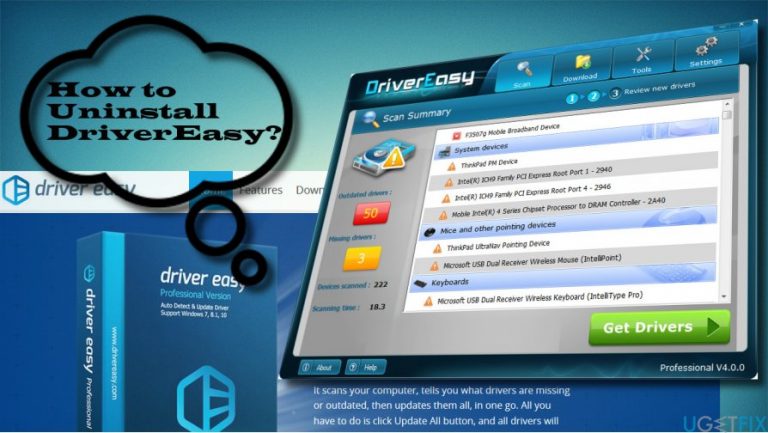
DriverEasy by Easeware is a software utility, which aims at helping people to maintain Windows system‘s drivers. The developer introduces it as a powerful tool available to scan, maintain, update, and fix any of the system‘s drivers. The app is compatible with all Windows versions (7, 8, 8.1, 10, XP, and Vista). Outdated, corrupted or mismatching Windows drivers may cause a variety of problems, including slowdowns, BSOD, freezes, boot up problems, and so on. Therefore, DriverEasy seems to be a great solution for maintaining system‘s performance and stability as it is supported by over 8 000 000 driver database, which include daily updates. The app features user-friendly interface, so installing it and running a scan will not cause any difficulties.

If you are satisfied with DriverEasy performance, you are free to use it. However, few people reported that it did not meet expectations due to several reasons. First of all, free trial version does not provide all driver updates. Second of all, sometimes instead of installing a proper system driver, the tool installs outdated or mismatching driver. Third of all, DriverEasy may suck up CPU, which is why the system may slow down or freeze, especially when the tool is running a scan. If you have encountered any of these shortcomings and want to uninstall DriverEasy, we will provide the instructions down below.
A Guide on How to Uninstall DriverEasy from Windows
- Locate the DriverEasy in the menu tray, right-click it, and select Exit.
- Open Task Manager and open Processes tab.
- Find DriverEasy, click it, and select Disable.
- Now right-click on Windows key and select Control Panel.
- Open Uninstall a program, Programs and Features or Add/Remove Programs depending on the type of your OS.
- Find DriverEasy on the list, select it and click Uninstall.
- Click Yes on the confirmation window and wait while the app is being uninstalled.
- After that, open Windows Registry Editor to remove the leftovers. For that, press Windows key + R, type regedit, and press Enter.
- At the top of the window, click Edit and select Find.
- Type DriverEasy and delete all keys associated with this software.
- To make sure that all software components have been removed, navigate to My Computer or This PC, again, depending on your OS type, and mark the Hidden items option.
- Enter DriverEasy in the file explorer search box and see if it returns any results. Remove all files or foldes associated with the unwanted software.
- Finally, restart Windows.
If you encounter any problems during DriverEasy removal, you can always use a professional software removal utility, such as [rev id="Perfect Uninstaller"]. It will eliminate the software from Control Panel, Windows Registries, and other system folders automatically, thus ensuring complete removal and saving your time. Additionally, we would highly recommend using an optimization tool regularly to keep your system stable and optimize. Our recommendation would be [rev id=”Reimage”] as it protects the system both from errors and malware.
Bottom line
To uninstall DriverEasy, you should first exit the application, disable it in Task Manager, and then proceed to uninstall it through the Control Panel. After uninstallation, it's recommended to check the Windows Registry Editor for any leftover entries. If these steps do not resolve the issue, consider seeking additional technical support.
Frequently asked questions
To uninstall DriverEasy from Windows 10, go to Settings > Apps, find DriverEasy in the list, click on it, and select 'Uninstall'.
If DriverEasy won't uninstall on Windows 11, try using the Control Panel by navigating to Programs > Programs and Features, right-clicking on DriverEasy, and selecting 'Uninstall'.
Yes, after uninstalling DriverEasy, you may want to check for leftover files in the Program Files directory and remove them manually to ensure a complete uninstall.




Report an issue
What's wrong with this guide? We review every report and update or remove content.
Report received — thank you. We'll review and fix it.
You need a free account to submit a report.
Be the first to comment