How to remove
Uninstall DriverMax
from Windows
Easily uninstall DriverMax from Windows 10 or 11 with our expert-tested guide. Clear out unwanted software and reclaim storage in minutes!

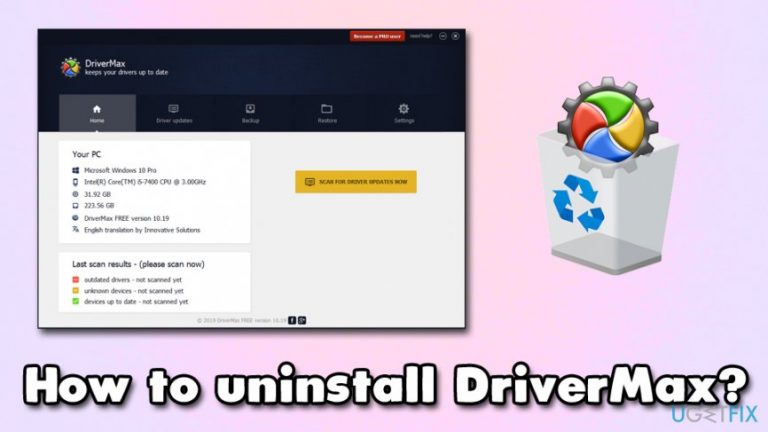
How does How to uninstall DriverMax end up on your PC?
- Installed without user consent
- Corrupt or incompatible drivers
- Software bundling during installation
- Potentially unwanted program (PUP)
- Crashing programs after installation
Repairs Windows system files, removes malware, and restores a clean OS state — without reinstalling.
Hello, recently found DriverMax installed on my Windows 10 computer. I don't know where it came from, as I did not install it myself. I gave it a try and some of my programs started crashing afterwards. I don't know if it is related, but I want to uninstall it. Could you assist please?
DriverMax is a type of software that downloads and updates outdated drivers on the system. Initially, it might seem like a handy tool, especially for those who are not that experienced with how the computer operates. In some cases, users do not know what drivers are and what they are used for.
Drivers are essential part of the any Windows operating system, as it makes computer hardware and software compatible. Without them, most of the features on your machine would not be running. Drivers are also often updated in order to fix various software bugs,[ref en-2] improve security, and improve performance.
While drivers can be easily downloaded from the software manufacturer's website, driver updating utilities can do the work for you. Essentially, it is an excellent solution for those who want to save time or do not wish to tamper with essential system parts. Unfortunately, software like DriverMax might not only fail to deliver what it promises but also install corrupt or incompatible drivers on your device.
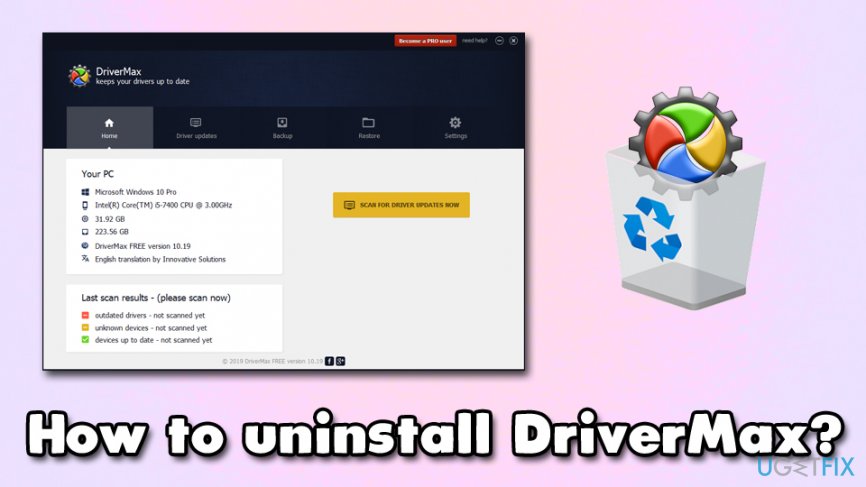
DriverMax is essentially a potentially unwanted program[ref en-1] that can be downloaded from the official website, although users often find it on their machines after the installation of freeware/shareware. This is because of a well-known distribution technique called software bundling - optional components are hidden inside the installation wizards of desired apps, and various tricks are used to hide them.
Thus, to avoid the installation of PUPs like DriverMax, always make sure you never rush the installation process and always pick Advanced/Custom settings when prompted.
Should you uninstall DriverMax?
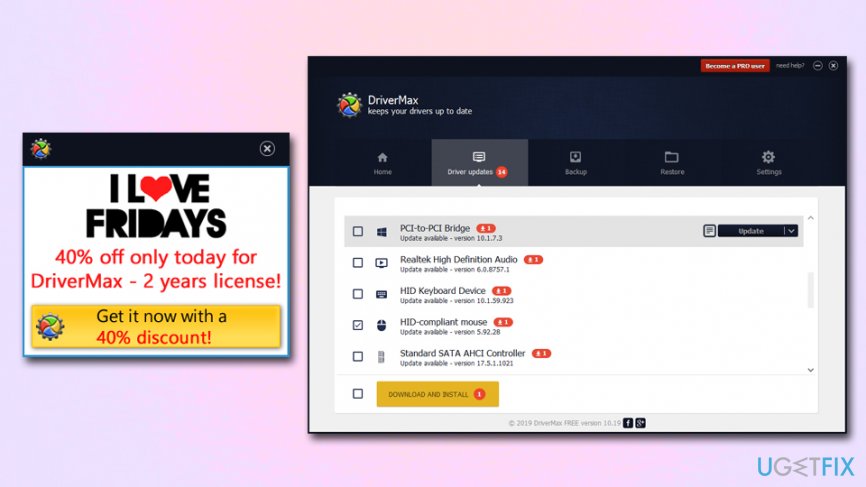
As we already mentioned, DriverMax would be an excellent tool if it would actually work as intended. However, during our initial tests, we found that the app is not that trustworthy - it finds way too many outdated drivers, and we can only guess what it would install. Besides, drivers for regular mouse do not need updating, unless such a device is malfunctioning for some reason. We speculate that DriverMax is pushing useless updates that are not needed in the first place.
In case DriverMax installs drivers that are not compatible with the system, it might corrupt the operation of certain programs or make them unusable. Besides, the app is spamming pop-ups and offering discounts for the full version of the app. Additionally, users complained that they could not get a refund once they were unsatisfied with the product, and the developer failed to inform that the product is subscription-based, and is not a one-time purchase.[ref en-3]
Therefore, we suggest you uninstall DriverMax, as it might cause system malfunctions and it is not a reliable tool in the first place. In fact, there are many such "driver updaters" around that do more harm than good, so be wary.
Note: if your system is somehow malfunctioning due to modifications made by deceptive programs, we suggest you scan it with [d1] - it can automatically repair your Windows computer and also delete all the traces of unwanted apps like DriverMax.
Step 1. Terminate all the processes related to DriverMax
To be able to uninstall DriverMax without interruptions, you should first stop all the processes related to DriverMax. Please follow these steps:
- Press Ctrl + Shift + Esc to open Task Manager
- Click More Details
- Check the section under Apps - the DriverMax entry should be there. In case you can't find the entry under Apps, it will be located under Background processes
- Right-click and select End task
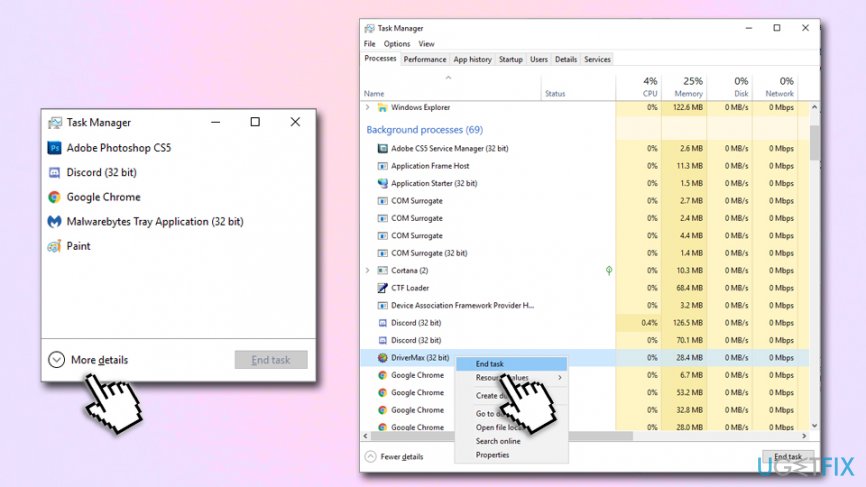
How to uninstall driver max shut down processes via task manager
Step 2. Enter Control Panel to uninstall DriverMax via built-in uninstaller
Next step is to locate the app in the Program list that you can reach via the Control Panel:
- Type in Control Panel into the built-in search box
- Go to Programs and the select Uninstall a program
- From the list, find DriverMax entry and double-click it
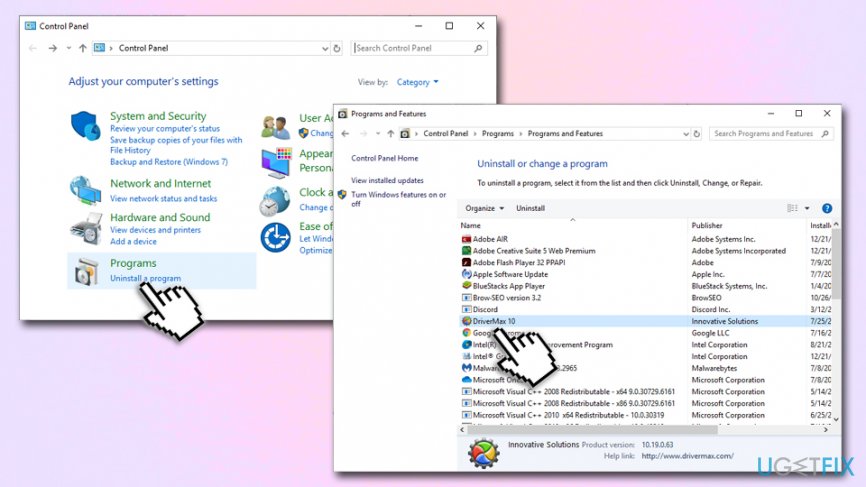
How to uninstall driver max uninstal via control panel - When User Account Control message shows up, click Yes
- Once the next prompt asks you whether you are sure you want to delete the app, confirm with Yes
Step 3. Clean Windows registry
To be completely sure that you removed all the traces of DriverMax, you can also delete its registry entries. Be aware that this step should only be performed by experienced computer users, as any incorrect actions might make Windows malfunction. If you are confident, please proceed with the following instructions:
- Type in regedit into the search box
- Right-click on the Registry Editor entry and and pick Run as administrator
- Click on Edit and then select Find Next
- Delete all folders that relate to Innovative Solutions or DriverMax, for example HKEY_CURRENT_USER\\Software\\Innovative Solutions
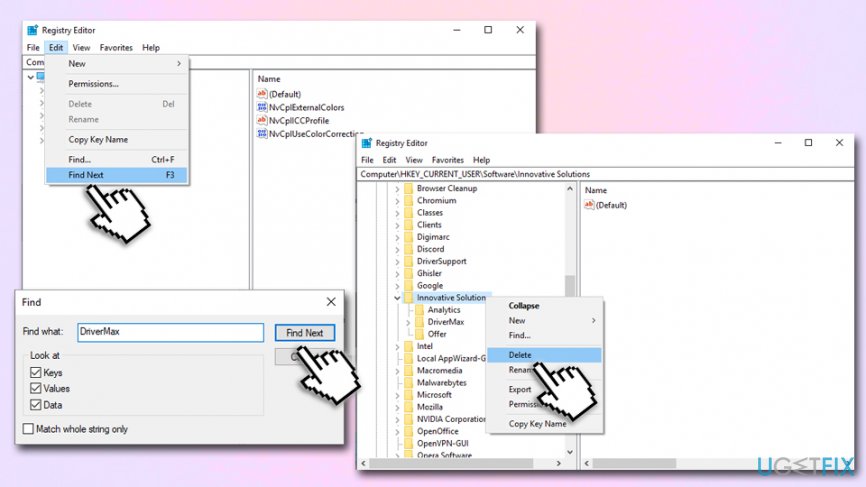
How to uninstall driver max edit windows regsitry
Hopefully this guide helped you to uninstall DriverMax!
Bottom line
To uninstall DriverMax, you can use the Control Panel or a dedicated uninstaller tool. If you continue to experience issues after removal, consider checking for any remaining driver conflicts or using a system restore point. If none of these solutions work, seek further technical assistance.
Frequently asked questions
To uninstall DriverMax from Windows 10, go to Settings > Apps, find DriverMax in the list, click on it, and then select 'Uninstall.' Follow the on-screen prompts to complete the removal process.
Yes, you can remove DriverMax in Windows 11 by opening Control Panel, navigating to Programs > Programs and Features, finding DriverMax, and clicking 'Uninstall.'
If DriverMax won't uninstall on Windows, try using a third-party uninstaller tool or boot into Safe Mode and attempt the uninstallation from there.




Report an issue
What's wrong with this guide? We review every report and update or remove content.
Report received — thank you. We'll review and fix it.
You need a free account to submit a report.
Be the first to comment