How to remove
Uninstall DriverUpdate Plus
from Windows
Easily uninstall DriverUpdate Plus on Windows 10 and 11 to free up your system. Follow our expert-tested guide for quick and hassle-free removal.

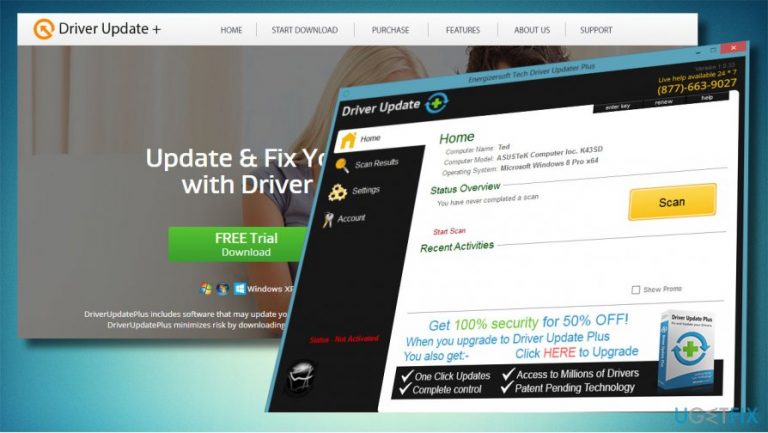
How does How to Uninstall DriverUpdate Plus end up on your PC?
- DriverUpdate Plus is classified as a potentially unwanted program (PUP) due to its distribution method.
- The software installer includes at least 5 files that may be scattered in diverse system locations or hidden.
- DriverUpdate Plus registers itself to launch at Windows boot, complicating uninstallation.
- The program runs a driverupdater.exe process that re-enables itself even if disabled.
- Users may not find DriverUpdate Plus in Control Panel or Windows Settings for uninstallation.
Repairs Windows system files, removes malware, and restores a clean OS state — without reinstalling.
Hello, all. I’m not able to uninstall DriverUpdate Plus. I’ve bought a laptop with Windows 10 pre-installed and I don’t know whether this program comes in with Windows package or maybe I installed it by accident. Anyway, this program is useless and I want to uninstall it somehow. Please, someone, help!
DriverUpdate Plus is a free application from unknow developer. It scans for outdated Windows system’s drivers[ref en-1] and informs the user about the need to update them. However, this tool is not the one that can be trusted. According to cyber security experts,[ref en-2] the DriverUpdate Plus is a potentially unwanted program (PUP).
Such classification is based on several aspects – distribution method, performance principle, and removal. It has been found that the DriverUpdate Plus PUP is distributed by bundling.[ref en-3] Although its developer has an official website with an active download offer, the driver updater plus utility is currently circulating on the Internet as an attachment of freewares.
Despite unfair distribution strategy, the DriverUpdate Plus is rather suspicious in terms of performance. Once installed, the tool registers itself to launch at Windows boot. It scans the system and provides a scan log, which indicates the drivers that are already out of date or that have a newer version. Outdated driver, no matter which one, is classified as a high-severity issue, which has to be addresses immediately. However, outdated driver can cause a variety of Windows problems, but they seldom result in severe system’s integrity. On top of that, to update the outdated drivers, people are asked to purchase a full DriverUpdate Plus license key.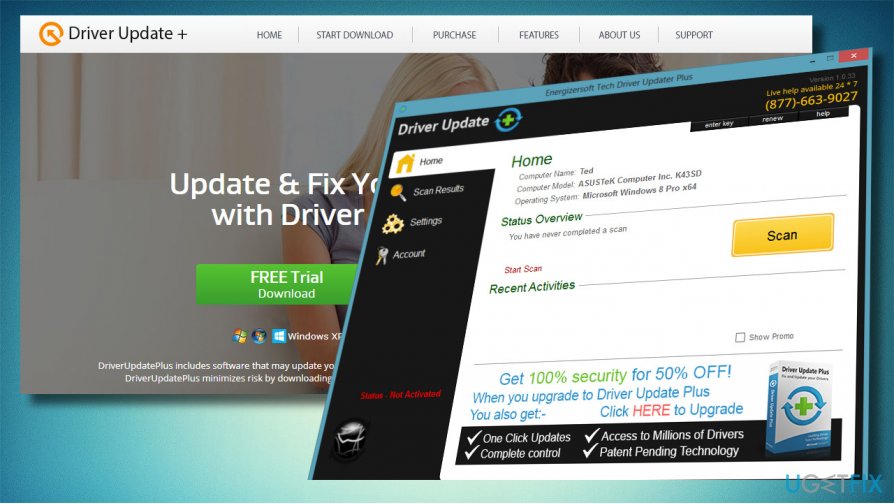
The last thing we want to warn you about is the ability to uninstall DriverUpdate Plus. It turns out that the software installer includes at least 5 files. They may be scatters in diverse system’s locations or even hidden. Besides, it runs a driverupdater.exe process automatically, which re-enables itself immediately even if user disables it. Consequently, often people cannot uninstall DriverUpdate Plus in Control Panel or Windows Settings. If you ran into this problem, we'll explain what steps have to be taken to disable and uninstall this program completely:
Step 1. Uninstall malicious files
DriverUpdate Plus may install some malicious files, which prevent the program from being uninstalled. Therefore, we would recommend scanning your PC with a reputable antivirus or anti-malware utility to remove all suspicious files. For this purpose, you can use [d1]. Since Reimage has an in-built Avira-antivir antivirus engine, it may recognize DriverUpdate Plus as a PUP and eliminate it automatically.
However, this driver updater has not yet been added to the virus database of all antivirus programs, so if Reimage did not uninstall it, you can use a software removal utility, such as [rev id="Perfect Uninstaller"]. The latter will remove any unwanted software manually and ensure that all its files and registry entries were installed alongside. In case you prefer manual DriverUpdate Plus removal, please proceed with the following steps.
Step 2. End DriverUpdate Plus process
- Click on Ctrl + Alt + Del or Ctrl + Shift + Del to open Task Manager.
- Find DriverUpdate Plus, right-click on it and select End Task.
- Close the Manager.
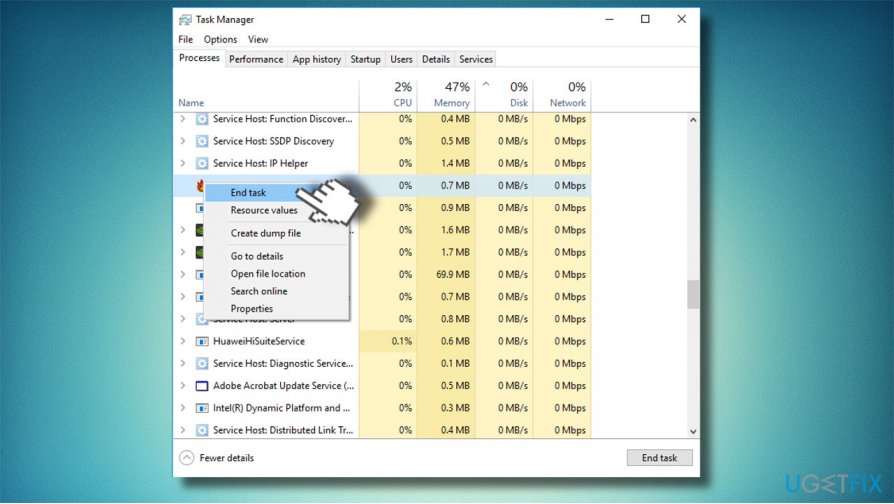
Disable the process
Step 3. Uninstall the program via Settings or Control Panel
Trusted apps usually have a built-in uninstaller, but in case of DriverUpdate Plus, the uninstaller is not available. Therefore, the app has to be eliminated manually via Windows Settings or Control Panel.
- In Windows 10, press Windows key + I and open Apps.
- Find DriverUpdate Plus, click on it, and select Uninstall.
- In older Windows versions, open Control Panel and select Programs & Features.
- Find the unwanted program, right-click on it, and select Uninstall.
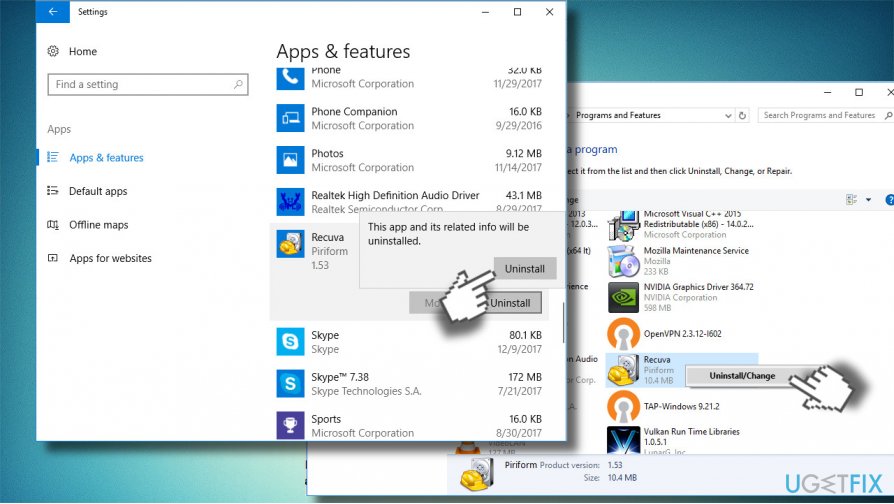
Uninstall from apps and features
Step 4. Check for remaining files
After you uninstall the program, check whether no associated files remain. For this purpose, you'll have to open Windows Registry Editor:
- Open File Explorer and click on View.
- Select Options and mark the Show hidden files, folders, and drives.
- Now press Windows key + R, type regedit, and hit Enter.
- Click on Edit and select Find Next.
- Type DriverUpdate Plus or at least a part of program's name and click Find Next.
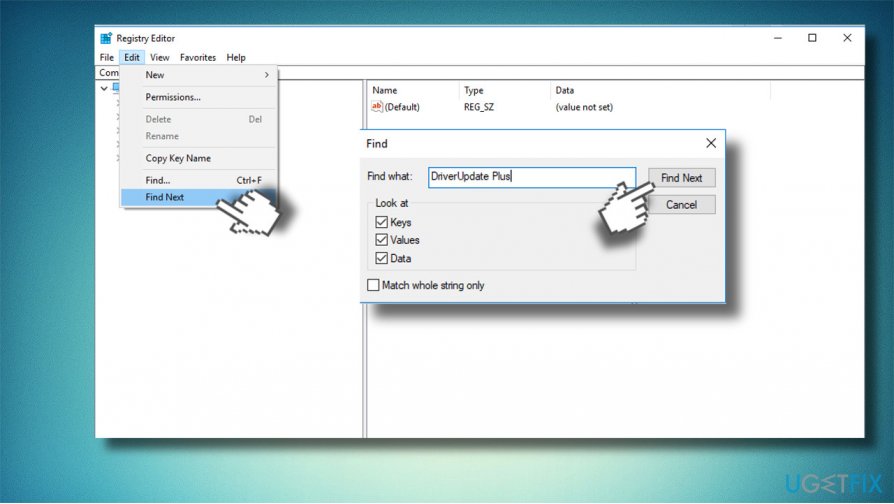
Uninstall remnants - If it finds any files, before deleting them, check the name of the location folder.
- After all, reboot your PC and check if the program has successfully been uninstalled.
Bottom line
To uninstall DriverUpdate Plus, users may need to locate and remove its scattered files and processes manually. If these steps do not resolve the issue, consider using specialized uninstaller software or seeking professional assistance.
Frequently asked questions
To uninstall DriverUpdate Plus on Windows 10, go to Settings > Apps, find DriverUpdate Plus in the list, and click 'Uninstall.' Follow the prompts to complete the uninstallation process.
Yes, you can remove DriverUpdate Plus from Windows 11 by opening Control Panel, selecting 'Programs and Features,' finding DriverUpdate Plus, and clicking 'Uninstall.'
If DriverUpdate Plus won't uninstall, try using a third-party uninstaller or boot into Safe Mode and attempt the uninstallation again.




Report an issue
What's wrong with this guide? We review every report and update or remove content.
Report received — thank you. We'll review and fix it.
You need a free account to submit a report.
Be the first to comment