How to remove
Uninstall Easy-Hide-IP
from Windows
Easily remove Easy-Hide-IP from your Windows 10 or 11 device. Follow our expert-tested guide for a hassle-free uninstallation, zero traces left!

How does How to Uninstall Easy-Hide-IP on Windows OS end up on your PC?
- Changing network configuration
- Issues related to Internet network
- Slow Internet speed
- Files spread around the system
- Intricate removal process
Repairs Windows system files, removes malware, and restores a clean OS state — without reinstalling.
I can’t uninstall Easy-Hide-IP completely. My PC runs Windows 10. Need a removal tutorial, please!
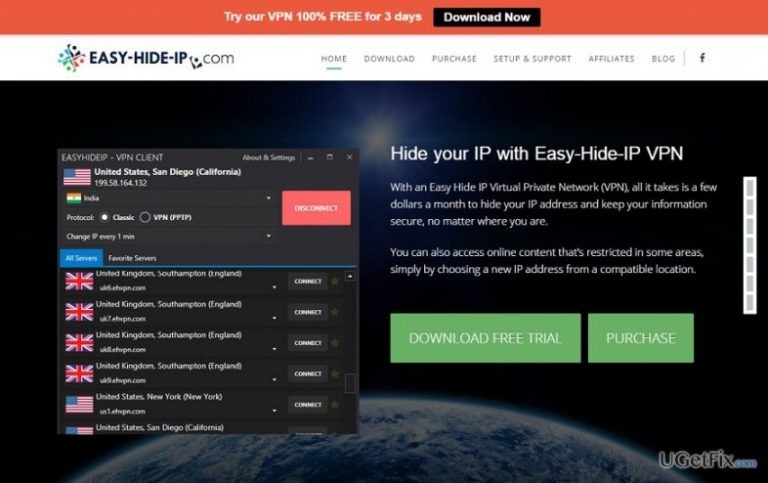
Easy-Hide-IP is a Virtual Private Network (VPN) that hides user’s IP address and ensures privacy of browsing-related data. On top of that, this software utility is capable of unblocking websites that the user has been restricted to visit. This is done by routing Internet traffic through several servers. Thus, having in mind how insecure Internet browsing is these days, extra security from tracking and a total privacy while browsing is a great solution. Despite all pros of Easy-Hide-IP VPN, there are several cons due to which users often decide to uninstall it. For example, by changing network configuration, this tool may cause some issues related to the Internet network and Internet speed. The problem is that sometimes Easy-Hide-IP removal appears to be an intricate task since it has a handful of files that are spread around the system. Therefore, we will explain how to uninstall Easy-Hide-IP on Windows step-by-step.
How to Uninstall Easy-Hide-IP on Windows OS?
Automatic Easy-Hide-IP removal
We haven’t mentioned yet that it’s possible to uninstall Easy-Hide-IP or any other application on Windows using a removal tool. To get rid of this software utility automatically, we would recommend using [rev id="Perfect Uninstaller"]. You just have to download this program and select the program that you with to remove.
Manual Easy-Hide-IP uninstall
If you do not opt for installing additional software, you can uninstall Easy-Hide-IP tool manually. Although this task requires some spare time, it's not difficult to perform. Be careful and perform each step in a right order:
- To stop program from working, click Ctrl + Alt + Delete simultaneusly and open Task Manager. Find Easy-Hide-IP on the list, right click on it and select End Task.
- After that, navigate to Control Panel by clicking on Start Menu → Control Panel → Programs → Programs and Features (Windows 7).
- Right click on Start → Programs and Features (Windows Vista/Windows 8.1)
- Click Start → Settings → System → Apps & features (Windows 10)
- Launch Start Menu → Control Panel → Add/Remove Programs (Windows XP)
- Find Easy-Hide-IP and click Change/Remove or Uninstall.
- Click Yes to perform the removal and then wait as far as the process is over.
However, to uninstall Easy-Hide-IP on Windows permanently, it's not enough to get rid of it from Control Panel because it installs a bunch of related files on Windows Registries. It means that as long as Easy-Hide-IP-related files are there, the program is not uninstalled completely. Thus, once you perform the steps indicated above, do the following:
- Click on Start Menu, type regedit in the search box and hit Enter to open Registry Editor.
- Click File – Export. Save the backup registries to your preferred location.
- Look for the files related to Easy-Hide-IP. If you find any, delete them and then reboot the system.
Only when you delete all additional files from the registries, Easy-Hide-IP removal will be treated as successful and the service of this program will no longer show up in the background. We hope that this tutorial was helpful for you and that you have managed to get rid of Easy-Hide-IP VPN on Windows.
Bottom line
To uninstall Easy-Hide-IP, you can use an automatic removal tool like Perfect Uninstaller or manually stop the program and remove it through the Control Panel. If these methods do not work, consider seeking further assistance or using a different uninstallation tool.
Frequently asked questions
To uninstall Easy-Hide-IP from Windows 10, go to Settings > Apps > Apps & features, find Easy-Hide-IP in the list, click on it, and select 'Uninstall'.
If Easy-Hide-IP is not listed in Windows 11 Apps settings, try using the Control Panel by navigating to Control Panel > Programs > Programs and Features, then locate and uninstall it from there.
Yes, after uninstalling Easy-Hide-IP, consider using a reliable third-party uninstaller or performing a manual search for leftover files and registry entries to ensure complete removal from Windows.




Report an issue
What's wrong with this guide? We review every report and update or remove content.
Report received — thank you. We'll review and fix it.
You need a free account to submit a report.
Be the first to comment