How to remove
Uninstall ESET Smart Security
from Windows
Easily uninstall ESET Smart Security from Windows 10 or 11 with our expert-tested guide. Enjoy a hassle-free removal process that leaves zero traces!

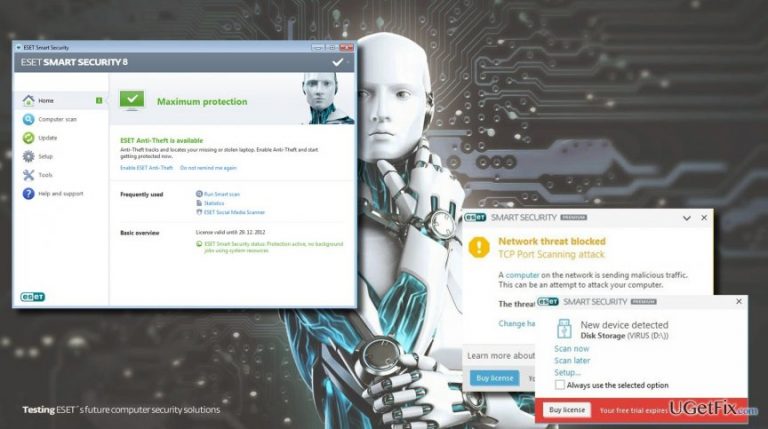
How does How to Uninstall ESET Smart Security end up on your PC?
- Cannot disable background process
- Program not found in Programs & Features
- Unknown errors during removal
- Leftovers restore the tool after removal
Repairs Windows system files, removes malware, and restores a clean OS state — without reinstalling.
Hi. I can’t remove ESET Smart Security because it keeps running in the background and I can’t disable its process. Consequently, if I try to activate its uninstaller, I receive an alert that the program is in use and can’t, therefore, be removed. What should I do?
ESET Smart Security is an anti-virus protection suit developed and owned by ESET. The company has been established two decades ago and has a long way to developing and improving award-winning software utilities. ESET Smart Security is capable of protecting computers from viruses, Trojans, malware, spyware, rootkits, and so on. Additionally, it offers real-time protection, meaning that the tool scans the Internet, including websites, email, and other web content. Using ESET Smart Security people don’t have to worry about the infected external drives because it is set to scan them before establishing the connection. According to the AV-Test conducted in March and April 2016, ESET Smart Security Suite malware detection and block rate are on average. However, it has shown great results in the usability tests because it was found that the program does not block legitimate content mistakenly or does that on very rare occasions.
Regardless of many advantages, the program does not suit for all anti-malware users for various reasons. However, when people decide to uninstall ESET Smart Security, lots of them encounter difficulties, for example, they cannot disable background process, the program cannot be found on Programs & Features applet, unknown errors occur during removal, leftovers restore the tool after removal, and so on. Whenever the reason is, you must be very annoyed by the fact that you cannot uninstall ESET Smart Security from Windows because as long as you won’t do that, you cannot use another anti-virus program. Therefore, we will try to explain how to uninstall this stubborn software utility.
How to Uninstall ESET Smart Security?
If you are facing problems like unstoppable ESET background process or no program on the Programs & Features, we would strongly recommend you to download and run [rev id="Perfect Uninstaller"]. Follow the on-screen instructions to install it and then set to uninstall ESET completely. The program should detect this anti-malware and remove its executable file along with all the leftovers. If, however, you opt for manual removal, try the following methods:
Method 1: Remove the anti-virus using a built-in uninstaller
- Enter the File Explorer. Click the Folder icon on the taskbar or find it by typing “Folder Options” after clicking Start.
- Open the local disk that you installed the ESET program in.
- open Program Files (x86) > ESET Smart Security.
- In the emerged folder, double-click the Unins000.exe (or similarly named) file.
- When uninstaller is activated and the removal finished, press Windows key, type regedit, and press Enter to open Registry Editor.
- Find these folders:
HKEY_CURRENT_USER\Software\ESET Smart Security\
HKEY_LOCAL_MACHINE\SOFTWARE\ESET Smart Security. - Remove the above-mentioned entries and reboot the PC.
Solution 2: Uninstall ESET Smart Security via the Programs and Features.
- Press Windows key and type Apps/Programs and Features.
- Find ESET Smart Security app and select Uninstall.
- Repeat the same steps by entering Registry Editor and deleting HKEY_CURRENT_USER\Software\ESET Smart Security\ and HKEY_LOCAL_MACHINE\SOFTWARE\ESET Smart Security\
- Reboot the computer
Finally, we would strongly recommend running a scan with [d1] to delete file leftovers or damaged system files. This tool will additionally check for malware and increase your PC's performance.
Bottom line
To uninstall ESET Smart Security, you can download and run a third-party uninstaller like Perfect Uninstaller to help with the process. Follow the on-screen instructions to install it and attempt the removal. If these methods do not work, consider seeking further technical support.
Frequently asked questions
To uninstall ESET Smart Security from Windows 10, go to Settings > Apps, find ESET Smart Security in the list, click on it, and select 'Uninstall.' Follow the prompts to complete the uninstallation process.
Yes, ESET provides a dedicated removal tool called the ESET Uninstaller that can be used on Windows 11 for a complete removal of all ESET products.
If ESET Smart Security won't uninstall on Windows, try using the ESET Uninstaller in Safe Mode, or check for any pending Windows updates that might be interfering with the uninstallation.




Report an issue
What's wrong with this guide? We review every report and update or remove content.
Report received — thank you. We'll review and fix it.
You need a free account to submit a report.
Be the first to comment