How to remove
Uninstall F-Secure Anti-Virus
from Windows
Easily uninstall F-Secure Anti-Virus from your Windows 10 or Windows 11 system with our expert-tested guide for a seamless experience. Fixed in minutes!


How does How to Uninstall F-Secure Anti-Virus end up on your PC?
- Uninstaller not present in Control Panel
- F-Secure folder hidden in the operating system
- Expired F-Secure free trial
- Presence of another antivirus program
- System slowdowns caused by F-Secure
Repairs Windows system files, removes malware, and restores a clean OS state — without reinstalling.
Hello, all. I need to uninstall F-Secure, but I can’t find the uninstaller in Control Panel. The whole F-Secure folder seems to be hidden somewhere. How can I remove this tool?
F-Secure is an advanced detection and protection technology that concentrates on protecting PCs’ from modern cyber threats, including virus, spyware,[ref en-1] worms, malicious email attachments, malware, and so on. The program was found in 1988, so it’s one of the oldest brands in the antivirus industry, which undoubtedly has acquired a huge luggage of experience in fighting against computer infections.
While F-Secure antivirus is not included in the list[ref en-2] of top anti-virus programs and can hardly outmatch giants like Avast, AVG, Kaspersky, Norton or Avira, it’s a decent antivirus utility, which is preferred by corporations and praised for professional malware detection.
Despite being a decent protection utility for both Macs and Windows computers, F-Secure can sometimes cause system’s slowdowns, slow boot up, and freezes. The mentioned side effects are most likely to occur if the PC contains two different anti-virus programs and one of them is F-Secure free trial, which expired long time ago.
If you are not planning to purchase the licensed version, we would strongly recommend you to remove F-Secure Anti-virus. Unfortunately, many people cannot uninstall this program as simple as expected. Often the uninstaller of this security tool does not occur in Control Panel, while the F-Secure folder seems to be hidden deep in the operating system. If you are having problems with the removal of this program, we’ll provide several methods that can help you to eliminate it completely.
Method 1. Use a professional software removal tool
If you cannot uninstall F-Secure Anti-Virus because its uninstaller does not occur in Programs and Features or because the uninstaller fails to remove the whole pack of the program, we would recommend using a professional software removal utility.
For this purpose, you can use any well evaluated[ref en-3] third-party removal tool currently available on the market. To minimize the search time, we would recommend using [d1] or [rev id="Perfect Uninstaller"]. Download the program that you prefer and run the setup file. Once installed, set the program to uninstall F-Secure anti-virus and reboot the PC once done.
Method 2. Use F-Secure Uninstaller
F-Secure has released an official uninstaller tool called F-Secure Uninstallation Tool 3.0. It is capable of removing and cleaning up F-Secure Service Platform, F-Secure Protection Services for Consumers and Business, F-Secure Anti-Virus, F-Secure Internet Security and F-Secure Technology Preview from workstations.
Download the tool by clicking on this link. Then extract the ZIP archive and run the UninstallationTool.exe file. Once the removal is done, reboot your PC.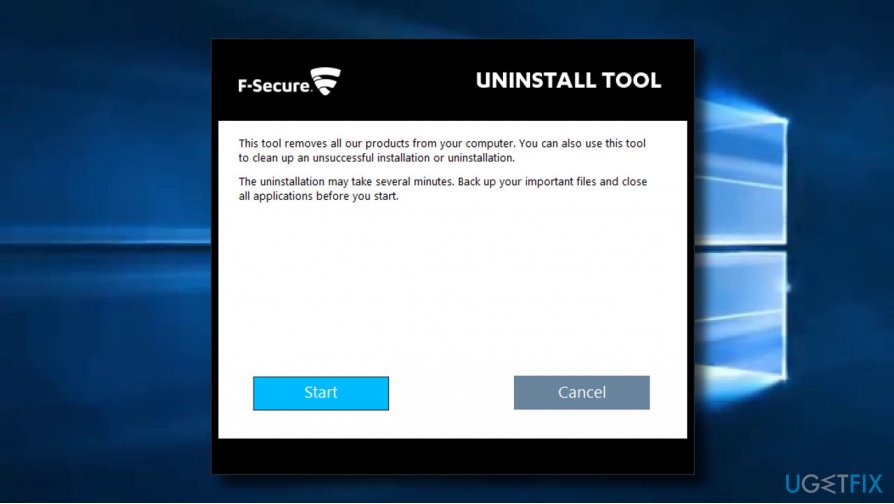
Method 3. Uninstall F-Secure manually
If F-Secure uninstaller is available in Control Panel or Settings, try uninstalling it in a usual way:
- Open Task Manager and check if the F-Secure process is running. If you found it, right-click on it and select Disable.
- Then locate program’s icon on Windows taskbar, right-click on it, and select Exit.
- Once done, press Windows key + I and open Apps section. (Windows 10)
- Look for F-Secure entry, click on it, and select Uninstall.
- Alternatively, you can access Control Panel and open Programs & Features.
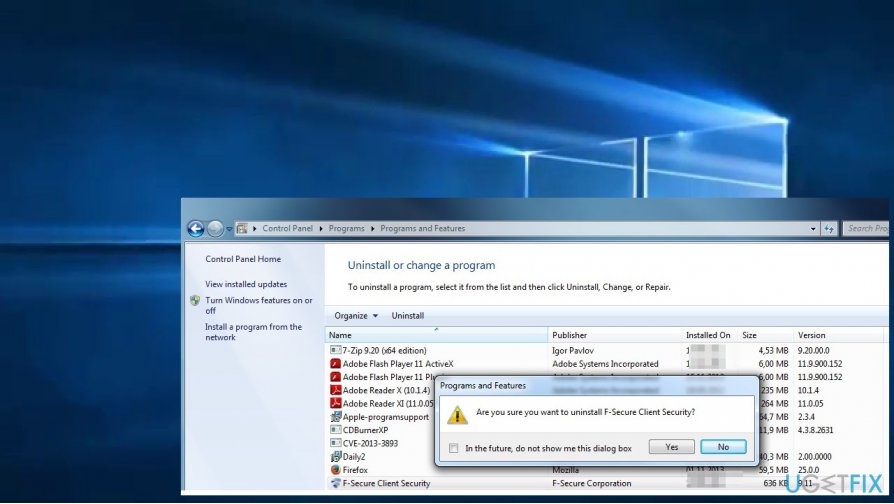
Use uninstaller - The F-Secure uninstall is normally included in the list. Click on it and select Uninstall.
- To remove the leftovers, press Windows key + R, type regedit, and press Enter.
- Then click Edit at the top of the window and select Find.
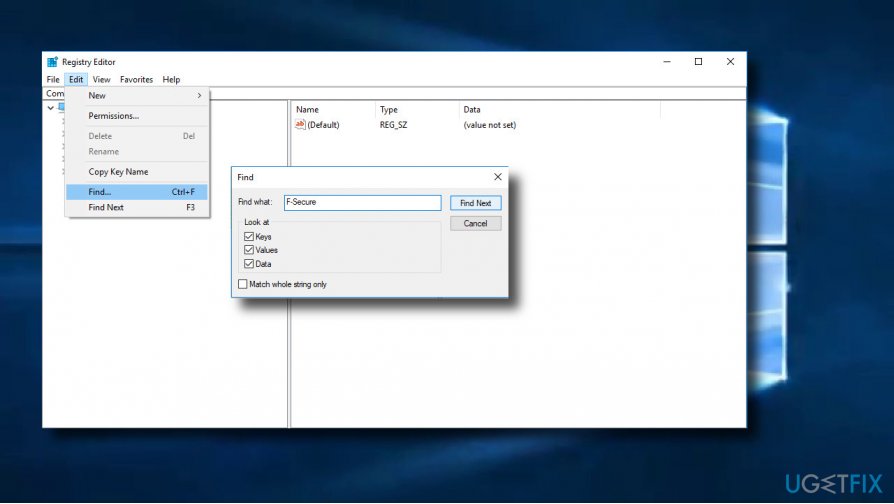
Remove f secure leftovers - Enter F-Secure in the search box and click Find Next.
- Remove all entries detected.
- Finally, reboot your PC.
Bottom line
To uninstall F-Secure Anti-Virus, you can use a professional software removal tool if the uninstaller is missing or fails to remove the program completely. Recommended tools include well-evaluated third-party removal utilities. If these methods do not work, consider seeking additional support.
Frequently asked questions
To uninstall F-Secure Anti-Virus from Windows 10, go to Settings > Apps, find F-Secure in the list, and click 'Uninstall' to remove it.
If the uninstallation fails on Windows 11, try using the F-Secure Uninstallation Tool, which can be downloaded from their official website.
Yes, after uninstalling F-Secure Anti-Virus, it's recommended to check for and manually delete any leftover files or folders in the Program Files directory on Windows.




Report an issue
What's wrong with this guide? We review every report and update or remove content.
Report received — thank you. We'll review and fix it.
You need a free account to submit a report.
Be the first to comment