How to remove
Uninstall FileZilla
from Windows
Easily uninstall FileZilla from Windows 10 or 11 with our expert-tested guide. Clean removal in minutes, ensuring a hassle-free experience!

How does How to Uninstall FileZilla end up on your PC?
- Registry entries preventing uninstallation
- File leftovers causing reinstallation
- Running background processes interfering with removal
- Issues with the uninstaller returning errors
- Incomplete removal of all components
Repairs Windows system files, removes malware, and restores a clean OS state — without reinstalling.
I‘m doing system‘s cleanup. Already deleted a bunch of useless apps, but some of them reappear and cannot be deleted in a regular way. Could you please explain how to uninstall FileZilla? This utility is unknown for me and I hope that it‘s not malware, but I can‘t uninstall it anyway.
FileZilla is definitely not malware. It‘s an open source FTP utility, which enanles file transferring from a local to remote PC. It provides both client and server versions, each of which offer site management, directory comparison, file and folder view, queue trasfer, and more. It‘s compatible with Windows, MacOS X, and Linux operating system. Besides, it supports FTP, SFTP, and FTPS protocols. If you did not understood these features and protocols that we‘ve listed, most probably that FileZilla is not an app that you need.
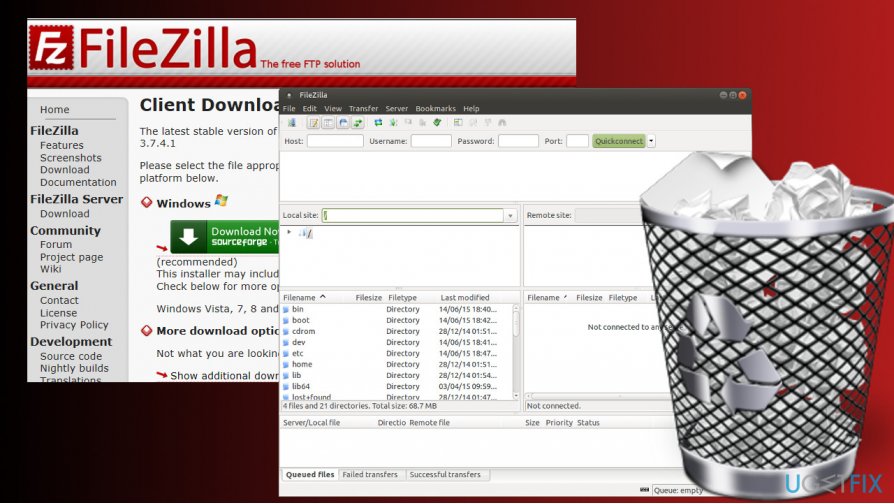
Sometimes it may be difficult to uninstall FileZilla. For example, it‘s uninstaller returns an error saying that removal cannot be completed or the app is reinstalled after rebooting the system. In Windows OS, the culprit of FileZilla removal failure may be registry entries or other file leftovers. Therefore, we are going to explain how to uninstall the app completely.
Uninstalling FileZilla from Windows
Options 1. Uninstall FileZilla automatically
If you encounter issues with FileZilla removal, most probably you fail to uninstall all its components, which is why it keeps reinstalling or running in the background of the system. In this kind of situation, we would recommend using [rev id="Perfect Uninstaller"]. Download this tool and run its setup file. Follow the on-screen instructions to install it and then run a scan to uninstall FileZilla completely. You can uninstall all unwanted apps using this utility. This way, you will not only save your precious time, but will also ensure the right removal of software.
Option 2. Remove FileZilla Manually
Step1. Disable FileZilla process
- Press Ctrl + Alt + Del and open Task Manager.
- Open Services tab and disable filezilla.exe process.
- The press Windows key + R, type services.msc, and press Enter.
- Locate FileZilla service, click it, and select Stop.
Step2. Uninstall the main executable
- Right-click Windows key and select Control Panel.
- Open Programs and Features and double-click the FileZilla entry.
- Select Uninstall and click Uninstall on the confirmation window.
Step3. Remove leftovers
- Press Windows key + R, type regedit, and press Enter.
- First of all, create the backup of Windows Registry. For this purpose, click File -> Export.
- Type the name of the backup and save it.
- Then remove the following folders:
HKEY_CURRENT_USER\\Software\\FileZilla Client
HKEY_LOCAL_MACHINE\\SOFTWARE\\FileZilla 3 - Finally, click Edit -> Find and enter FileZilla to the search bar.
- Remove all results if found.
Bottom line
To uninstall FileZilla completely, you can use the Perfect Uninstaller tool for automatic removal or manually disable the FileZilla process and uninstall the main executable. If these methods do not work, consider checking for any remaining registry entries or file leftovers.
Frequently asked questions
To uninstall FileZilla from Windows 10, go to Settings > Apps, find FileZilla in the list, click on it, and select Uninstall.
Yes, in Windows 11, you can uninstall FileZilla by opening Control Panel, navigating to Programs > Programs and Features, right-clicking FileZilla, and selecting Uninstall.
If FileZilla does not appear in the installed programs list on Windows, try using the official uninstaller located in the FileZilla installation folder or consider using a third-party uninstaller application.




Report an issue
What's wrong with this guide? We review every report and update or remove content.
Report received — thank you. We'll review and fix it.
You need a free account to submit a report.
Be the first to comment