How to remove
Uninstall FixCleaner
from Windows
Easily uninstall FixCleaner from your Windows 10 or Windows 11 device with our expert-tested guide. Clear space and boost performance, fixed in minutes.

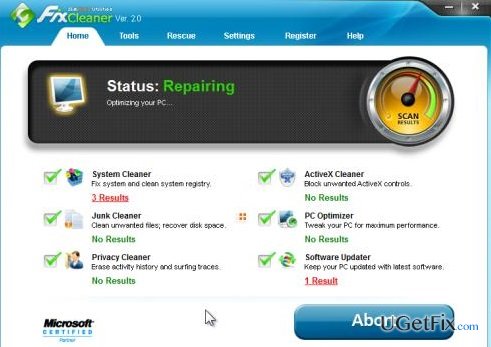
How does How to Uninstall FixCleaner on Windows end up on your PC?
- Promoted via bundled installers
- Blocks attempts to remove it
- May not appear in Add/Remove Programs list
- Program processes running in the background
- Related files lingering in system folders
Repairs Windows system files, removes malware, and restores a clean OS state — without reinstalling.
I’ve tried to uninstall FixCleaner multiple times, but each time it either wants to upgrade instead of removal or I’m informed that this program does not exist, but it DOES exist and keep scanning my computer. Please tell me how could I remove this malware?
Officially, FixCleaner by SlimWare Utilities is represented as a PC optimization tool, which appends the operating system with additional features, which allow it to run faster, bypass errors, remove malware, protect online privacy, make backups regularly, and even boost memory. According to the developer, the software has been designed by combining the features of multiple optimization utilities and presenting them in one tool. The interface of the FixCleaner is simple, the Database of Windows OS is relatively strong and seems to be updated regularly. However, many people refer to this scanner as a malware due to several purposes. First of all, it appears that it is often promoted via bundled installers, what means that after inattentive installation of a freeware, there is a chance to find FixCleaner installed on the system without a proper permission required. Second of all, it may block attempts to remove it. Sometimes instead of uninstalling setup, people might get a pop-up with a FixCleaner update or program may be missing in Add/Remove Programs list. According to people’s reports, it appears that the software is programmed in a way to prevent people from uninstalling it. Despite all the fact that FixCleaner removal is intricate, the software is legitimate and should not be deemed as malware or virus. We've tested what problems occur when trying to uninstall it and come up with a conclusion that the FixCleaner removal may be blocked if the process of the program is kept running in the background or if there are plenty of related files lurking deep in system folders. If you are not satisfied with the performance of this tool, we will explain briefly what steps should be initiated to uninstall FixCleaner completely.
How to Uninstall FixCleaner on Windows?
Usually, people forget that programs like FixCleaner are running one or even several processes in the background of the system. Therefore, they forget to terminate those processes, which is why the running processes do not allow to remove the application. This is one of the common mistakes that people initiate when trying to get rid of FixCleaner optimizer. To prevent this from happening, click Ctrl + Shift + Esc (Windows 10) or Ctrl + Alt + Delete (older Windows versions), open Task Manager, locate all processes related to FixCleaner, click them one by one, and select End Task. Only after that perform the further steps.
Method 1. Delete FixCleaner automatically
The easiest way to remove applications from Windows OS is to install a tool that has been developed for this purpose and launch it. To uninstall FixCleaner, you can rely on [rev id="Perfect Uninstaller"].
Method 2. Uninstall FixCleaner manually
- Click Start (bottom left corner) - Select Settings – Click System – Apps & Features;
- Locate FixCleaner, click on it and select Uninstall. (Windows 8)
- Click Win key (bottom left corner) – click the down arrow;
- Find FixCleaner, right-click it and select Uninstall;
- Double click FixCleaner to start the removal (Windows 10)
Remove leftovers from the Registries:
- Click Start or Win key, type “regedit” and hit Enter.
- Locate and remove all registry entries that belong to FixCleaner. Search for the files located in folders:
HKEY_CURRENT_USER\Software\FixCleaner,
HKEY_LOCAL_MACHINE\Software\FixCleaner,
HKEY_LOCAL_MACHINE\Software\Microsoft\Windows\CurrentVersion\Run\eg ui.
Next step: locate and delete all files in these system folders:
C:\Program Files\GeekBuddy,
C:\Document and Settings\All Users\Application Data\GeekBuddy,
C:\Documents and Settings\%USER%\Application Data\GeekBuddy.
Bottom line
FixCleaner removal may be blocked due to running processes or leftover files. To uninstall FixCleaner, ensure all related processes are stopped and remove any lingering files. If these steps do not work, consider seeking additional support.
Frequently asked questions
To uninstall FixCleaner from Windows 10, go to Settings > Apps > Apps & features, find FixCleaner in the list, click on it, and select Uninstall.
Yes, in Windows 11, you can uninstall FixCleaner by right-clicking the Start button, selecting Apps and features, locating FixCleaner, and clicking Uninstall.
If FixCleaner is not listed, try using the Control Panel by navigating to Control Panel > Programs > Programs and Features, or consider using a dedicated uninstaller tool.




Report an issue
What's wrong with this guide? We review every report and update or remove content.
Report received — thank you. We'll review and fix it.
You need a free account to submit a report.
Be the first to comment