How to remove
Uninstall FL Studio 12
from Windows
Easily uninstall FL Studio 12 on Windows 10 or Windows 11 with our expert-tested guide. Get rid of unwanted programs quickly and effectively!

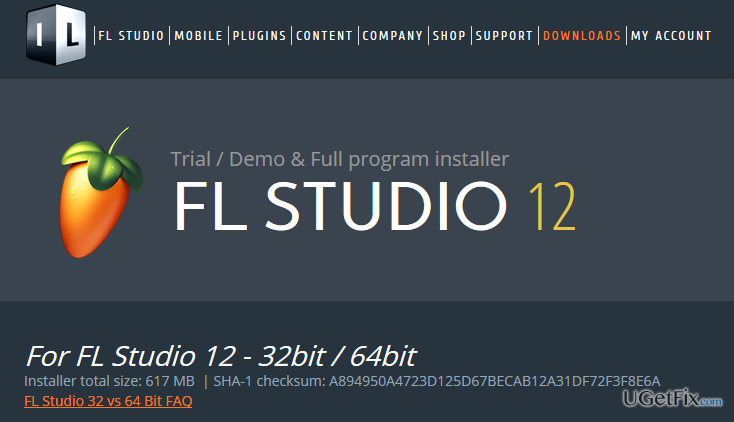
How does How to Uninstall FL Studio 12 on Windows OS end up on your PC?
- FL Studio 12 runs in the background
- Large size of the application
- High CPU and RAM usage
- Potential slowdowns or crashes on older machines
- Unwanted files and registries left after removal
Repairs Windows system files, removes malware, and restores a clean OS state — without reinstalling.
I can’t remove FL Studio 12 on my Windows 10 PC. I don’t know what’s specific about this program, but it keeps running in the background. I want a full removal guide, please.
Sometimes people think that we include only wrong/malicious programs into out blog, which is not true. The majority of the programs that are included under ‘Uninstall’ section are safe to use and, even more, very handy tools. FL Studio 12 is just like that. This application has a handful of positive features, so if you are not sure whether you want to uninstall it or keep, then we recommend you to keep it and try.
In fact, FL Studio 12 is a software music production environment, which can also be referred to as Digital Audio Workstation (DAW). It has been developed by Image-Line Company, which has been working on this app for almost 18 years. Therefore, FL Studio 12 is a perfected tool that is full of comprehensive music production-related features, such as recording, editing, mixing, composing, quality enhancing, and so on.
However, if this app did not meet your expectations or if you simply don’t use it, then your decision to uninstall FL Studio 12 completely it right on time. Probably you have checked properties of this application and noticed how large-sized it is. Thus, keeping it on your machine for ‘just in case’ is not clever as it takes up a lot of space, uses CPU, RAM, etc. Thus, if you machine is not maintained properly or if it’s relatively old, FL Studio 12 may trigger slowdowns, crashes or even errors. Therefore, if you are not going to use this tool soon, follow the guide given below and perform a full FL Studio 12 removal.
How to Uninstall FL Studio 12 on Windows OS?
It’s wrong to assume that removal and uninstalling are equal. Removal of a program is the simplest step by which you access Control Panel and uninstall an unwanted program there. However, this process is not the end if you want to keep your machine free of useless files, registries, and so on. Thus, to uninstall FL Studio 12, you have to get rid of its files via Registry Editor. Thus, to uninstall this app permanently, perform each step in the right order:
Manual FL Studio 12 removal:
- Click Start (bottom left corner) - Select Settings – Click System – Apps & Features;
- Find FL Studio 12, click on it and select Uninstall. (Windows 8)
- Click Windows logo (bottom left corner) – click the down arrow;
- Find FL Studio 12, right click on it and select Uninstall;
- Double click FL Studio 12 to start the removal (Windows 10)
After that, it’s a must to find all FL Studio 12’s leftovers on the Registries. For this purpose, you have to:
- Click on Start Menu, type “regedit” in the search box and hit Enter to open Registry Editor.
- Here you should find and remove all registry entries that belong to FL Studio 12. Search for the files located in folders:
HKEY_CURRENT_USER\Software\SlimDrivers,
HKEY_LOCAL_MACHINE\Software\SlimDrivers,
HKEY_LOCAL_MACHINE\Software\Microsoft\Windows\CurrentVersion\Run\eg ui.
- Next step: locate and delete all files in these system folders:
C:\Program Files\ SlimDrivers,
C:\Document and Settings\All Users\Application Data\ SlimDrivers,
C:\Documents and Settings\%USER%\Application Data\ SlimDrivers.
The most important task is to find and remove each and every one FL Studio 12’s files. Therefore, don’t rush and go through each folder step-by-step. In order not to burden the system with useless files, our recommendation would be to use [rev id="Perfect Uninstaller"]. Besides, in order to keep your PC fully optimized, our recommendation would be to install [rev id=”Reimage”] and scan the PC with it regularly.
Bottom line
To uninstall FL Studio 12, access the Control Panel and remove the program. After removal, ensure to clean up any residual files and registries to maintain system performance. If these steps do not resolve the issue, consider seeking additional technical support.
Frequently asked questions
To uninstall FL Studio 12 on Windows 10, go to Settings > Apps, find FL Studio 12 in the list, select it, and click 'Uninstall.' Follow the on-screen prompts to complete the removal process.
Yes, to completely remove FL Studio 12 from Windows 11, use the same method as Windows 10: navigate to Settings > Apps, select FL Studio 12, and click 'Uninstall' to remove it.
Uninstalling FL Studio 12 will not automatically delete your project files, but it's recommended to back them up before uninstalling, just to be safe.




Report an issue
What's wrong with this guide? We review every report and update or remove content.
Report received — thank you. We'll review and fix it.
You need a free account to submit a report.
Be the first to comment