I can’t remove FoxTab PDF Converter whatever I try. Actually, I can’t even remember installing it and it started seriously pissing me off. Could someone please help?
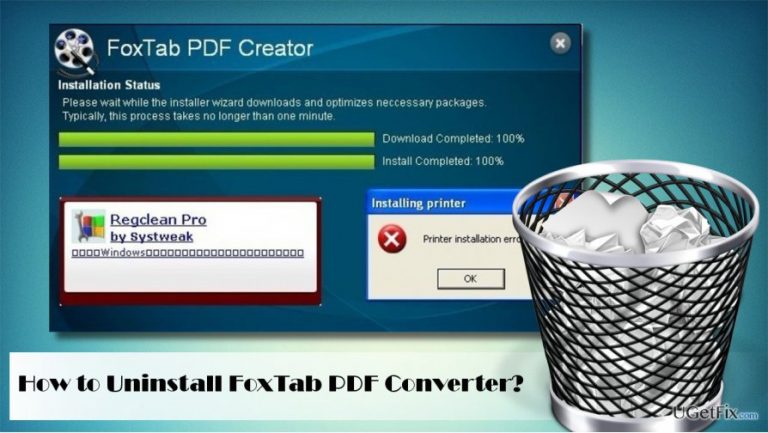
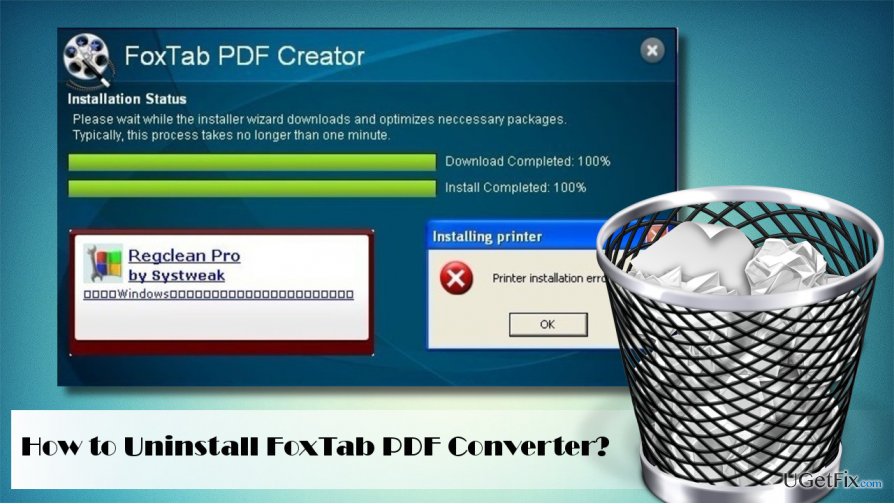
FoxTab PDF Converter is a PDF document creating tool, which is available on various online download sources. Its name explicitly explains the main function of the tool, which is to create and convert PDF files. It is compatible with all Windows versions and supports the most popular file types, including Excel, Word, Internet Explorer, and others.
While some people might find it handy, the vast majority of the users (the most of which are based in the US) opt for removing FoxTab PDF Converter. Having initiated a thorough analysis on this application, it’s not surprising why this tool has become so unpopular among Windows community. People reported that it often gets installed into the system via software packages without requiring user’s permission properly. On top of that, it may initiate changes within a default web browser and the start returning third-party advertisements and other notifications. Due to these facts, cyber security experts assigned the FoxTab PDF Converter to the group of potentially unwanted programs (PUP).
Foxtab pdf converter removalUninstalling FoxTab PDF Converter
Unfortunately, FoxTab PDF Converter not only performs in a doubtful manner. It’s developers created the tool in a way so that it wouldn’t be easy to uninstall it. Few people complained that the tool does not have an uninstaller, which means that it can’t be removed manually. The others uninstalled it via Control Panel, but it was reinstalled automatically. This may happen due to the incomplete FoxTab PDF Converter removal. If any files or browser add-ons are left undone, they may re-install the program automatically. To prevent this from happening, follow the instructions provided below and we are pretty sure that you will remove the FoxTab PDF Converter completely.
There are three basic steps that you have to perform to uninstall this PUP completely. First of all, terminate its process via Task Manager. Then Uninstall the tool via Programs & Features applet, and finaly, reset your web browser.
The easy way to initiate the removal would be to run a scan with [d1] or launch a software removal utility, such as [rev id="Perfect Uninstaller"]. After that, don't forget to reset your web browser because neither anti-malware, nor software removal tool will do that for you. If, however, you prefer removing FoxTab PDF Converter manually, please follow these steps:
Press Ctrl + Alt + Del and open Task Manager.
Find processes related to the FoxTab PDF Converter and disable them. For that, press on the process and select End Task.
Now right-click on Windows key and select Control Panel.
Open Programs & Features section and find the FoxTab PDF Converter app.
Click on it and select Uninstall.
Follow the on-screen instructions to finish up the removal.
Now check if there are no other suspicious software installed on your PC. If you have found other suspicious apps, remove them in the same way as explaine above.
Finally, reset your web browser. If you don't know how to do that, please find needed information dow below.
To uninstall FoxTab PDF Converter completely, you should first terminate its process via Task Manager, then uninstall it through the Programs & Features applet, and finally reset your web browser. If these steps do not work, consider seeking additional technical support.
Frequently asked questions
To uninstall FoxTab PDF Converter on Windows 10, go to Settings > Apps > Apps & features, find FoxTab PDF Converter in the list, and click 'Uninstall.' Follow the prompts to complete the removal.
Yes, on Windows 11, you can uninstall FoxTab PDF Converter by right-clicking on the Start button, selecting 'Apps and Features,' locating the program, and clicking 'Uninstall.'
If FoxTab PDF Converter fails to uninstall, try using the built-in Windows troubleshooter or a third-party uninstaller tool to remove any remaining files and registry entries.
Windows error repairBSOD troubleshootingSystem file corruptionRegistry repairWindows Update failures
Olivia Morelli is a Windows systems expert specialising in diagnosing and repairing OS-level errors. She has spent nearly a decade writing guides that help everyday users recover from BSODs, corrupt system files, broken Windows installations, and failed update rollouts. Her methodical troubleshooting approach — starting with built-in tools before escalating to manual repairs — reflects years of practical experience supporting users across Windows 7, 8, 10 and 11. Olivia's guides are known for their clarity, completeness, and the care she takes to explain not just the fix but why the problem occurred.





Report an issue
What's wrong with this guide? We review every report and update or remove content.
Report received — thank you. We'll review and fix it.
You need a free account to submit a report.
Be the first to comment