How to remove
Uninstall FreeArc
from Windows
Easily uninstall FreeArc on Windows 10 or 11 with our expert-tested guide. Remove it without hassle and enjoy a cleaner system in minutes.

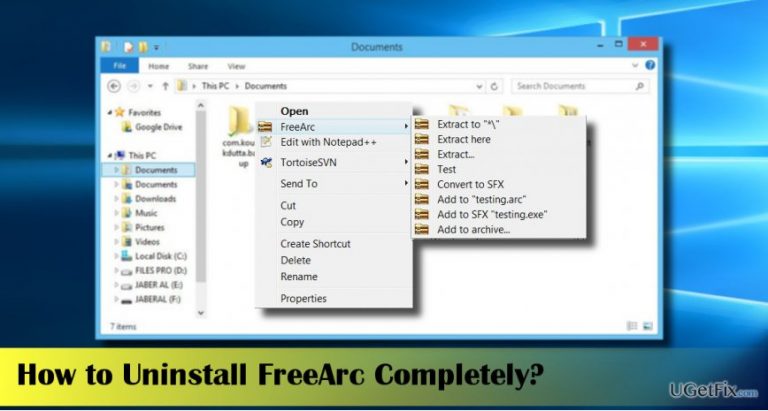
How does How to Uninstall FreeArc end up on your PC?
- Installed bundled with another freeware
- Uninstaller not found
- Program is in use during removal
- Automatic restoration after uninstallation
- Lack of awareness of removal methods
Repairs Windows system files, removes malware, and restores a clean OS state — without reinstalling.
FreeArc got installed on my PC bundled with another freeware the name of which I will not mention here. I’m not using that freearc, so I decided to uninstall it, but I can’t find its uninstaller. If I try to delete it using Programs & Features, the removal ends up with a notification that the program is in use. Please explain how to uninstall FreeArc from Windows 10. Thanks!
FreeArc (also known as FreeArc 0.666) by Bulat Ziganshin is a free file archiver. Many people praise the tool for being fast and efficient compression tool, which uses LZMA, PPMD, TrueAudio, and generic Multimedia compression algorithms, switches the algorithms according to the file type automatically, renders various filters (REP, DICT, DELTA, LZP, etc.), and performs other useful features. According to the experts of Windows applications, FreeArc is considered to be superior to most of the compression tools due to its speed, simplicity, high compression ratio, and multifunctionality. However, while some people find it useful, the others disapprove of its aggressive distribution method, so called ‘bundling,’ or simply does not like it and this is where the problem lies. Many people expressed their frustration and anger because they cannot uninstall FreeArc in a usual manner because they can’t find the uninstaller, once uninstalled FreeArc gets automatically restored or it can’t be removed because it’s in use. These are the main difficulties that people come up with when attempting to uninstall FreeArc completely. Thus, if you cannot remove this piece of software from your PC easily, the guide given below can be very useful for you.
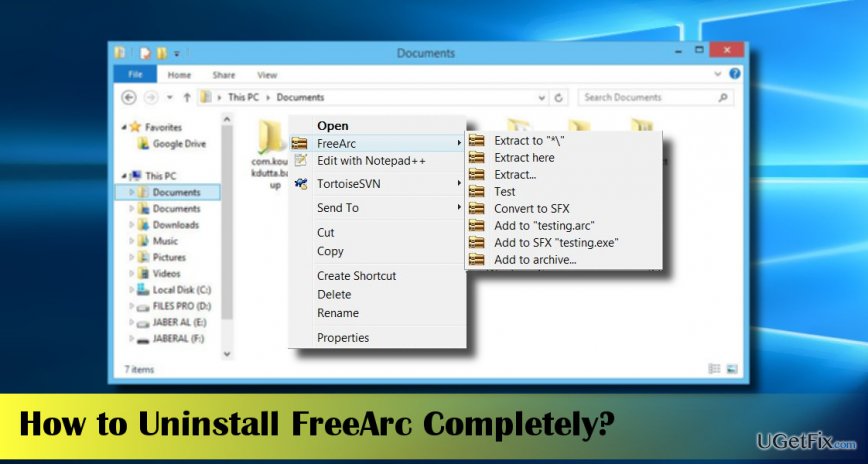
How to Uninstall FreeArc 0.666 from Windows?
FreeArc is not malicious. Nevertheless, people find it difficult to remove, which is why it is sometimes called a ‘virus.’ However, we would dare to say that the common FreeArc removal failure is related to people’s unawareness of the software removal methods and crucial procedures. So, before you commence the FreeArc removal steps, it’s imminent to terminate the freearc.exe process using Task Manager.
- Press Ctrl + Alt + Delete and select Task Manager.
- Open the Processes tab and find FreeArc.
- Right-click it and select End Task.
Uninstall FreeArc automatically
If you have tried to delete FreeArc manually, but in vain, we would strongly recommend you to install a software removal tool, say [rev id="Perfect Uninstaller"] (for Windows only). You can also use a PC optimization tool, for example, [d1]. Install one of these programs and launch its setup file. Follow the on-screen instructions and set it to delete FreeArc completely. Finally, reboot your PC.
Terminate FreeArc manually
- First of all, boot your PC into Safe Mode with Networking.
- Launch Control Panel and open Programs & Features or Add/Remove Programs feature depending on the OS type you use.
- Find FreeArc, click it, and select Uninstall.
- Once done, press Windows key + R, type regedit, and press Enter.
- When the Registry Editor opens, click Edit -> Find.
- Type FreeArc in the find and press Enter. If any of the remnants are found, delete all of them.
- There is a long list of additional FreeArc’s files, so you should also type them in the Find window one by one and remove if found.
7z.dll
7zG.exe
all2arc.exe
Arc.exe
facompress.dll
fc-cache.exe
fc-list.exe
gdk-pixbuf-query-loaders.exe
gspawn-win32-helper.exe
gspawn-win32-helper-console.exe
prefs.exe
gtk-query-immodules-2.0.exe
gtk-update-icon-cache.exe
pango-querymodules.exe
unarc.exe
Bottom line
To uninstall FreeArc, first terminate the freearc.exe process using Task Manager. If you still cannot remove it, consider using alternative software removal methods. If none of these solutions work, further assistance may be needed.
Frequently asked questions
To uninstall FreeArc from Windows 10, go to Settings > Apps, find FreeArc in the list, click on it, and select 'Uninstall.' Follow the prompts to complete the removal process.
If FreeArc doesn't appear in the Apps list on Windows 11, try using the Control Panel by searching for 'Control Panel' in the Start menu, selecting 'Programs and Features,' and then uninstalling FreeArc from there.
After uninstalling FreeArc, check the installation directory and AppData folders for any leftover files, and delete them manually to ensure complete removal from your Windows system.




Report an issue
What's wrong with this guide? We review every report and update or remove content.
Report received — thank you. We'll review and fix it.
You need a free account to submit a report.
Be the first to comment