How to remove Uninstall GridinSoft Anti-Malware from Windows
Easily uninstall GridinSoft Anti-Malware from Windows 10 or 11 without hassle. Follow our expert-tested guide for a smooth and quick removal. Fixed in m…
I have downloaded this software a year ago and now I want to replace it with another similar application. However, it seems that it is impossible to remove it. How can I uninstall GridinSoft Anti-Malware from my PC?
GridinSoft Anti-Malware is a software developed to detect and eliminate various high-risk computer infections[ref en-3]. The contrivers, GridinSoft, has more than 12 years of successful experience in producing security products[ref en-1].
One of their most famous products, GridinSoft Anti-Malware, allows computer users to terminate unwanted and malicious programs from their systems. Besides, it is easy to use since the appearance of the application is neat and doesn’t require any complex operations in order to get rid of the PC infection[ref en-2].
Gridinsoft anti malware uninstall tutorial
Thus, many computer users are extremely satisfied with GridinSoft Anti-Malware. However, those who opt for some changes are forced to face a problem with the removal procedure. Developers designed the antivirus program to be protected from malicious programs which are trying to block its activity.
Likewise, not only viruses cannot terminate the powerful security software, but also numerous people who want to remove it from their computers. To help you uninstall GridinSoft Anti-Malware, we have prepared step-by-step instructions.
Manual GridinSoft Anti-Malware removal guide
Step 1. Close the window of the security software
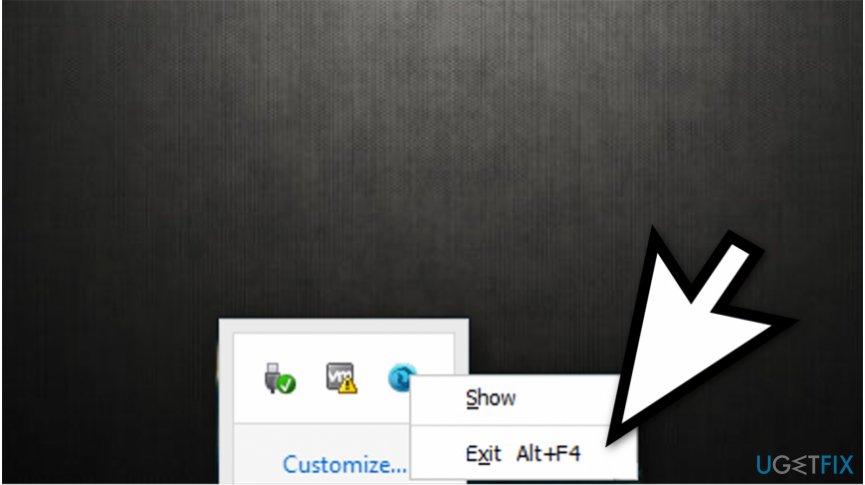
Since the anti-malware program is able to add Windows Registry entry to automatically launch the program after reboot, you should make sure that you have closed it:
Gridinsoft anti malware uninstall
Right-click on the software icon in the system tray and click exit.
Step 2. Uninstall GridinSoft Anti-Malware using the Programs and Features list
The Start menu method:
In the left corner at the bottom of your screen, push Start and select Settings option;
Navigate from System to Apps & Features function;
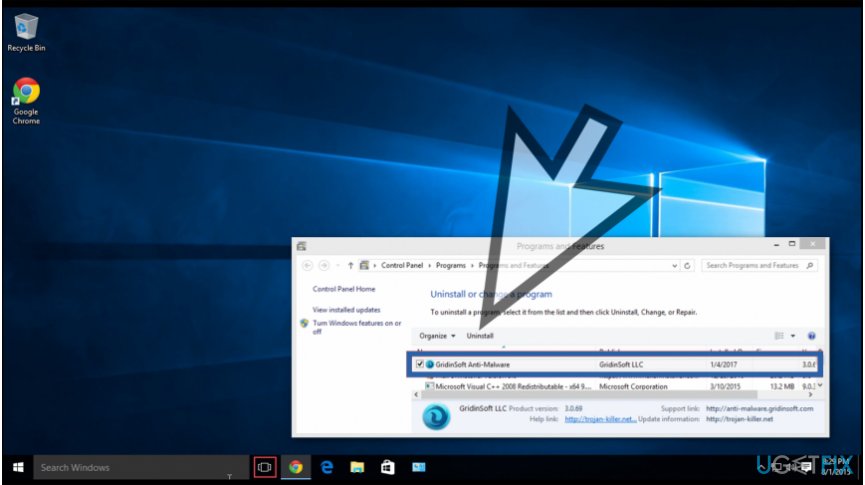
Search for GridinSoft Anti-Malware and click Uninstall.
Gridinsoft anti malware removal is complicated
The Start screen method:
Right-click on the Start button, which is the left corner at the bottom of your PC screen;
Select Programs and Features and click on GridinSoft Anti-Malware to launch the integrated uninstaller.
Step 3. Final touches of the removal process
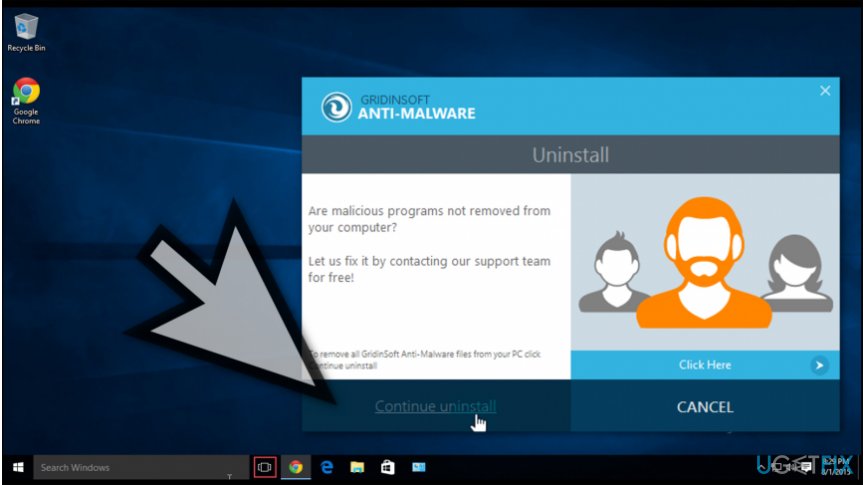
Once the uninstaller is activated, click on Continue Uninstall button on the left corner of the window. Afterward, the uninstaller will remove GridinSoft Anti-Malware from your system.
Gridinsoft anti malware removal explained Bonus: Employ Windows Registry Editor to uninstall GridinSoft Anti-Malware
The Start menu method:
Click the Start button and type regedit;
Once the Registry Editor is opened, search for GridinSoft Anti-Malware and click Delete.
The Charms bar method:
Navigate to the left corner at the bottom of your screen with the mouse and choose Search on charms bar;
Type in regedit in the search box to launch Registry Editor;
Find GridinSoft Anti-Malware and delete the program.
Note that after the uninstallation, you have to reboot your computer to notice that the security software is removed. Just click Start and opt for Restart function.
Bottom line
To uninstall GridinSoft Anti-Malware, ensure the application is closed, then use the Programs and Features list to remove it. If you encounter issues, follow the step-by-step instructions provided. If none of these methods work, consider seeking additional technical support.
Frequently asked questions
To uninstall GridinSoft Anti-Malware from Windows 10, go to Settings > Apps, find GridinSoft Anti-Malware in the list, and click 'Uninstall.' Follow the on-screen instructions to complete the removal process.
In Windows 11, right-click the Start button, select 'Settings,' then click on 'Apps.' Find GridinSoft Anti-Malware, click on it, and select 'Uninstall' to remove the software.
After uninstalling GridinSoft Anti-Malware, use a tool like CCleaner to scan for leftover files and registry entries on Windows 10 or Windows 11 to ensure complete removal.
Driver troubleshootingHardware conflictsDevice Manager errorsUSB and peripheral issuesAudio and video problems
Lucia Danes is a tech support specialist focused on driver conflicts, hardware recognition failures, and device-level troubleshooting on Windows. Her guides walk users through the full diagnostic process — from reading Device Manager error codes and identifying problematic drivers to performing clean driver installations and resolving hardware compatibility issues. Lucia covers a wide range of devices including printers, audio hardware, graphics cards, USB peripherals, and external storage. Her writing is valued for its step-by-step precision and the real-world testing behind every recommended fix.





Report an issue
What's wrong with this guide? We review every report and update or remove content.
Report received — thank you. We'll review and fix it.
You need a free account to submit a report.
Be the first to comment