How to remove
Uninstall Groove Music
from Windows
Easily uninstall Groove Music from Windows 10 or 11 with our expert-tested guide. Clear space on your PC with zero traces left!

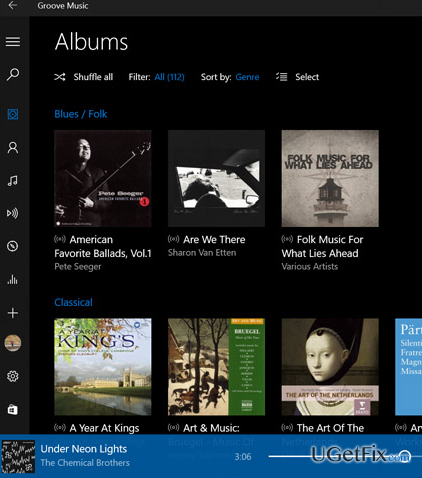
How does How to Uninstall Groove Music on Windows end up on your PC?
- Groove Music is a default media player in Windows 10.
- It cannot be uninstalled via Control Panel or Add/Remove Programs.
- Users may prefer classic Windows Media Player or third-party media players.
- Groove Music is automatically set as default even after installing alternatives.
- The application is regularly updated by Microsoft, which may complicate uninstallation.
Repairs Windows system files, removes malware, and restores a clean OS state — without reinstalling.
I can’t remove Groove Music. I though it will be easy as a pie, but I can’t even find the app on Control Panel. Please help!
The answer to your question is simple: you cannot uninstall Groove Music in a usual manner via Control Panel due to the fact that it’s a default media player inbuilt in Windows 10. Previously, Groove Music was known as Xbox Music and Windows 8 users praised it for many reasons. Later on, Microsoft started using Groove, which is a service and, therefore, decided to prevent Groove confusion with Xbox and replaced the name of Xbox Music to Groove Music. Up till now, this tool is considered to be the best media player, which provides access to millions of albums and artists, as well as allows listening to MP3s hosted in OneDrive account. Although free Groove Music version is available, naturally it does not provide such a wide variety of albums/artists/styles/news. The application is available on iOS, Android, Windows 10, Windows 10 Mobile and Xbox One. Microsoft releases Groove Music updates regularly and improves the application heavily with an intention to retain its attractiveness among the Windows users. Unfortunately, but many people still can’t understand why this media player is so popular and prefer using a classic Windows Media Player or a third-party media player. If you can’t get used to this tool as well, we will explain how to uninstall it in a simple manner.
How to Uninstall Groove Music on Windows 10?
Groove Music is a default media player in Windows 10 OS, which is why it cannot be uninstalled via Add/Remove Programs. Usually, people who don’t like it substitute it with the classic Windows Media Player. Unfortunately, but those who opt for using a third-party tool, will be disappointed because Groove Music will be set by default automatically. The only way to fix that is to uninstall Groove Music completely. You can try to do that with the help of [rev id="Perfect Uninstaller"] or delete it manually using an elevated PowerShell.
Unfortunately, but software removal tools, such as Perfect Uninstaller nay be blocked by Microsoft. In this case, the only way to remove it is to perform the following steps:
- Press Windows key and type PowerShell.
- Right-click on Windows PowerShell and select Run as administrator.
- If a UAC opens, press OK to proceed.
- Copy and paste Get-AppxPackage –AllUsers command in the Powershell window and press Enter.
- Find Zune Music and copy the PackageFullName value given next to it on the left side. For this purpose, use Ctrl + C hotkeys.
- Once done, type remove-AppxPackage PackageFullName command in the PowerShell window and hit Enter. NOTE: instead of PackageFullName, paste the value that you have copied before.
That's it! You have successfully removed Groove Music from your PC, so now you can substitute it with a media player that you prefer.
Bottom line
To uninstall Groove Music, you can use a software removal tool like Perfect Uninstaller or delete it manually using an elevated PowerShell. If these methods do not work, consider seeking further assistance or exploring other media player options.
Frequently asked questions
To uninstall Groove Music from Windows 10, go to Settings > Apps, find Groove Music in the list, click on it, and select 'Uninstall.'
Yes, you can remove Groove Music from Windows 11 by right-clicking the Start button, selecting 'Apps and Features,' locating Groove Music, and clicking 'Uninstall.'
If Groove Music doesn't uninstall on Windows, try using PowerShell: open it as an administrator and run the command 'Get-AppxPackage *Microsoft.ZuneMusic* | Remove-AppxPackage'.




Report an issue
What's wrong with this guide? We review every report and update or remove content.
Report received — thank you. We'll review and fix it.
You need a free account to submit a report.
Be the first to comment