How to remove
Uninstall iMazing
from Windows
Easily remove unwanted software like iMazing from your Windows 10 or 11. Follow our expert-tested guide for a hassle-free uninstallation! Fixed in minutes.

How does How to Uninstall iMazing on Mac OS X end up on your PC?
- Unnecessary application for the user
- Trouble encountered by some users
- Files left behind after initial removal
- Incomplete uninstallation process
- User preference to free up space
Repairs Windows system files, removes malware, and restores a clean OS state — without reinstalling.
Hello. I was wondering how could I uninstall iMazing from my Mac computer as this application is unnecessary for me?
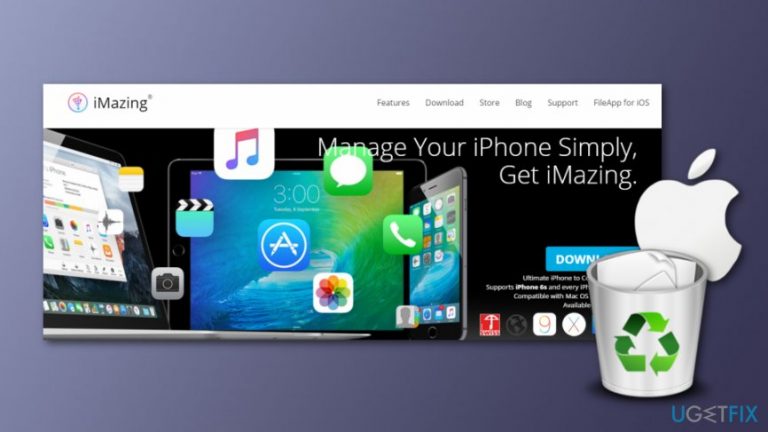
iMazing is a program that helps to easily manage your files on your iPhone, iPod or iPad. According to the official website, ''iMazing is the all-purpose iOS management software: expand your control over your mobile data beyond what is normally possible, without jailbreaking your device. With iMazing, you can easily browse and manage your backups, extract and print your text messages, or drag and drop songs to your iPhone.
To put it simply, iMazing allows you to go way beyond what iTunes offers.'' iMazing is a really useful program because it allows transferring files between Mac or PC and any OS device and works almost with all file formats. It lets you connect via super fast USB or via Wi-Fi and it does not require any cloud, jailbreak or iTunes[ref en-3] to work with all iOS operating systems.
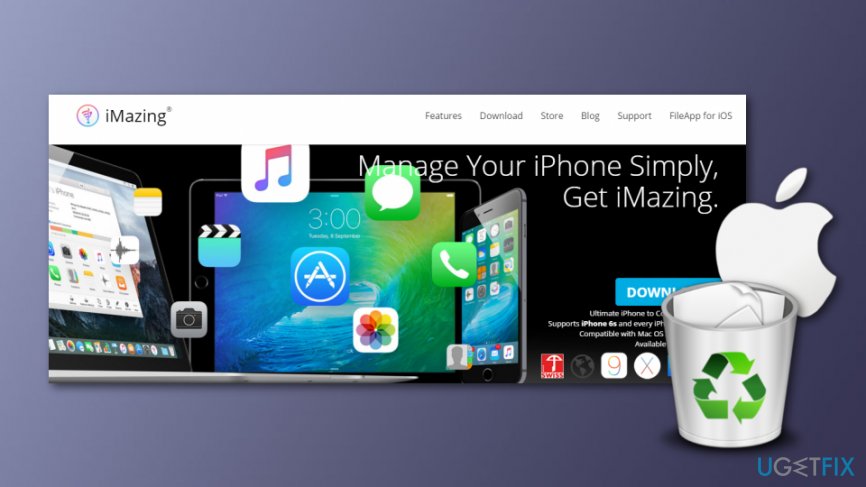
This program also lets to manage device backups and restorations, copy, save and manage iPhone data and pictures, and also transfer all media, data, and settings to a new iPhone. This application is great. However, some users have been encountering trouble related to iMazing,[ref en-1] and if you would like to remove it, we will provide a removal guide for you.
How to Uninstall iMazing on Mac OS X?
Step 1. Get rid of the iMazing icon
Firstly, follow these steps to delete iMazing icon. You should remember that these instructions provided below will remove the icon, but not the program itself yet:
- Open the Applications folder;
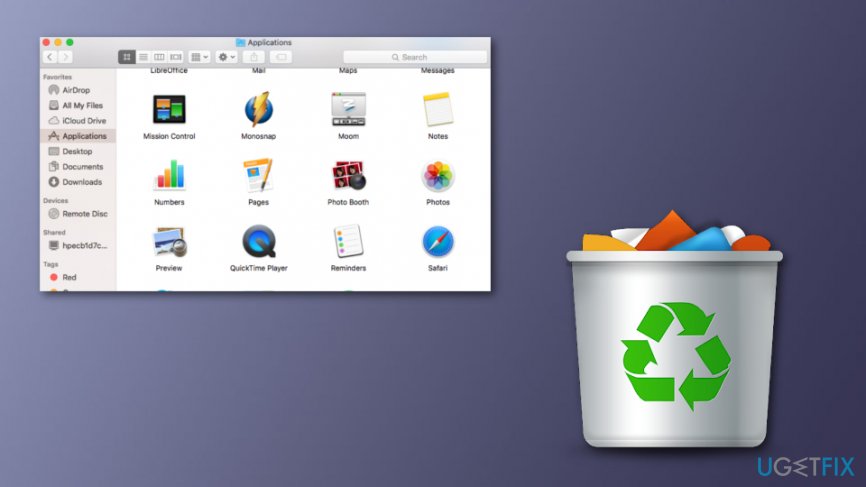
Elimination of imazing - Click on iMazing icon and hold it;
- Drag the application icon to Trash;
- Clear Trash (to do it just hold 'Ctrl' and click on 'Empty Trash').
Step 2. Uninstall iMazing app
To completely remove this application, you need to Uninstall iMazing. To do that, you have to check every folder that iMazing may have left its files on. You should check these locations:
- /Library/Application Support/;
- /Library/Preferences/.
Delete any files that are related to iMazing. However, it is a quite long process to find and delete every file that belongs to this program, and if you are not an advanced PC user, it may be quite difficult to uninstall iMazing on your own. This is why we suggest installing the [rev id=”Reimage”] program, which will help to detect and delete all components of iMazing. Also, it can eliminate other unnecessary files from your computer and optimize[ref en-2] your Mac.
Bottom line
To uninstall iMazing on Mac OS X, first remove the application icon from the Applications folder and then clear the Trash. Next, check specific folders for any remaining files related to iMazing and delete them. If these steps do not resolve the issue, consider seeking additional support or using a dedicated uninstaller tool.
Frequently asked questions
Yes, you can uninstall iMazing on Windows 10 or Windows 11 by going to Settings > Apps, finding iMazing in the list, and selecting 'Uninstall.'
If iMazing won't uninstall, try using a third-party uninstaller software to remove it completely from your system.
After uninstalling iMazing, it's advisable to check the Program Files and AppData folders for any leftover files and delete them manually.




Report an issue
What's wrong with this guide? We review every report and update or remove content.
Report received — thank you. We'll review and fix it.
You need a free account to submit a report.
Be the first to comment