How to remove
Uninstall Immunet
from Windows
Easily uninstall Immunet from your Windows 10 or 11 system with our expert-tested guide, ensuring a clean removal with zero traces left.

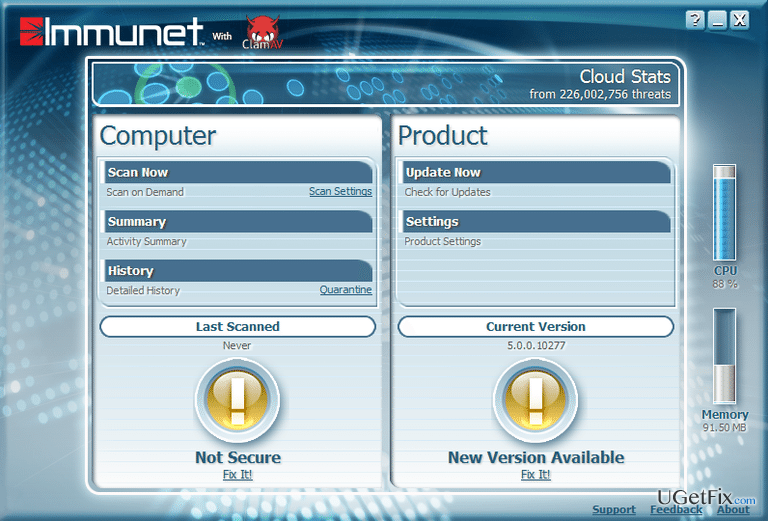
How does How to Uninstall Immunet on Windows OS end up on your PC?
- Immunet is not listed in Add/Remove programs
- The process is still running in Task Manager
- Conflicts with other antivirus programs
- Application leftovers may cause issues with other software
- User dissatisfaction with performance and detection capabilities
Repairs Windows system files, removes malware, and restores a clean OS state — without reinstalling.
Hello all. I have tried to delete Immunet via Add/Remove programs, but it’s not listed there. Disabled the process on Task Manager and don’t know what else could be done. This app is useless for me, so I don’t want it to take up free space.
Immunet by Cisco Systems, Inc is represented as an antivirus system, which renders cloud computing and provides community-based security. It means that the more members the community consists of, the better security the application can foster because Immunet receives more reports about new threats and can add them into the malware/virus database. It is estimated that the database of computer infections that the developers of this tool managed to create exceeds 33 millions, which is a lot. In addition, the latest updates and analysis of this tool and its community showed up that there are more than 2 millions of Immunet Community members.
Immunet antivirus can be installed and used for free. It performs real-time online protection, detects and removes viruses, worms, Trojans, spyware, malware, and other PC threats, scans the network, manage files, and so on. Besides, it is noted that this tool does not conflict with other anti-virus programs, which is very important. Unfortunately, but many people have reported that this second option antivirus often fails to detect viruses and, more worse, tend to block other security tools, meaning that the system may be left unprotected. Besides, its real time scanners and other activities may negatively influence Windows OS performance. For some this application causes slowdowns, while the others complain about slow software launches and system freezes. Nevertheless, despite minor inconsistencies, Immunet is safe to use , so if you approve of having a second option anti-malware, it might appear to be a great tool. If, however, you don’t feel this app is for you, we will explain how to uninstall Immunet on Windows OS.
How to Uninstall Immunet on Windows OS?
NOTE: anti-malware tools have to be uninstalled very carefully. According to security experts, antimalware utilities tend to conflict with each other, meaning that application leftovers may trigger other software to crash.
If you have tried to remove Immunet via Control Panel, but could not find it, our recommendation would be to download software utility that could uninstall this application automatically. For this purpose, you can use [rev id="Perfect Uninstaller"]. In case you haven’t tried to remove it yet, then try to perform the following steps first:
Step 1. Uninstall Immunet via Control Panel
- Click Start (bottom left corner)- Select Settings – Click System – Apps & Features.
- Find Immunet, click on it and select Uninstall. (Windows 8)
- Right-Click on the Win logo and select Control Panel.
- Select Programs and then Uninstall a Program under Programs.
- Find Immunet, right-click on it and select Uninstall. (Windows 10)
Step 2. Uninstall Immunet from the Registries:
Click Win key (or Start depending on the type of your OS), type regedit, and hit Enter to open Registry Editor.
Here you should find and remove all registry entries that belong to Browse for the Cause. Search for the files located in folders:
HKEY_CURRENT_USER\Software\Immunet
HKEY_LOCAL_MACHINE\Software\Immunet
HKEY_LOCAL_MACHINE\Software\Microsoft\Windows\CurrentVersion\Run\eg ui
After that, find and delete all related files in these system folders:
C:\Program Files\Immunet
C:\Document and Settings\All Users\Application Data\Immunet
C:\Documents and Settings\%USER%\Application Data\Immunet
Step 3. Remove Immunet extension on web browser
- OLaunch Google Chrome and click More.
- Select More Tools and then go to Extensions.
- Find Immunet-related extensions and click Remove.
If you find related extensions on Chrome, repeat the same steps on the other web browsers installed on your PC. In case no Immunet extensions have been installed on Chrome, no further actions need to be taken on the other browsers either.
Bottom line
To uninstall Immunet on Windows OS, you may need to disable its process in Task Manager and carefully remove any leftover files. If these steps do not work, consider seeking additional support or using a dedicated uninstaller tool.
Frequently asked questions
To uninstall Immunet on Windows 10, go to 'Settings', select 'Apps', find Immunet in the list, and click 'Uninstall'. Follow the prompts to complete the removal process.
Yes, you can uninstall Immunet using Control Panel on Windows 11 by opening 'Control Panel', selecting 'Programs', then 'Programs and Features', finding Immunet, and clicking 'Uninstall'.
If you encounter issues uninstalling Immunet on Windows, try using the built-in 'Troubleshoot' feature or a third-party uninstaller software to remove any stubborn components.




Report an issue
What's wrong with this guide? We review every report and update or remove content.
Report received — thank you. We'll review and fix it.
You need a free account to submit a report.
Be the first to comment