How to remove
Uninstall Internet Download Manager
from Windows
Easily uninstall Internet Download Manager from Windows 10 or 11 with our expert-tested guide. Enjoy a clean system with zero traces left!

How does How to Uninstall Internet Download Manager on Windows end up on your PC?
- User no longer needs the program
- Desire to free up space on the computer
- Confusion between real and fake versions of IDM
- Potential risks from fake downloaders
- Need for cleaning and optimizing the computer
Repairs Windows system files, removes malware, and restores a clean OS state — without reinstalling.
Hello, I installed Internet Download Manager a while ago, and now I am not sure what is the right way to uninstall it. I do not need this program anymore, and I would like to free up some space on my Lenovo computer. Can you provide a detailed guide on how to uninstall Internet Download Manager on Windows?
Internet Download Manager[ref en-2] is a great tool for those who want to speed up download speed by up to 5 times. The software allows users to manage downloads in various ways - pause them, schedule them, and so on. It is important not to confuse real IDM with a fake Internet Download Manager, which displays ads. Additionally, there are other similar apps such as MyDownloadManager[ref en-1] that offer almost identical functions but truly hide the behavior of a PUP.
If you ever deal with the false variant of Internet Download Manager, do not hesitate to remove it from your computer system as you will be at risk of various annoying activities. However, there are many similar fake downloaders lurking out in the Internet sphere when they are truly just hidden adware and promoted for revenue-gaining purposes. If you have received a similar threat, you should clean and optimize the computer with reputable software.
The real version is ad-free, provides a simple graphic user interface[ref en-3] and functions smoothly. It helps to restart interrupted downloads due to network problems, power outages, or computer shutdowns. Other useful Internet Download Manager (IDM) features include zip preview, sounds on different events, HTTPS supports enhanced virus protection on download completion also built-in download accelerator, and others.
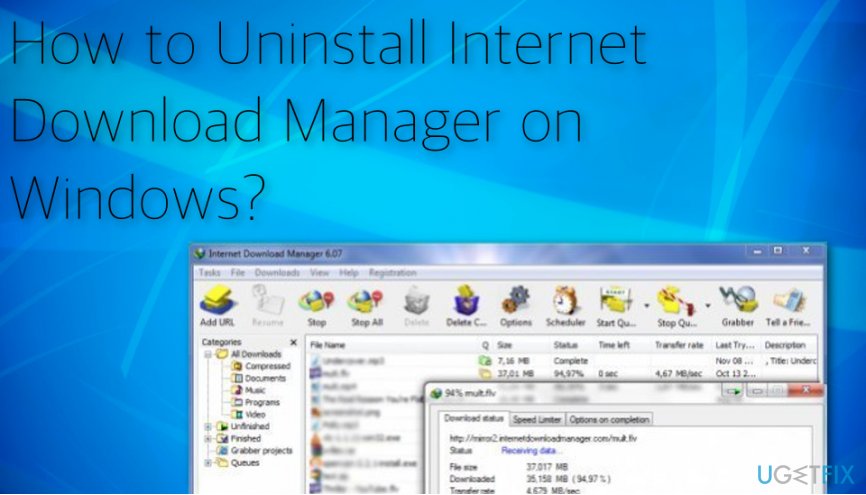
This program serves well for those who experience many problems when trying to download computer programs to the system. However, if you no longer feel the need to use the Internet Download Manager tool, you can always opt for its removal process. Check the following options to get rid of the program manually or use a trustworthy program such as [d1] to delete the component automatically.
How to Uninstall Internet Download Manager on Windows?
Option 1. Remove the tool via Control Panel
- Log into Administrator’s account and make sure the Internet Download Manager is closed. If you can see it’s icon minimized in the Windows menu tray, right-click on it and choose Exit. Alternatively, you can open the Windows Task Manager (Ctrl+Alt+Del) and check the Processes tab for IDM processes. If you can find any, end them.
- Now, access the list of software installed on your PC. If you’re using Windows 7, click on the Start menu and go to Control Panel, then to Uninstall a program. In case you’re using Windows 8/8.1/10, right-click on Start menu button and select Programs and Features.
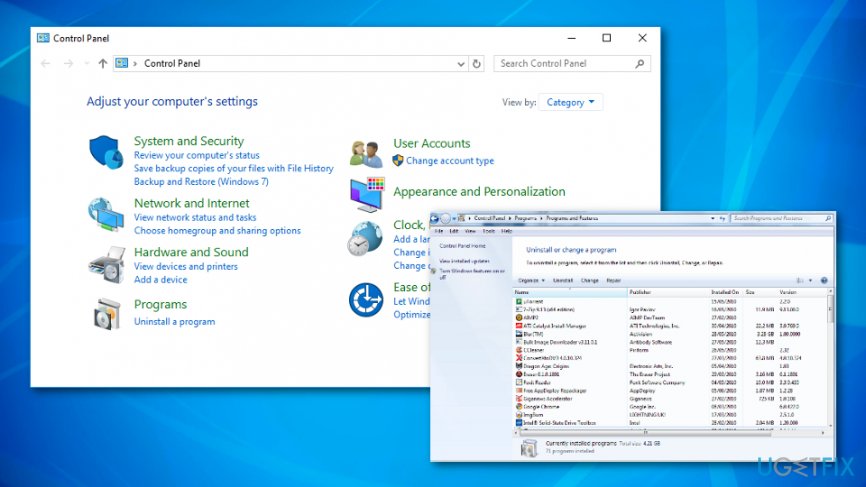
Use control panel - In the list of installed programs’ list, find Internet Download Manager. Click on it and then click on Uninstall button (or just right-click the name of the program and select Uninstall).
- Confirm your choice and follow instructions provided by IDM Uninstall Wizard. You will be asked how you want to uninstall the program - via Default or Full option. The Default mode will delete all IDM components from the system and also from web browsers, meanwhile the Full uninstall option will delete all unfinished downloads, IDM download list, and IDM settings. Choose the Full option if you want to completely uninstall Internet Download Manager.
Option 2. Continue by cleaning the Windows Registry section
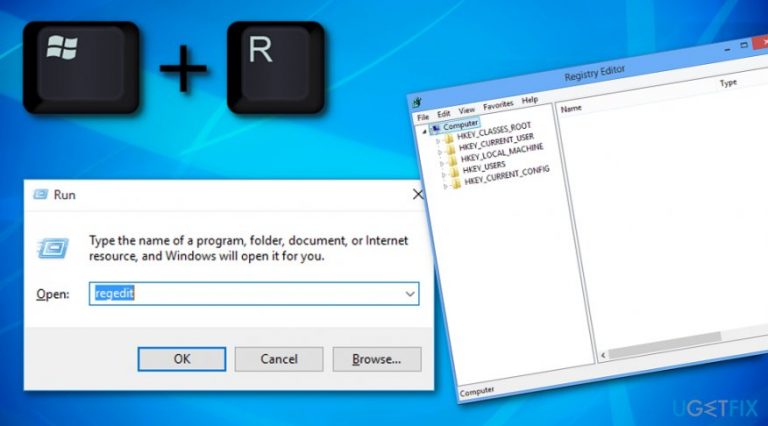
- Once you are finished with the before-mentioned method, it is time to make some alterations in the Windows Registry Editor. To open Windows Registry Editor, press down Windows Key and R at the same time. In the Run window, type in: regedit and press Enter.
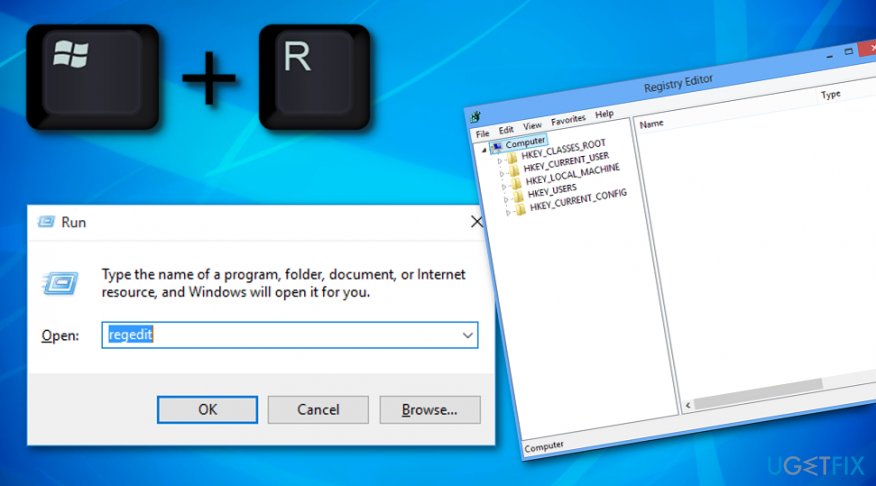
Use regedit - Windows Registry contains a lot of important keys and making wrong alterations here can cause serious problems such as system stability issues. Click on Edit, then Find…, and finally, type in Internet Download Manager and click Find (or Find Next). Delete all detected folders and components that contain the FULL name of Internet Download Manager.
- Restart your PC.
Option 3. Terminate the unwanted object by using System Restore
- Make sure that you are not completing any important tasks at the moment and disable all active windows on your desktop.
- Right-click on the computer and choose Properties from the drop-down list.
- You will see a system windows pop-out. Once it appears, opt for System Protection.
- Select System Restore and opt for the Choose a different restore point option.
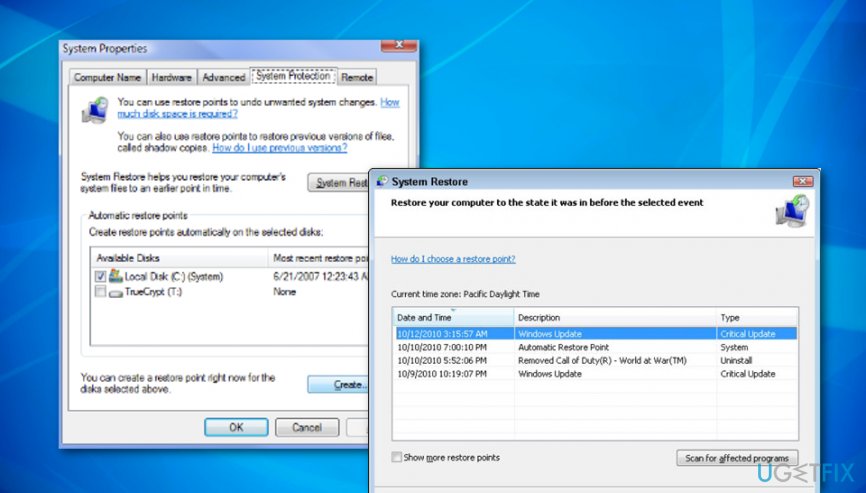
Use system restore - Afterward, click on the Next button.
- Select the time and date when you installed the tool and click Next.
- After that, click Finish and Yes to confirm your changes.
Bottom line
To uninstall Internet Download Manager on Windows, you can either remove it manually or use a trustworthy program for automatic deletion. If you encounter issues with fake variants, ensure to clean your system with reputable software. If none of these methods work, consider seeking further technical assistance.
Frequently asked questions
To uninstall Internet Download Manager on Windows 10, go to Settings > Apps, find Internet Download Manager in the list, select it, and click 'Uninstall.' Follow the prompts to complete the uninstallation.
Yes, you can remove Internet Download Manager through Control Panel on Windows 11 by opening Control Panel, selecting 'Programs and Features,' finding Internet Download Manager, and clicking 'Uninstall.'
If Internet Download Manager won't uninstall, try using the built-in troubleshooter in Windows 10 or Windows 11 to fix installation issues, or consider using a third-party uninstaller tool.




Report an issue
What's wrong with this guide? We review every report and update or remove content.
Report received — thank you. We'll review and fix it.
You need a free account to submit a report.
Be the first to comment