How to remove
Uninstall IObyte System Care
from Windows
Easily uninstall IObyte System Care from Windows 10 or 11 with our expert-tested guide. Enjoy a cleaner system, fixed in minutes!

How does How to uninstall IObyte System Care end up on your PC?
- Installed via deceptive bundling techniques
- Promoted as a reputable security product
- Imitates full system scans
- Pushes fake alerts to users
- Encourages purchase of a licensed version
Repairs Windows system files, removes malware, and restores a clean OS state — without reinstalling.
Hi! I have installed IObyte Advanced SystemCare product last month and have not received the quality that was expected to be provided. In the end, I am here to ask you how can I safely and effectively remove the program so that it will not appear out of anywhere after some time? Thanks in advance.
IObyte System Care, also known as IObyte Advanced SystemCare or just Advanced SystemCare, is a bogus computer program[ref en-2] that might be advertised as a reputable security product by its own developers. However, its functions and features appear to be questionable as the program does not truly fulfill everything as promised.
Even though IObyte System Care might be promoted as a tool for ultimate computer protection, it really only imitates full system scans and provides a long list of fake infections/errors found. Later on, the users are encouraged to purchase the licensed version of this tool which appears to be the main goal of the program's developers.
Besides, you should uninstall IObyte System Care from your Windows computer system as it often reaches the targeted machine via a deceptive technique, known as "bundling". Keep in mind that no trustworthy company will try to sneak in their own products or services secretly by manipulating weak security levels of other software packages.
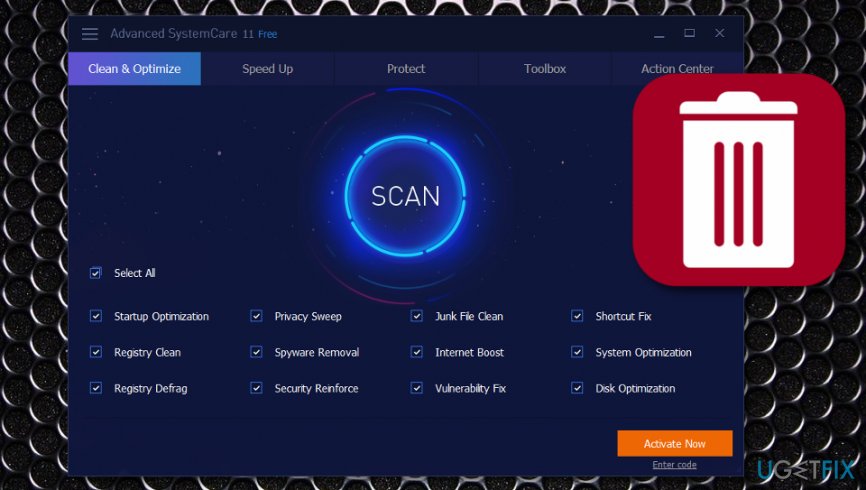
According to Malwarebytes users,[ref en-1] Malwarebytes Antimalware has detected IObyte System Care as PUP.Optional.AdvancedSystemCare and this only admits the fact that the software cannot be trusted. All it does is just take space on your computer and push fake alerts to your desktop to receive as much income as possible.
The thought to uninstall IObyte System Care is a very good option and it can be done manually or automatically. We have provided you with four different tasks that should appear helpful. Before, after you remove the potentially unwanted content, do not forget to replace it with another reputable antivirus program if you do not have one running yet.
How to uninstall IObyte System Care?
Task 1. Eliminate the tool by using the Control Panel
An easy way to uninstall IObyte System Care, also known as Advanced SystemCare, manually is to clean the Programs lists on your Windows computer. Find the program throughout the menu and get rid of it by completing the following:
- Go to Windows Search.
- Find the Control Panel.
- Enter it and continue with the Program section.
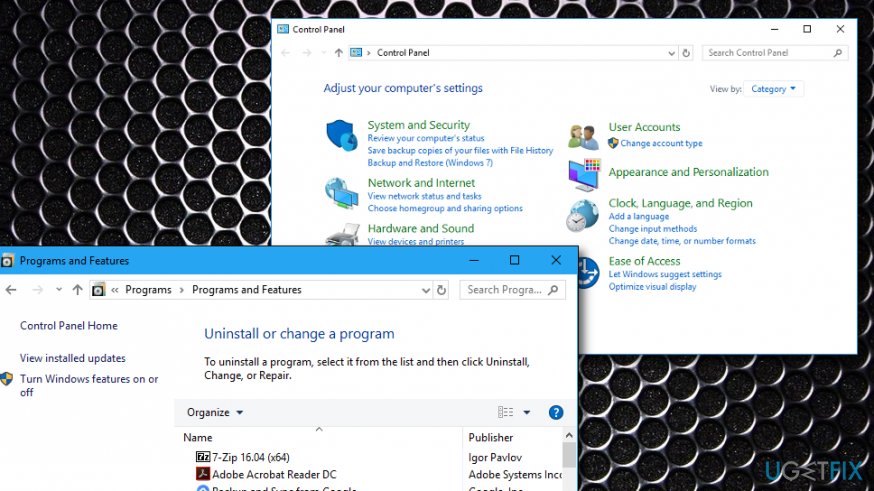
Task - Select Add/Remove a program.
- Afterward, find the Advanced SystemCare application.
- Select Remove.
Once you have completed these actions, the bogus security tool should have vanished from your application list. However, this might not be the only task to complete if you are looking forward to deleting the program entirely and preventing its repeated appearance in the upcoming future. Regarding this, you need to eliminate all related entries[ref en-3] and files.
Task 2. Get rid of bogus files
This task is also a very important and necessary step to take if you want to permanently uninstall IObyte System Care. In order to locate all related products, perform the following steps:
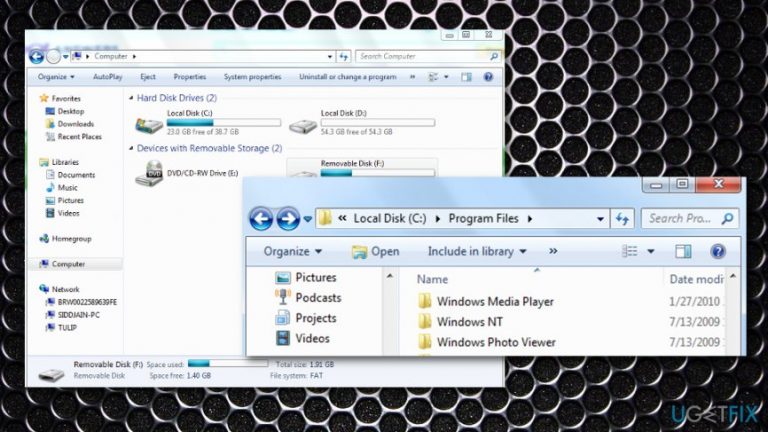
- Boot your computer and visit the My Computer section.
- Click the drive name where you have downloaded the bogus product. Usually, C:\\Program Files is the location where the suspicious security tool is placed.
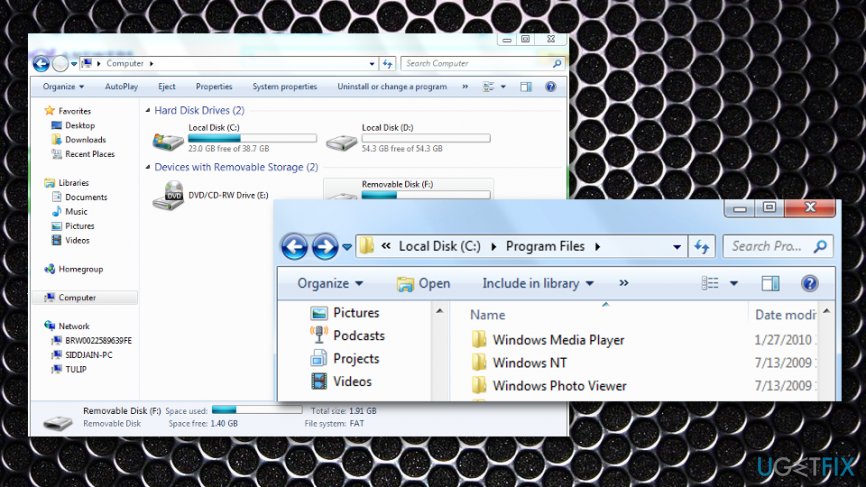
Task - Find any folder of file with the IObit name or anything related to Advanced SystemCare and right-click it.
- After that, select the delete key.
Task 3. Make suspicious entries vanish also
Once you have uninstalled IObit System Care itself and removed all of its related files, there might still be some questionable-looking entries placed in the Registry Editor section. Find out the true status and get rid of IObit-related content:
- Press the Windows key and the R button together and hold them for a few seconds.
- Once a small white-run box appears, type in regedit.
- Click on Enter to launch the Registry Editor.
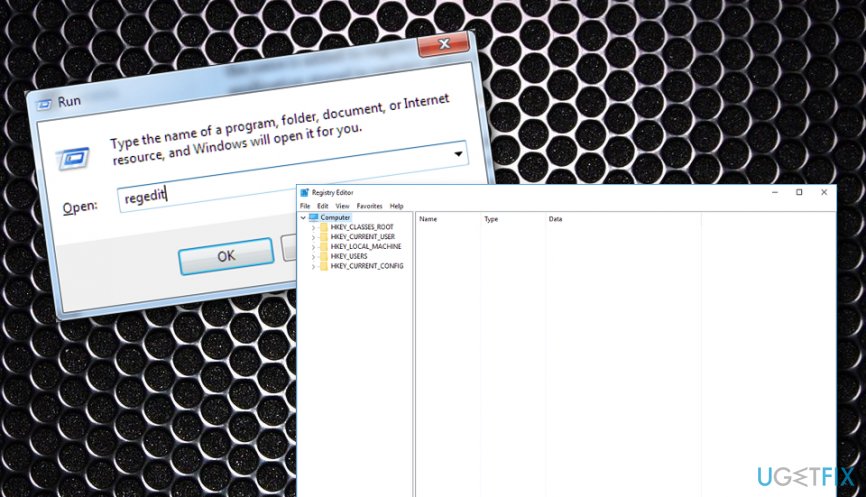
Task - Select the location with the name of HKEY_LOCAL_MACHINE\\SOFTWARE.
- Find anything related to IObit and remove all of the content discovered.
Task 4. Automatical solution
If you completed all the above-mentioned tasks that are necessary to uninstall IObit System Care and you still did not succeed in the process, there might be some type of error, threat, or corrupted content that might be preventing you from removing the bogus product effectively. In this case, you can perform a full system scan with [rev id="Reimage] and detect the reason why you cannot get rid of the fake security software or maybe find other suspicious products that were not spotted before.
Bottom line
To uninstall IObyte System Care, you can use the Control Panel for a manual removal or consider using an automatic method. It is also recommended to replace it with a reputable antivirus program after removal. If these methods do not work, further troubleshooting may be necessary.
Frequently asked questions
To completely uninstall IObyte System Care from Windows 10, go to 'Settings' > 'Apps', find IObyte System Care in the list, click on it, and select 'Uninstall'.
If you encounter issues while uninstalling IObyte System Care on Windows 11, try using the built-in 'Add or Remove Programs' feature or a third-party uninstaller tool for a more thorough removal.
Yes, after uninstalling IObyte System Care on Windows, you can use the Disk Cleanup tool or a dedicated cleaning software to remove any leftover files and ensure complete removal.




Report an issue
What's wrong with this guide? We review every report and update or remove content.
Report received — thank you. We'll review and fix it.
You need a free account to submit a report.
Be the first to comment