How to remove
Uninstall Java
from Windows
Easily remove Java from your Windows 10 or Windows 11 PC with our expert-tested guide to ensure a clean uninstallation and zero traces left.


How does How to Uninstall Java from Mac end up on your PC?
- Java is known for being vulnerable and actively exploited by cyber criminals.
- Apple stopped including Java in OS X due to security issues in 2012.
- Many users do not find Java useful for their activities.
- Java is only needed for specific applications like Minecraft, Runescape, and Adobe Illustrator.
- Fake Java pop-ups can deliver malware instead of legitimate updates.
Repairs Windows system files, removes malware, and restores a clean OS state — without reinstalling.
I am concerned about Java security issues, and I want to remove it from my Mac OS X. However, I found out that it cannot be uninstalled as an ordinary application. Could you tell me how to remove it entirely?
Java is a software that is designed to play various games, using communication platforms, viewing 3D content, and so on. However, it is also known for being vulnerable and actively exploited by cyber criminals.[ref en-3] Thus, if you do not know why this application is needed or do not use it, it’s better to uninstall Java from Mac.
Various browser and programs might need Java in order to run. However, Apple has stopped including it in OS X due to security issues in 2012.[ref en-4] Additionally, the majority of users do not find this software useful.
It seems that Java for Mac OS X is needed only if you play Minecraft and Runescape, or use Adobe Illustrator and few other apps.[ref en-1] If you are not using them, you should uninstall them to increase your security level.
Indeed, this app cannot be removed by dragging it to the Trash only. You will need to take more steps to delete all Java-related entries from the computer. For that, we prepared two methods at the second part of the article.
Fake Java pop-ups spread malware
Cyber criminals often deliver fake alerts to install latest Java updates.[ref en-2] However, these pop-ups that might emerge on the screen when you browse the web include malicious content. Thus, instead of update, you might download Trojan, ransomware or at least spyware.
Keep in mind that real and safe updates are available only on the official website or appear in the App Store. Thus, you should download them only from these sources to avoid installation of malware.
If you already clicked on such fake offer and think that your Mac may have been infected with a virus, you should run a full system scan with a reputable security software and check your computer’s state. You can use either [rev id=“Reimage"] or [rev id=”MacKeeper”].
Uninstall Java on Mac OS X
Java removal requires having Administrator privileges. Besides, before you start, you should back all your data in order to avoid the loss of important files in case something goes wrong.
Below you can find two methods that allow removing Java from the device. The first method requires deleting files using Finder. It’s an easier and the safer option compared to the second one. The second option requires executing commands using Terminal.
Option 1. Uninstall Java-related entries using Finder
- Quit all applications that use Java.
- Open Finder.
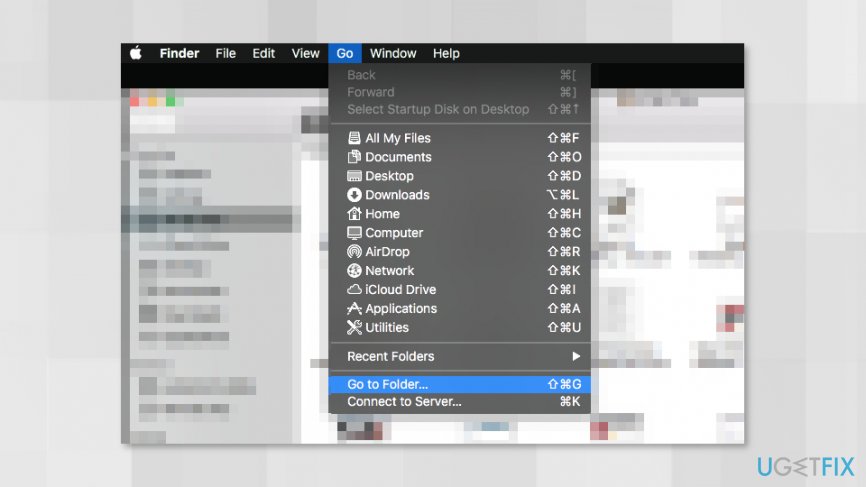
- Click Go on the left top corner and choose Go To Folder option.
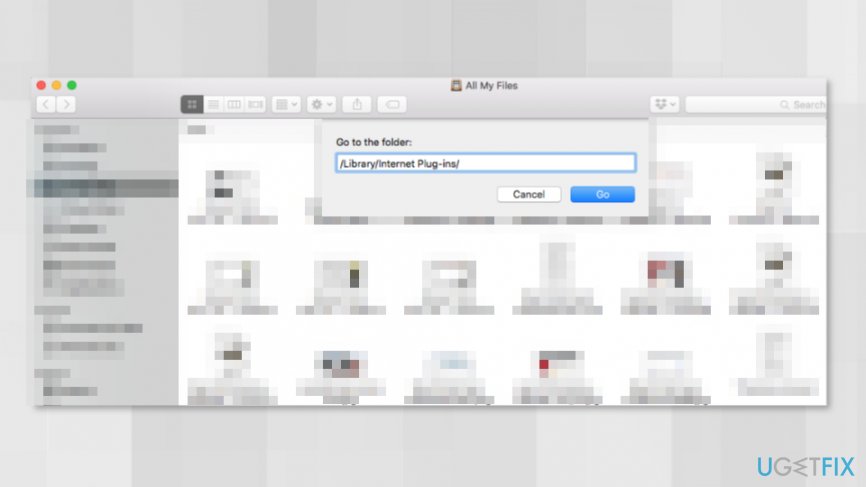
Remove java from mac with finder - Enter this path in the appeared box: /Library/Internet Plug-ins/
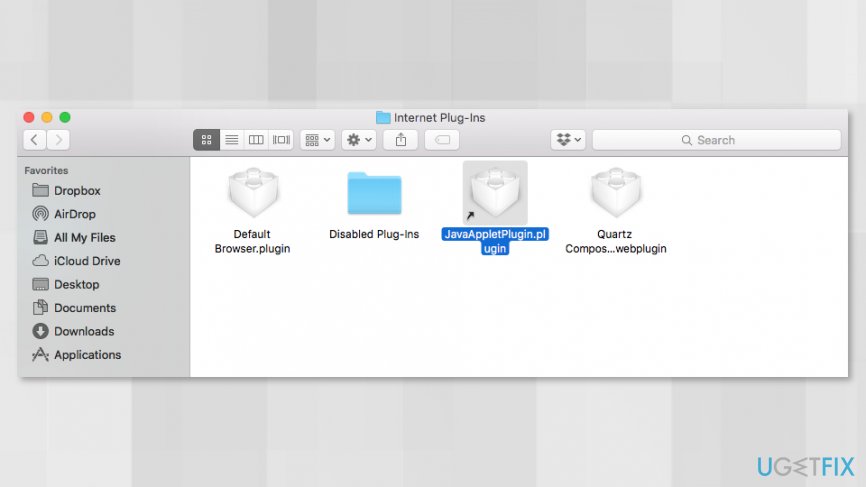
Delete java from mac with finder - In the Internet Plug-Ins window, you should find JavaAppletPlugin.plugin entry and delete it by grabbing it and moving to the Trash located on the Dock.
Delete javaappletplugin plugin - Click Go and click Go To Folder again.
- This time, you have to enter /Library/PreferencePanes/ path.
- In the folder, you have to find and delete JavaControlPanel.prefPane entry.
- One more time click Go -> Go To Folder.
- Enter the path ~/Library/Application Support/Java/.
- Here delete Java folder.
- Empty the Trash.
Option 2. Remove Java using Mac OS command line
- Open Finder and access Applications folder.
- Go to Utilities folder.
- Open Terminal.
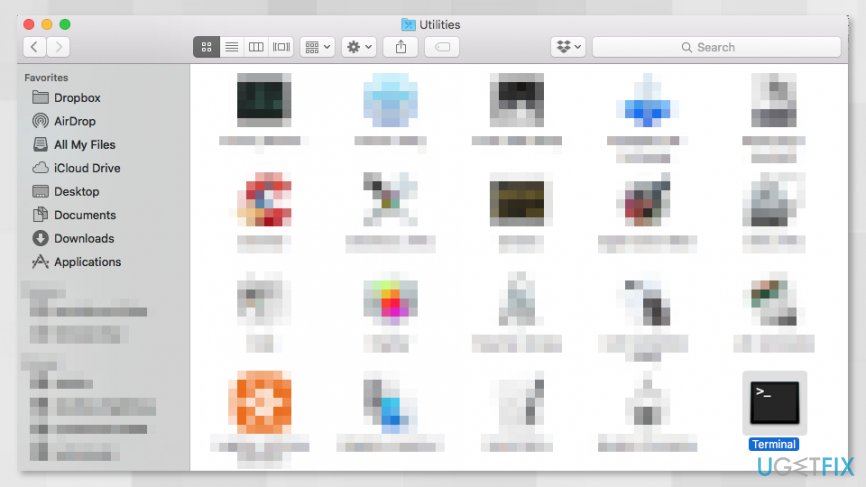
Remove java from mac with terminal - In the Terminal windows enter these commands:
sudo rm -fr /Library/Internet\\ Plug-Ins/JavaAppletPlugin.plugin
sudo rm -fr /Library/PreferencePanes/JavaControlPanel.prefPane
sudo rm -fr ~/Library/Application\\ Support/Java - When these commands will be executed, Java should be removed from the system.
Bottom line
To uninstall Java from your Mac, you need to follow specific steps beyond just dragging it to the Trash. The article provides two methods to completely remove Java and its related entries. If these methods do not work, consider running a full system scan with reputable security software.
Frequently asked questions
Yes, you can uninstall Java from Windows 10 or Windows 11 by going to the Control Panel, selecting 'Programs and Features,' finding Java in the list, and clicking 'Uninstall.'
If Java doesn't appear in the list on Windows 10 or Windows 11, you can try using the Java Uninstall Tool available on the Oracle website to remove any remnants of the installation.
To ensure all Java components are removed, use the 'Add or Remove Programs' feature in Windows 10 or 11, and follow up with a system restart and manual deletion of leftover files in the Program Files directory.




Report an issue
What's wrong with this guide? We review every report and update or remove content.
Report received — thank you. We'll review and fix it.
You need a free account to submit a report.
Be the first to comment