How to remove
Uninstall Mac Auto Fixer
from Windows
Easily remove Mac Auto Fixer from your Windows 10 or Windows 11 system with our expert-tested guide. Uninstall in minutes, zero traces left!

How does How to uninstall Mac Auto Fixer end up on your PC?
- Installed as an optional component with shareware or freeware
- Users unaware of installation due to software bundling
- Application flagged as potentially unwanted program (PUP)
- Relies on fake scan results to prompt purchases
- May lead to malware infection if not careful
Repairs Windows system files, removes malware, and restores a clean OS state — without reinstalling.
Hello. I recently ran into a program called Mac Auto Fixer on my Mac. I noticed it performing scans on my computer, and finding hundreds of problems. I have no clue where this application came from, as I do not remember installing it. Also, should I trust this app? Please give me some advice! Thanks.
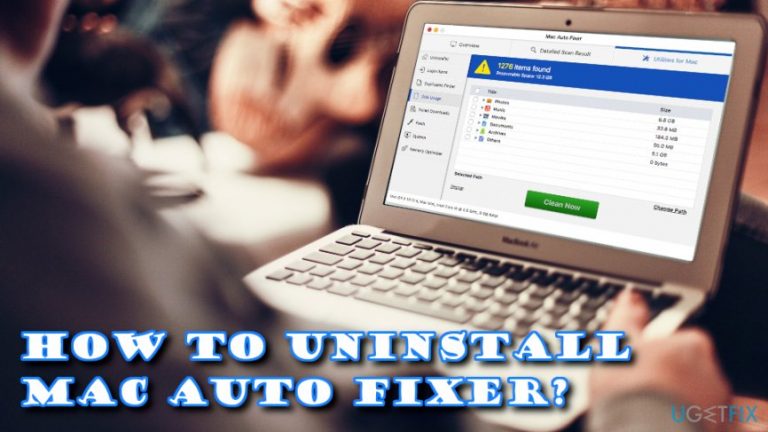
Mac Auto Fixer is a rogue macOS optimization software that can be classified as scareware.[ref en-1] The application usually enters machines without users' knowledge as an optional component included together with shareware or freeware (this technique is often referred to as software bundling)[ref en-2]. For that reason, users often find the app running while having no realization of ever installing it.
Potentially unwanted programs,[ref en-3] in general, are not malicious. However, there are always risks involving the operation of such software, as it not only tries to shove fake scan results to users but also operates as an application which benefits from advertisements, which often disturb daily browsing sessions. Additionally, PUPs could potentially result in malware infection, if the user is not careful enough.
As we already mentioned, Mac Auto Fixer is a scareware program, which means that it relies on bogus scan results in order to make users buy a licensed version of the application. Never trust these results, as they are utterly fake! Software like Mac Auto Fixer is designed to flag harmless files and processes in the scan report and make it look like they are malicious.
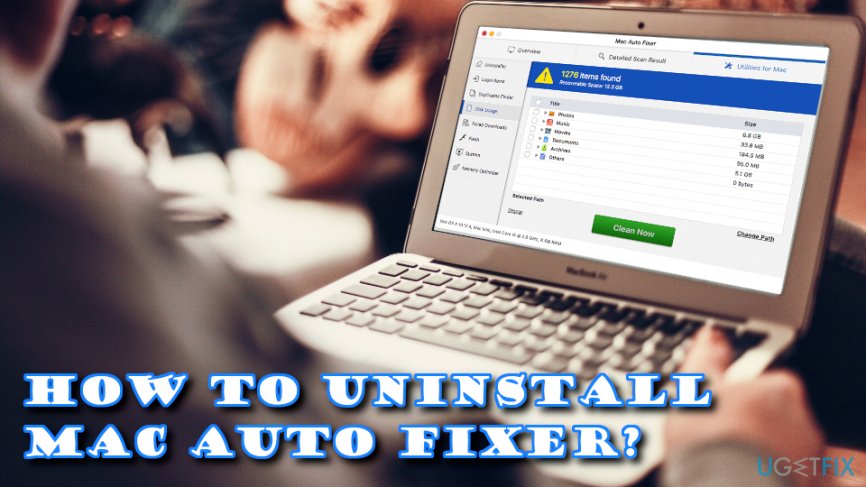
Additionally, the rogue program might indicate malware infection, which most likely will be fake as well. Therefore, do not hesitate whether or not you need to uninstall Mac Auto Fixer, and check our guide below.
Those who proceed and purchase a full version of Mac Auto Fixer might be tempted to "fix" their Mac. Do not opt for that, as the computer might start malfunctioning. Additionally, by providing credit card details on an unknown website, you risk of its disclosure to unsafe sources, such as cybercriminals.
While most applications can be removed by dragging them to Trash, some are not that easy to get rid of. To uninstall Mac Auto Fixer, users might have to undertake several additional steps. Please examine the steps below carefully and perform them in the correct order.
Protip: remember that PUPs can multiply fast, and, if you clicked on questionable links, there is a chance that your machine might get infested with parasites. To make sure that your macOS is clear of malware, scan it with [d1], or any other reputable security software. Additionally, it might help you uninstall Mac Auto Fixer, as well. If the scan did not help you get rid of the bogus software, follow the steps below.
Step 1. Use force Quit option to disable Mac Auto Fixer
Various background processes might be running when Mac Auto Fixer is active. Therefore, closing it down might require to shut it down forcefully. Please follow these steps that will help you uninstall Mac Auto Fixer:
- Click on Finder and go to Applications
- Select Utilities folder and enter it
- Locate Activity Monitor and double-click it
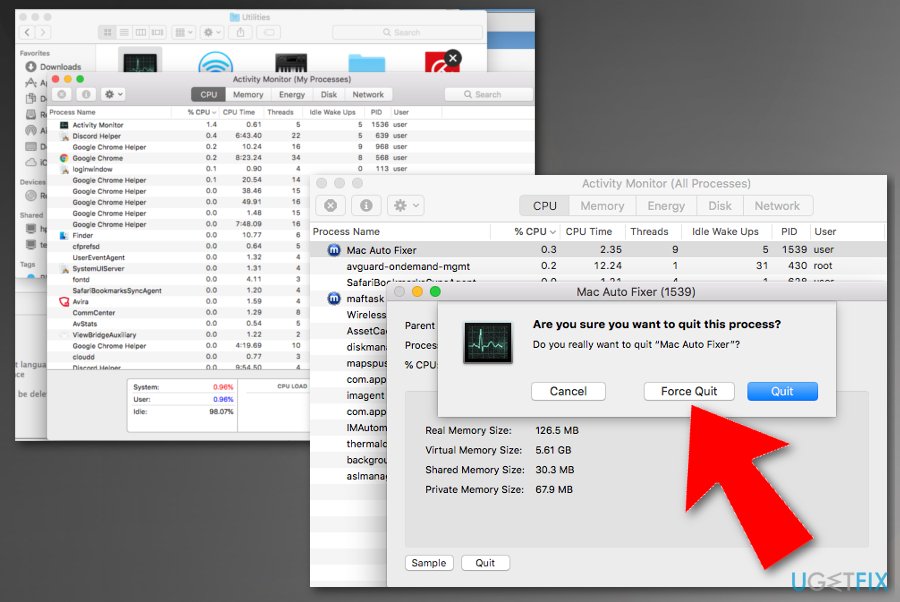
Mac autofixer uninstall activity monitor - Find on the list and select Mac Auto Fixer, click i .
- Then press Quit Process.
- When prompted, confirm by pressing Force Quit
Step 2. Drop Mac Auto Fixer into the Trash
This process should be familiar to most. In case you are not sure how to perform it, follow these instructions:
- Go to Finder and Select Applications
- Locate Mac Auto Fixer folder
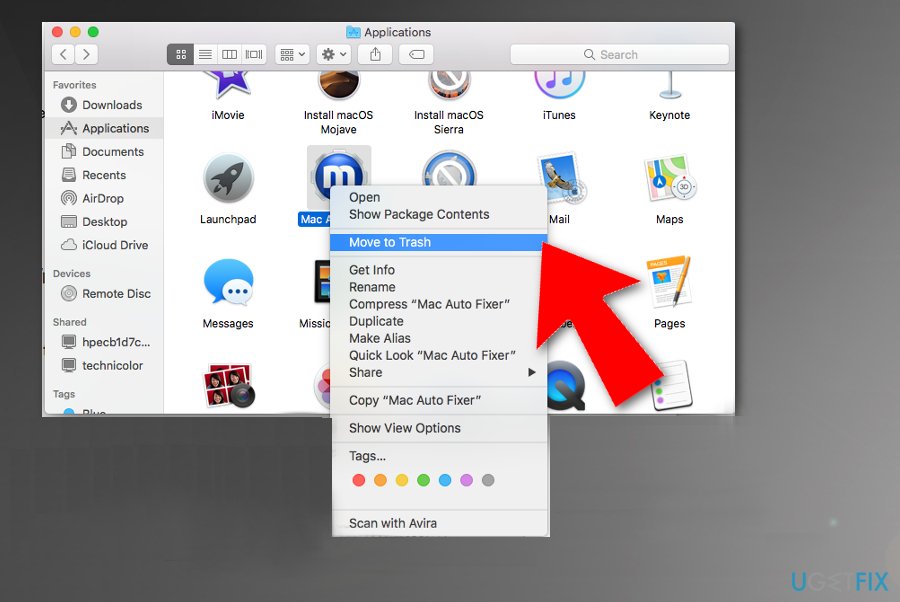
Mac autofixer uninstall trash - Click on it and drag it to the Trash icon on your dock
Step 3. Uninstall Mac Auto Fixer by removing it from Application Support directory
The final step is to get rid of additional entries made by Mac Auto Fixer. To finalize the uninstallation, follow steps below:
- Right-click on Finder icon and select Go to Folder
- Type in ~/Library/Application Support/ and click Go
- Locate Mac Auto Fixer and maf folders and relocate them to Trash
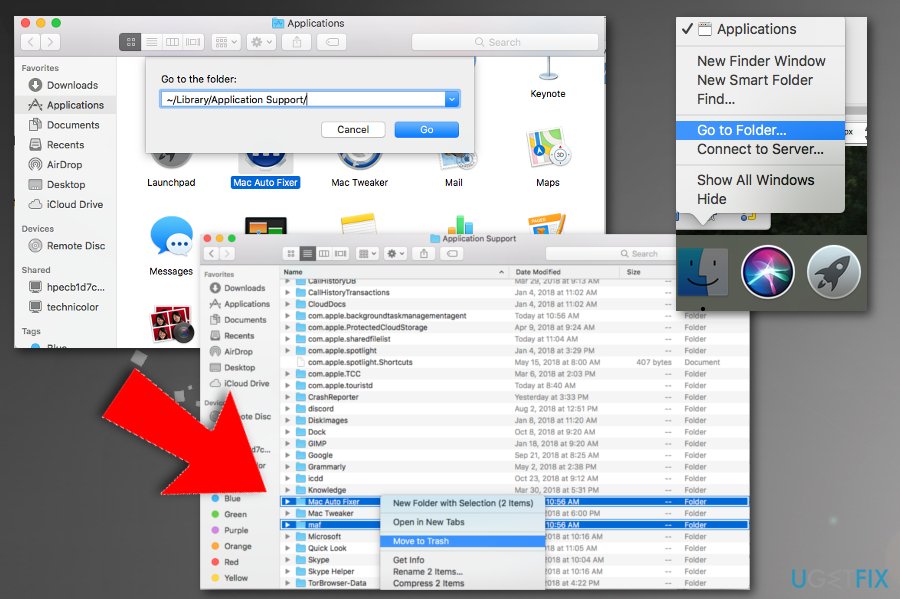
Mac autofixer uninstall library folder - Finally, right-click on your Trash icon and select Empty Trash
Bottom line
To uninstall Mac Auto Fixer, users should follow the guide provided, which may include dragging the application to Trash or using specific uninstallation methods. If these steps do not work, consider using a dedicated uninstaller or seeking professional help.
Frequently asked questions
To uninstall Mac Auto Fixer on Windows 10, go to Settings > Apps, find Mac Auto Fixer in the list, click on it, and select 'Uninstall.' Follow the prompts to complete the removal process.
Yes, you can remove Mac Auto Fixer via Control Panel in Windows 11 by navigating to Control Panel > Programs > Programs and Features, selecting Mac Auto Fixer, and clicking 'Uninstall.'
If Mac Auto Fixer doesn't show up in the Apps list, try using a third-party uninstaller or check for related files in the Program Files directory and delete them manually.




Report an issue
What's wrong with this guide? We review every report and update or remove content.
Report received — thank you. We'll review and fix it.
You need a free account to submit a report.
Be the first to comment