How to remove
Uninstall Magic PC Cleaner
from Windows
Easily uninstall Magic PC Cleaner from Windows 10 or 11 with our foolproof guide. Expert-tested solutions ensure no traces left behind.

How does How to Uninstall Magic PC Cleaner end up on your PC?
- Magic PC Cleaner is in use and cannot be uninstalled immediately
- Executable file installed among startup programs
- Scheduled system scans set by default
- Pop-ups generated to imitate system checks
- Rogue scan results designed to convince users to purchase a license
Repairs Windows system files, removes malware, and restores a clean OS state — without reinstalling.
I can’t delete Magic PC Cleaner from a Programs & Features applet. It says that the program is in use and I’m offered to uninstall it later. However, I tried that many times, rebooted the system, then switched to the Safe Mode, Clean boot, but none of that helped. What should I do?
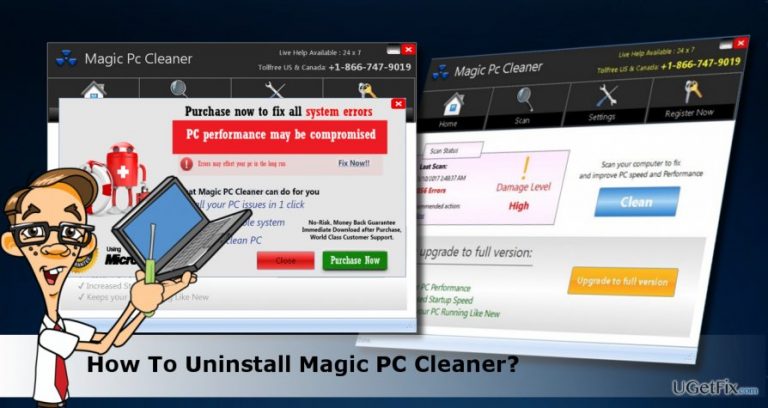
Magic PC Cleaner is a potentially unwanted program (PUP) that can also be classified as a rogue PC optimizer. The tool represents itself as a "most advanced PC cleaner,” which is supposed to take care of the system-related, browser-related, and user-related issues. When the PC user installs the Magic PC Cleaner, it installs an executable file among startup programs and sets a schedule for system scans by default. Consequently, this tool will start loading its scanner on a particular schedule without user’s approval. Unfortunately, that’s not the worst part. Most of the people who encountered with this malware claim that the most irritating part is the Magic PC Cleaner pop-ups. It is programmed to check (or imitate checking) the system in the background and deliver notifications about a potential risk. For example, you may browse the Internet and receive a Magic PC Cleaner pop-up saying that a potentially unwanted program has been detected and that you have to call for remote tech support. The number is indicated as Toll-Free, but security experts warn that it may be managed by hackers who may try to extort personal information out of you.
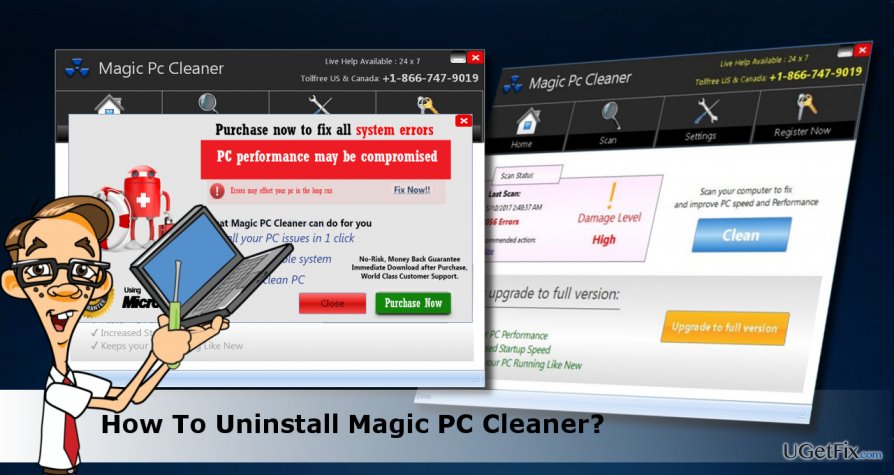
The Magic PC Cleaner PUP scan results should not be trusted either. The program is deemed as a rogue optimizer because it provides rogue/invented scan results. To convince the user to purchase a licensed version of this tool, scan results have been prepared in advance and filled with the names of legit Windows OS files. Unfortunately, the only way to fix the errors, most of which are non-existent, is to purchase a useless license for a considerable amount of money. The licensed Magic PC version may not only fail to remove errors but may induce serious errors to occur if it would delete some of the important Windows system files or registry entries. Therefore, we would strongly recommend people to uninstall Magic PC Cleaner from Windows ASAP.
How to Uninstall Magic PC Cleaner?
Usually, Magic PC Cleaner is installed via software bundle with companions like adware or browser hijackers. Therefore, we would strongly recommend removing it with the help of [d1] or another professional anti-malware. Don't forget to reset your web browser's settings. Otherwise, you may leave PUPs working within your web browser.
Google Chrome
Mozilla Firefox
Microsoft Edge
Internet Explorer
If, nevertheless, you opt for manual Magic PC Cleaner removal, here's what you have to do:
- Boot your PC into "Safe Mode with Networking."
- Open "Task Manager" by pressing Ctrl + Shift + ESC.
- Find Magic PC Cleaner, click it, and select "End Task."
- Then right-click on Windows key and select "Control Panel."
- Open "Programs and Features" and find the Magic PC Cleaner.
- Click it and select "Uninstall."
- Carefully check the list of programs on the system and eliminate the suspicious ones. Sort the programs according to the date and remove the ones that were installed on the same day as Magic PC Cleaner.
- Click "OK" to save the changes.
- Reset your web browser and reboot the system.
Bottom line
To uninstall Magic PC Cleaner, you can try rebooting the system, switching to Safe Mode, or performing a Clean boot. If these methods do not work, consider using dedicated malware removal tools to eliminate the program. If none of these solutions are effective, seek professional tech support.
Frequently asked questions
To uninstall Magic PC Cleaner from Windows 10, go to 'Settings', select 'Apps', find 'Magic PC Cleaner' in the list, and click 'Uninstall'. Follow the prompts to complete the removal process.
Yes, on Windows 11, you can right-click the Start button, select 'Apps and Features', locate 'Magic PC Cleaner', and click 'Uninstall' to remove it from your system.
If Magic PC Cleaner fails to uninstall, try using the built-in Windows troubleshooter or a third-party uninstaller tool to remove any leftover files and registry entries.




Report an issue
What's wrong with this guide? We review every report and update or remove content.
Report received — thank you. We'll review and fix it.
You need a free account to submit a report.
Be the first to comment