How to remove
Uninstall Master PC Cleaner
from Windows
Easily uninstall Master PC Cleaner from Windows 10 or 11 with our expert-tested guide. Fix issues in minutes and enjoy a cleaner system!

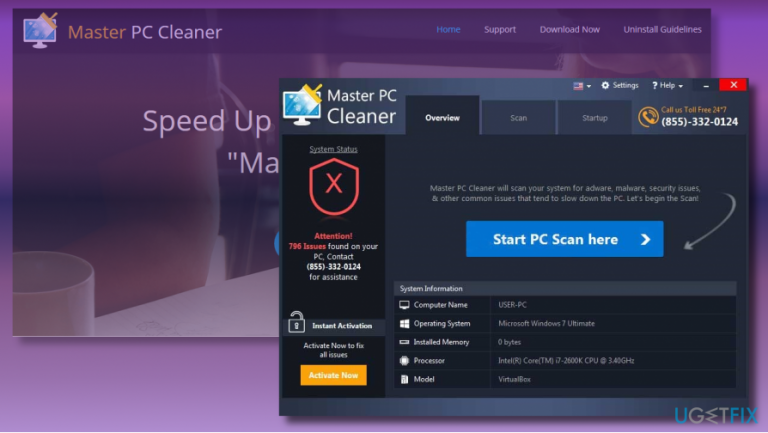
How does How to Uninstall Master PC Cleaner end up on your PC?
- Slows down the system during scanning process
- Delivers similar scan results on different devices
- Error report may contain regular system files
- Urges users to purchase its license
- Poor reputation among cyber security experts
Repairs Windows system files, removes malware, and restores a clean OS state — without reinstalling.
How can I remove Master PC Cleaner? It seems that it slows down the system, especially during the scanning process.
Master PC Cleaner is an optimization utility, which is supposed to keep the performance of Windows operating system “smooth, fast and error-free.” According to its developers, the program is capable of fixing corrupted/invalid registries, removing adware, and managing startup items. Besides, it offers a 24/7 Support.
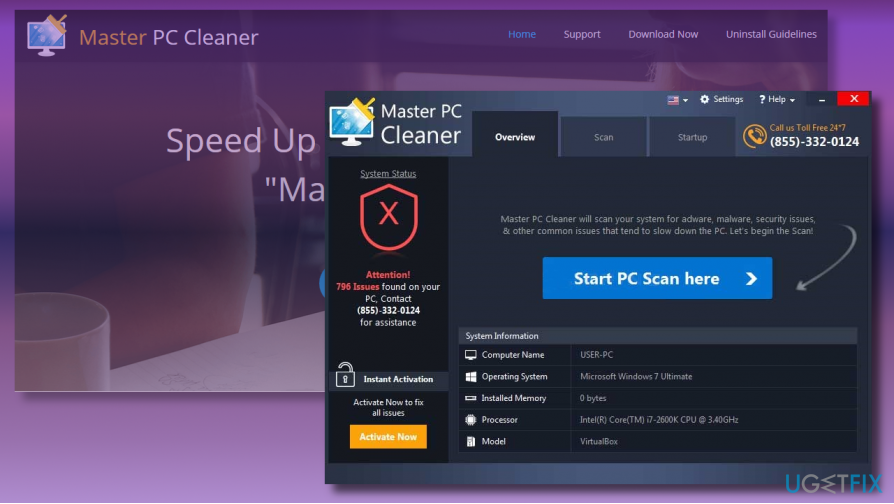
While the description is engaging, experts do not recommend installing the application due to several reasons. First of all, the real use of the Master PC Cleaner is highly questionable. It has been found that it tends to deliver similar scan results on different devices. On top of that, the error report may contain regular system files, which don’t have negative impact to the system’s performance.
Second of all, Master PC Cleaner will keep urging you to purchase its license. Yes, the free trial version will scan the system and display the results. However, it won’t fix anything unless you pay. The problem is that there’s no information about free and paid versions, so users tend to believe that they will get a full service for free. That’s definitely a catch.
Finally, the tool has a really poor reputation among cyber security experts. They classify Master PC Cleaner as a potentially unwanted program (PUP) due to shady distribution methods. It was found spreading bundled with freewares/sharewares. It is disguised under Quick/Basic installation option and does not require for user’s permission properly.
In a nutshell, although Master PC Cleaner is not malicious, we would not recommend trusting it. It doesn’t matter if you installed it intentionally or bundled with freewares, perform a couple of simple steps and uninstall it without a delay.
In general, it’s important to select an optimization tool carefully. As Microsoft claims on its official “support policy for the use of registry cleaning utilities,” incorrect usage of such utilities or compromised utility itself can cause a severe damage to Windows OS integrity and performance.
Since Master PC Cleaner removal is not a difficult task to execute, perform the following steps right away:
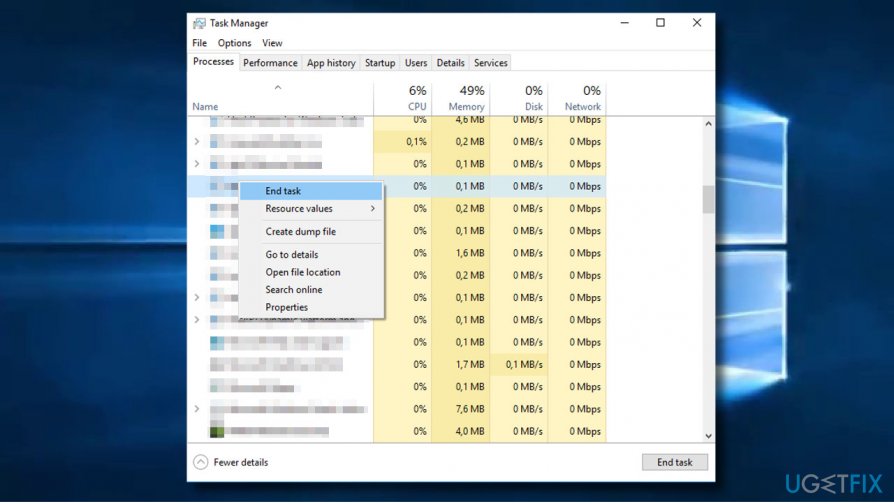
Step 1. Stop Master PC Cleaner process via Task Manager
1. Press Ctrl + Alt + Del and select Task Manager.
2. Open Processes tab and locate the Masterpccleaner.exe process (the name of the process may slightly differ).
3. Right-click on it and select End Task.
Step 2. Uninstall Master PC Cleaner via the Control Panel
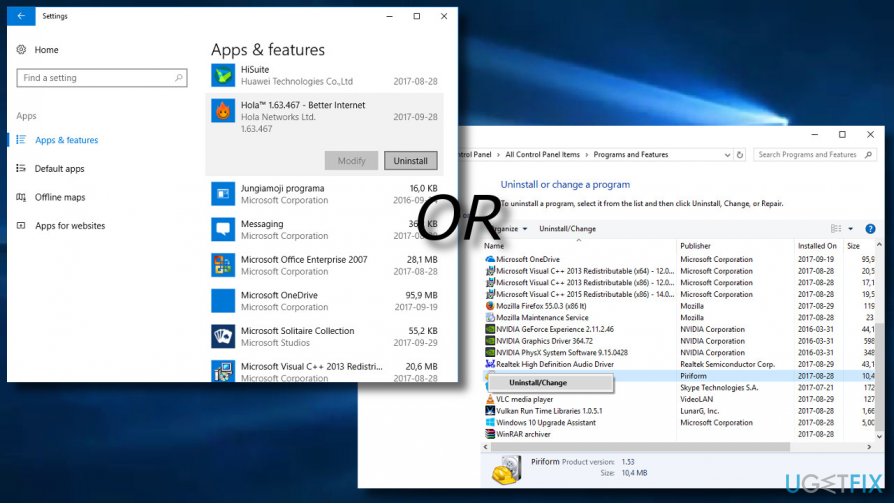
1. If you are using Windows 10, click Windows key + I to open Settings.
2. Click on Apps and look for the program’s entry on the list.
3. If it’s there, click it and select Uninstall. If it’s not included on the Settings app list, open Control Panel.
4. Select Programs & Features and look for the uninstaller right there.
5. Click on it and select Uninstall.
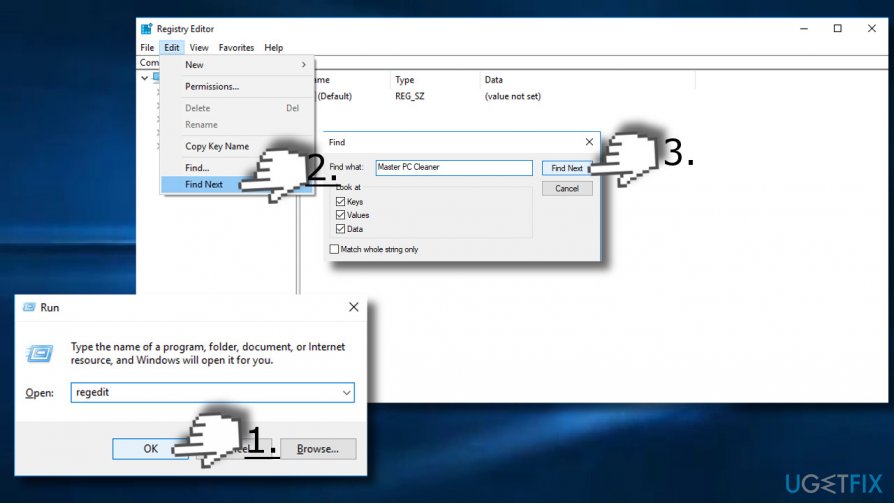
Step 3. Find Master PC Cleaner Leftovers on the Registry Editor
1. Press Windows key + X, type regedit, and press Enter.
2. Then click Edit and select Find Next.
3. Enter the Master PC Cleaner.
4. If the search returns associated entries, delete all of them.
All three removal steps can be initiated automatically with the help of software removal tool. We recommend using [rev id="Perfect Uninstaller"].
Besides, we would highly recommend checking the system with a professional anti-malware utility, let’s say [d1]. Master PC Cleaner PUP may spread along with other unwanted apps, including adware or browser hijacker, so all of them should be removed alongside.
Bottom line
To uninstall Master PC Cleaner, follow the simple steps outlined in the guide. If you installed it unintentionally or bundled with freewares, it's important to remove it without delay. If none of the suggested methods work, consider seeking additional technical support.
Frequently asked questions
To uninstall Master PC Cleaner from Windows 10, go to Settings > Apps, find Master PC Cleaner in the list, click on it, and select Uninstall.
Yes, to completely remove Master PC Cleaner from Windows 11, you should uninstall it via Settings > Apps and then use a trusted uninstaller tool to ensure all residual files are deleted.
If Master PC Cleaner doesn't appear in the Apps list on Windows, try using the Control Panel's 'Programs and Features' option to uninstall it or use a dedicated removal tool.




Report an issue
What's wrong with this guide? We review every report and update or remove content.
Report received — thank you. We'll review and fix it.
You need a free account to submit a report.
Be the first to comment