How to remove
Uninstall Mega Downloader
from Windows
Easily uninstall Mega Downloader from your Windows 10 or Windows 11 PC with our expert-tested guide. Get quick results and zero traces left!

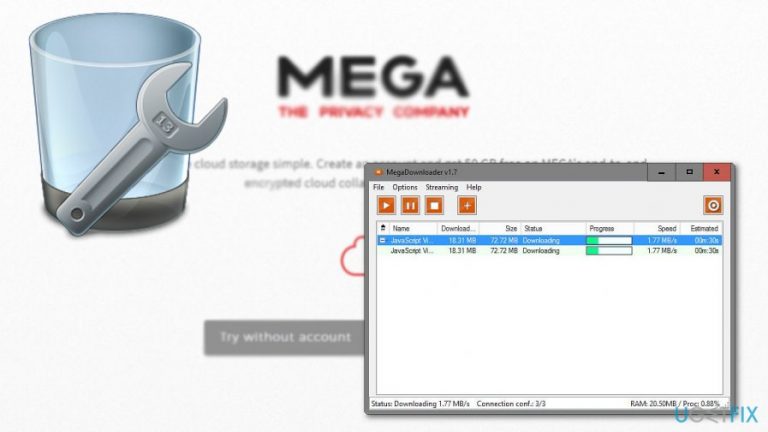
How does How to Uninstall Mega Downloader end up on your PC?
- PC processes running slowly after installation
- Multiple counterparts of the application may be present
- Corrupted versions of the application may exist
- Possible disguise for malware
- Fraudulent sites may provide incorrect versions
Repairs Windows system files, removes malware, and restores a clean OS state — without reinstalling.
I want to uninstall the application as PC processes started running slowly after I installed the app. But I can’t find the app on the computer. Any advice would be appreciated.
Mega Downloader functions as a free application which is designed to help users download content from mega.nz. The latter site offers paid services. However, regarding the fact that it happens to be a free application, you might find multiple counterparts on the system.
Unfortunately, these versions may be corrupted. What is more, they may serve as the disguise for malware. Such assumptions are not baseless as you can find yourself in a fraudulent site, megadownloader.appsformega.info, when looking for this software.
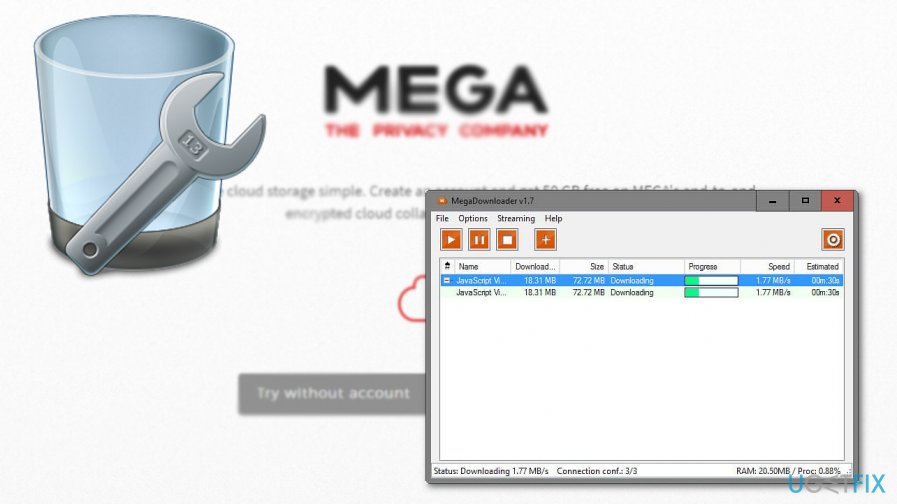
Thus, if you suspect that you have downloaded a wrong version of the tool, check whether you can uninstall the program the usual way. In case you suspect that malware is present on the system, you can eliminate it with [d1]. Now let us look through the options how you can install the application the ordinary way.
Uninstall Mega Downloader via the Control Panel
- Windows 10 users can click on the Start button and type megasync. After you find the app, right click on it Uninstall and you will be redirected to the Control Panel.
- Windows 7 users will have to go to the Control Panel directly and enter the list of system applications. Find Mega Downloader under megasync name and uninstall it.
In case you cannot uninstall it the ordinary way an “invalid message” appear, click Windows key+X and choose Command Prompt (Admin). After it launches type sfc /scannow and wait for the process to be finished.
If you suspect that some files of the app are still present, enter Safe Mode. Windows 10 users can reboot the system via system configuration app. Enter system configuration. Then enter Boot section and check the mark beside Safe boot function.
After the system boots into Safe mode, click on Windows key+R. Type regedit. Once Registry Editor launches, enter Edit section and then Find Next. Type megasync. If it finds any registry details associated with the app, delete them. You might also check for Mega Downloader files in the Program Files (x86) or in Local disk: C/User folders.
Bottom line
To uninstall Mega Downloader, users can try the Control Panel method or use Command Prompt if an invalid message appears. If issues persist, entering Safe Mode and using Registry Editor to delete associated entries may help. If none of these solutions work, consider scanning for malware or seeking further technical assistance.
Frequently asked questions
To uninstall Mega Downloader from Windows 10, go to Settings > Apps, find Mega Downloader in the list, select it, and click 'Uninstall.' Follow the prompts to complete the uninstallation.
Yes, on Windows 11, you can remove Mega Downloader by right-clicking the Start button, selecting 'Apps & features,' locating Mega Downloader, and then clicking 'Uninstall'.
If Mega Downloader won't uninstall, try using the built-in Windows troubleshooter or a third-party uninstaller tool to force its removal from your Windows system.




Report an issue
What's wrong with this guide? We review every report and update or remove content.
Report received — thank you. We'll review and fix it.
You need a free account to submit a report.
Be the first to comment