How to remove
Uninstall Microsoft AutoUpdate
from Windows
Easily uninstall Microsoft AutoUpdate from your Windows 10 or 11 system with our expert-tested guide. Complete removal in minutes, zero traces left!


How does How to uninstall Microsoft AutoUpdate end up on your PC?
- Microsoft AutoUpdate is a legitimate application component for Mac OS.
- Users may have other Microsoft-related applications installed that also include Microsoft AutoUpdate.
- Some users are unaware that Microsoft AutoUpdate can be installed with applications like OneDrive or Visual Studio.
- The application can appear without users installing MS Office directly.
- The presence of the Unity game engine may also lead to Microsoft AutoUpdate being installed.
Repairs Windows system files, removes malware, and restores a clean OS state — without reinstalling.
Hello. I recently got a pop-up message on my Mac from something called Microsoft AutoUpdate. It claims that it will collect some of the diagnostic data about me. If I do not click "OK," the prompt returns and it is really annoying to me. What is Microsoft AutoUpdate, and why is it on my computer? I never installed it myself.
Microsoft AutoUpdate is a legitimate application component designed for Mac operating systems and is used to support and update MS Office and other Windows programs that run on Macs. In some cases, however, users claim that they do not have any type of Windows app installed on their computers and still see prompts from Microsoft AutoUpdate. So, what is going on? Is Microsoft AutoUpdate a virus? Let's try to find it out in this post.
MS Office productivity suite consists of Excel, Word, PowerPoint, Outlook, and other useful programs that are used mainly for work. Fortunately, Mac users can also enjoy this set of apps on Apple products. Note that executable (.exe)[ref en-2] files are only usable for Windows systems, so users need to download a particular version for Mac systems.
Just like any other software, Windows apps for Macs need to be updated for better security and features. For that, Microsoft released a specific component that comes pre-installed with MS Office and other applications - Microsoft AutoUpdate. However, multiple users claimed that they never installed MS Office on their Macs, yet the application appeared seemingly out of nowhere - and this is where the term "Microsoft AutoUpdate virus" comes from.
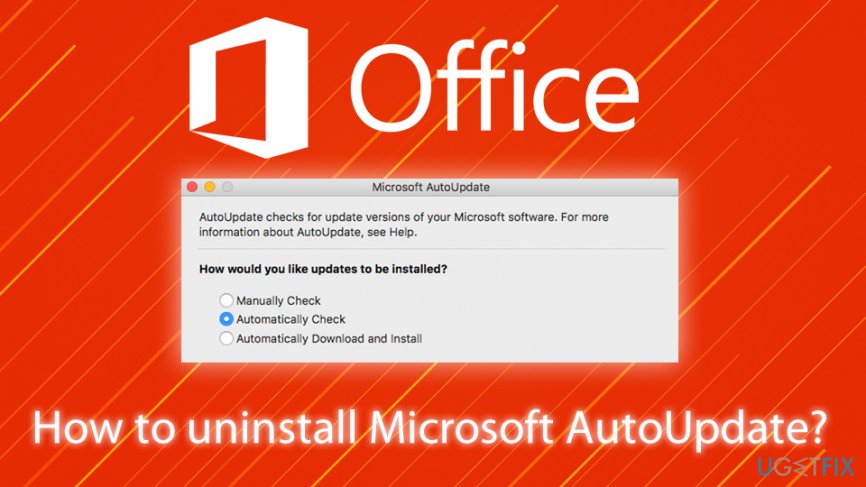
Users are simply unaware that other Microsoft-related applications, such as OneDrive, Visual Studio, would also install Microsoft AutoUpdate component for the smooth updating process of these apps. Note that the video game engine "Unity," despite being released by Apple, might also be related to the app installed, and users will not find any Microsoft-related apps in the installed app folder.[ref en-1]
Thus, forget the "Microsoft AutoUpdate virus" term, as the app is completely legitimate and all the sources that claim it is malware or Trojan[ref en-3] are wrong. It is true, however, that most do not know how to eliminate the app, as it sometimes annoys users with the frequent prompts about data collection.
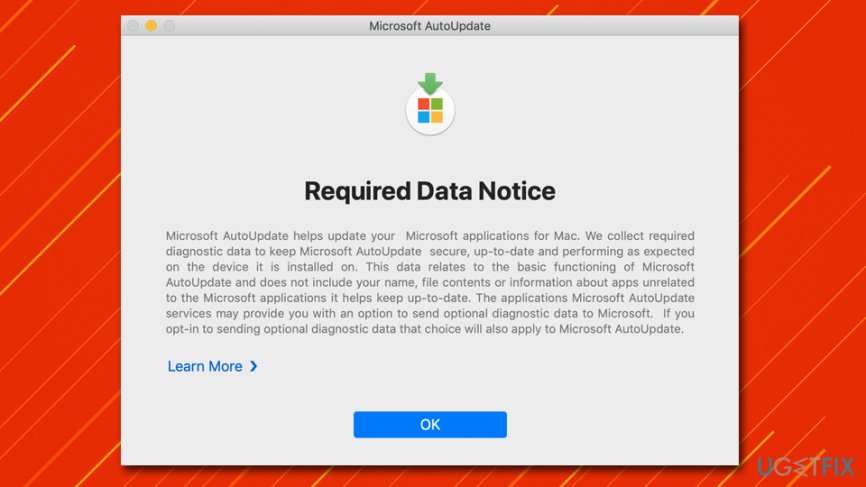
Additionally, just like any update prompt (Flash,[ref en-4] for example), users might encounter fake pop-ups on various websites. To avoid downloading fake versions of Microsoft AutoUpdate, make sure it is not coming from Safari, Google Chrome, or another browser - the dialog window should come from the macOS system instead. If you have any doubts about malware, we suggest you scan your machine with [d2] or [d3] or another reputable anti-malware software.
Nevertheless, if you want to uninstall Microsoft AutoUpdate from your computer, you should follow the provided guide below - we explain each step in detail.
Step 1. Stop the process via the Activity Monitor
If you want to uninstall and remove Microsoft AutoUpdate without interruptions, you should first shut down the process related to it. For that, you need to go to the Activity Monitor:
- Click on Finder icon located in your Dock
- Go to Applications > Utilities
- Double-click on Activity Monitor
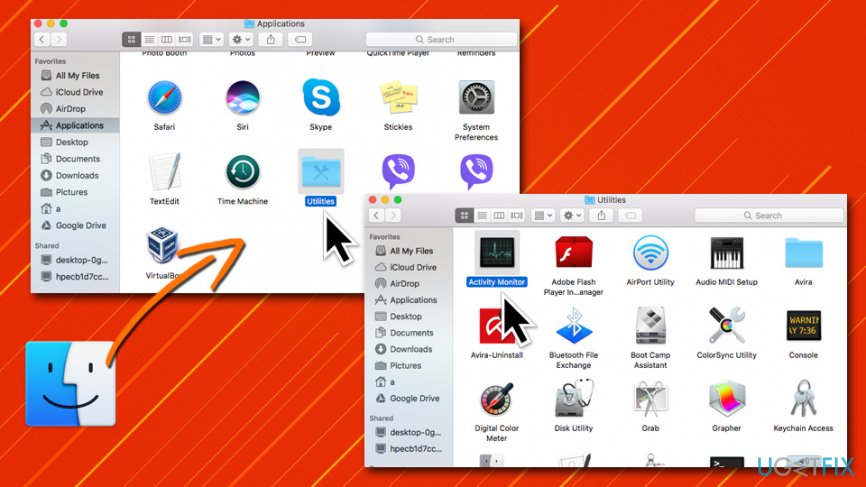
How to uninstall microsoft autoupdate open activity monitor - Once opened, scroll down to locate Microsoft Update Assistant entry
- Click on the Cross (X) located at the left corner of the window
- Confirm with Quit
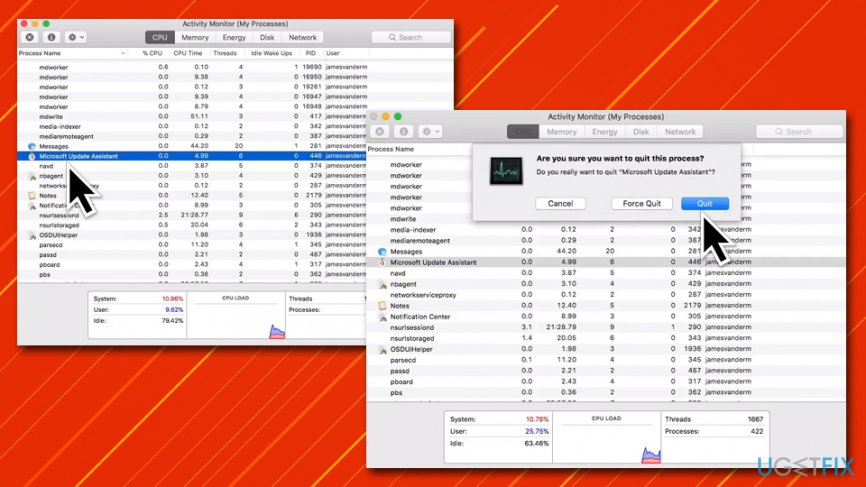
How to uninstall microsoft autoupdate stopthe process
Step 2. Uninstall Microsoft-related applications
- Open Finder and go to Applications folder once again
- Locate all the apps related to Microsoft
- Right-click on each of them (or press and hold Command key, then click on the apps to select them all at once) and select Move to Trash
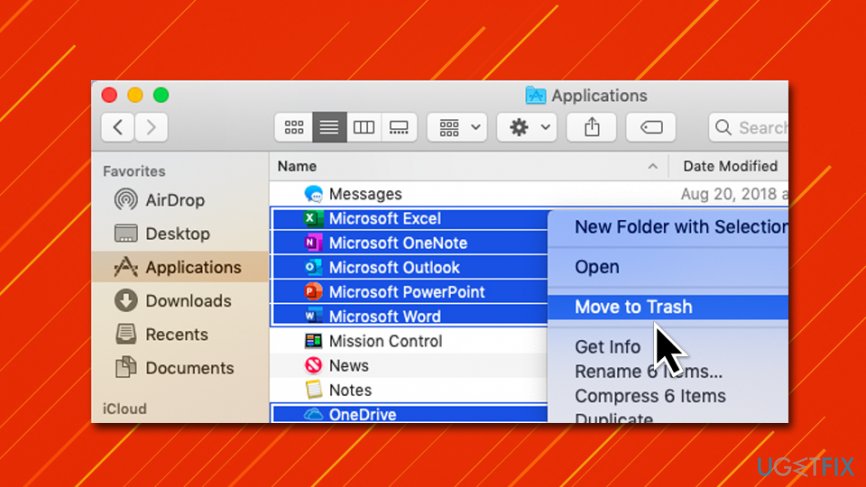
How to uninstall microsoft autoupdate remove ms office programs
Step 3. Delete the MAU2.0 and other leftover components from your Library
The final step for you to remove Microsoft Update Assistant is getting rid of all the Library entries from your Mac.
- Select Go from the menu bar at the top
- Click on Go to Folder...
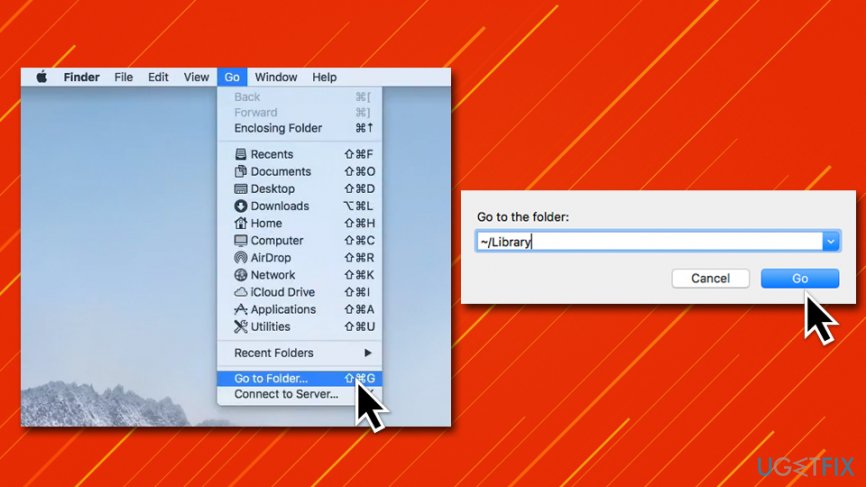
How to uninstall microsoft autoupdate go to library - Type in ~/Library into the new window and click Go
- From there, find and delete the following entries to complete MS Office removal:
com.microsoft.errorreporting
com.microsoft.Excel
com.microsoft.netlib.shipassertprocess
com.microsoft.Office365ServiceV2
com.microsoft.Outlook
com.microsoft.Powerpoint
com.microsoft.RMS-XPCService
com.microsoft.Word
com.microsoft.onenote.mac - Now delete entries related to Microsoft Update Assistant go to the following locations as explained above and delete these files:
~/Library/Application Support/Microsoft/MAU2.0/Microsoft AutoUpdate.app
~/Library/Preferences/com.microsoft.autoupdate2.plist
~/Library/Preferences/com.microsoft.autoupdate.fba.plist
~/Library/Application Support/Microsoft AU Daemon
~/Library/Saved Application State/com.microsoft.autoupdate2.savedState
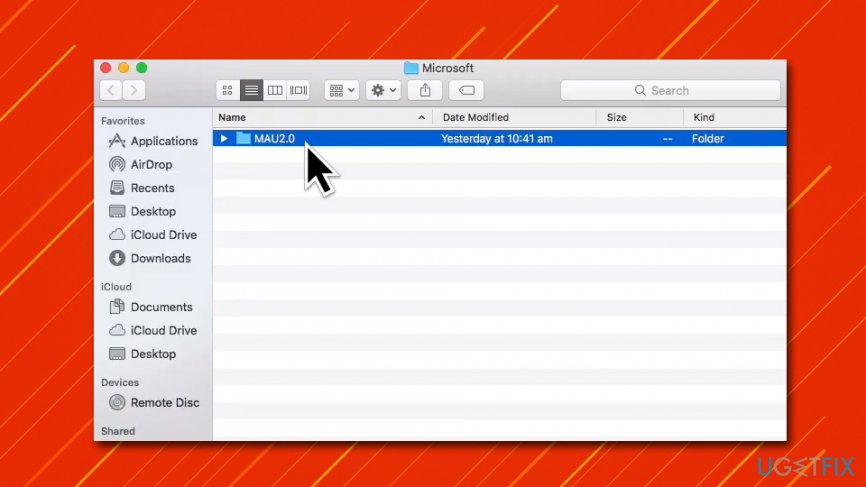
After you remove these entries, you should right-click on each of the uninstalled apps' icons on the Dock and select Options > Remove from Dock.
This should conclude the Microsoft AutoUpdate full removal - you should no longer receive the prompts about the seemingly necessary update.
Step 4. Reinstall the Microsoft AutoUpdate to enable new interface
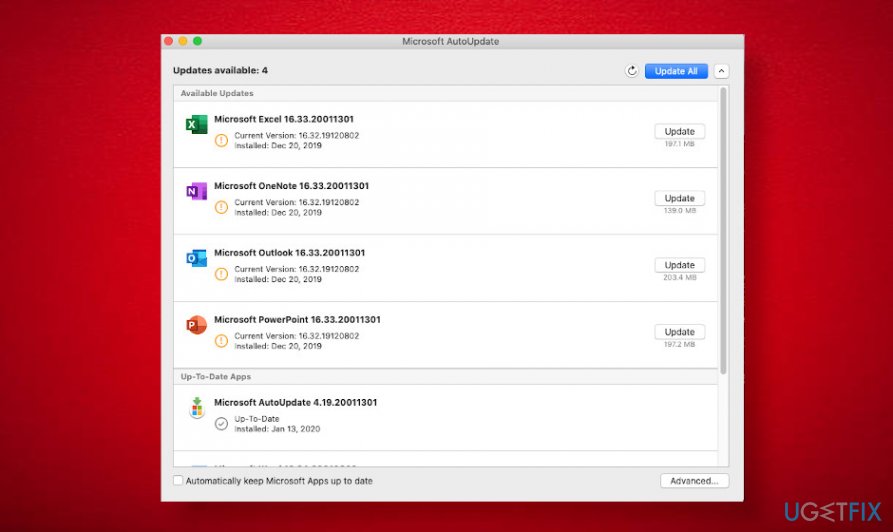
Several people expressed their concern on Microsoft forum[ref en-5] why the Microsoft AutoUpdater (the same version) features different user interfaces. For example, version 19 on one Catalina OS displays a renewed AutoUpdater screen, which shows all Microsoft applications that are or have been installed on the machine. At the same time, the other Mac device that runs exactly the same Microsoft AutoUpdater on Catalina does not provide any details except a claim that "Microsoft software is up-to-date."
I have three computers all running Microsoft AutoUpdater 19 on Catalina.
On my computer I get a totally new screen with list of previously installed Office 365 programs... nicer.
However the other two computers (one identical to mine) gets the old, traditional gray screen that just says "All updated."
Any idea what is going on?
In this case, you should uninstall Microsoft AutoUpdater as explained above and then download its latest variant from the official Microsoft MAU page.
Bottom line
Microsoft AutoUpdate is not a virus but a necessary component for updating Microsoft applications on Mac. If you find it annoying, you can uninstall it through your applications folder or system preferences. If these fixes do not work, consider seeking further assistance or checking for other installed Microsoft applications.
Frequently asked questions
To uninstall Microsoft AutoUpdate on Windows 10, open the Start menu, type 'Add or remove programs', find Microsoft AutoUpdate in the list, and click 'Uninstall'.
Yes, you can remove Microsoft AutoUpdate from Windows 11 by accessing Settings, navigating to 'Apps', selecting 'Installed apps', and then choosing 'Uninstall' next to Microsoft AutoUpdate.
If Microsoft AutoUpdate doesn't appear in the list of installed programs, check the Microsoft Office or other related software settings, as it may be bundled with them and not listed separately.




Report an issue
What's wrong with this guide? We review every report and update or remove content.
Report received — thank you. We'll review and fix it.
You need a free account to submit a report.
Be the first to comment