How to remove
Uninstall Microsoft Edge
from Windows
Easily uninstall Microsoft Edge on Windows 10 or Windows 11 using our expert-tested guide. Enjoy a clutter-free experience with zero traces left.

How does How to uninstall Microsoft Edge end up on your PC?
- Microsoft Edge is an in-built web browser in Windows 10
- Microsoft Edge is required for certain programs to run
- Users prefer other browsers like Google Chrome or Mozilla Firefox
- Microsoft Edge was introduced to replace Internet Explorer
- The browser is tied to the Windows operating system
Repairs Windows system files, removes malware, and restores a clean OS state — without reinstalling.
Hi, I was always a fan of Opera web browser and I have been using since I can remember. However, I am stuck with MS Edge, although I do not want it on my computer. Is there a way to uninstall Microsoft Edge from Windows 10?
Microsoft Edge is an in-built web browser that is supposed to replace Internet Explorer. It was introduced for the first time as a default browser on Windows 10. Developers had huge ambitions to become a competitor for Google Chrome and Mozilla Firefox.
Indeed, MS Edge came as an immense improvement[ref en-3] over Internet Explorer, as the latter proved to be a complete disaster to users - it was slow, full of vulnerabilities, had no support for any type of extensions and had tons of other problems that led to birch of countless memes[ref en-2] and ensured a worldwide dislike for the browser. With MS Edge release, Microsoft managed to patch a variety of problems and tried to fix its browser's reputation.
Unfortunately, maybe because of that reason users are still unwilling to exchange the beloved[ref en-1] Google Chrome or another browser for MS Edge. However, because the web browser is basically a part of the Windows operating system, it is impossible to uninstall Microsoft Edge browser from the PC altogether.
Windows is set in a way that it would run correctly with the help of MS Edge browser, and some programs would not be able to run without it. Therefore, all you can do is disable it.
To find out how to uninstall Microsoft Edge browser, perform all the steps listed below carefully.
Step 1. Get ownership of Microsoft Edge folder
Originally, Microsoft Edge folder belongs to Windows. Thus, you won’t be able to make any changes until you get control over this folder by following these steps:
- Login to Windows as administrator.
- Open File Explorer by typing its name to search and clicking on the relevant search result.
- Go to: C:\\Windows\\SystemApps
- Find the Microsoft.MicrosoftEdge_8wekyb3d8bbwe folder and right-click on it. From the appeared drop-down menu choose Properties option.
- Choose Security tab and click on Advanced button.

How to uninstall microsoft edge 8wekyb3d8bbwe folder properties - At the top of the Advanced Security Settings, near the Owner section, you will a shield icon followed by the Change link. Click on it.
- Find Select User and Group text box. Here you need to type Administrators. Then click Check Names button and wait until Windows finds suggested administrator account. Choose the account from the appeared list and click OK.
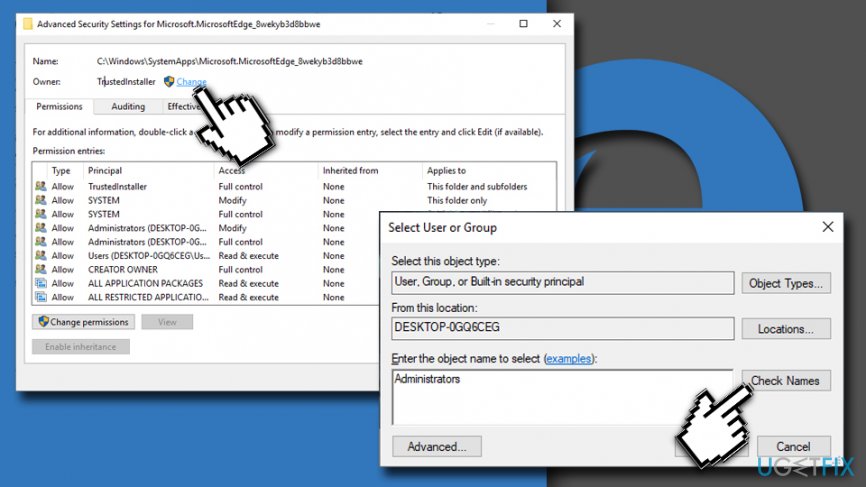
How to uninstall microsoft edge change owner administrators - Go back to Advanced Security Settings window. Mark the box near to Replace owner on subcontainers and objects and click OK.

How to uninstall microsoft edge replace owner on subcontainers and objects - Go back to Security tab located in the Properties window. Find Edit button and click it.
- You will see the list of Group or users names. Click on the Administrators account.
- Below in the same window, under the Allow column, you can see Permission for Administrators box. Mark the checkbox that allows Full control and click OK.
- In Windows Security message box, click Yes to give the permission to confirm the changes.
- In Properties window click OK one more time to apply the changes.
Step 2. Stop Windows from changing permissions
Sometimes Windows cannot confirm the previously made changes to Microsoft Edge folder. Thus, changes might be undone or changed after the automatic update installation. In order to avoid wasting your hard work and prevent Windows from changing permissions, follow these steps:
- Right-click on the Microsoft Edge folder and open Properties.
- From the General tab go to Attributes section. Here you have to check the box Read-only.
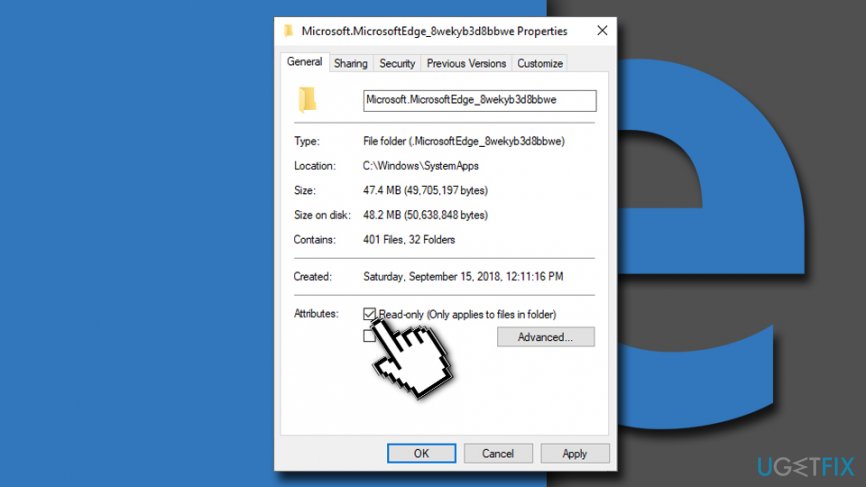
How to uninstall microsoft edge read only - Click OK to save the changes.
Step 3. Disable Microsoft Edge
It’s the final step that allows blocking Edge and preventing it from running.
- Go to Microsoft.MicrosoftEdge_8wekyb3d8bbwe (repeat first four moves of Step 1).
- Here you have to find and rename these two files MicrosoftEdge.exe and MicrosoftEdgeCP.exe. You can choose any name you prefer. However, we recommend picking something similar to disableMSEdge.exe and disableMSEdgeCP.exe. Thus, you can easily find these files if needed.
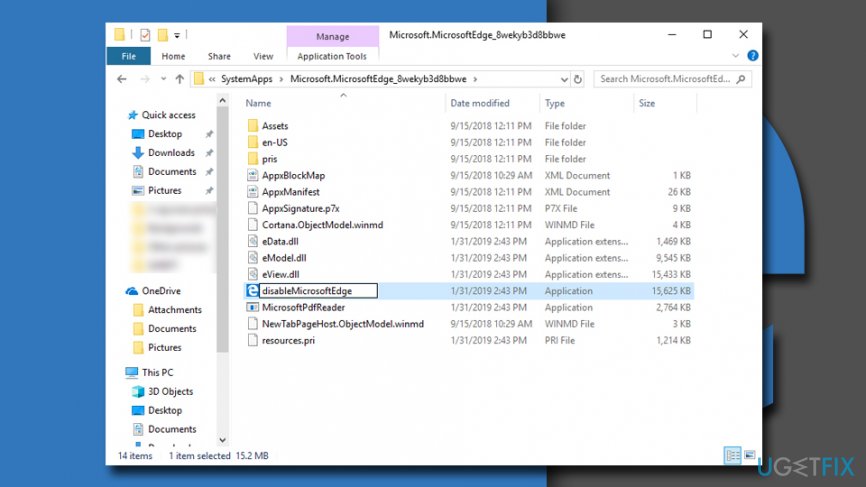
How to uninstall microsoft edge rename ms edge files
If you ever want to use Microsoft Edge again, you will need these files, so you should not forget how you renamed them. In order to enable Edge, you need to rename these two files back to their original names.
Alternative method: Use Power Shell to uninstall Microsoft Edge
- Right-click on Start button and select PowerShell (Admin).
- Type in the following command get-appxpackage *edge* and hit Enter.
- Next, type in remove-appxpackage, press Space and then copy the information located under PackageFullName (in or case it is Microsoft.MicrosoftEdge_44.17763.1.0_neutral__8wekyb3d8bbwe).
- Press Enter.
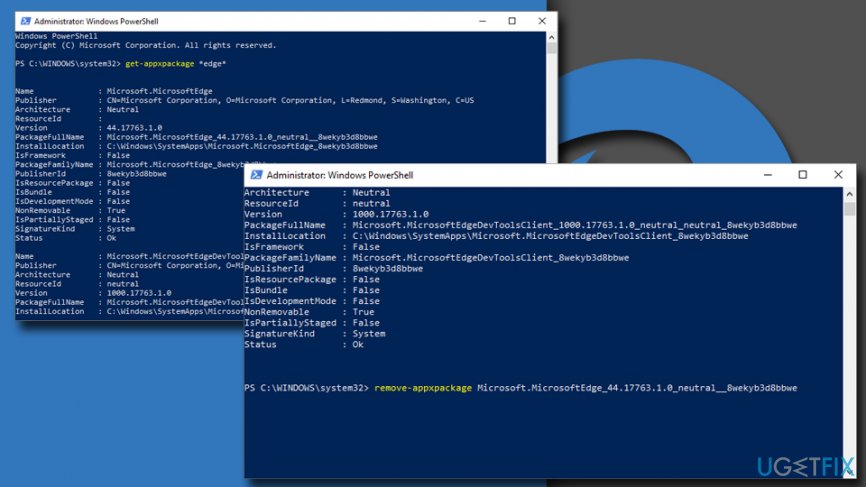
How to uninstall microsoft edge use power shell
Bottom line
To uninstall Microsoft Edge, you can disable it by getting ownership of the Microsoft Edge folder in the SystemApps directory. If you follow the steps carefully and still cannot uninstall it, consider using an alternative browser as your default.
Frequently asked questions
While Microsoft Edge is a core component of Windows 10 and Windows 11, you can remove it by using PowerShell commands, but it may not be completely uninstalled due to system dependencies.
To uninstall Microsoft Edge on Windows 10, open Settings, go to Apps, find Microsoft Edge in the list, and select 'Uninstall' if the option is available.
Yes, you can set another browser as your default and remove Edge from the taskbar to effectively disable it while still keeping it installed on Windows 11.




Report an issue
What's wrong with this guide? We review every report and update or remove content.
Report received — thank you. We'll review and fix it.
You need a free account to submit a report.
Be the first to comment