How to remove
Uninstall Microsoft Security Essentials
from Windows
Easily uninstall Microsoft Security Essentials from your Windows 10 or 11 PC with our expert-tested guide. Get it done quickly and hassle-free!

How does How to uninstall Microsoft Security Essentials end up on your PC?
- Error during upgrade to Windows 10
- Microsoft Security Essentials not automatically uninstalling
- Conflicts between Microsoft Security Essentials and Windows Defender
- Installation error preventing uninstallation
- Application not appearing in the list due to system alterations
Repairs Windows system files, removes malware, and restores a clean OS state — without reinstalling.
Hello. Every time I boot my Windows 10 PC I get an error message about Microsoft Security Essentials. I thought that re-installing the program might fix the problem, so I tried doing that. However, I could not do it manually as I do with other programs. Please help as this error is really annoying!
Typically the problem with removing Microsoft Security Essentials bothers users after they upgrade to Windows 10 from a previous version. Microsoft stated that after upgrading to the newest Windows version, Microsoft Security Essentials should automatically uninstall itself. But that is not working for people, since the issue persists for a few years now.
Users have this problem to this day and there are no different explanations than the cyber intruder that keeps showing suspicious messages and false alerts about Windows Defender issues. It shouldn't be the issue of Windows 10 updates since those bugs got patched recently. You might want to rely on an alternative anti-malware tool, so your device is checked properly and it can detect any PUPs or different applications.
Windows 10 sometimes freaks out because, initially, Microsoft Security Essentials and Windows Defender[ref en-1] are the same tools. Thus, none of them end up working, and users are left with the only option - uninstalling Microsoft Security Essentials themselves.
However, as soon as they try to remove Microsoft Security Essentials by using Add/Remove function in Control Panel, they see that the operating system does not allow them to do that. It drops the following error message:
Microsoft Security Essentials Installation Error
You don’t need to install Microsoft Security Essentials.
<…>
Error code 0x8004FF6F
Additionally, some users report that they cannot find the application in the list at all. It is because issues can be triggered due to alterations on the machine and the program does not need to be installed directly on the device. The pop-up about Microsoft Essentials and compatibility suggests that you need to update or uninstall the program, but that is not easy.
How to uninstall Microsoft Security Essentials
There might be another reason you are getting problems with Microsoft Security Essentials; mainly, because it is not a real program from Microsoft. Recently, a fake security software appeared on the world wide web called Microsoft Security Essentials.[ref en-2]
The bogus anti-virus program is a potentially unwanted program and it should be removed ASAP. To make sure your computer is not infected with other malware,[ref en-3] we highly suggest scanning it with anti-malware tools that can find particular infections. As for issues that infections can trigger with your device - run a PC repair application like [d1] and recover from any corruption.
All in all, we compiled a list of solutions for Microsoft Security Essentials removal problems, so keep on reading. You can find a few methods for this issue, do not skip any of them.
Uninstall anti-spyware programs
Sometimes security programs can conflict with each other. Thus, if you have anti-virus software installed on your PC, try removing it and checking if that helps:
- Click on Start and select Settings
- Find Apps and then select the security program that is installed on your PC
- Select Uninstall and follow on-screen instructions
Download Microsoft’s Fix It tool
Microsoft released a great tool capable of fixing the MSE uninstallation problem
- Download the tool here
- Close all programs and start the launcher
- Follow on-screen instructions and install the program.
- Reboot your PC
Manually remove Microsoft Security Essentials by modifying registry keys
WARNING! Modifying registry keys[ref en-4] incorrectly can damage the operating system. To avoid negative consequences, create a backup point:
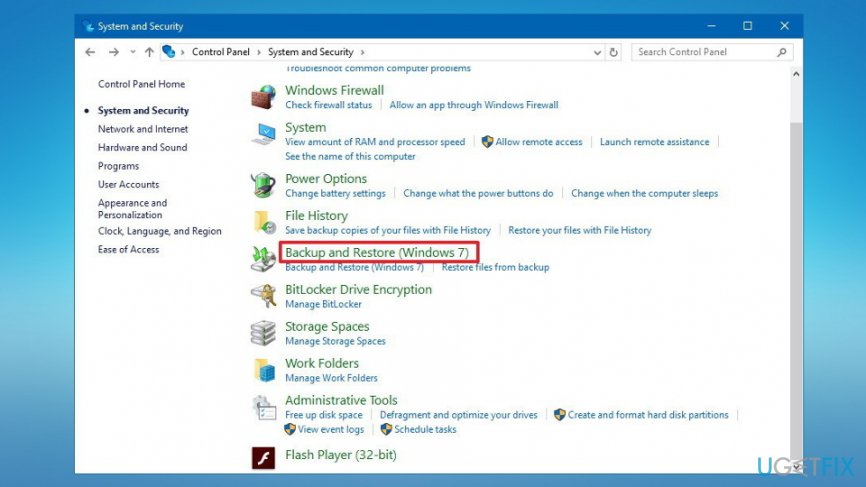
- Click on Start and enter Control Panel into the search box
- Hit Enter and open Control Panel
- Pick System and Security -> Backup and Restore (Windows 7)
- On the left side of the window, click Create a system image
- When asked where do you want to create the backup, pick On a hard disk
- Next, click Start backup button.
After completing the backup procedure, follow these steps:
- Click Start -> File Explorer
- Go to Program Files (by default located on C:\\Program Files) and find Microsoft Security Client
- Find Setup.exe, right-click it and select Properties
- Click the Change settings for all users box
- Change the compatibility mode to Windows 7 and then press OK
Uninstall the program via Command line
The final step is to remove the program through Command Prompt:[ref en-5]
- Click Start again and type in Command Prompt
- Right-click the program and give it admin rights
- When Command Prompt window opens, insert the following line and hit Enter:
C:\\Program Files\\Microsoft Security Client\\setup.exe” /x /disableoslimit
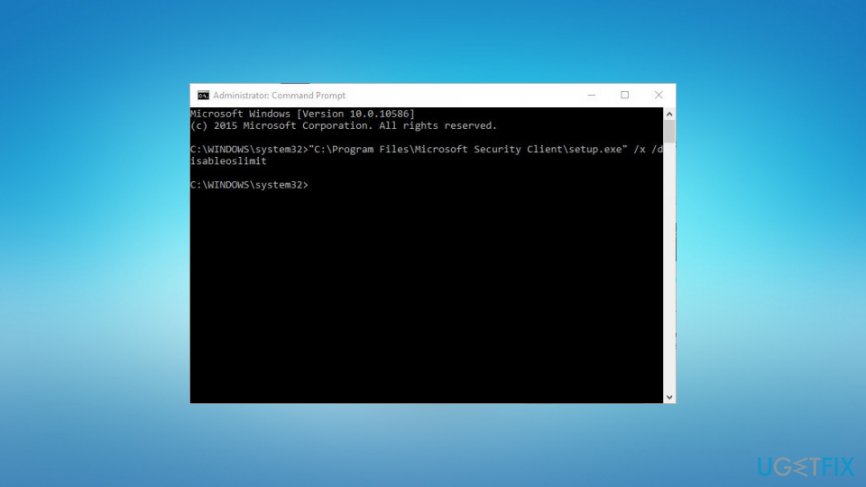
This action should launch MSE uninstaller. Merely click Uninstall and you are done!
Bottom line
To uninstall Microsoft Security Essentials, users may need to rely on alternative anti-malware tools or attempt to remove it using the Control Panel. If these methods do not resolve the issue, consider seeking additional support or using specialized removal tools.
Frequently asked questions
To uninstall Microsoft Security Essentials from Windows 10, go to Settings > Apps, find Microsoft Security Essentials in the list, and click 'Uninstall.' Follow the prompts to complete the removal process.
Yes, uninstalling Microsoft Security Essentials will remove its protection, so it's recommended to install another antivirus program to ensure your Windows 11 system remains secure.
If you encounter issues while trying to uninstall Microsoft Security Essentials, use the Control Panel to access 'Programs and Features' and try uninstalling it from there, or consider using a third-party uninstaller tool.




Report an issue
What's wrong with this guide? We review every report and update or remove content.
Report received — thank you. We'll review and fix it.
You need a free account to submit a report.
Be the first to comment