How to remove
Uninstall MyPCProtector Registry Cleaner
from Windows
Easily uninstall MyPCProtector Registry Cleaner from Windows 10 or 11 with our expert-tested guide. Fix your PC swiftly and safely, zero traces left.

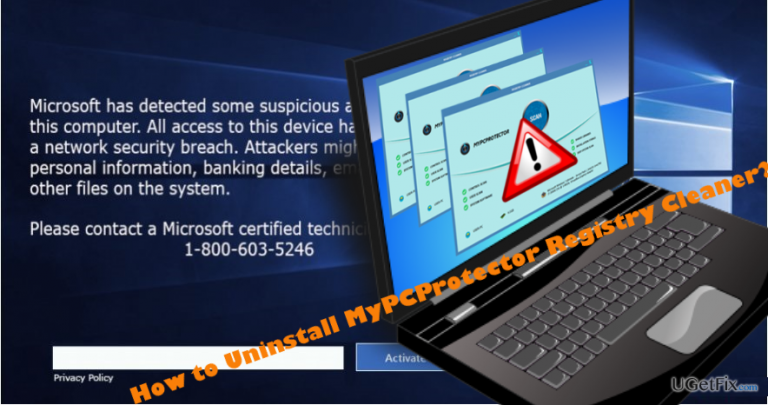
How does How to Uninstall MyPCProtector Registry Cleaner end up on your PC?
- Installed without user consent
- Initiates stealthy system scans
- Displays fake alerts from web browsers
- Identifies random system files as problematic
- Executes wmplayer.exe to facilitate scams
Repairs Windows system files, removes malware, and restores a clean OS state — without reinstalling.
I can’t delete MyPCProtector Registry Cleaner. I didn’t install this tool nor did I ask it to scan my PC. When I started noticing the scanner of this MyPCProtector, I’ve also seen alerts from Microsoft within my web browser about suspicious activity being initiated on my PC. Do you know anything about this program and its behavior? Please help me to uninstall it.
For the past couple of weeks, many people have found MyPCProtector Registry Cleaner installed and running a full system scan stealthily. Many people reported this program and its questionable behavior on IT-related forums and expressed eagerness to delete it permanently. On the initial inspection, MyPCProtector Registry Cleaner does not seem to be dangerous. Contrary, it may convince the PC users that it’s a helpful piece of software as it initiates a thorough system scan, reveals many issues, and fixes them for free. Unfortunately, such activity is just a pretend because, in reality, MyPCProtector Registry Cleaner is a rogue PC optimization tool, which exports random system files, identify them as problematic, and offer to remove all of them. However, removal of registry keys or other important system files may cause severe damage to system’s performance or may even lead to its crash. Nevertheless, the real purpose of this tool is to execute a wmplayer.exe file to the system. This file is not malicious itself, which is why most anti-virus programs do not identify MyPCProtector Registry Cleaner and its files as potentially unwanted or malicious. This file serves as a media for downloading and installing a Tech-Support-Scam.
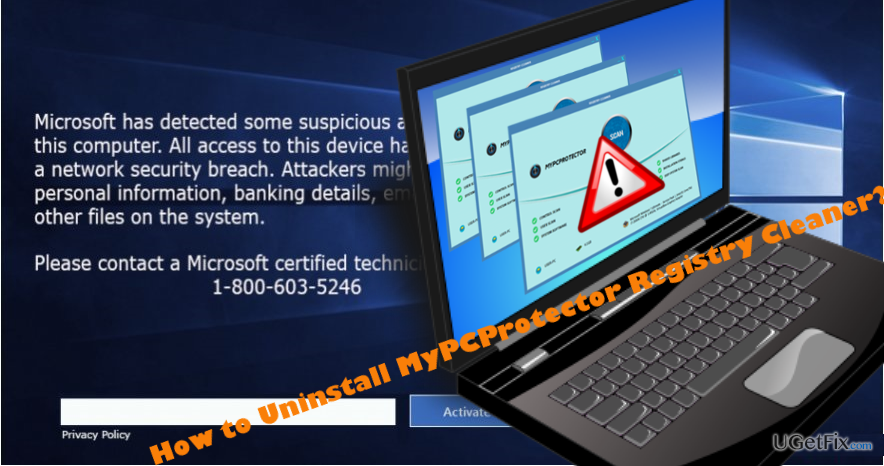
So, if MyPCProtector Registry Cleaner malware is running on your PC, the web browsers installed on the affected computer will start to display fake Microsoft alerts sooner or later. These alerts urge the PC owners to contact with Microsoft-certified technicians regarding virus infection and, therefore, prevent damage to the system and file loss. Beware that such message is yet another tech-support-scam, meaning that the person on the other side of the handset may try to trick you into giving away your money for useless services or providing personal information, which is necessary for connecting to the PC remotely. Therefore, to restore your PC’s security, you will have to remove MyPCProtector Registry Cleaner PUP and then restore your web browser’s settings.
How to Uninstall MyPCProtector Registry Cleaner?
- Boot your PC into "Safe Mode with Networking".
- Open "Task Manager" by pressing Ctrl + Shift + ESC.
- Locate MyPCProtector Registry Cleaner, click it, and select "End Task".
- Then right-click on Windows key and select "Control Panel".
- Open "Programs and Features" and find the MyPCProtector Registry Cleaner.
- Click it and select "Uninstall".
- Carefully check the list of programs installed on your PC and delete those that look suspicious or unfamiliar to you.
- Click "OK" to save the changes.
Instead of manual MyPCProtector Registry Cleaner removal, security experts recommend deleting it automatically. For this purpose, install a professional anti-malware tool, such as [d1], and run a full scan with it. As soon as you finish up with the removal of this rogue software, don't forget to reset your web browser's settings. Otherwise, tech-support-scam alerts will keep harassing you. Since any web browser can be affected, we will provide instructions for the most popular ones:
Bottom line
To uninstall MyPCProtector Registry Cleaner, users should follow the steps to remove it from the Control Panel, use an anti-malware tool, and check for any residual files. If these methods do not work, consider seeking professional help to ensure complete removal.
Frequently asked questions
To uninstall MyPCProtector Registry Cleaner from Windows 10, go to Settings > Apps > Apps & features, find MyPCProtector in the list, click on it, and select 'Uninstall.' Follow the on-screen instructions to complete the removal process.
Yes, it is safe to remove MyPCProtector Registry Cleaner from Windows 11, especially if you do not use it or if it is causing issues. Ensure you back up your registry before proceeding with the uninstallation.
If MyPCProtector Registry Cleaner won't uninstall on Windows, try using the built-in Troubleshooter for Apps in Settings or utilize a third-party uninstaller to force the removal.




Report an issue
What's wrong with this guide? We review every report and update or remove content.
Report received — thank you. We'll review and fix it.
You need a free account to submit a report.
Be the first to comment