How to remove
Uninstall Panda Antivirus Pro
from Windows
Easily uninstall Panda Antivirus Pro from Windows 10 or 11 with our expert-tested guide. Say goodbye to unwanted software in minutes!

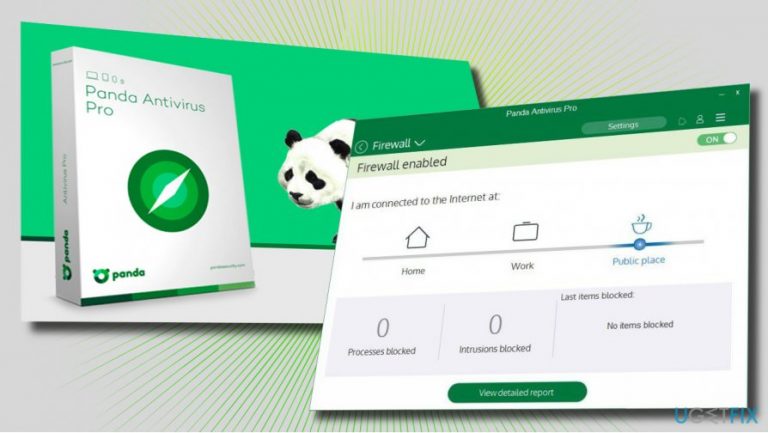
How does How to Uninstall Panda Antivirus Pro end up on your PC?
- Panda Antivirus Pro installs multiple files in diverse locations
- Some files may be hidden
- Panda Antivirus Pro runs multiple services in the background
- Uninstallation through add/remove programs may not remove all components
- Installation of another antivirus may be blocked by residual Panda files
Repairs Windows system files, removes malware, and restores a clean OS state — without reinstalling.
I tried to install Avast instead of Panda Global Protection 2016. I uninstalled Panda through add/remove programs, but during the installation of Avast, I get a warning that Panda is installed and that the installation of another security utility cannot be executed. Could you please help me?
Panda Antivirus Pro is one of the antivirus programs[ref en-1] the history of which stretches back to 1990. Its developers compiled a huge luggage of experience and know how to put virus detection and removal procedures into practice.
Earlier Panda security tools focused on enterprise security. In recent years, the focus has shifted to home users and the home user antivirus programs, including Panda Antivirus Pro, Panda Free Antivirus, Panda Internet Security or Panda Gold Protection are forth trying.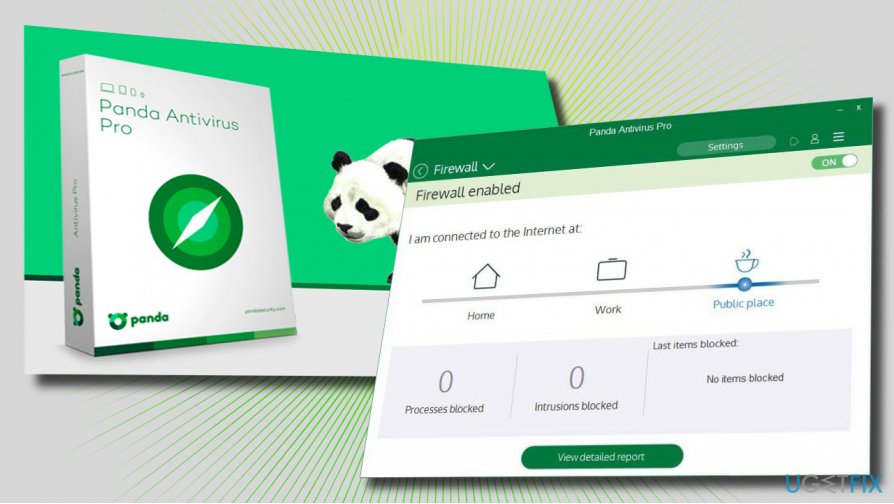
Speaking about Panda Antivirus Pro, it’s important to stress the fact that it’s a powerful protection utility, which can protect the system from all types of known and unknown cyber threats.[ref en-2] People can install a free trial version, which offers virus and hackers protection, android protection, and technical support. The paid version adds a handful of additional features for PC’s optimization[ref en-3] and identity protection.
Many enterprise and home users of Panda Antivirus are satisfied with the product. However, many of them opt for some changes in PC’s security and opt for uninstalling it. Just like most of the antivirus programs, Panda has been developed in a way to protect itself from virus/malware attacks by installing multiple files in diverse locations, some of which may be hidden.
Besides, Panda Antivirus Pro can run multiple services in the background, which is why it may be difficult to uninstall it. Actually, there are three different methods that can be applied for Panda Antivirus Pro removal and we'll describe all of them down below.
Option 1. Use a professional software removal tool
To uninstall anti-virus tools or other difficult-to-remove programs, we would recommend a professional software removal utility. The range of such tools is wide, so to help you in deciding which one to use, we would recommend trying [rev id="Perfect Uninstaller"] or [d1]. Download the application and run the setup file. Then install the tool and set it to uninstall Panda antivirus.
Option 2. Use Panda Generic Uninstaller
Panda Antivirus Pro developers offer a free Panda Free Antivirus uninstaller, which can help in case when automatic removal via Add or Remove Programs or when the product gets out-of-date and the user wants to uninstall it. To install the tool, click on this link and follow the on-screen instructions.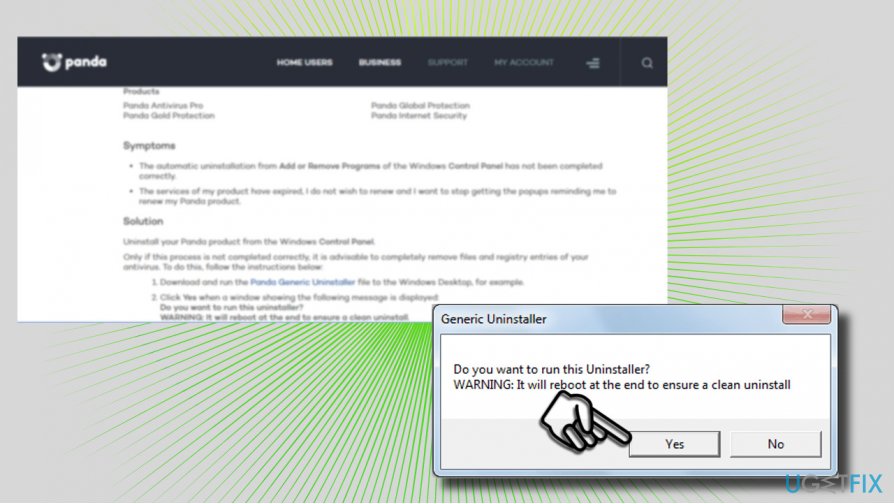
Option 3. Uninstall Panda Antivirus Pro manually
- First of all, boot the system into Safe Mode.
- Usually, anti-virus programs add a Registry Entry to boot on Startup. Thus, make sure to disable the tool before proceeding. Click on the Panda icon on the system tray and click Disable.
- After that, open Task Manager (Ctrl + Alt + Del) and disable Panda process if it’s running.
- Press Windows key + I and open Apps.
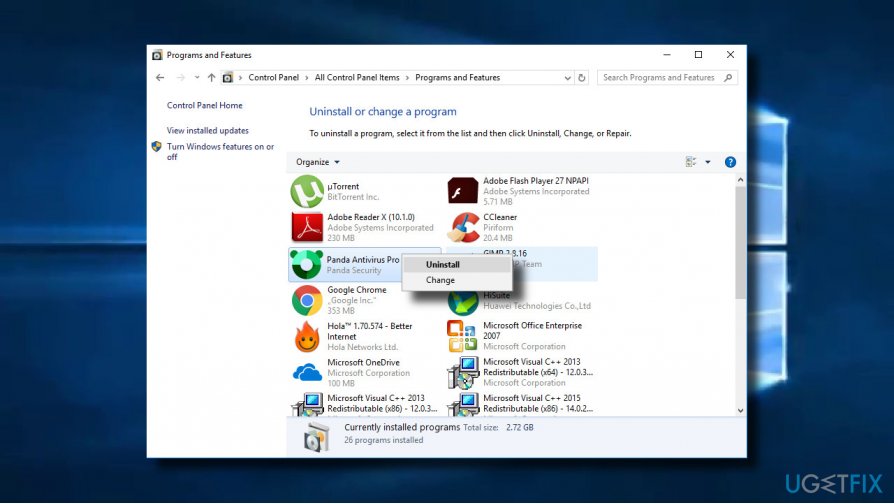
- Find Panda Antivirus Pro, click it, and select Uninstall.
- Alternatively, you can open Control Panel -> Programs and Features. Locate Panda antivirus, click on it, and select Uninstall.
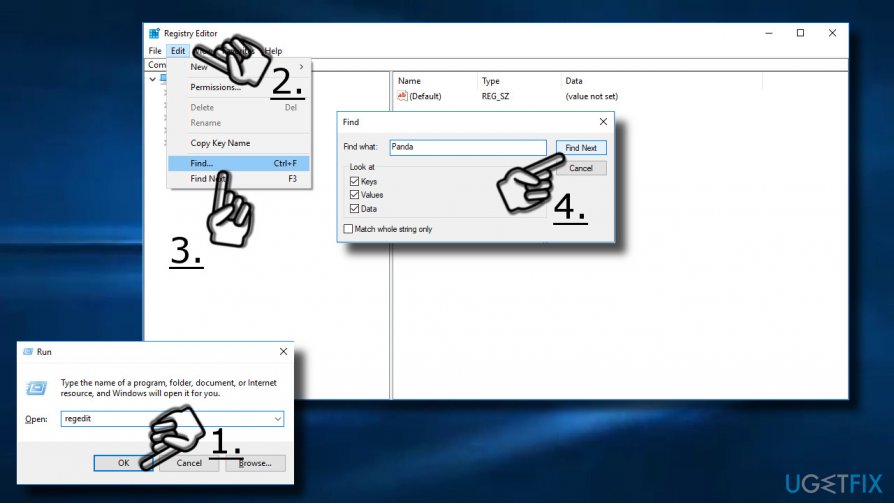
- Finally, delete the remnants of the program using Registry Editor. Press Windows key + R, type regedit, and hit Enter.
- Then open Edit tab and select Find.
- Enter Panda into the search box and click Find Next. If the search returns some files, remove them all.
Bottom line
To uninstall Panda Antivirus Pro, you can use a professional software removal tool, uninstall through add/remove programs, or check for hidden files and services. If none of these methods work, consider seeking additional technical support.
Frequently asked questions
To uninstall Panda Antivirus Pro from Windows 10, go to Settings > Apps, find Panda Antivirus Pro in the list, click on it, and select 'Uninstall.' Follow the prompts to complete the uninstallation process.
If Panda Antivirus Pro is not listed in the Apps section of Windows 11, try using the Control Panel by searching for 'Control Panel' in the Start menu, selecting 'Programs,' and then 'Uninstall a program' to find and remove it.
Yes, Panda provides a dedicated removal tool that can be downloaded from their official website, which is useful if the standard uninstallation methods do not work on Windows 10 or Windows 11.




Report an issue
What's wrong with this guide? We review every report and update or remove content.
Report received — thank you. We'll review and fix it.
You need a free account to submit a report.
Be the first to comment