How to remove
Uninstall Patalk Messenger
from Windows
Easily uninstall Patalk Messenger from Windows 10 or 11 with our expert-tested guide. Clear it out hassle-free and enjoy a smoother experience, fixed in…

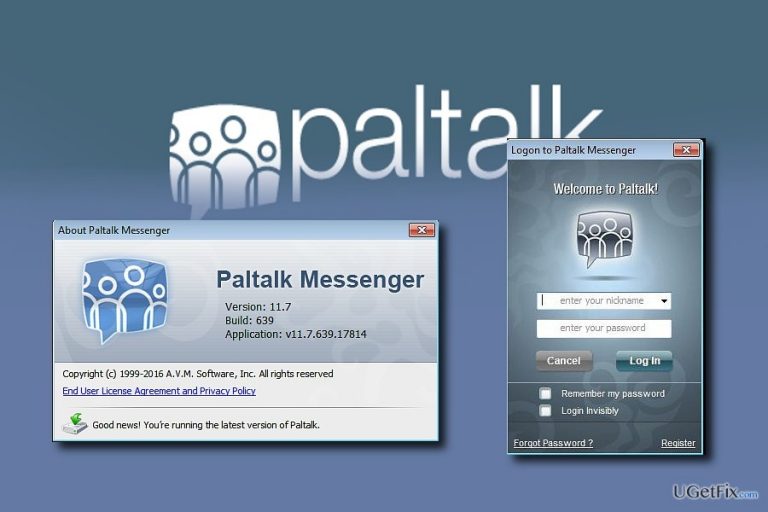
How does How to Uninstall Patalk Messenger end up on your PC?
- Patalk Messenger appears in the list of system apps despite being deleted
- Basic version displays continuous advertisements
- Frequent suggestions to purchase the full version
- Affiliation of Ask.com with browser hijackers
- Unsuccessful previous attempts to uninstall the application
Repairs Windows system files, removes malware, and restores a clean OS state — without reinstalling.
I had this program a while ago and deleted it eventually. However, how it appeared in the list of system apps remains a complete mystery to me. Can you help with this removal?
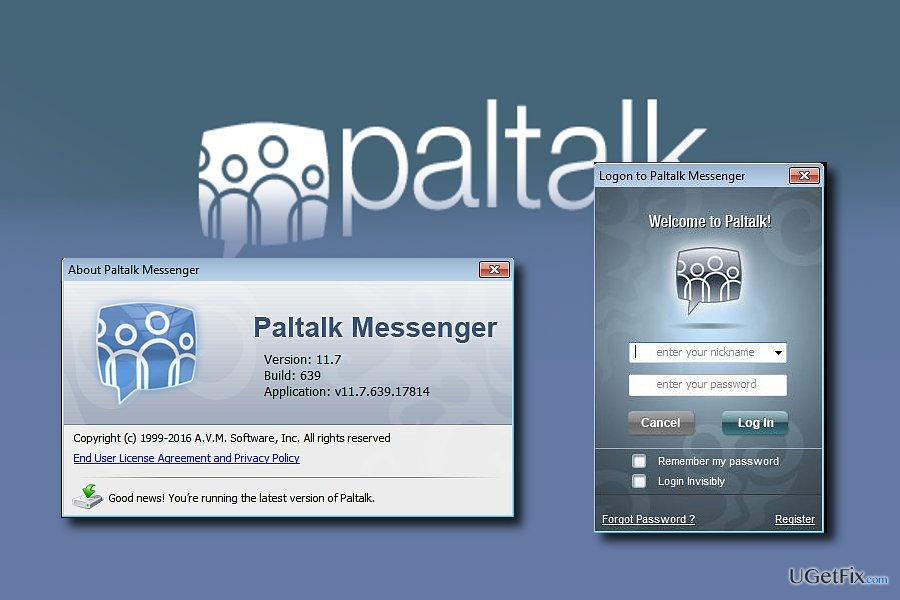
Patalk Messeneger happens a legitimate application which makes the communication of its customers faster and more convenient. You can transfer audio, video, and music files without long buffering and loading processes. What is more, you can transmit large amounts of data without any bigger limitations. It also compatible with older and latest versions of Windows OS as well as Android smartphones. What is more, it occupies little place on the device which may attract users. The updated version presents new features and services.
It suggests enabling its toolbar and changes your homepage into ask.com. However, here comes negative features of the program which might persuade users to uninstall Patalk Messenger. First of all, there are several editions of this program. If you opt for the Basic version, you may soon get frustrated by a continuous string of advertisements. Regularly popping commercial offers may soon diminish the communication with your friends and relatives. You may also get bothered with suggestions to purchase the full version to get rid of the advertisements. Furthermore, the promoted Ask.com search provider has been criticized for its possible affiliation to browser hijackers. It is another argument why you may want to remove Patalk Messenger. If these described scenarios do not match your case and you simply want to complete the unsuccessful elimination attempt, take a look at the below-suggested methods.
Option 1.Uninstall Patalk Messenger manually
Step 1. Since the application is legitimate, you should not encounter obstacles eliminating it.
- Click on the Start button and launch Settings.
- Depending on the Windows version you are using, select Programs and Features or Apps and Features.
- Locate Patalk Messenger and choose to Uninstall or Remove. Follow the steps of the uninstallation wizard.
- Eventually, you might be asked to reboot the system.
Step 2. If you have been using its premium version, you will need to delete its toolbar and search engine.
For IE users:
- Open Internet Explorer, click on the Gear icon (IE menu) on the top right corner of the browser and select Manage Add-ons.
- Locate for Ask.com. Click Disable.
- Change your homepage if it was replaced.
- Enter the settings of Internet Options and opt for General tab.
- Once the new window opens, remove the URL of Ask.com and enter the preferable domain name. Click Apply.
Reset Internet Explorer
- Click on the gear icon (menu) again and opt for Internet options. Navigate to Advanced tab.
- Opt for Reset.
- Mark Delete personal settings and click on Reset again.
Step 3. Removal of Patalk Messenger add-ons from Chrome
- Launch Google Chrome. Click on the menu icon (top right corner) and navigate to Tools → Extensions.
- Here, select Ask.com and any Patalk Messenger add-on. Click on the Trash bin on each entry.
- Revert to the previous search engine.
- Click on menu icon and select Settings.
- Locate Open a specific page or set of pages under the On startup headline and locate Set pages.
- In the new window, eliminate the unwanted entries and type in the preferable one.
- Enter the Settings → Manage Search engines in the Search section.
- In the newly opened window, Search Engines..., delete Askk.com.
Reset Google Chrome
- Enter the settings Settings.
- Scroll down to the end of the page and choose Reset browser settings.
- Clicking the Reset action would revere the browser‘s settings to the factory ones.
Option2. Delete Patalk Messenger registry keys
- Click Windows+R button and type regedit. Click Enter.
- Once the Registry Manager opens, locate the entry: HKLM/SOFTWARE/Classes/.Patalk
- Delete the content of this folder.
Option 3. Scan your device to make sure you did not install the corrupted version
If you installed the application from shady distributors, it might interrupt a successful uninstallation. Scan the device with [rev id=”Reimage”]. Do not forget to update the program for it to function properly.
Bottom line
To uninstall Patalk Messenger, you can manually remove it through the Settings menu by selecting Programs and Features or Apps and Features. If you have the premium version, ensure to delete its toolbar and search engine as well. If these methods do not work, consider seeking additional technical support.
Frequently asked questions
To uninstall Patalk Messenger from Windows 10, go to Settings > Apps, find Patalk Messenger in the list, click on it, and select 'Uninstall.' Follow the on-screen instructions to complete the removal.
Yes, you can remove Patalk Messenger in Windows 11 by opening Control Panel, navigating to 'Programs and Features,' selecting Patalk Messenger, and clicking 'Uninstall.'
If Patalk Messenger won't uninstall on Windows, try running the program's uninstaller directly from its installation folder or use a third-party uninstaller tool.




Report an issue
What's wrong with this guide? We review every report and update or remove content.
Report received — thank you. We'll review and fix it.
You need a free account to submit a report.
Be the first to comment