How to remove
Uninstall PC Optimizer
from Windows
Easily uninstall PC Optimizer from Windows 10 or 11 to free up space and improve performance. Expert-tested methods ensure a seamless experience.

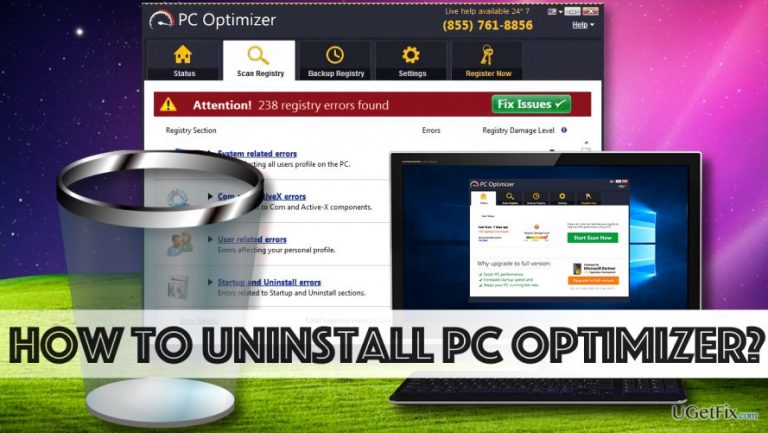
How does How to Uninstall PC Optimizer end up on your PC?
- Installed PC Optimizer from SingleClickOptimizer.com
- Product did not meet performance expectations
- Requires purchase of a license key to apply changes
- Registry cleaning is questionable and can cause issues
- Detected by major anti-malware programs
Repairs Windows system files, removes malware, and restores a clean OS state — without reinstalling.
I have installed PC Optimizer from SingleClickOptimizer[.]com, but I have to admit that this product did not meet my expectations. Although it promised to boost my Windows computer speed and performance, I haven’t noticed any changes so far. The program asks me to buy its license key to apply changes, and I am not willing to spend $59.95 on a simple PC optimizer. Can you explain how I can uninstall PC Optimizer now that I decided not to use it?
PC Optimizer is a questionable software that promises to enhance computer’s performance by cleaning cluttered registry and fixing errors. Although it promises to provide series of useful services to the user, such as advanced system scan, registry backup, and scheduled registry scans, it is actually a program that can hardly improve your computer’s performance. So far there are no proofs that registry “cleaning” helps to improve computer’s functionality, and even Microsoft claims that Windows Registry is not designed to be accessed or edited since the operating system continuously references it. Using such “optimizer” can cause serious issues if it modifies the wrong Registry keys. In such cases, the user might even need to reinstall the operating system to roll things back to normal. If you want to avoid such issues, we highly recommend removing PC Optimizer. If you have never tried to uninstall similar software from your PC, this PC Optimizer uninstall guide that will help you to delete the suspicious program manually. To speed up the process, use a decent anti-malware tool like [d1] to delete this program. It turns out that PCOptimizer can be detected using major anti-malware or anti-spyware programs, which instantly shows that there is something suspicious about this program.
Uninstalling PC Optimizer from your Computer System
Uninstall guide designed for Windows 10/8.1/8 users:
- Press down Windows Key and R at the same time. This will open Run window with a single “Open” line on it. In the field provided next to it, you must type in control and click OK. This will open Control Panel.
- Go to Programs and Features. Here, find PC Optimizer, right-click on it and select Uninstall.
- Follow instructions provided by its uninstaller and finish the removal procedure.
Uninstall guide designed for Windows 7/Vista users:
- Click on Start menu and go to Control Panel. Find Programs section and click Uninstall a program button under it.
- This way, you will access the list of programs installed on your computer. Find PC Optimizer, click on it, and then click Uninstall option.
- Follow instructions that appear on your screen and confirm that you want to uninstall the indicated program.
Uninstall guide for Windows XP users:
- Click the Start button and find a button that leads to Control Panel. Click it;
- Then go to Add/Remove Programs panel.
- Once the aforementioned panel opens, find PC Optimizer in it, select it and then hit the Remove button.
- Confirm your choice if needed, and wait until the program uninstalls from your system.
Clean PC Optimizer's remains from Windows Registry
This part requires exquisite precision. Press down Windows Key and R key at the same time, and in the Run window type in: regedit. Click OK. Now, go to Edit > Find. In the Find window, type in PC Optimizer and hit Find Next. Right-click on associated elements and click Remove/Delete. Eliminate one entry at a time.
After uninstalling the software, we recommend running a system scan with programs like [d1] to check if the program did not leave any suspicious elements on the system. You can also use the recommended software for uninstallation of spyware and malware.
Bottom line
To uninstall PC Optimizer, you can access the Control Panel and remove it from Programs and Features. It is also recommended to use a decent anti-malware tool to assist in the removal process. If these methods do not work, consider seeking professional help.
Frequently asked questions
To uninstall PC Optimizer from Windows 10, go to Settings > Apps, find PC Optimizer in the list, select it, and click on 'Uninstall.' Follow the prompts to complete the removal process.
If PC Optimizer is not listed in the Apps section on Windows 11, try using the Control Panel by searching for 'Control Panel' in the Start menu, then navigate to Programs > Programs and Features to locate and uninstall it.
Yes, you can use a third-party uninstaller application to remove PC Optimizer from your Windows system; just install the uninstaller, run it, and let it scan for installed programs to remove PC Optimizer effectively.




Report an issue
What's wrong with this guide? We review every report and update or remove content.
Report received — thank you. We'll review and fix it.
You need a free account to submit a report.
Be the first to comment