How to remove
Uninstall PCMax
from Windows
Easily uninstall PCMax from Windows 10 or 11 with our expert-tested guide. Remove unwanted programs safely and efficiently, fixed in minutes.

How does How to uninstall PCMax end up on your PC?
- Software bundling
- Pre-ticked boxes
- Fine print text
- Misleading deals or offers
- Misplaced buttons
Repairs Windows system files, removes malware, and restores a clean OS state — without reinstalling.
Hi. I have recently noticed a new program which has appeared a few days ago on my computer — PCMax. At first, it hasn't shown any activity until recently it started sending notifications that I must clean Windows registry. The alerts became so annoying that I want to get rid of this software. Can you show me how to uninstall PCMax?
PCMax is a suspicious application that might show up on your computer unexpectedly, as it is distributed via a well-known technique called software bundling.[ref en-2] Essentially, it works very simply: software developers of hosts compile multiple programs into a single standalone installer, and attempts to hide those optional components from users' sight deliberately.
PCMax developers or the affiliates might use several tactics to hide the optional component within the installer, including:
- Pre-ticked boxes;
- Fine print text;
- Misleading deals or offers;
- Misplaced buttons;
- PUPs not disclosed until Advanced/Custom settings are chosen.
Due to this deceptive distribution method, PCMax might show up on the system without any prior warning. Therefore, it is vital to stay vigilant when downloading software from third-parties (most bundle software)[ref en-4] and not skipping any installation steps. Also, this is one of the few reasons why PCMax app is considered to be a potentially unwanted program (PUP).[ref en-1]
Once installed, PCMax performs a forced system scan that allegedly looks for various computer issues related to performance, stability, and security. Once the results are shown, however, users might be truly frightened, as the app shows hundreds, if not thousands of entries and sectors that are allegedly causing problems to the machine. Do not worry - these results are fake, as the only goal of PCMax is to intimate users and make them think that their computers are damaged way more than they actually are (if at all).
This display of bogus search results is very typical to scareware applications that are floating around the web, and users who are desperate to find solutions for their slow systems might bite the hook. The tactics of PCMax do not differ much from typical technical support scam techniques - users are shown fake virus warnings and are asked to download a program which would allegedly remove malware[ref en-3] and prevent the devastating consequences like money loss, credit card login details exposure, identity theft, and similar.
The only difference between the PCMax and the tech support scams is that the app actually installed on the system, instead of the fake alerts being embedded on a website in Google Chrome, Mozilla Firefox, Safari, MS Edge, Microsoft Explorer, or another browser. If anything, you should remove PCMax from your computer as soon as possible, as the program is completely useless and fake.
If looking closely, PCMax picks up various Windows registry entries, cookies, and other harmless files that are typical to any operating systems - they pile up over time due to regular computer usage. However, the manner that the application shows these results is inadequate, as it claims a huge system compromise. So, what is the main goal of the PCMax virus?
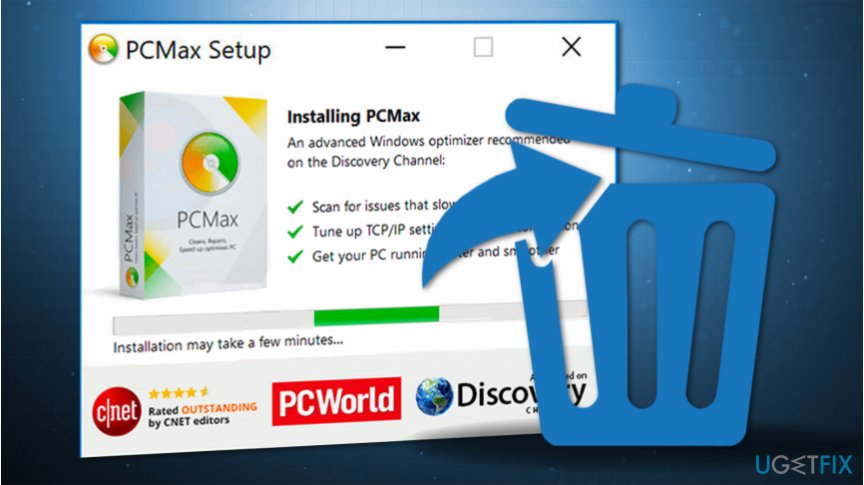
The main purpose of scareware software like PCMax is to intimidate users, make them believe that they need a fix - which can be allegedly be provided by the program only. Once users try to fix these issues, however, they are directed to the payment page, where they need to purchase a full version of the program - unfortunately, many do.
PCMax operates a regular scam scheme where it relies on inexperienced computer users to trust it - and there are thousands of programs of this kind. In fact, many of such apps are simply rebranded and sold as a new product altogether. For example, PCMax is a direct copy of OptiSpeed and similar fake system optimizers.
While the system optimization utilities generally have a bad reputation, it does not mean that all of them are useless. If you are looking for a solution for software or OS crashes, Blue Screen of Death errors, system slowdowns, and other computer issues, we highly advise you to rely on a one-of-a-kind repair tool [d1]. In the meantime, you should take care of PCMax removal - follow the guide below.
If you still wonder is PCMax safe, we can assure you that it is not. Keep in mind that this PUP not only tricks people into believing that their computers are infected but also fails to detect real malware that might be damaging the system and putting private information at risk.
It is very common to call the app PCMax virus simple because of many deceptive infiltration, operation, and monetization tactics developers practice. This might happen because while trusting this software, you do not install a real security program that would take care of your computer's security. Likewise, your PC is more likely to be vulnerable to dangerous cyber threats while using this application.
For all the reasons mentioned above, we highly recommend everyone to question the reliability of this software and learn how to uninstall PCMax from computers as soon as possible. You will find a guide showing how to get rid of PUPs just below. Please, follow it attentively to prevent this software from reappearing.
Ways to uninstall PCMax from the computer
There are two ways you can remove PCMax from your computer - manual and automatic. While it is entirely up to you which one you choose, we suggest combining both of the methods in order to keep the machine clean. Be aware that, because PCMax is distributed via software bundling, there is a high chance that there are other PUPs or even malware installed on your computer due to lackluster installation practices of freeware/shareware.
Thus, you should first follow the instructions below that explain how to uninstall PCMax via the Control Panel, and then scan the machine with reliable anti-malware software to ensure that no other unwanted apps or malicious software are present on the device. Finally, you should also reset all the browsers for best results.
Uninstall PCMax on Windows
- Enter Control Panel into Windows search and hit Enter
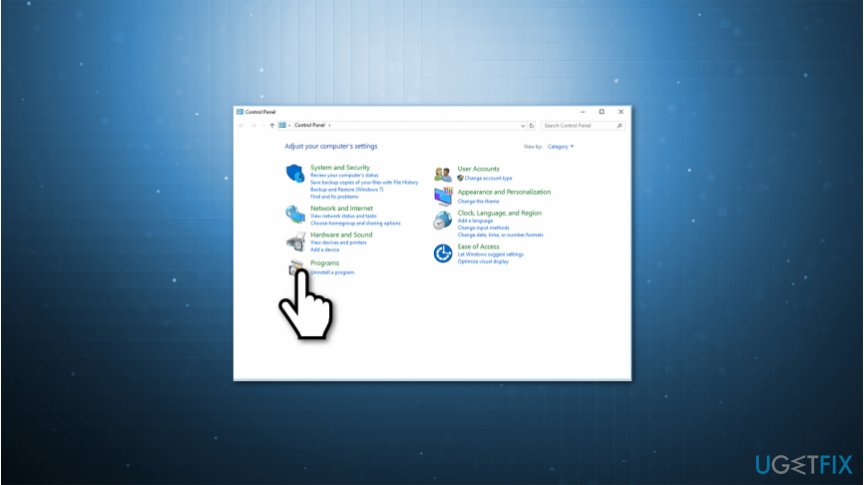
Pcmax removal instructions - Select Programs > Uninstall a program
- Search for PCMax icon and right-click it
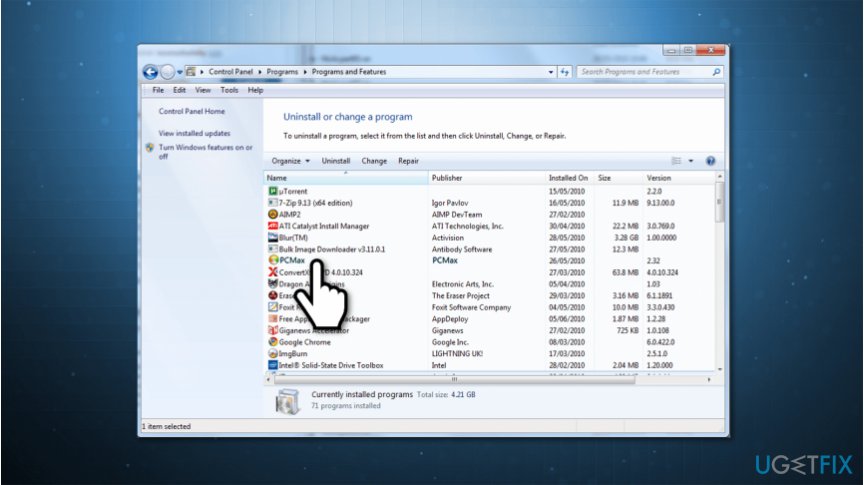
Pcmax elimination guidelines - Pick Uninstall
- Restart your computer
Reset Google Chrome
- In Chrome, pick Menu > Settings
- Pick Advanced
- Locate Reset and clean up section, and click Restore settings to their original defaults
- Finally, click Reset settings
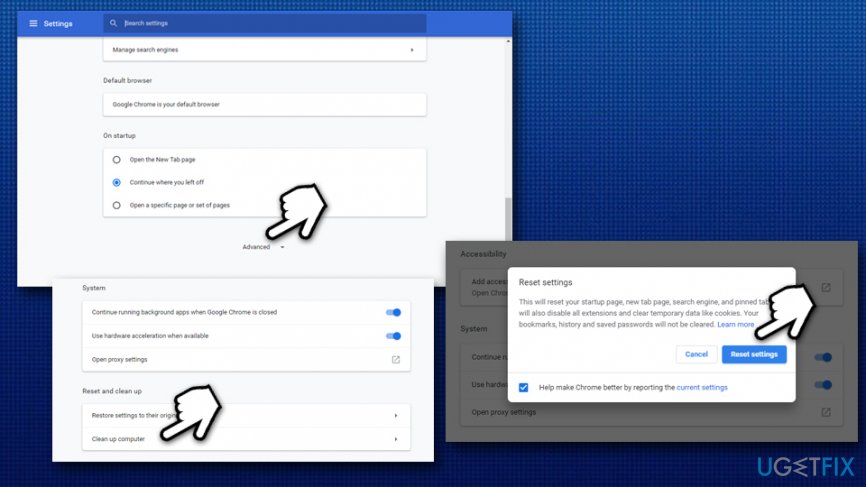
Uninstall pcmax reset google chrome
Reset Mozilla Firefox
- In Firefox, go to Menu > Help
- Pick Troubleshooting Information
- Select Refresh Firefox…
- Finalize with Refresh Firefox
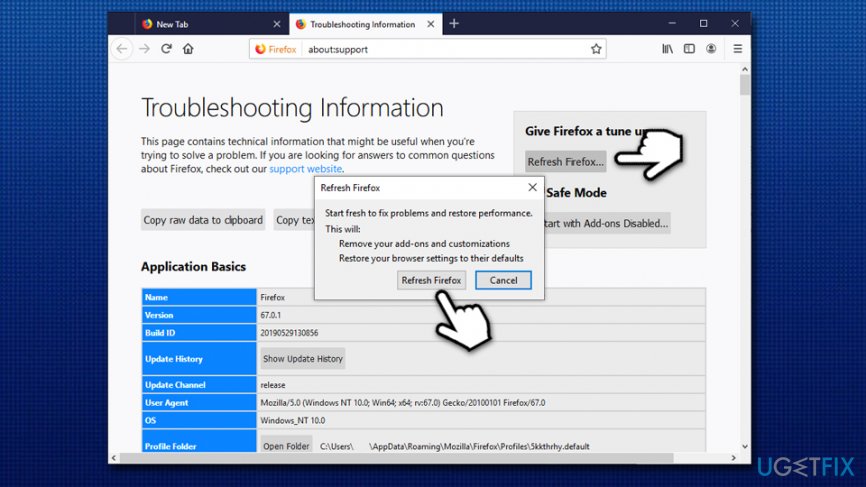
Uninstall pcmax reset firefox
Reset MS Edge
- In Edge, select Menu > Privacy & security
- Under Clear browsing data, pick Choose what to clear
- Select all the boxes (you can leave passwords if you want) and click Clear
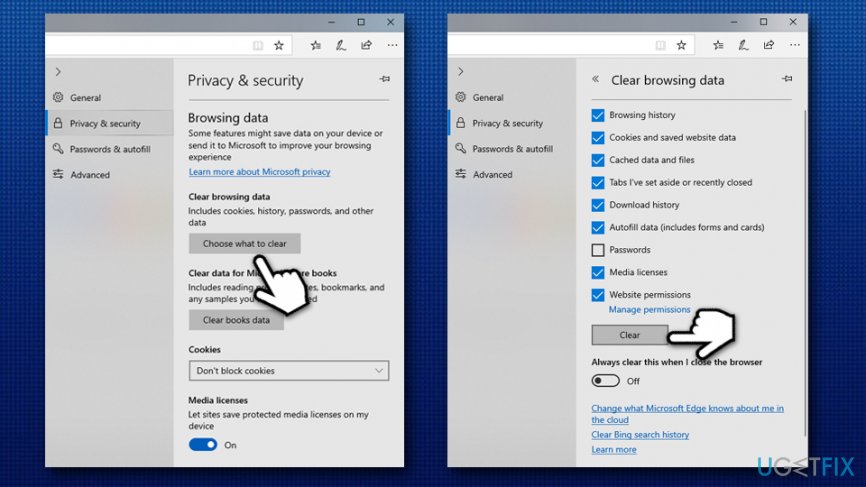
Uninstall pcmax reset ms edge
Bottom line
To uninstall PCMax, you should navigate to the Control Panel, find the program in the list of installed applications, and select the uninstall option. Additionally, consider running a reputable antivirus or anti-malware tool to ensure your system is clean. If these steps do not resolve the issue, seek professional technical support.
Frequently asked questions
To uninstall PCMax from Windows 10, go to Settings > Apps, find PCMax in the list, select it, and click 'Uninstall.' Follow the prompts to complete the removal process.
Yes, in Windows 11, you can uninstall PCMax by right-clicking the Start menu, selecting 'Apps & features,' locating PCMax, clicking the three dots next to it, and choosing 'Uninstall.'
If you can't uninstall PCMax via Control Panel in Windows 10 or 11, try using a third-party uninstaller tool that can remove stubborn programs.




Report an issue
What's wrong with this guide? We review every report and update or remove content.
Report received — thank you. We'll review and fix it.
You need a free account to submit a report.
Be the first to comment